


Automation rules can run math operations in CRM. In this example, you'll configure an automation rule that calculates profit automatically.
Configure custom fields in CRM
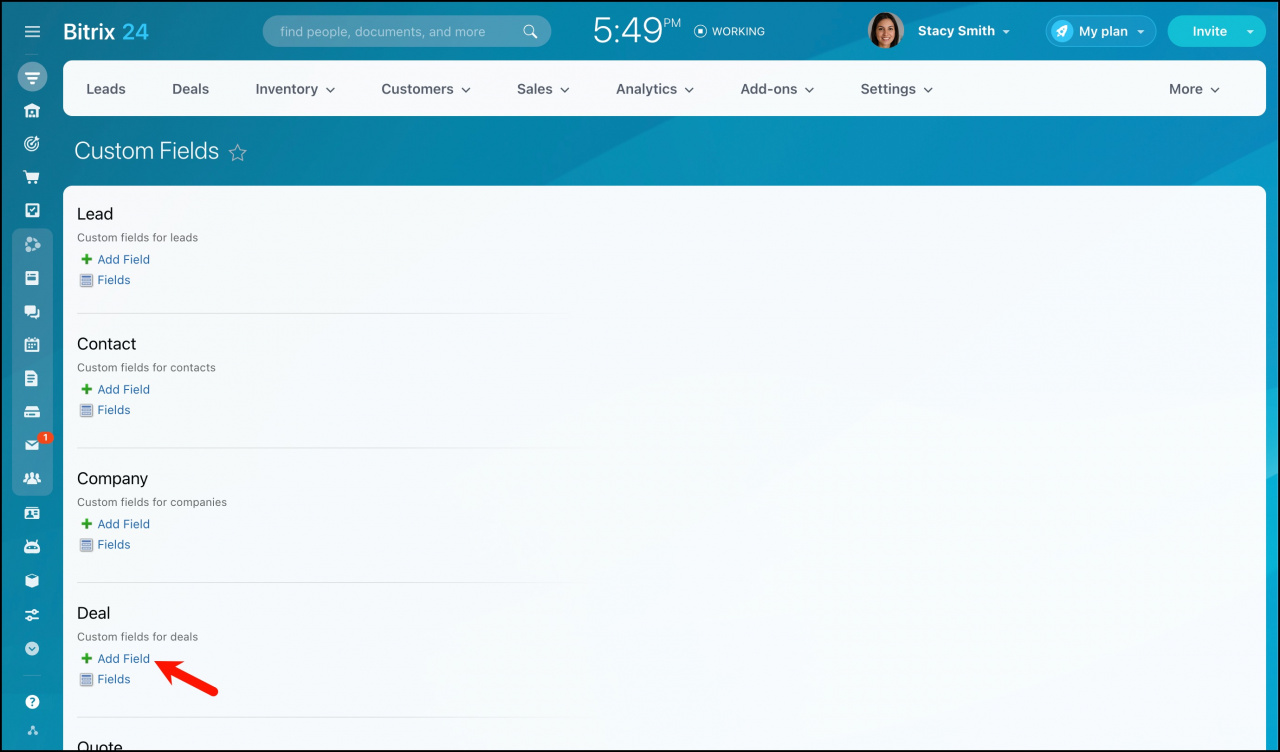
- Go to CRM > Settings > CRM settings > Form and report settings > Custom Fields.
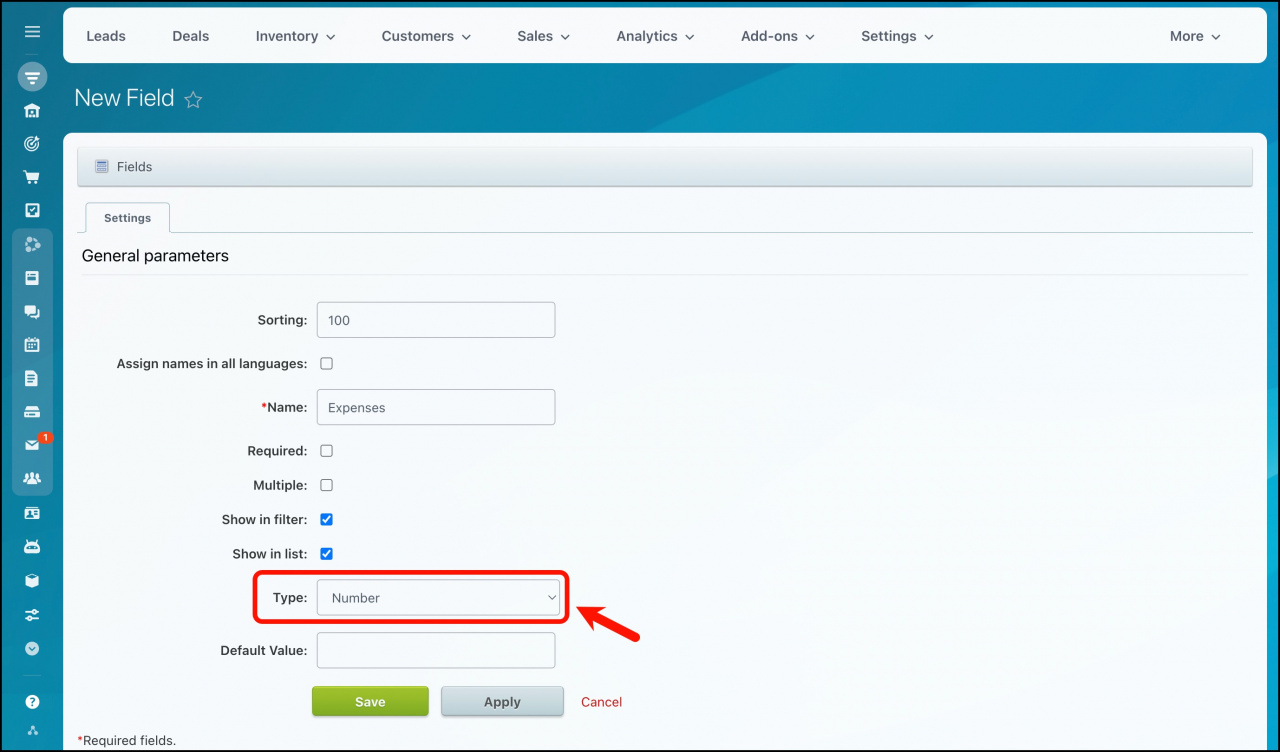
- Click Add field to create custom deal fields.
- Create these two fields:
- Expenses
- Profit
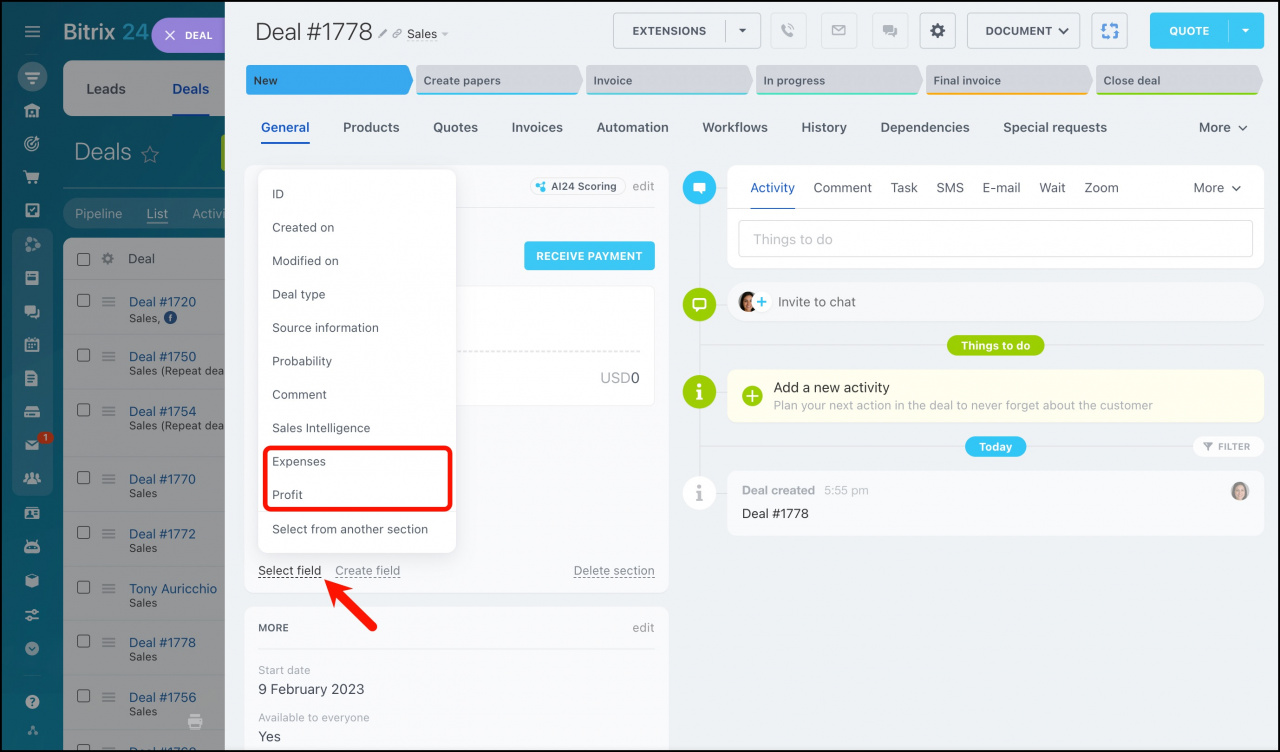
- Create a new deal and open it.
- In the About deal section, click Select field and add the Profit and Expenses fields.
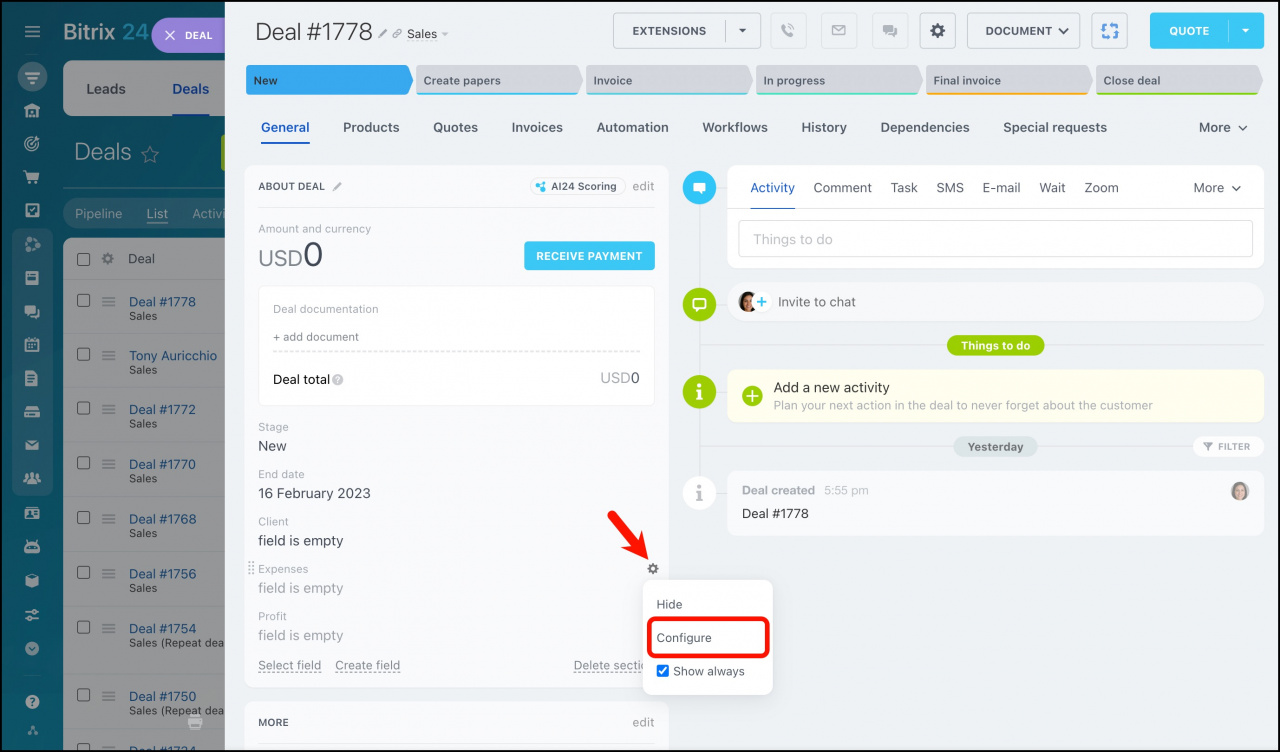
- Next to the Expenses field, click the gear icon and select Configure.
- Make the field required starting from the second deal stage.
- Save the changes.
Learn more in the article: Custom fields in CRM.

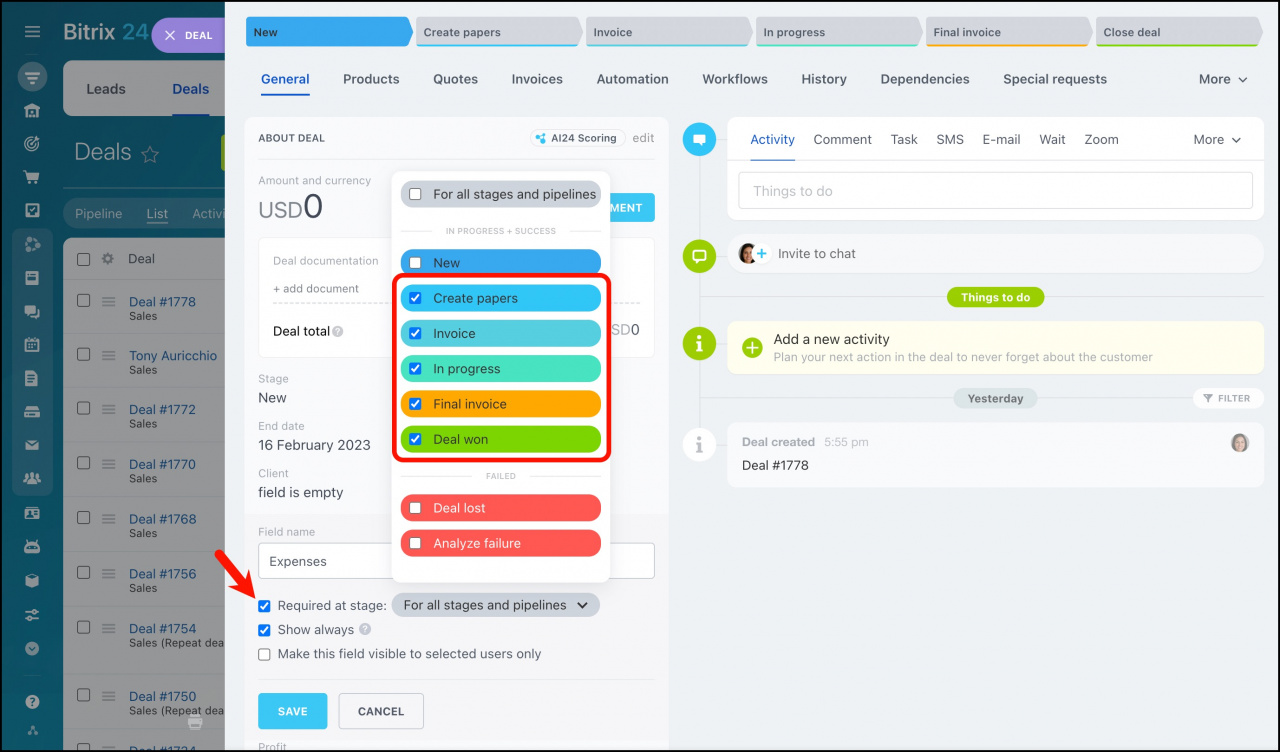
Learn more in the article: Configure required fields for each stage.
Configure the automation rule
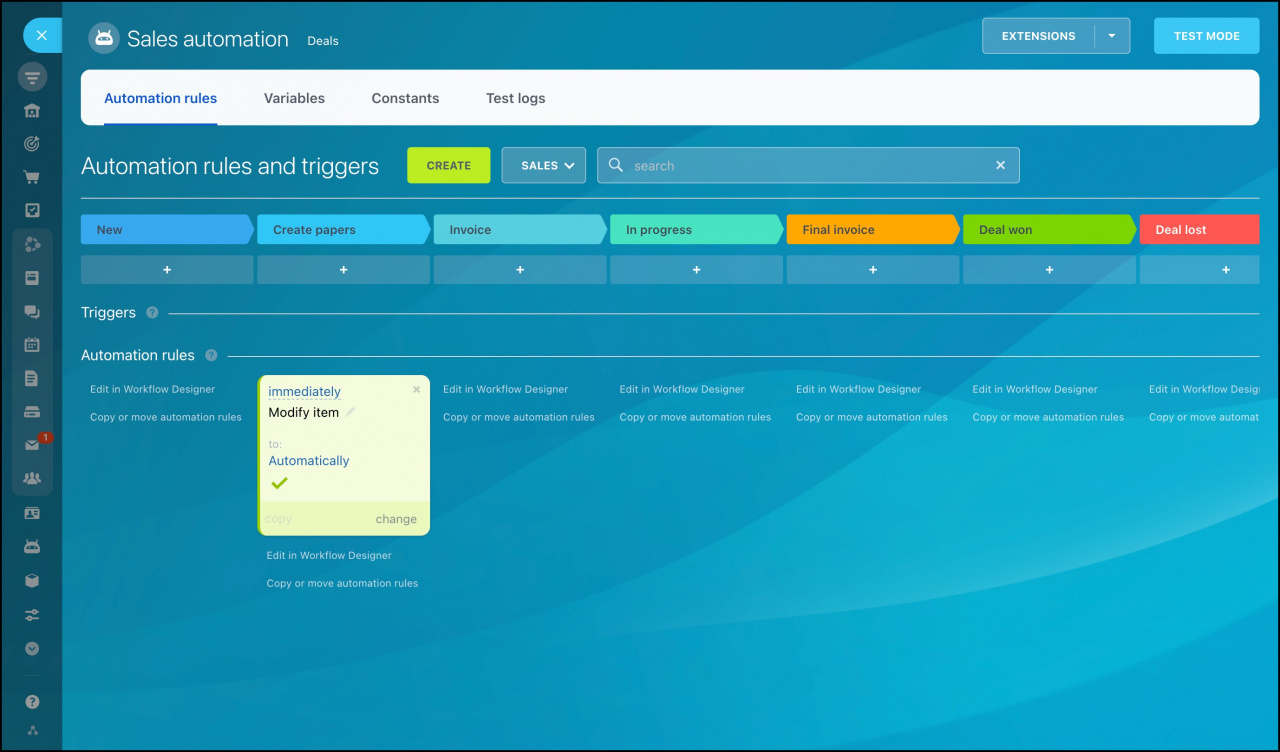
- Open the Automation tab.
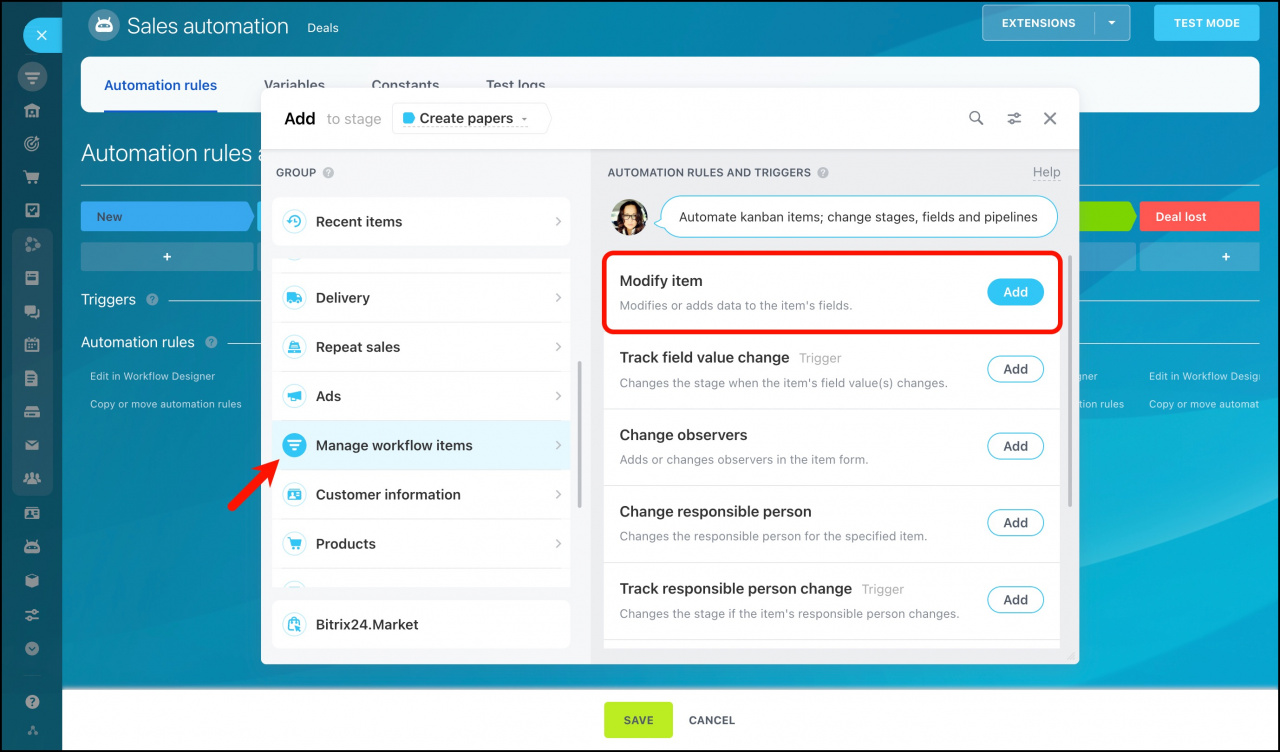
- Add the Modify item automation rule to the second deal stage.
- Remove the Name field from the rule settings.
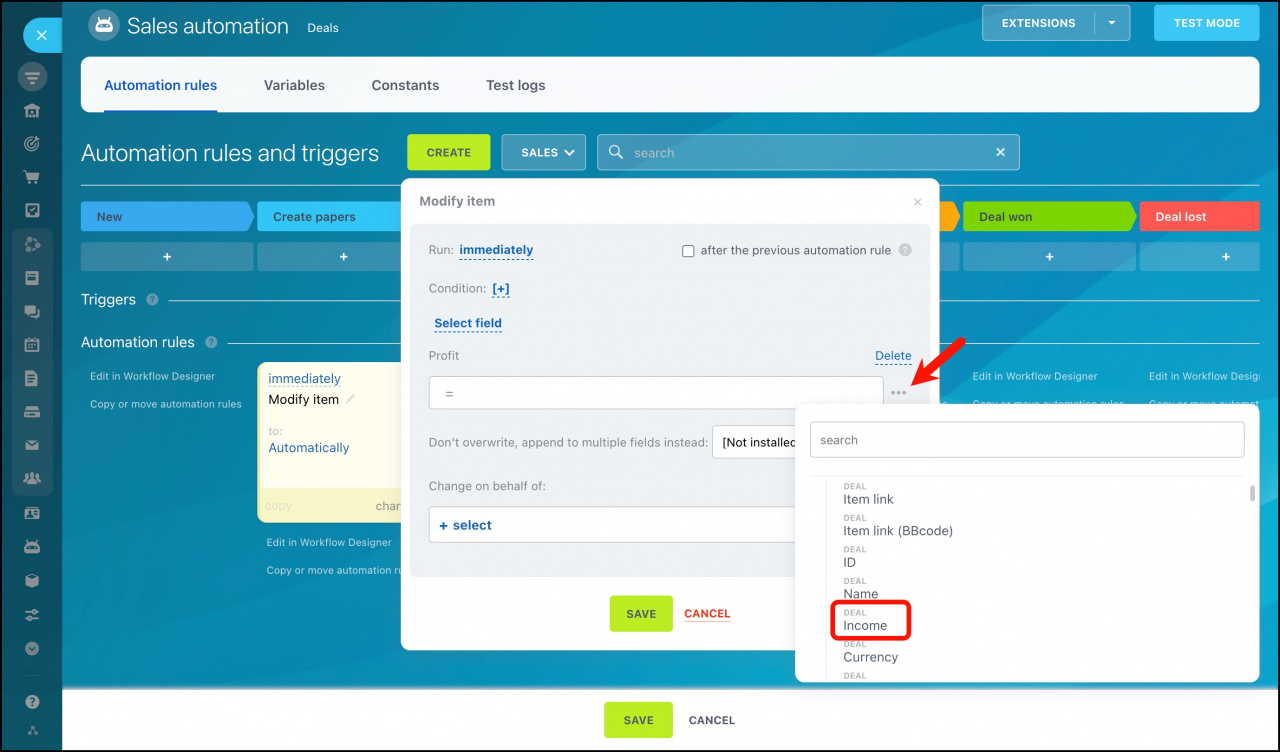
- Select the Profit field.
- In the Profit field, enter:
- =
- Click the menu icon next to the field.
- Select Deals > Income.
- Enter -
- Select the Expenses field.
{{Income}}-{{Expenses}}.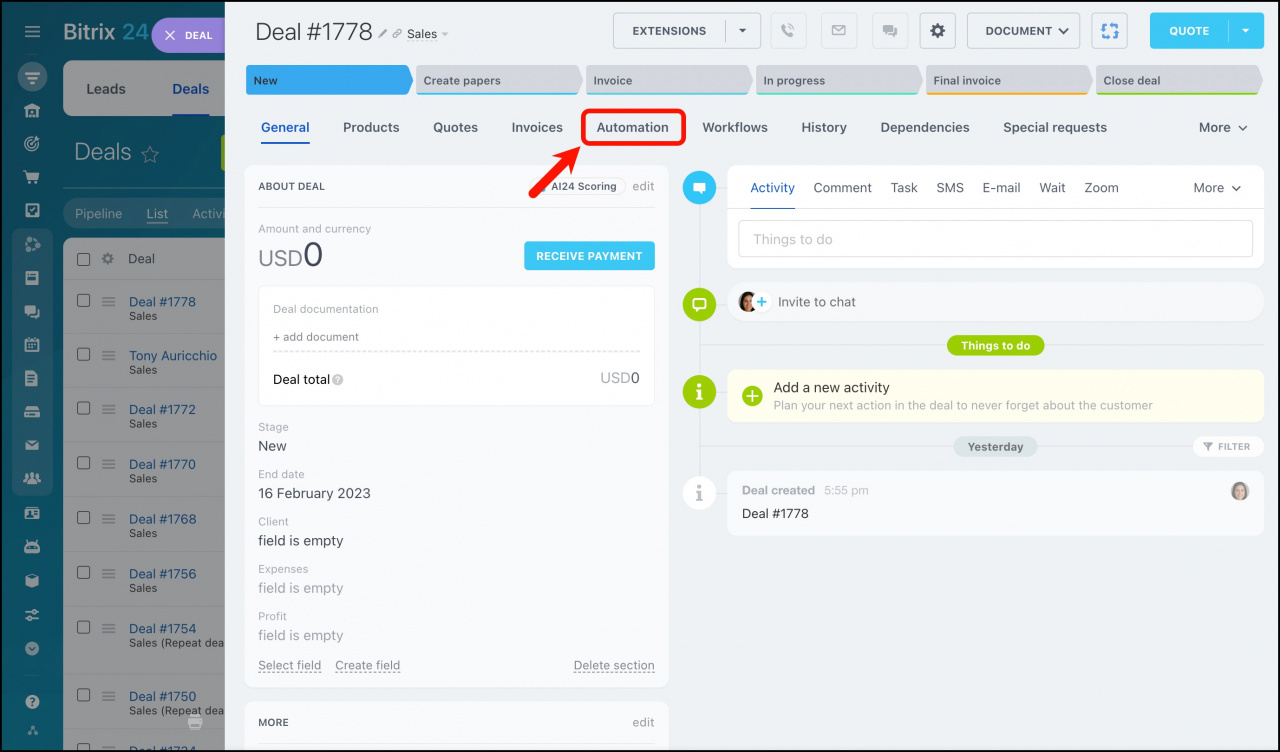

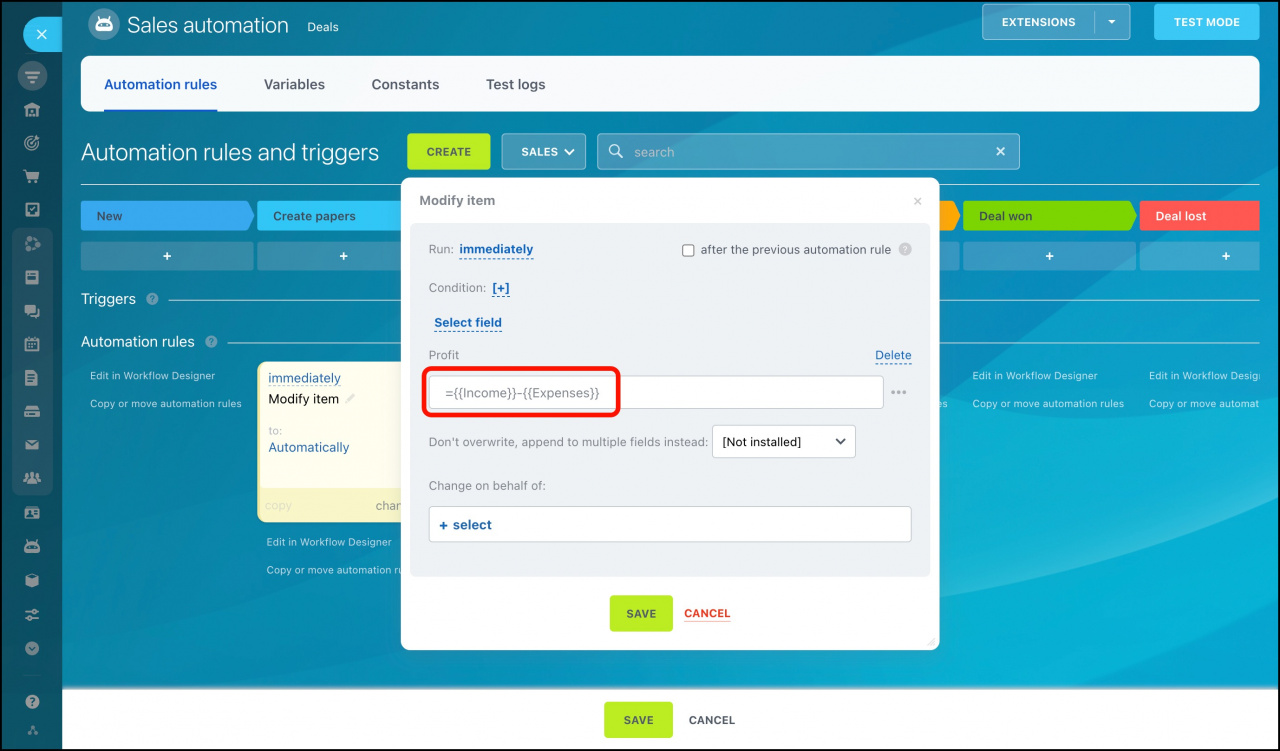
Learn more in the article: Automation rules in CRM.
How it works
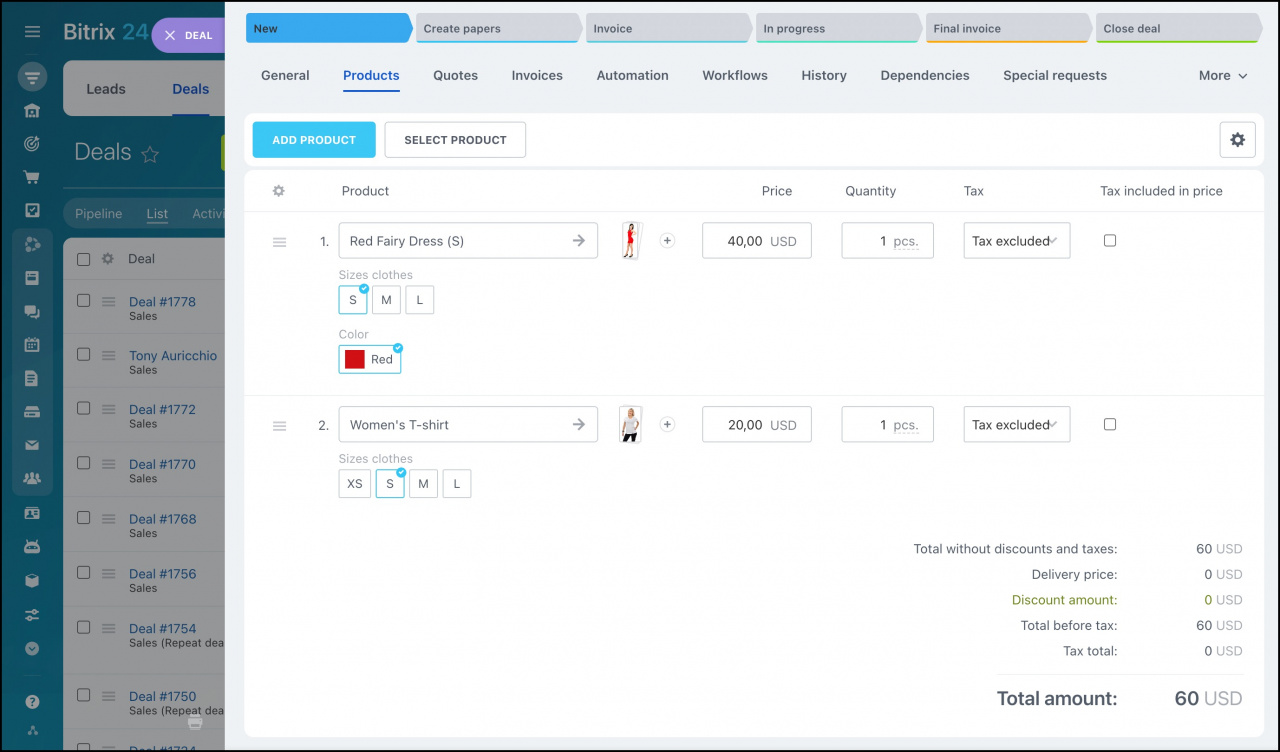
- Create a deal and add the products the customer selected.
- Move the deal to the second stage.
- Enter the expense amount.
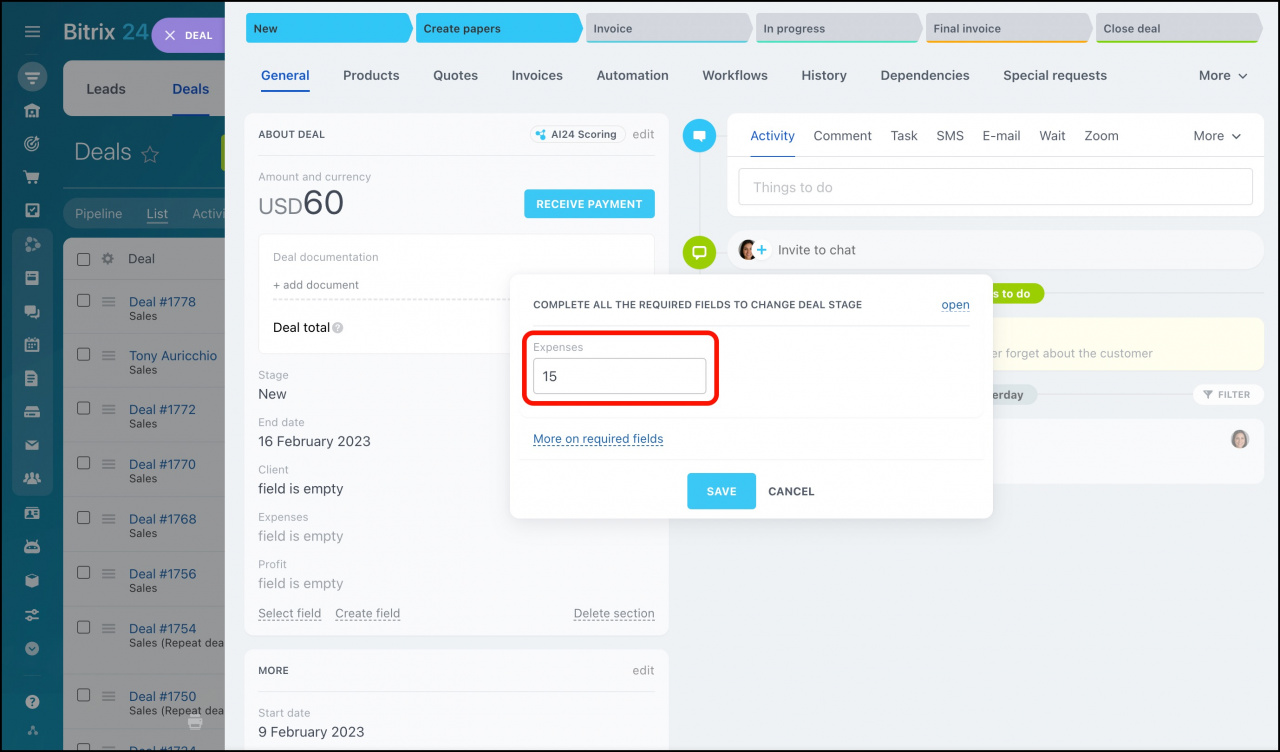
The automation rule runs automatically and fills in the Profit field.
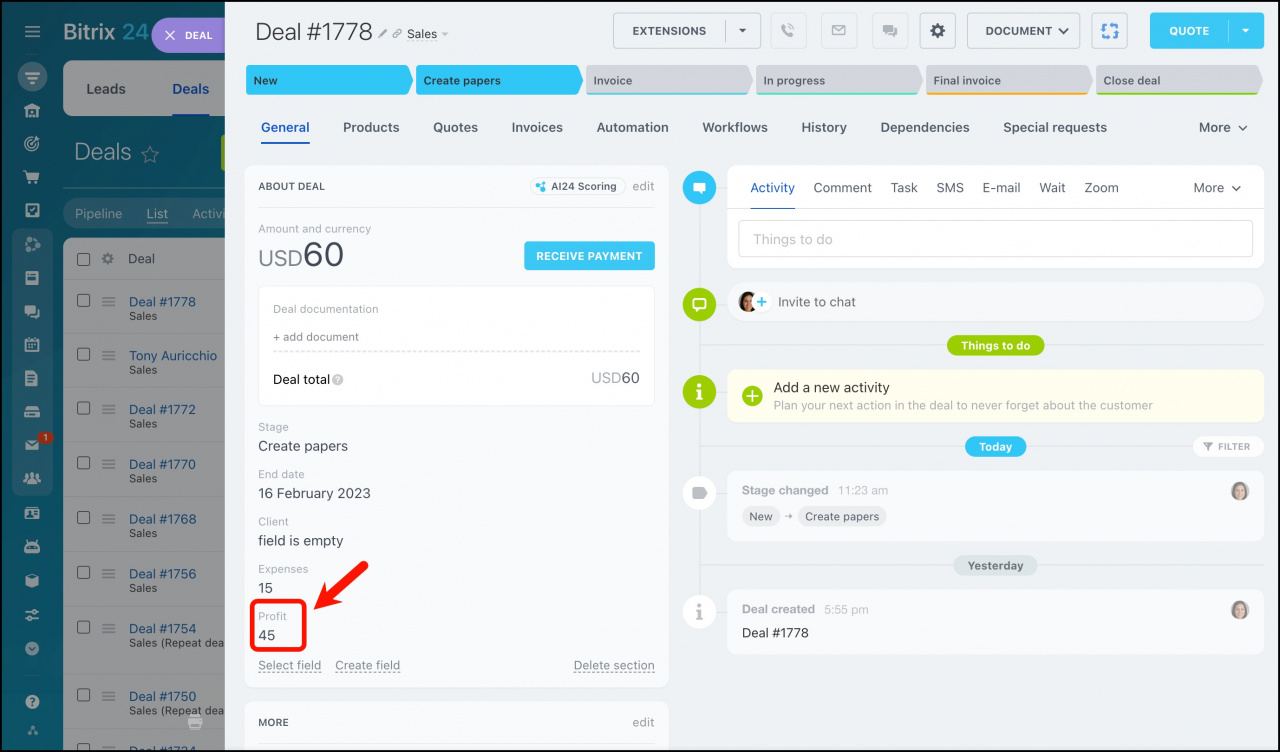
You can verify that the rule ran successfully in the Automation section.
Create a profit report
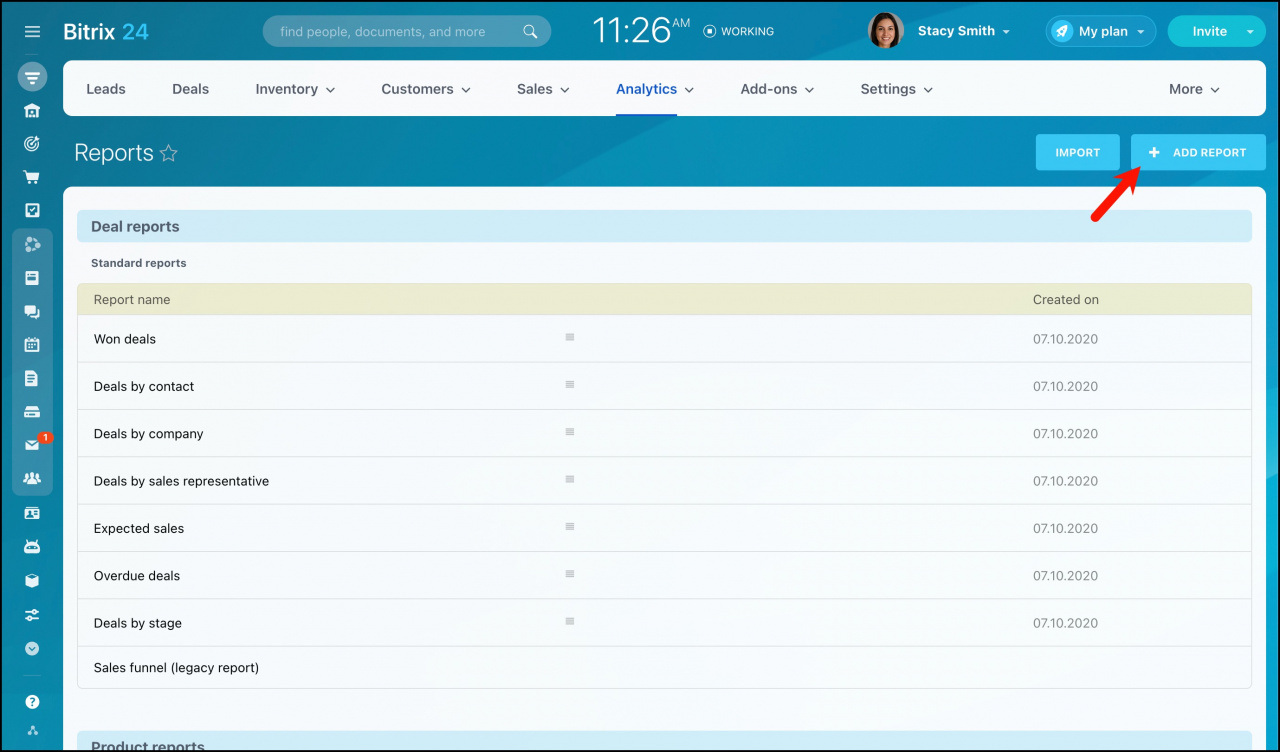
- Go to the Reports section.
- Click Add report.
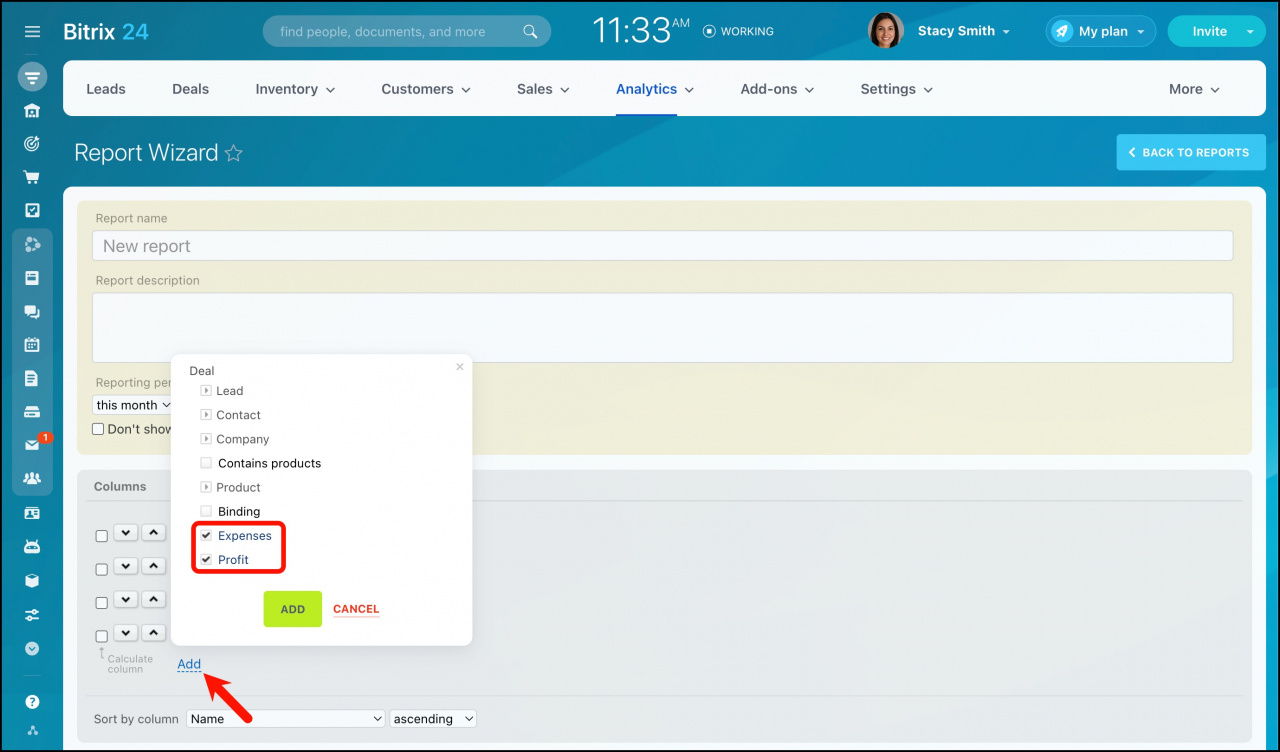
- Add the Expenses and Profit fields to the report.
- Save the changes.
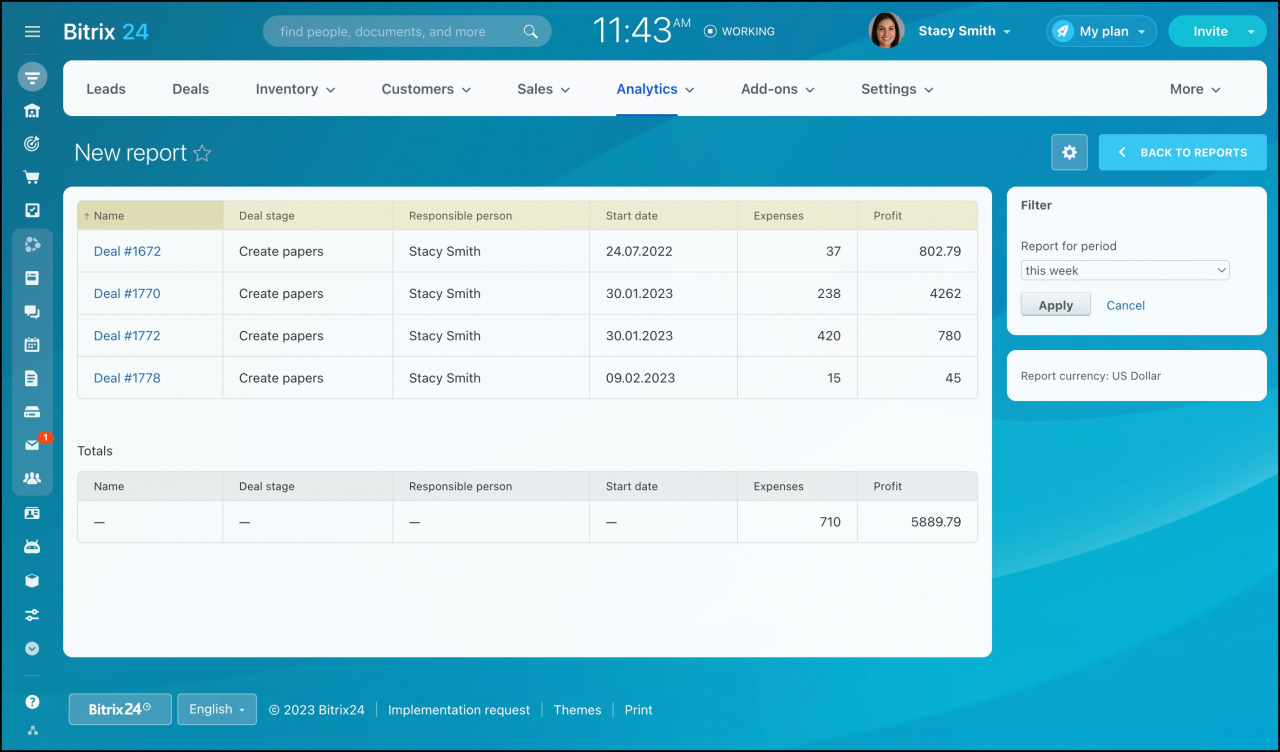
The report will display expenses and calculated profit for each deal.
Learn more in the article: Reports wizard.



