🚚 Miễn phí giao hàng toàn quốc

✅ Tặng Gói Hỗ trợ online trọn đời

✅ Giá cạnh tranh nhất thị trường

✅ Miễn phí tư vấn giải pháp

🚚 Miễn phí giao hàng toàn quốc

✅ Tặng Gói Hỗ trợ online trọn đời

✅ Giá cạnh tranh nhất thị trường

✅ Miễn phí tư vấn giải pháp

Hotline: 0943.199.449

Địa chỉ: Tầng 1, tòa nhà Deli, 75 Hoàng Văn Thụ, P. Cầu Kiệu

Bitrix24 Helpdesk

Add activities in the mobile CRM

Create smart activities in the mobile CRM to send documents for approval or schedule calls before delivery.

You can create an activity in three ways:

  • From the actions menu
  • From the Timeline tab
  • From the Details tab

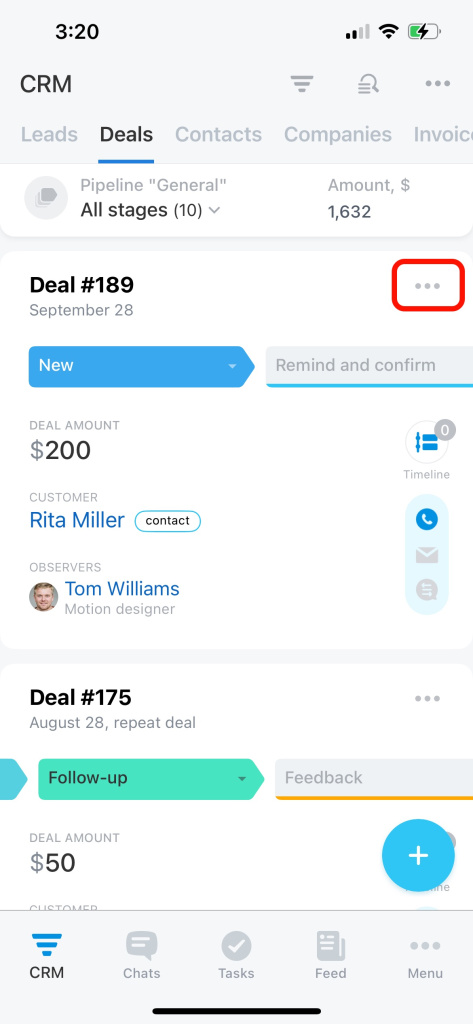
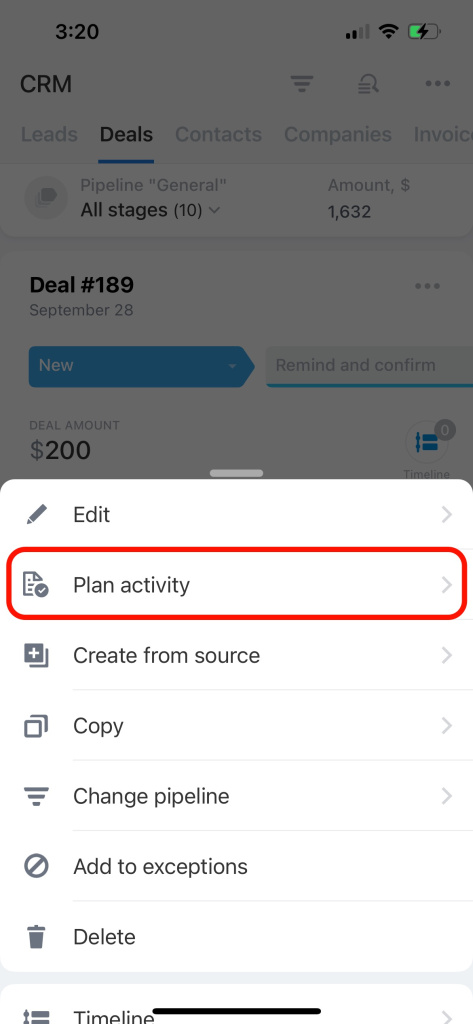
Add an activity from the actions menu

  1. Open CRM and select a CRM item.
  2. Tap the three-dot icon.
  3. Select Plan activity.
  4. Enter the activity details.
  5. Set a deadline.
  6. Save the changes.

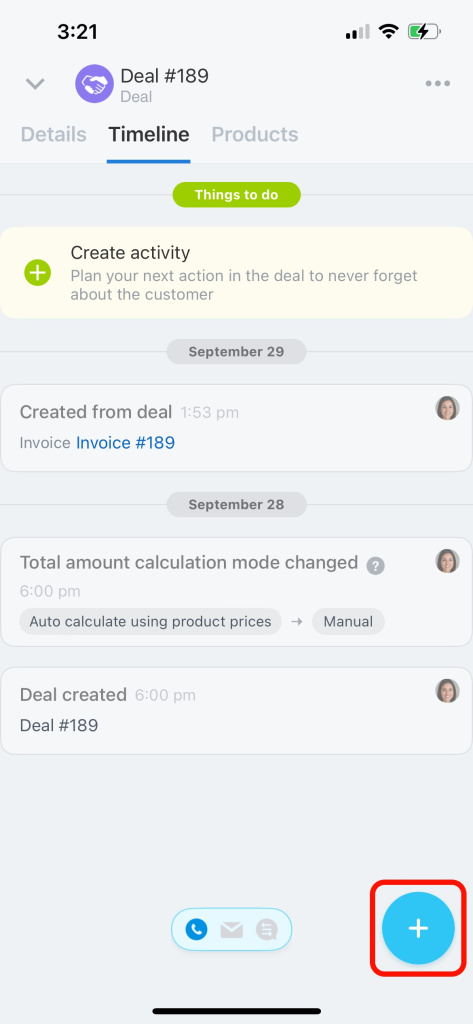
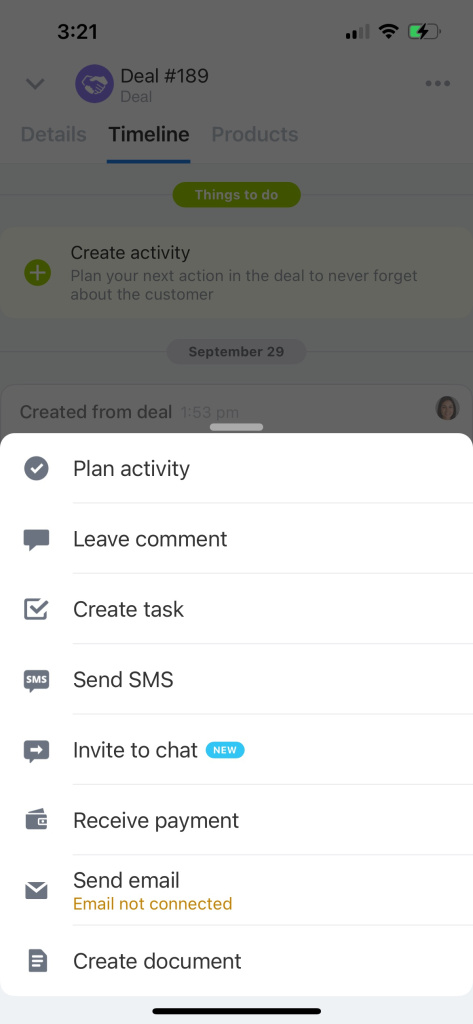
Add an activity from the Timeline tab

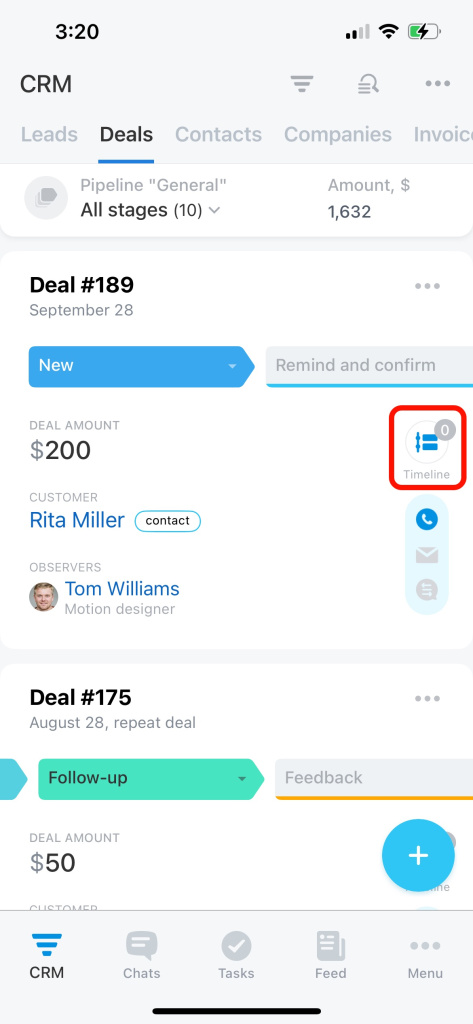
  1. Open a CRM item.
  2. Go to the Timeline tab.
  3. Tap the Plus (+) icon in the bottom-right corner.
  4. Select the activity you want to create.
Add an activity from the Details tab

  1. Open a CRM item.
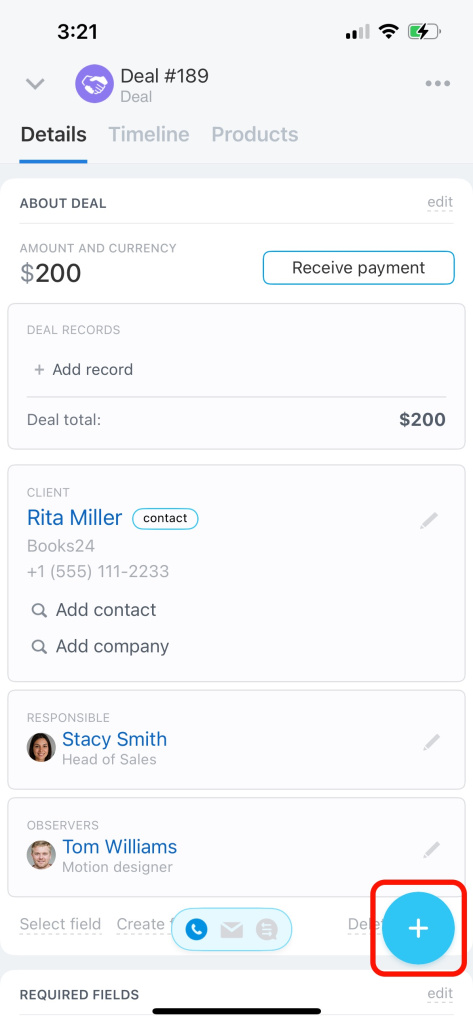
  2. Go to the Details tab.
  3. Tap the Plus (+) icon in the bottom-right corner.
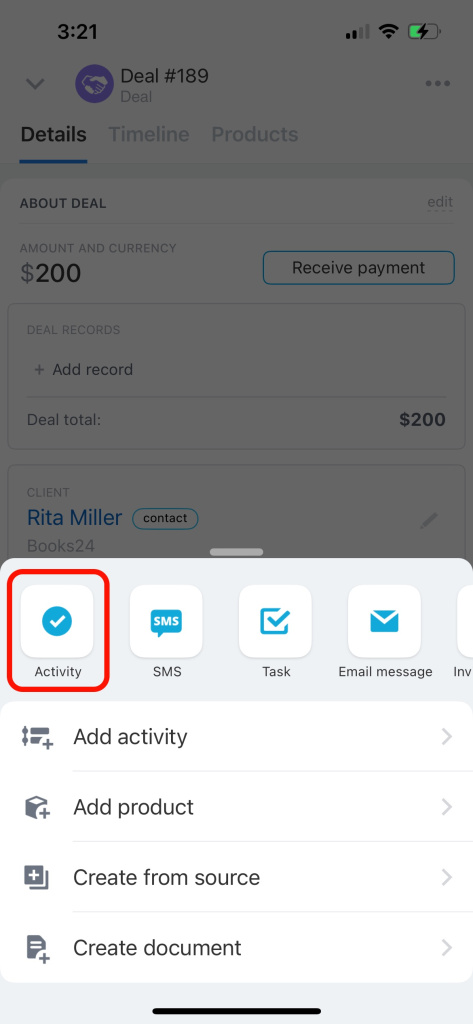
  4. Select Activity at the top of the panel.
Was this information helpful?
Thank you for your feedback.
Get Implementation Help from a Partner
That's not what I'm looking for
Complicated and incomprehensible text
The information is outdated
It's too short. I need more information
I don't like the way this tool works
Get your Bitrix24 set up by local professionals
FIND BITRIX24 PARTNER NEAR ME
implementation_helper_man
Go to Bitrix24
Don't have an account? Create for free
Related articles
How counters work in CRM Add activities in CRM Activities view in deals and leads Process customer calls in CRM Proactive CRM Manage customer chats in CRM Find CRM items with specific activities Focus mode in CRM Universal activity in CRM Counters in the mobile CRM
Zalo
0943.199.449