


You can mark a signed HR document as annulled, for example, if you find an error. The signing parties will see that the document is no longer valid.
The document isn't deleted. After marking it as annulled, you can find it using a filter and remove the annulled mark if needed.
The annulled mark is only a visual indicator. Legally annulling a document requires completing the necessary legal procedures.
Go to e-Signature for HR in the main menu and open the Company vault tab.
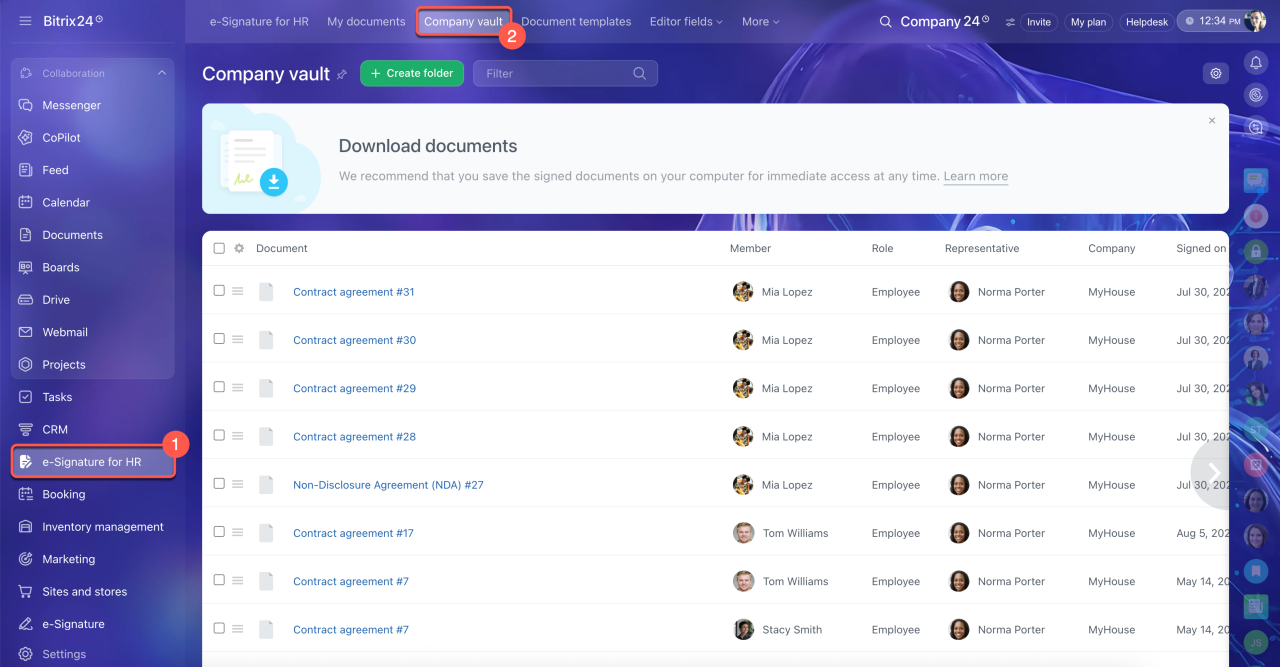
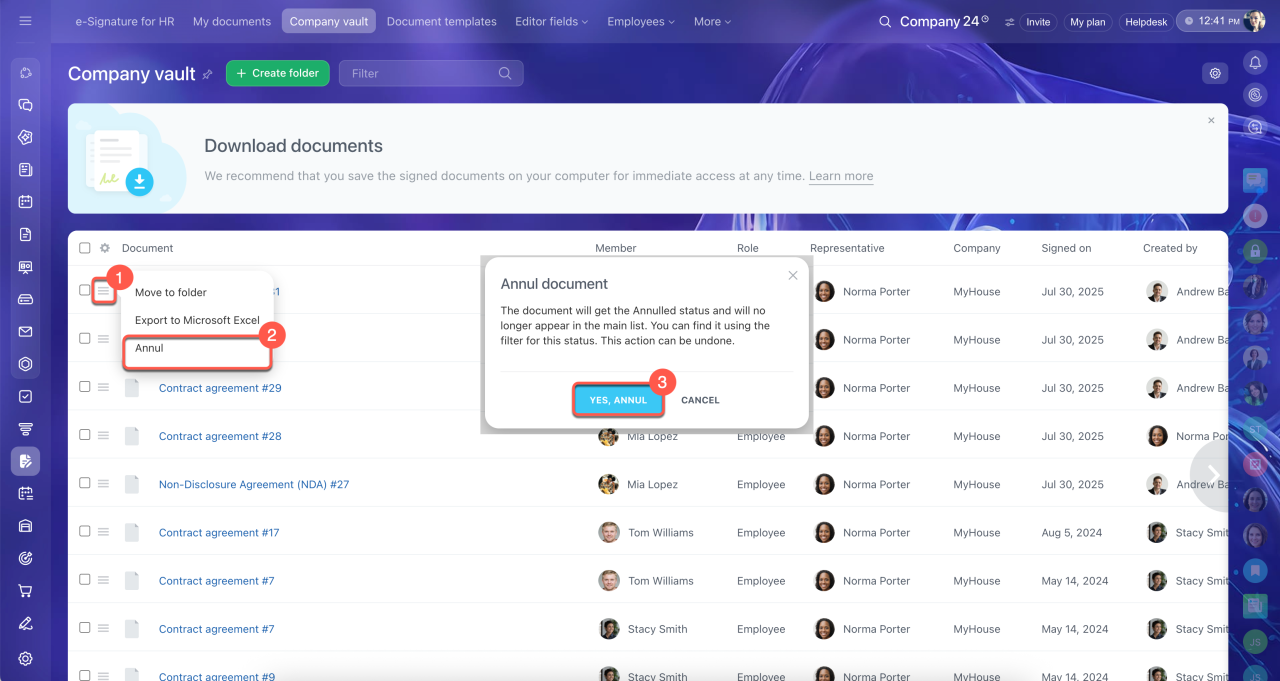
Annul one or more documents.
1. To annul a single document, click Menu (≡) next to the document name.
2. Select Annul.
3. Confirm the annulment.
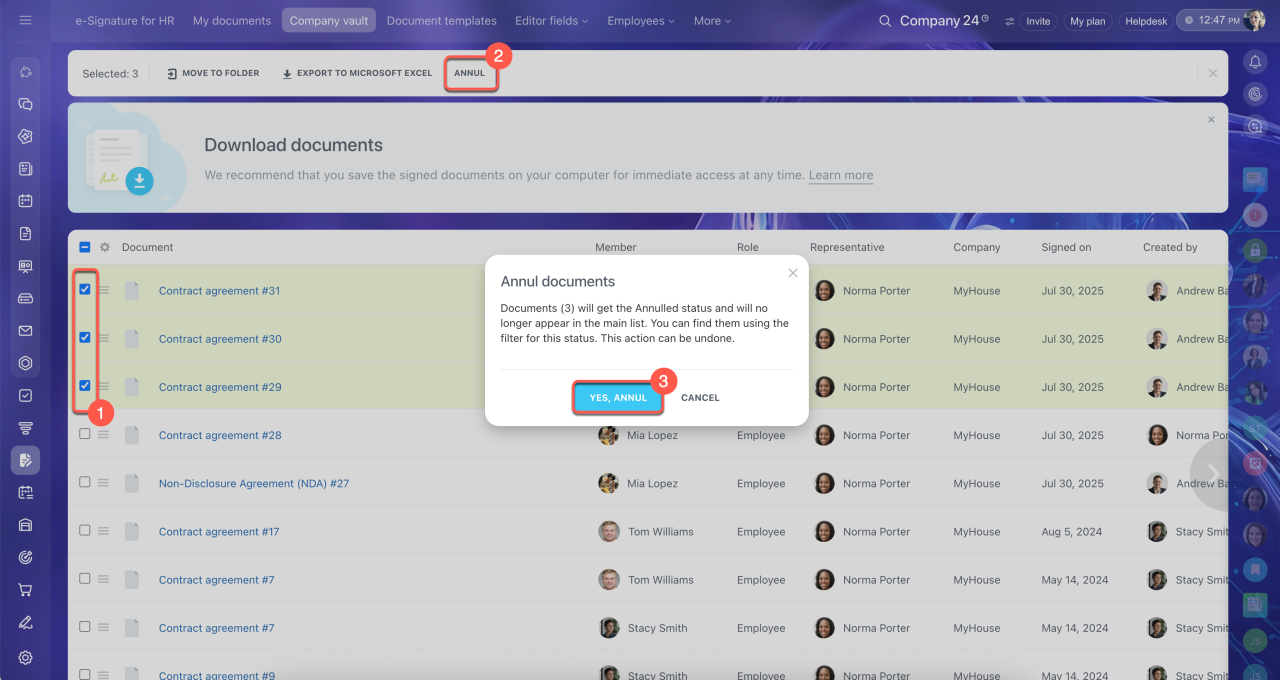
1. To annul multiple documents, select them in the list.
2. At the top of the screen, click Annul.
3. Confirm the annulment.
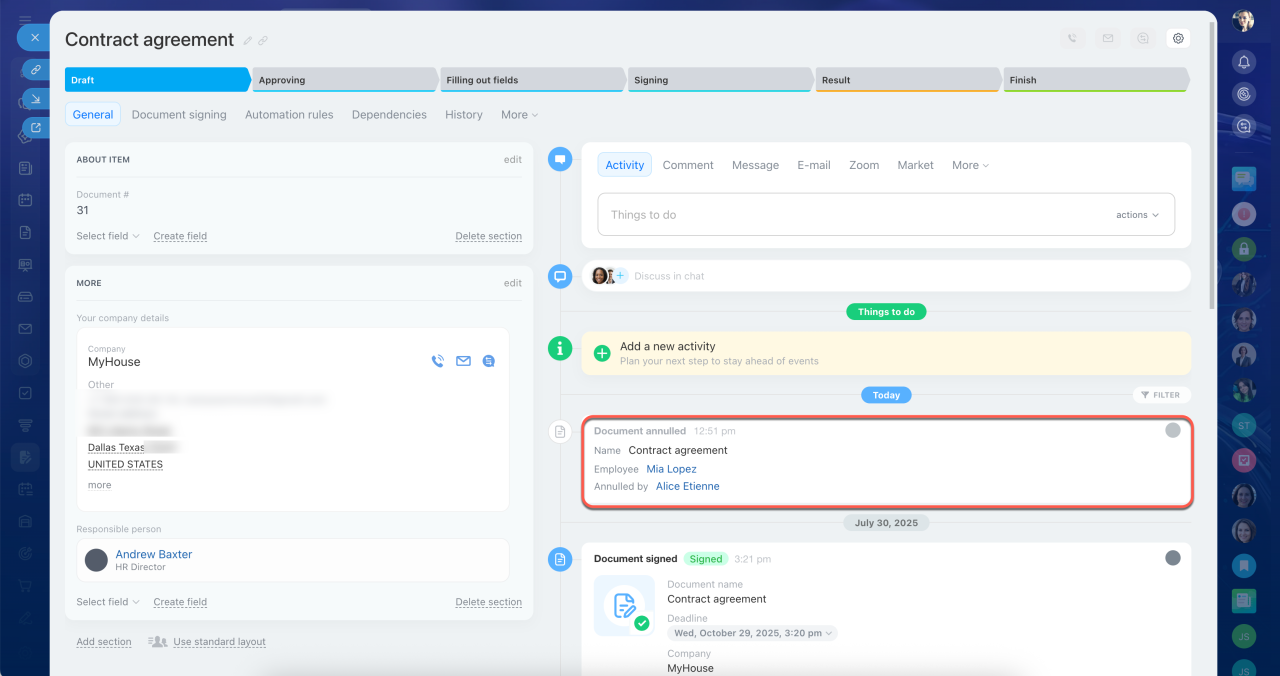
The documents will be marked as Annulled and will no longer appear in the main list in the company vault. A note about the annulment will appear in the document form's timeline. The HR bot will send a notification to the signing parties.
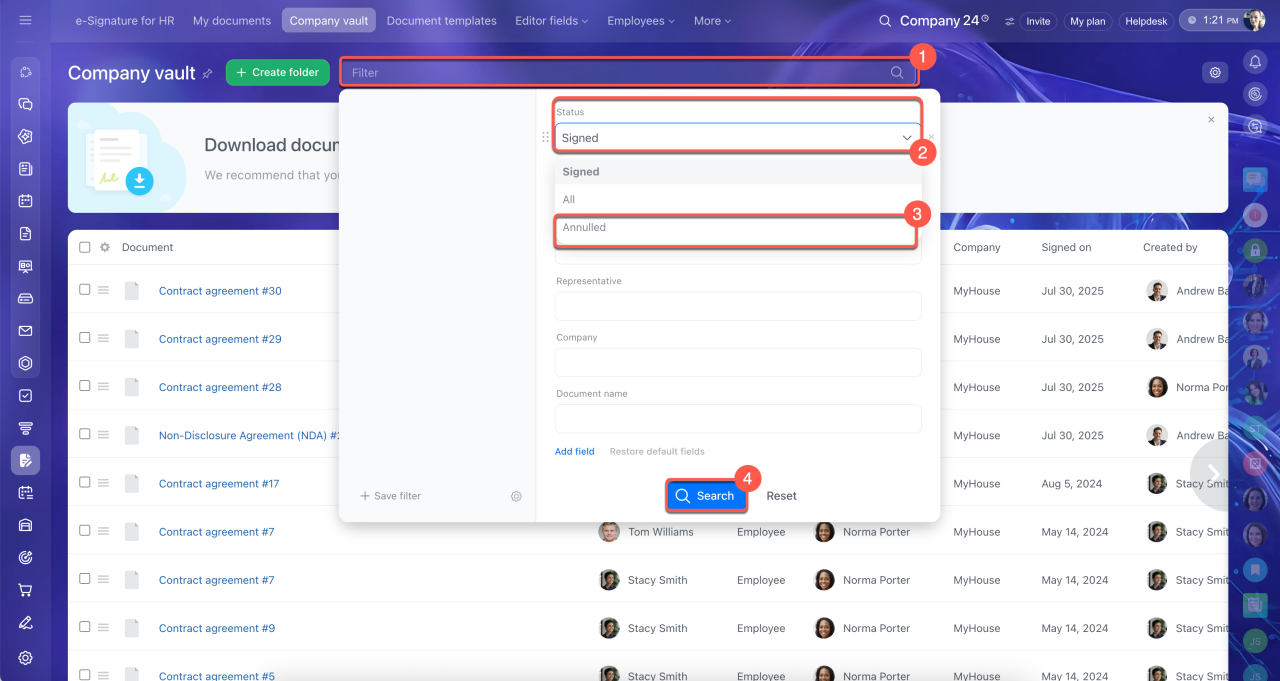
Find an annulled document. You can check its status, view the document, and remove the mark if needed.
1. Click the search bar at the top of the screen.
2–3. In the Status field, select the Annulled status.
4. Click Find.
The list will show only annulled documents.
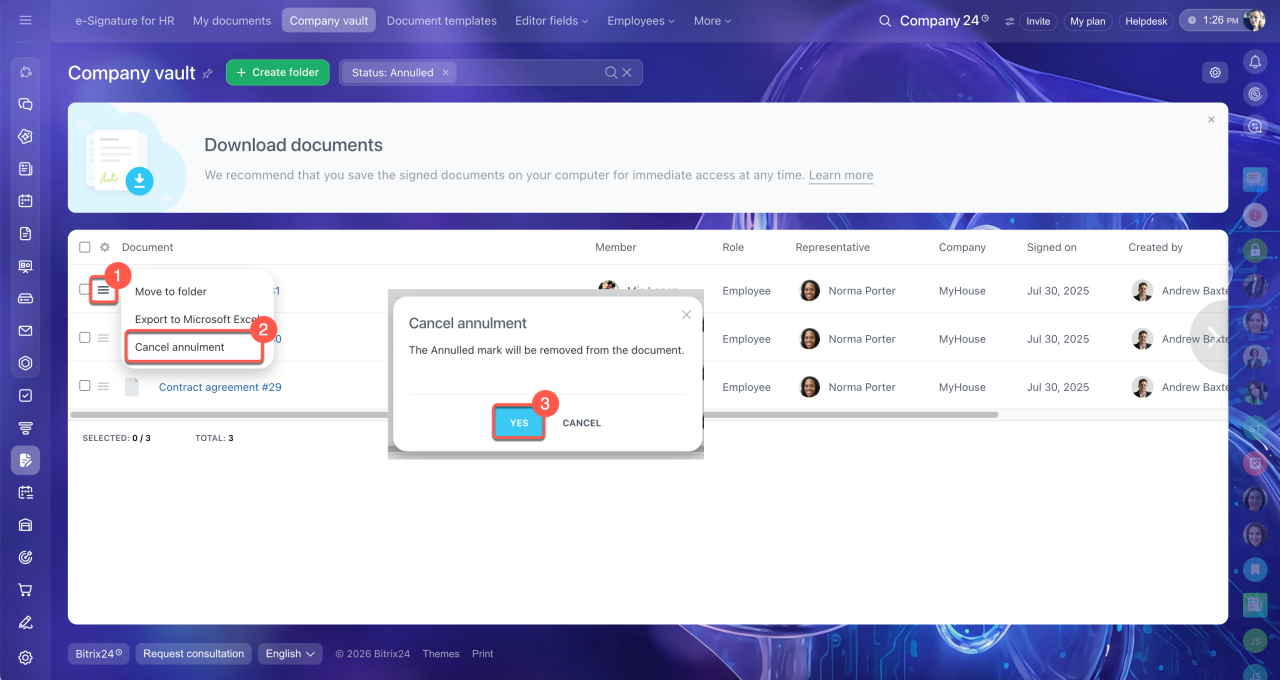
Cancel the annulment. You can remove the annulled mark from one or more documents, for example, if you annulled them by mistake. First, find the documents using the Annulled status filter.
1. To remove the mark from one document, click Menu (≡) next to its name.
2. Select Cancel annulment.
3. Confirm the action.
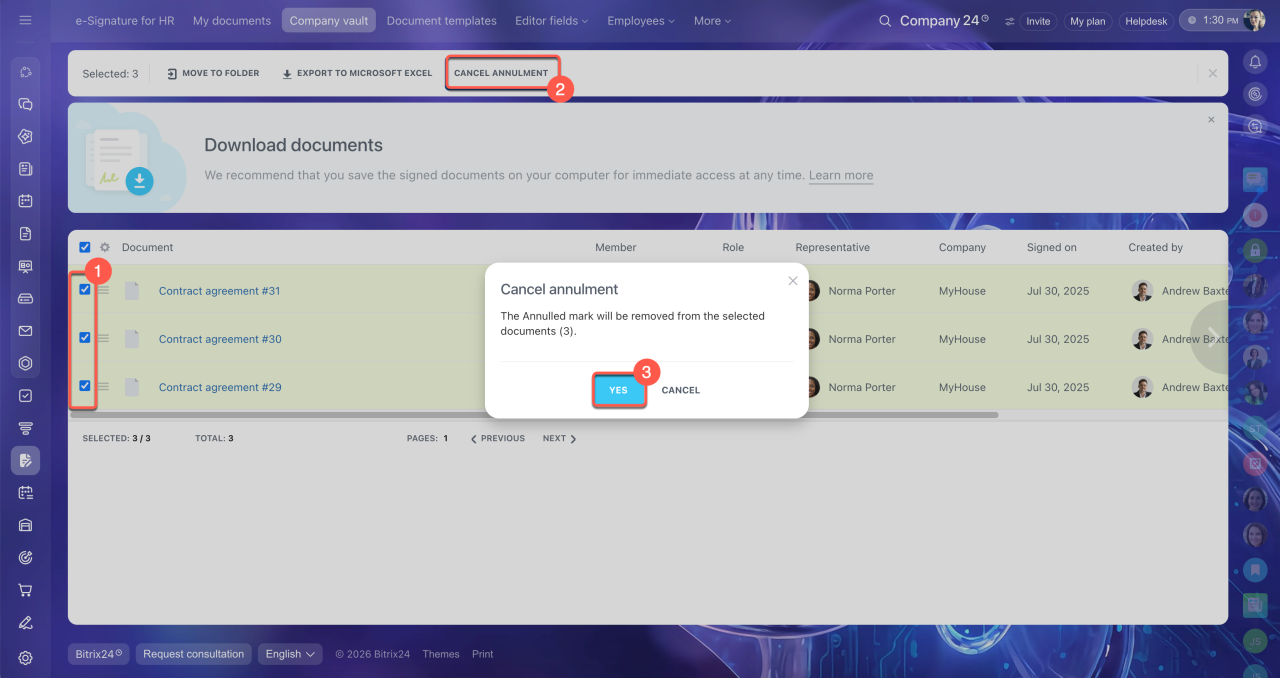
1. To remove the mark from multiple documents, select them in the list.
2. At the top of the screen, click Cancel annulment.
3. Confirm the action.
Once you remove the annulled mark, the documents will reappear in the list of signed documents in the company vault.
In brief
- You can mark a signed HR document as annulled. The signing parties receive a notification.
- An annulled document isn't deleted. You can find it by filtering by status.
- You can annul one or multiple documents and cancel the annulment if needed.
- The annulled mark is only a visual indicator. Legally annulling a document requires completing the necessary legal procedures.