
🚚 Miễn phí giao hàng toàn quốc

✅ Tặng Gói Hỗ trợ online trọn đời

✅ Giá cạnh tranh nhất thị trường

✅ Miễn phí tư vấn giải pháp

🚚 Miễn phí giao hàng toàn quốc

✅ Tặng Gói Hỗ trợ online trọn đời

✅ Giá cạnh tranh nhất thị trường

✅ Miễn phí tư vấn giải pháp

Hotline: 0943.199.449

Địa chỉ: Tầng 1, tòa nhà Deli, 75 Hoàng Văn Thụ, P. Cầu Kiệu

Bitrix24 Helpdesk

Segment customer base in CRM

Segmenting your customer base helps you manage it more efficiently. It means dividing customers into groups based on specific characteristics. Without segmentation, it takes more time to find customers interested in certain products.


Segment contacts and companies. Use the Contact Type and Company Type fields to define the main types of clients you work with. You can use these values in filters and automation rules.

  1. Go to CRM - Settings - CRM Settings - Start point - Statuses and Dropdowns.
  2. Add the types of contacts and companies you work with. Use custom fields like List to capture key customer characteristics.
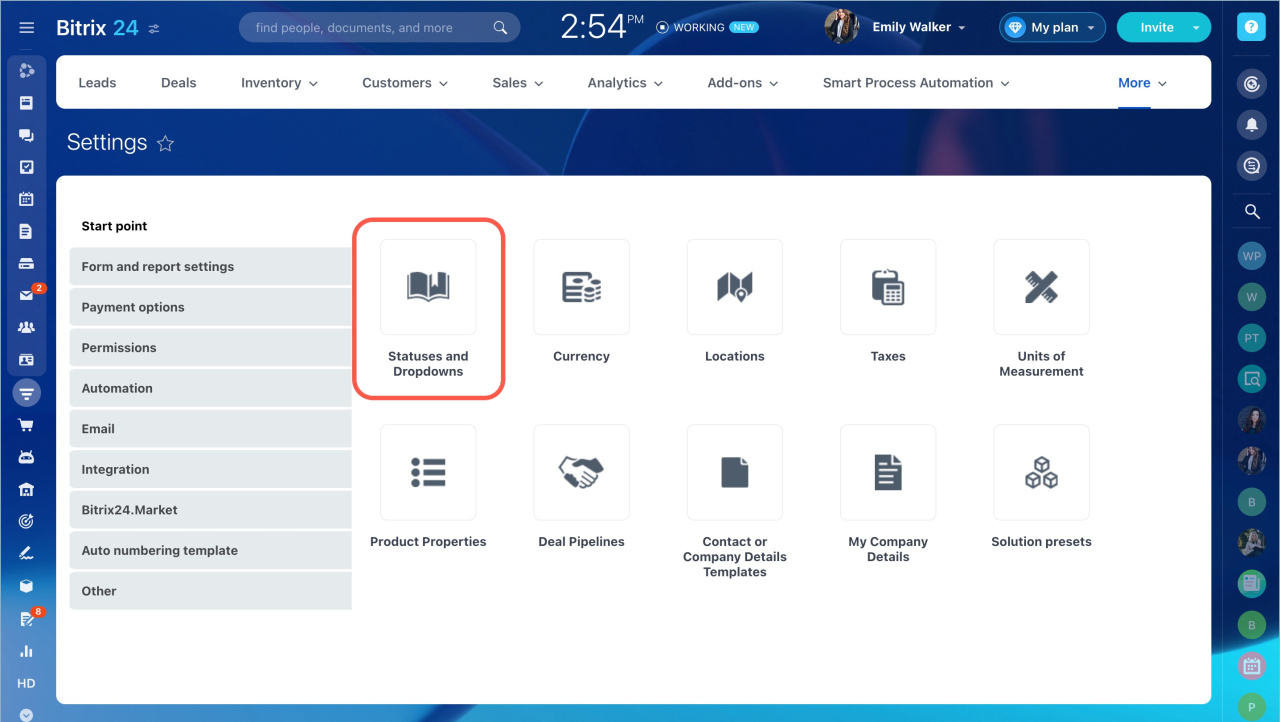
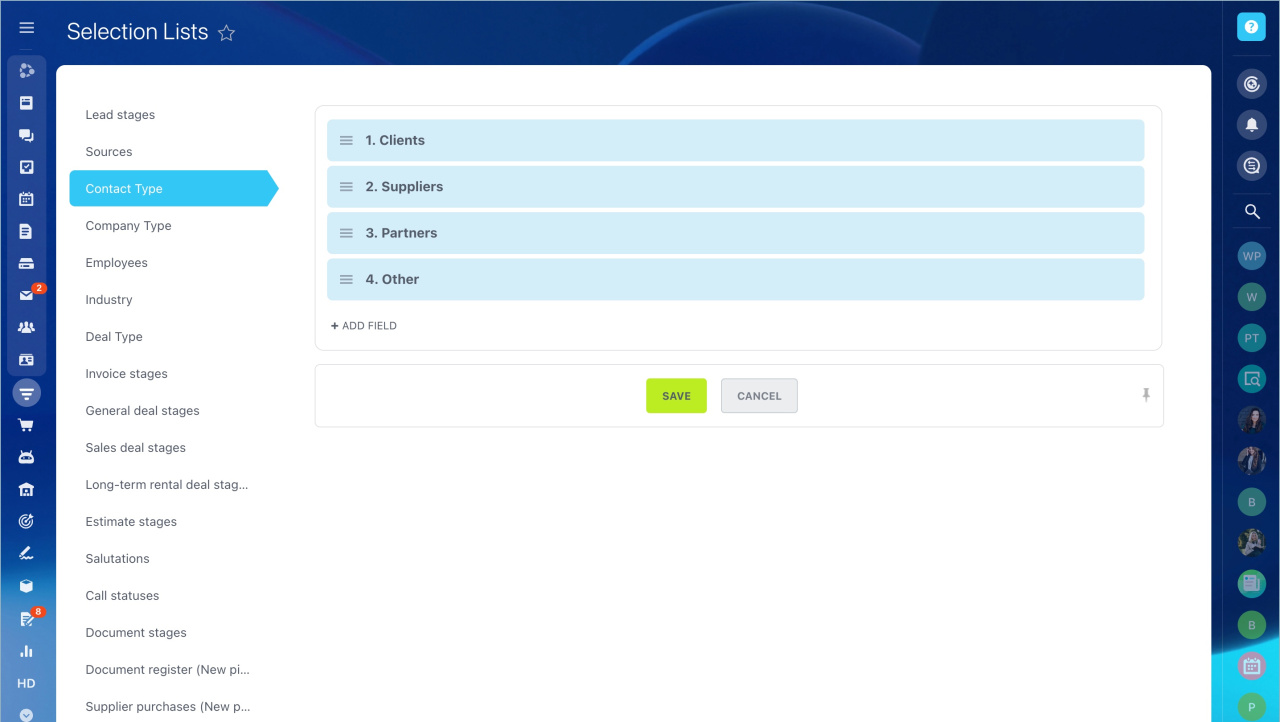
Segment deals. You can assign deals to employees based on their type. Set this up the same way as for contacts and companies.

  1. Go to CRM - Settings - CRM Settings - Start point - Statuses and Dropdowns.
  2. Add the required values in the Deal Type section.
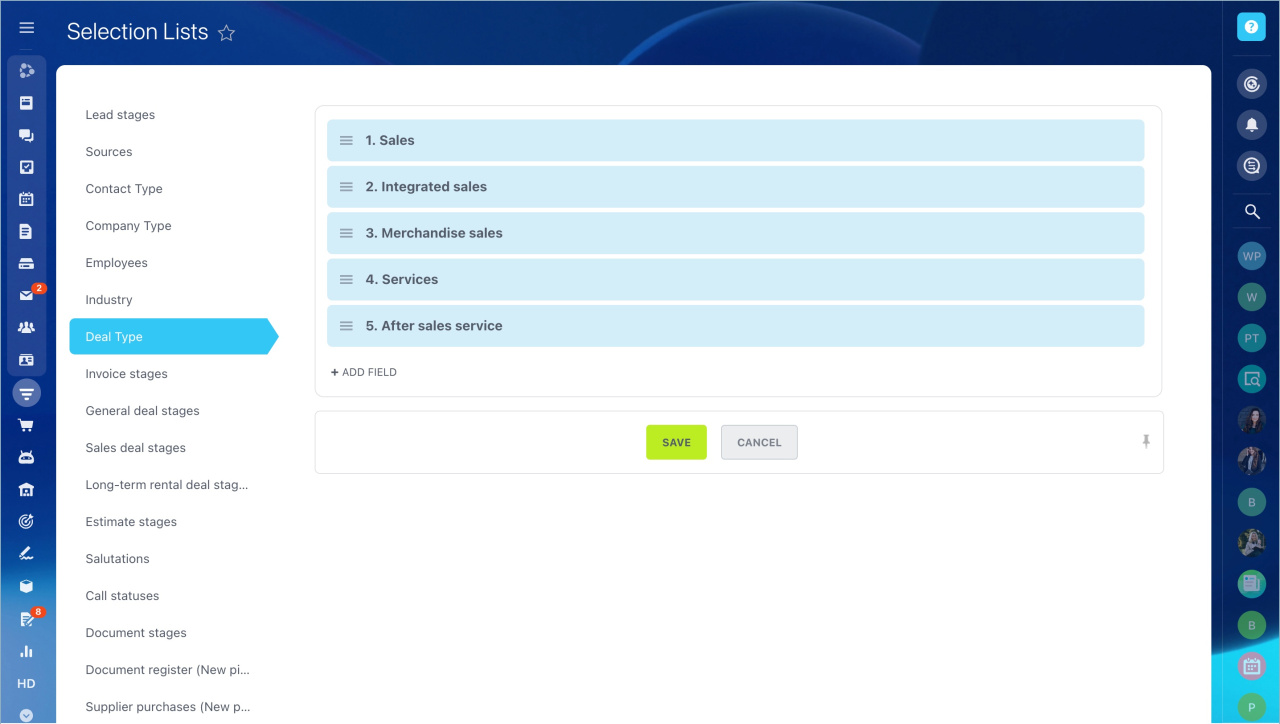
Assign responsible users based on the deal type.

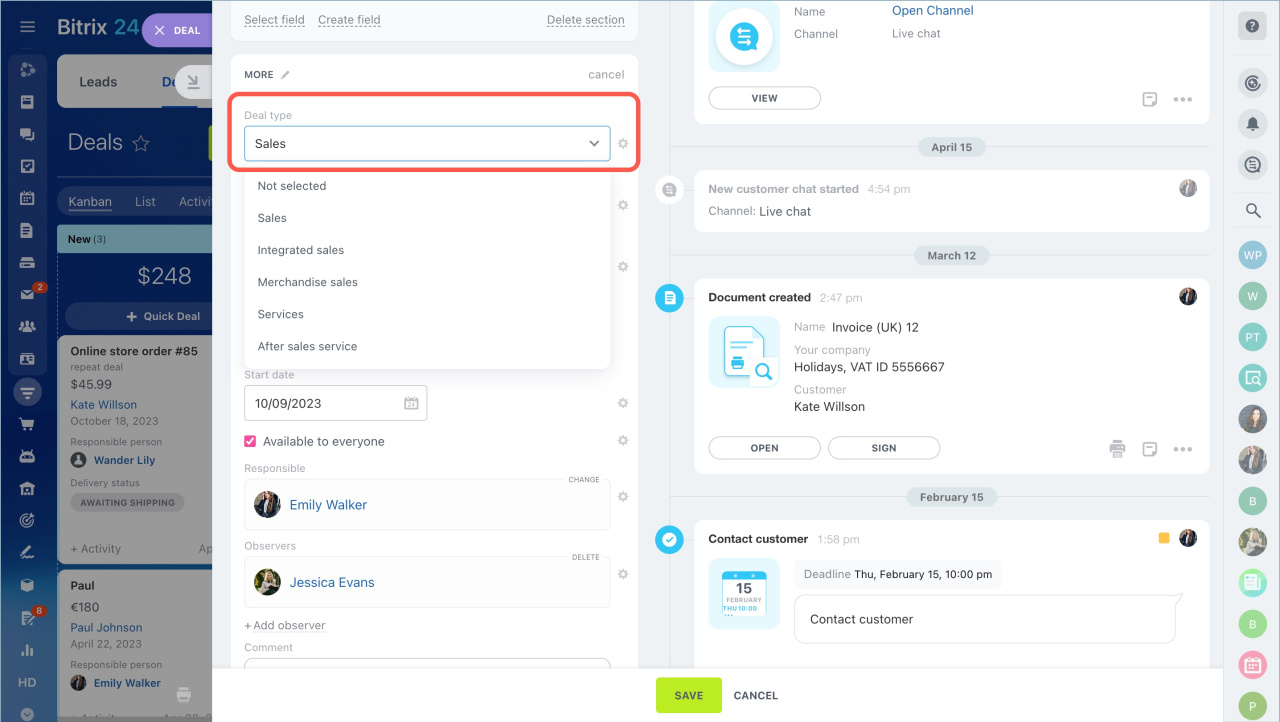
To set a deal type:

  1. Open the CRM item form and find the Type field.
  2. Select a type for a deal, contact, or company. Use this data for analytics and reports.
Was this information helpful?
Thank you for your feedback.
Get Implementation Help from a Partner
That's not what I'm looking for
Complicated and incomprehensible text
The information is outdated
It's too short. I need more information
I don't like the way this tool works
Get your Bitrix24 set up by local professionals
FIND BITRIX24 PARTNER NEAR ME
implementation_helper_man
Go to Bitrix24
Don't have an account? Create for free
Related articles
Visit option in CRM Smart scripts in CRM Distributing inquiries from different channels Group actions in CRM Configure item forms in CRM Kanban Add products to lead, deal, estimate and invoice forms CRM overview Сreate a CRM element based on another element in Bitrix24 Choose a CRM mode CRM implementation steps
Zalo
0943.199.449

