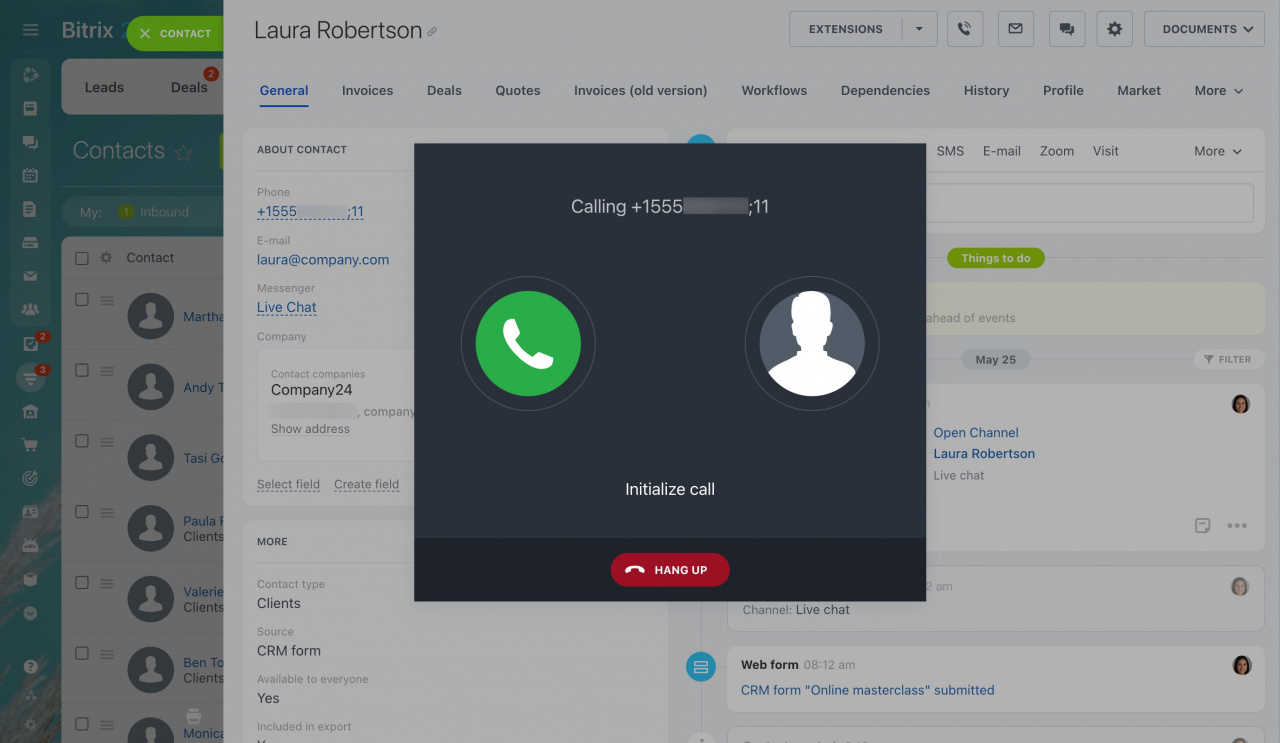
Extension numbers help employees and customers reach the right person faster. In Bitrix24 Telephony, you can assign extension numbers to employees, queue groups, and CRM clients. This article explains how to set up and use extension numbers.
Configure extension numbers for employees
You can assign an extension number to an employee in two ways.
-
Option 1. Use the Telephony users page
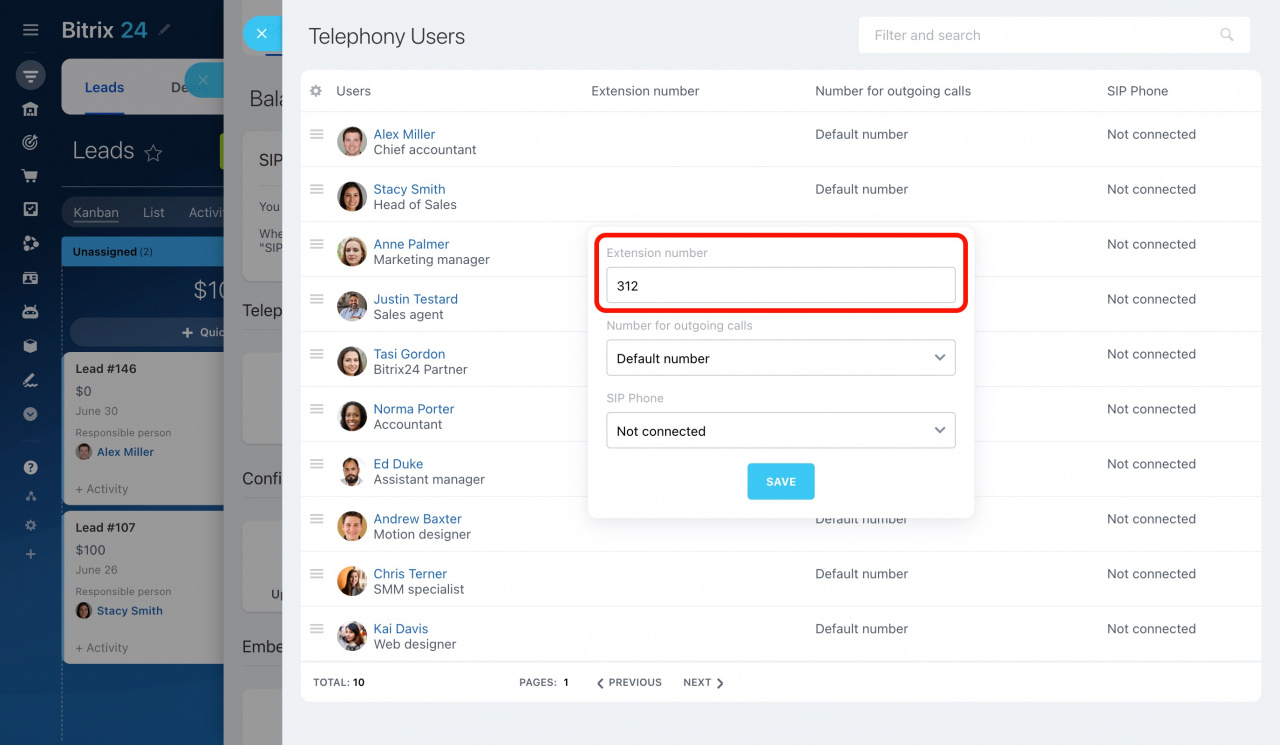
- Open the Telephony users page.
- Select an employee.
- Enter the extension number in the pop-up window.
Keep in mind:
- Extension numbers can contain up to four digits.
- Each employee must have a unique extension number.
Learn more about Telephony user settings
-
Option 2. Edit the employee profile
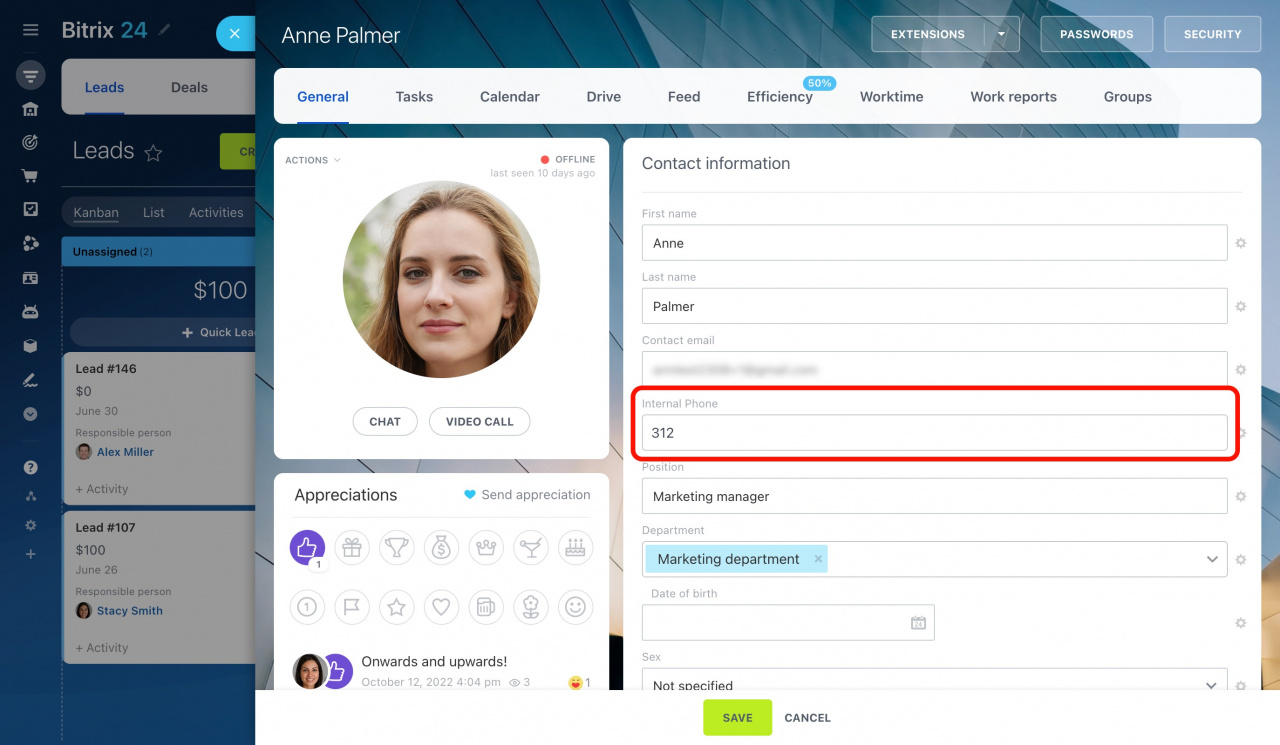
You can also assign an extension number in the employee profile.
- Open the employee profile.
- Find the Internal Phone field.
- Enter the extension number.
Call extension numbers
Customers can dial an extension number to contact a specific employee directly.
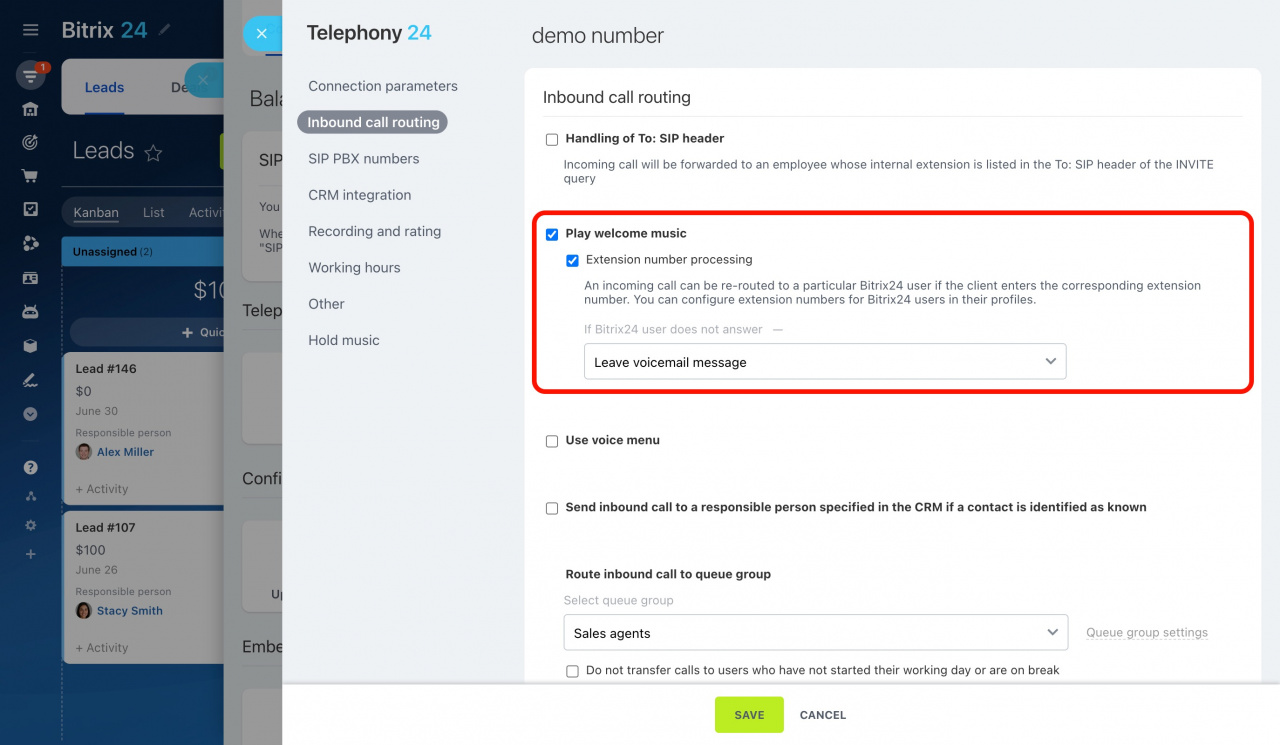
To enable this feature:
- Open the phone number settings.
- Enable Extension number processing.
After the welcome message starts, customers can enter the extension number.
Learn how to configure phone numbers
Use extension numbers in the voice menu (IVR)
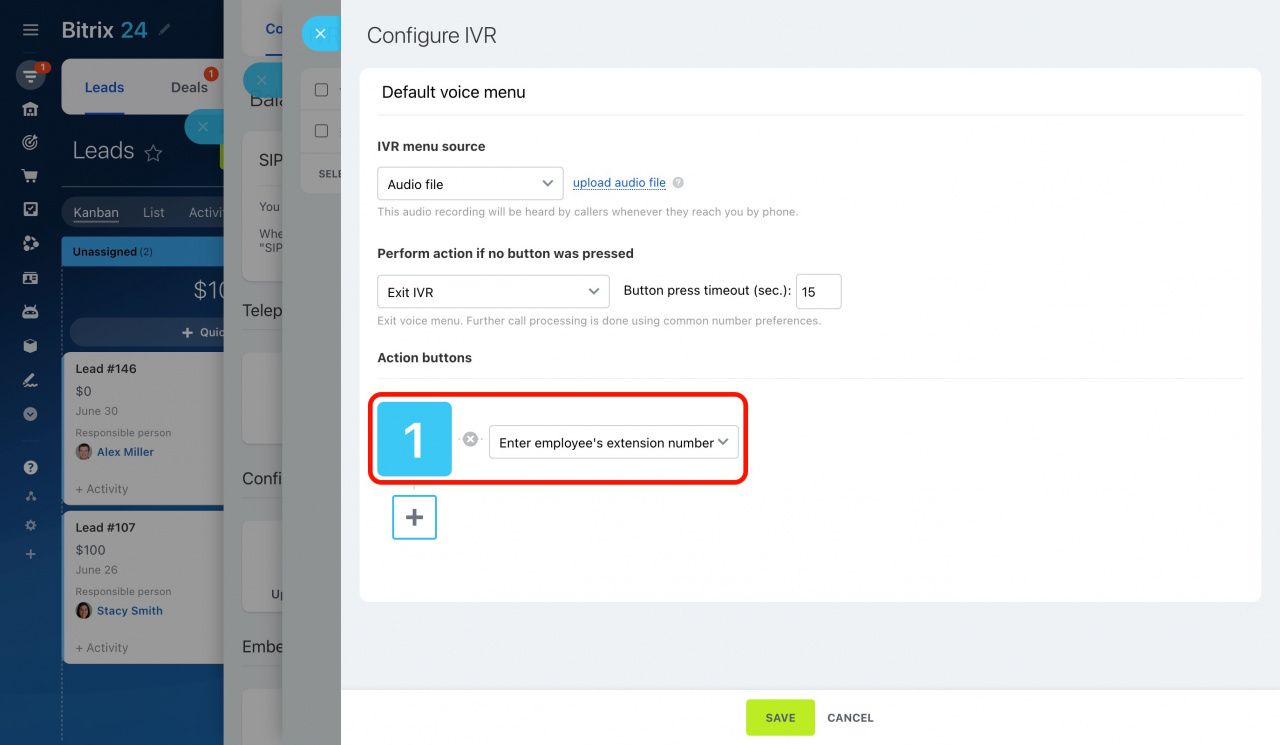
You can also use extension numbers in the IVR menu.
- Open the IVR settings.
- Add the Enter employee's extension number action to a menu button.
When customers call your number, they hear the IVR greeting first. Then they can select the menu option and enter the employee’s extension number.
Note:
- Customers cannot enter an extension number while the IVR greeting message is playing.
- They can enter it only after selecting the corresponding IVR option.
Learn how to configure the voice menu
Internal calls
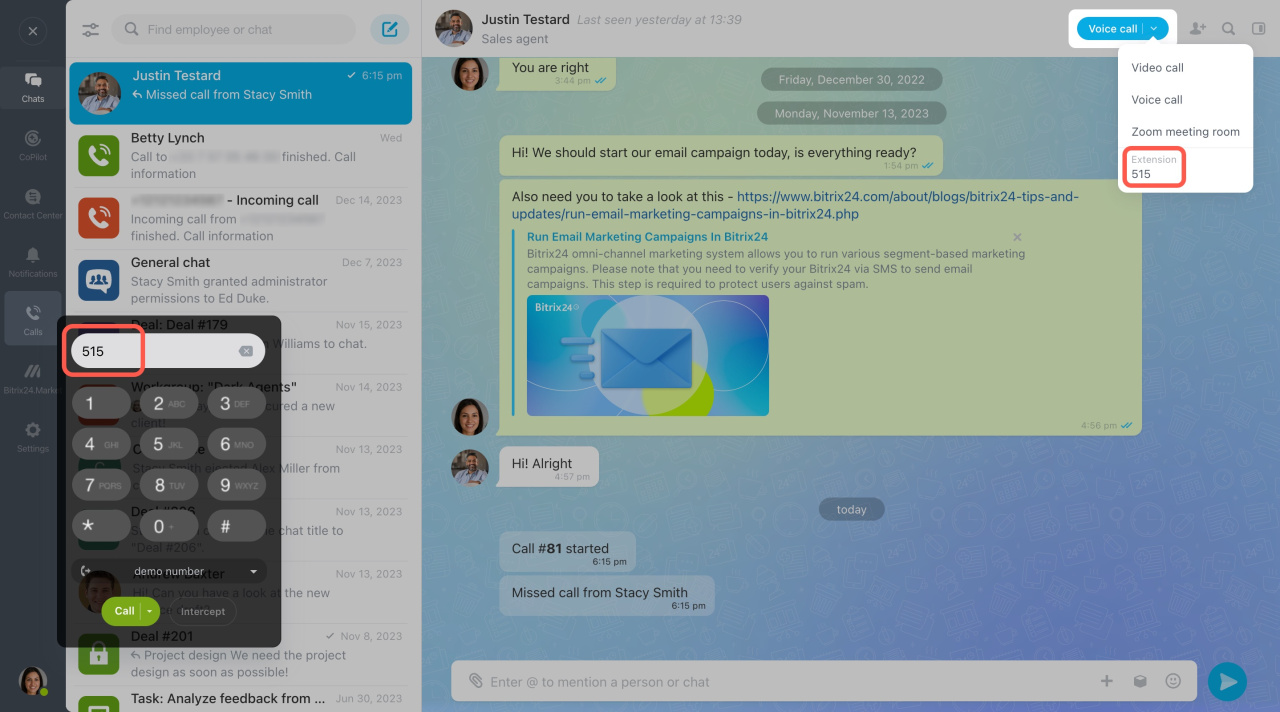
Employees can use extension numbers for internal calls in Bitrix24 Messenger or when using direct dialing.
Extension numbers also work with:
- SIP phones
- Softphones
Configure extension numbers for queue groups
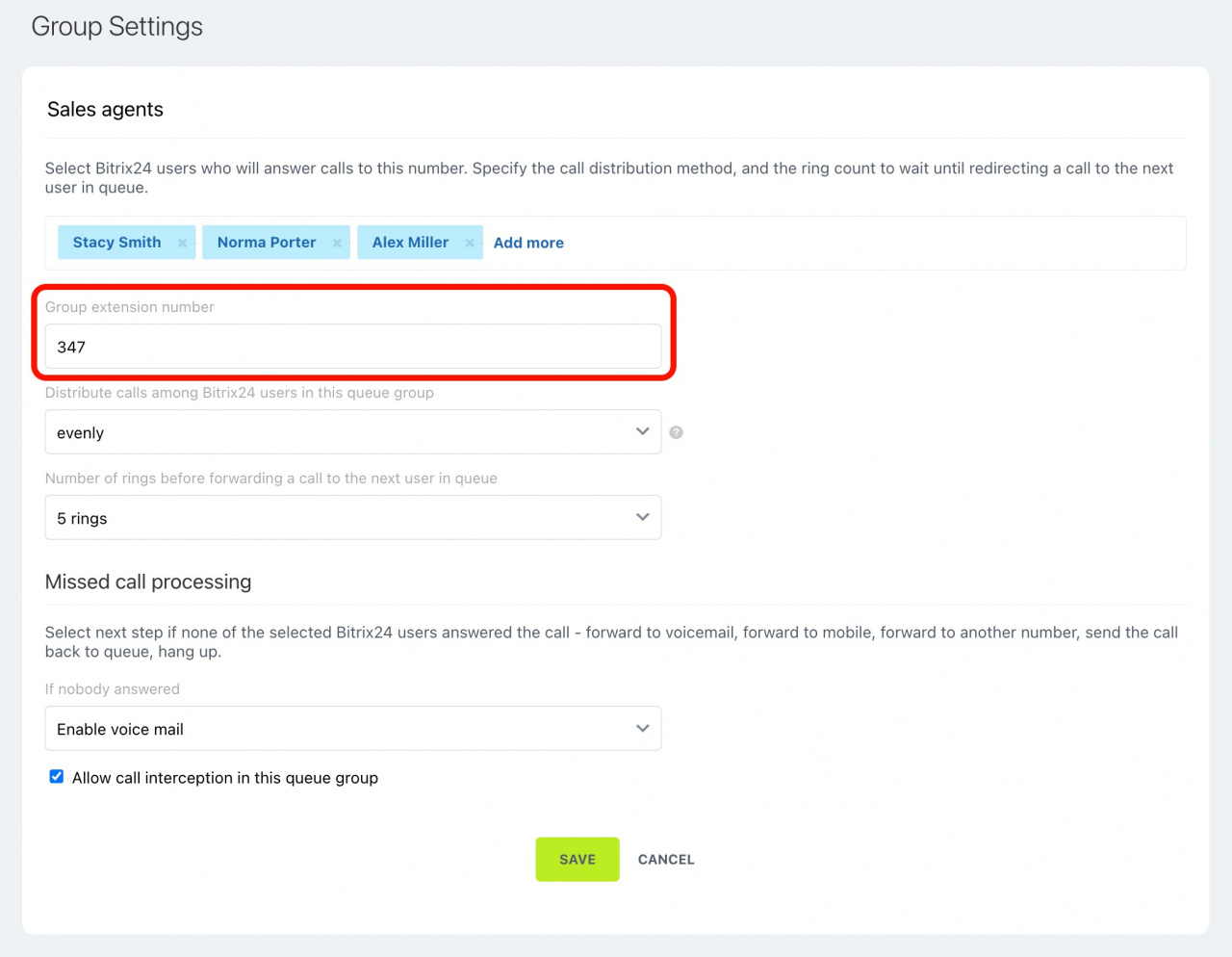
You can assign an extension number to a queue group.
- Open Queue group settings.
- Enter the extension number for the group.
Keep in mind:
- Extension numbers can contain up to four digits.
You can use the group extension number to:
- Route incoming calls after the welcome message
- Make internal calls in Bitrix24
Learn how to configure queue groups
Add extension numbers for clients
You can save a client’s phone number together with an extension number in the CRM entity form.
To add an extension number:
- Enter the client’s phone number.
- Add either
;or#. - Enter the extension number.
Example:
+1 555 123 4567;1234
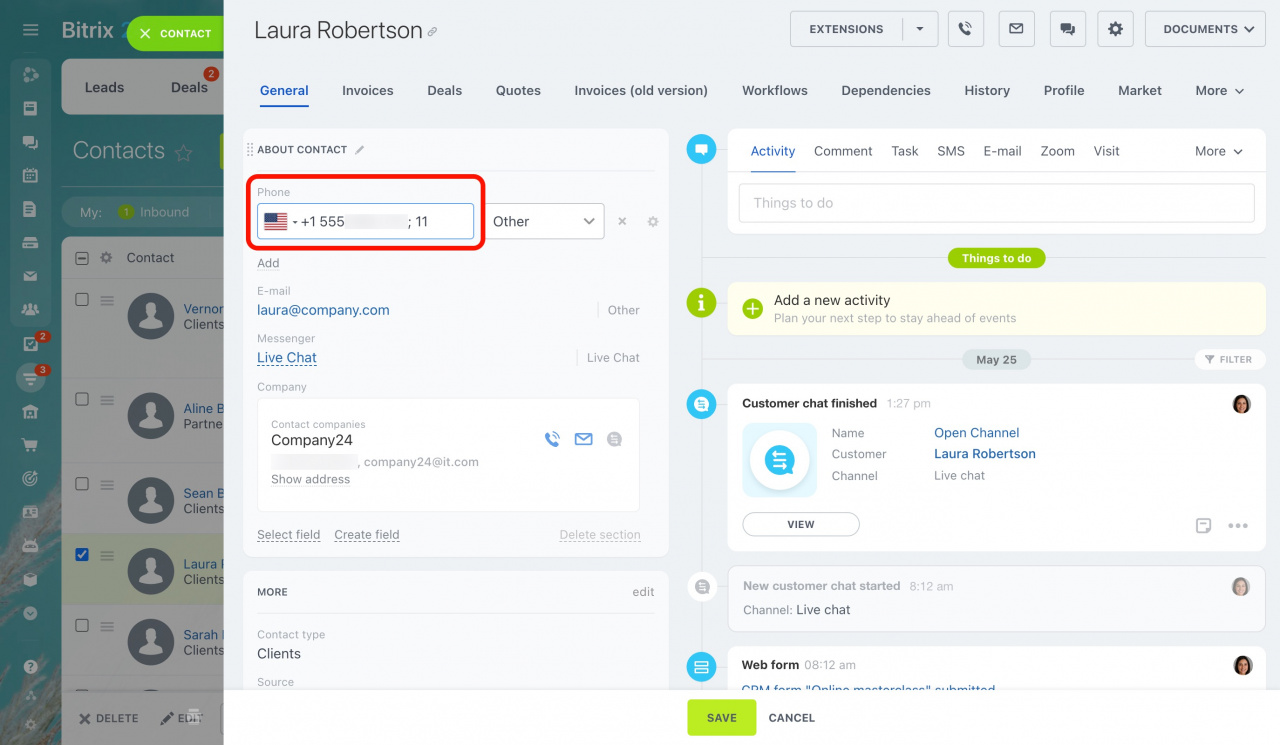
Bitrix24 Telephony also supports outgoing calls to phone numbers with extensions.