


Sales Intelligence lets you show different phone numbers or email addresses on your website based on where visitors come from.
How it works
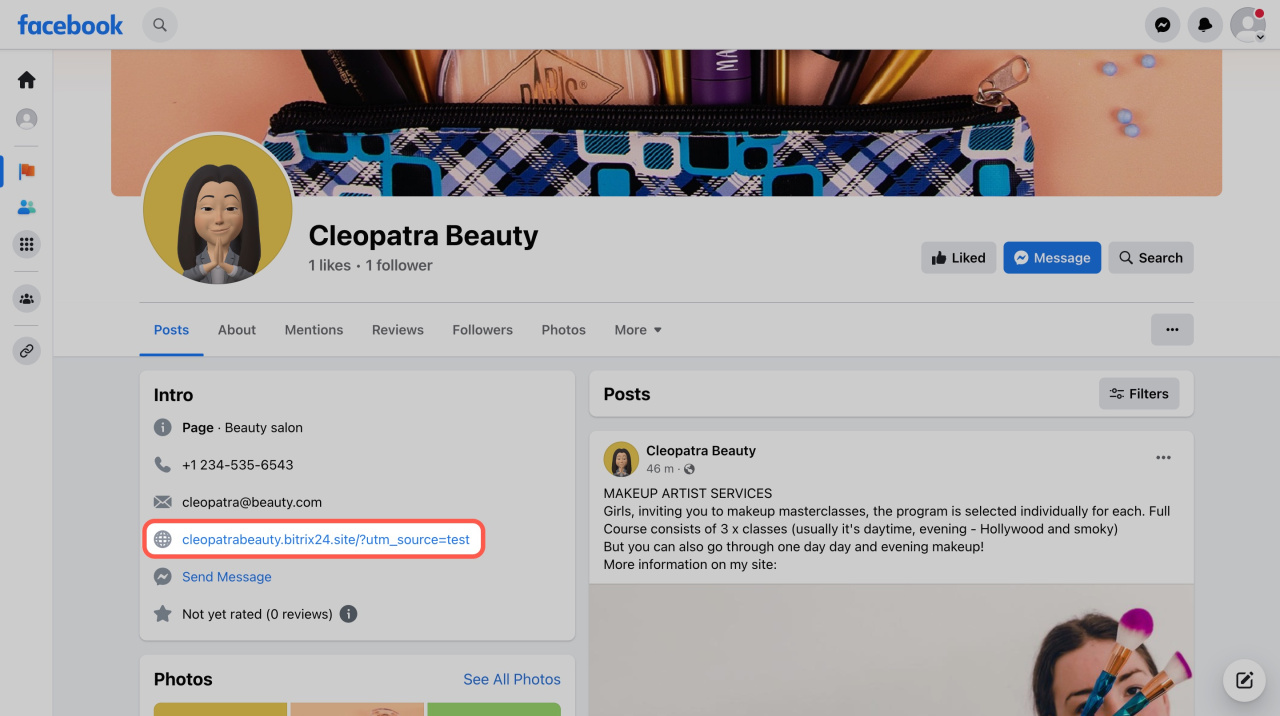
First, set up UTM parameters for your traffic sources. For example, add a website link with UTM parameters to your Facebook page contact info.
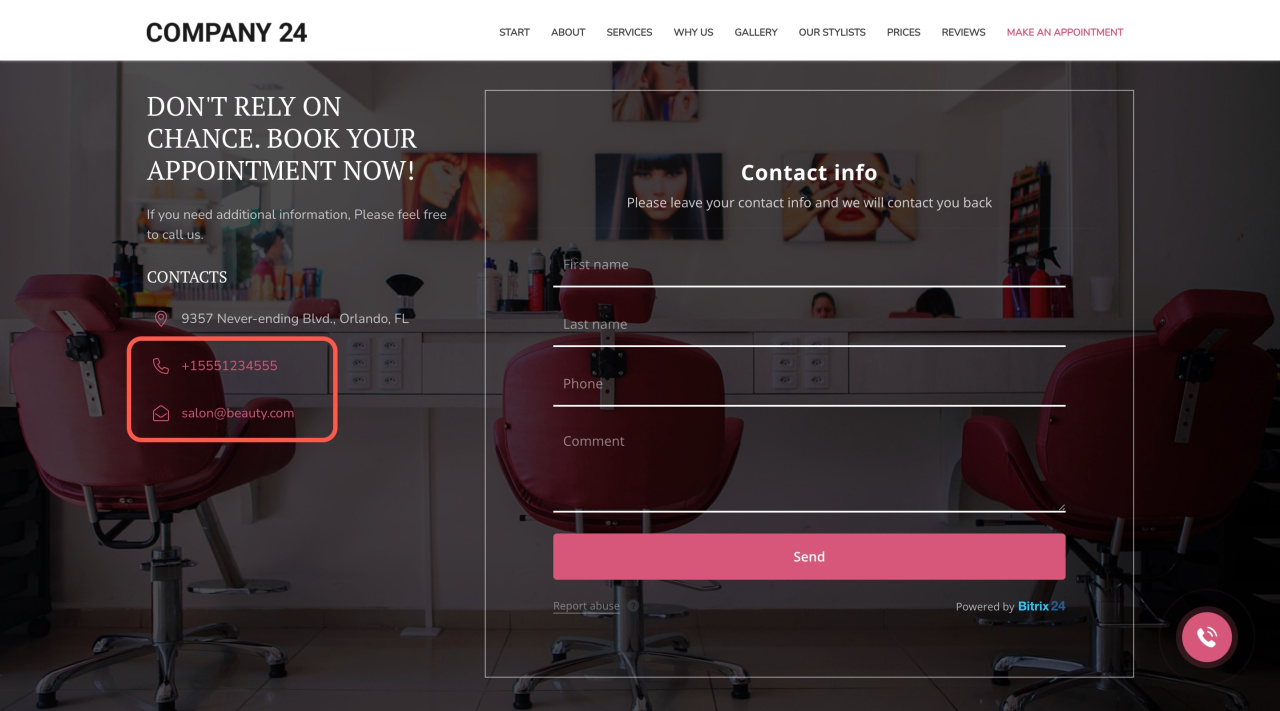
Your website must include a block with a phone number and email address. These details will change depending on the traffic source. This helps you track how clients reach your site.
Assign phone numbers and email addresses to traffic sources
Start by assigning contact details to each traffic source.
Assign phone numbers and email addresses to traffic sources
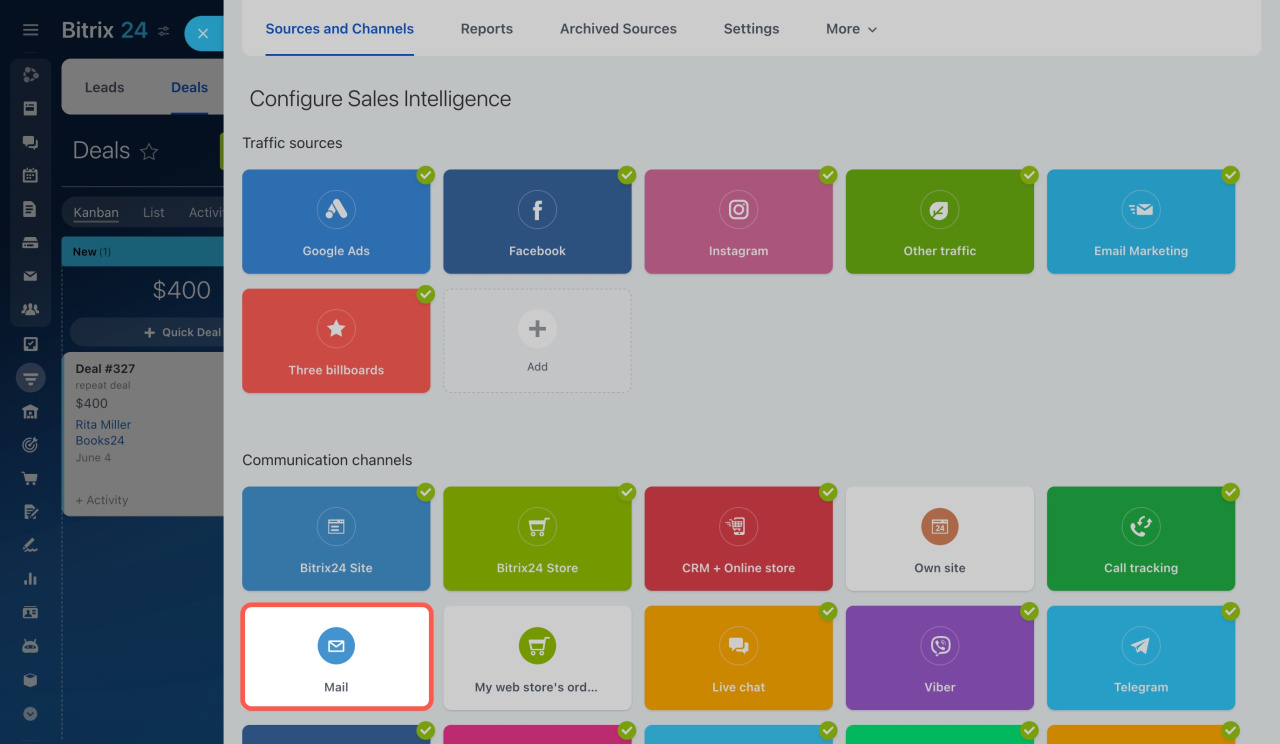
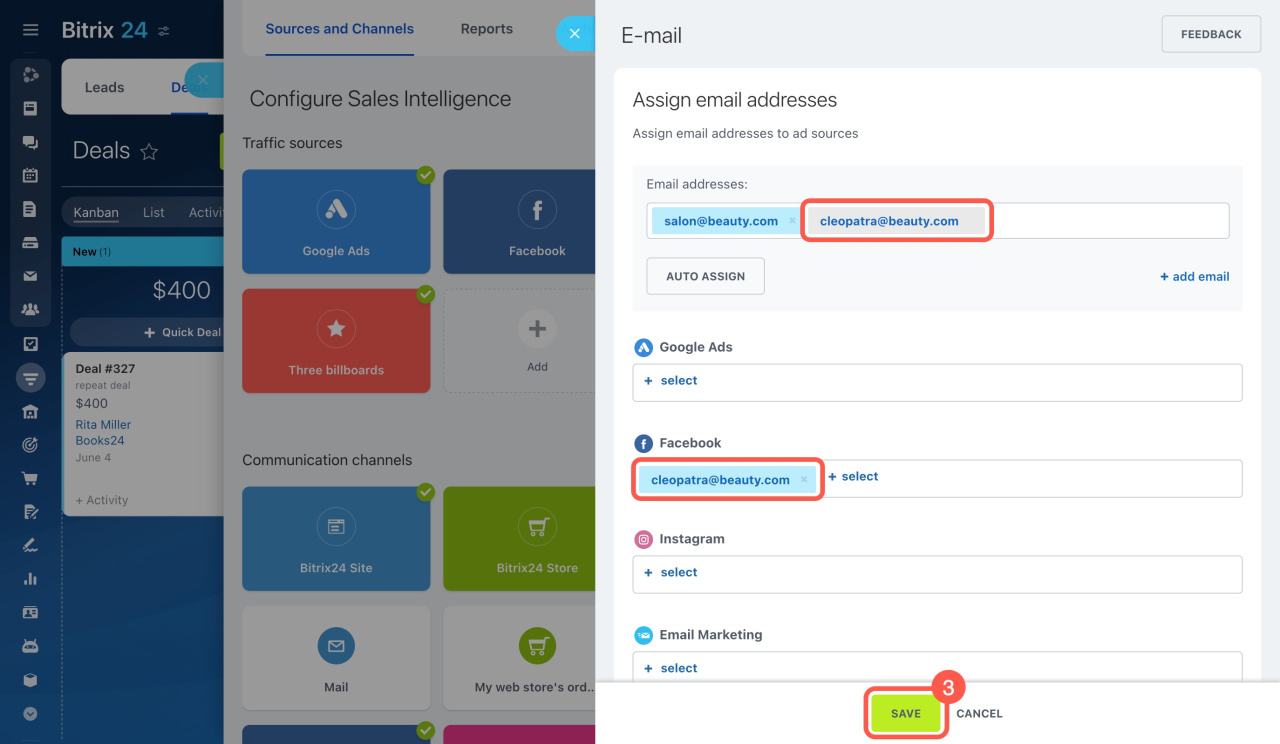
- Go to CRM > Analytics > Sales Intelligence > Mail.
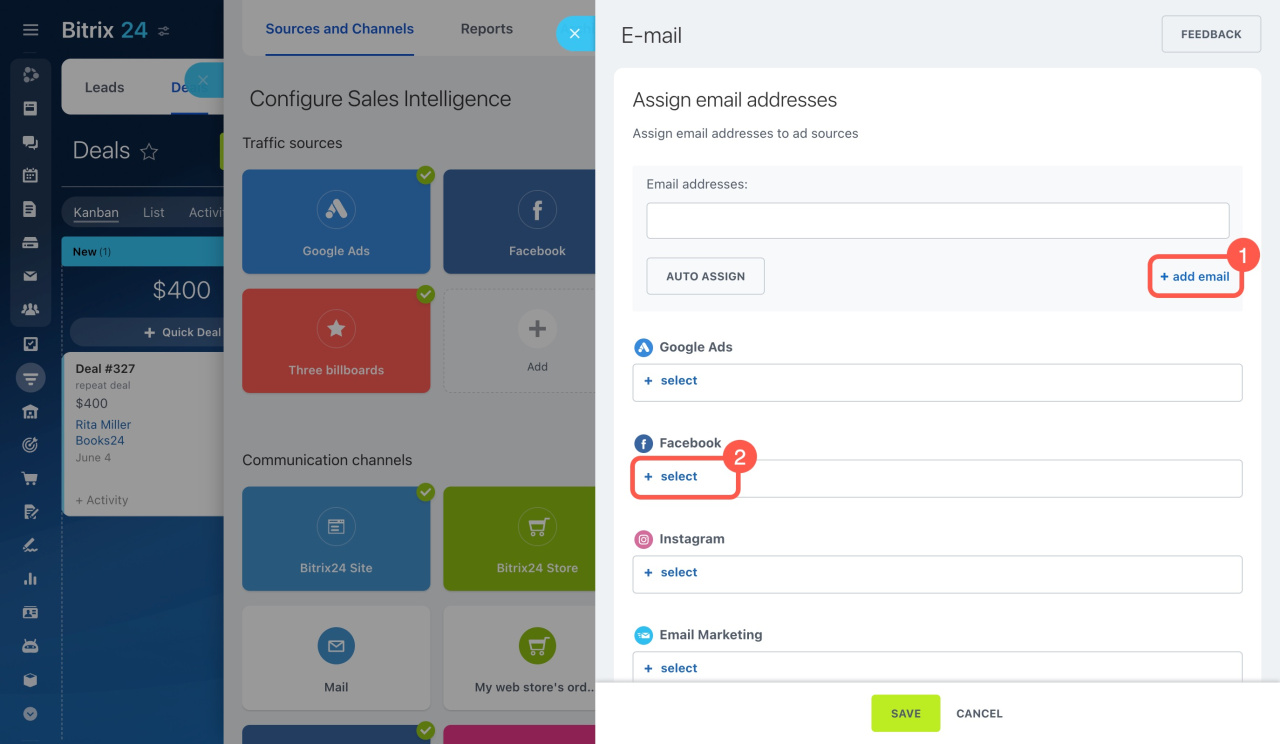
- Add email addresses and assign one to Facebook.
- Save your changes.
Connect your website to Sales Intelligence
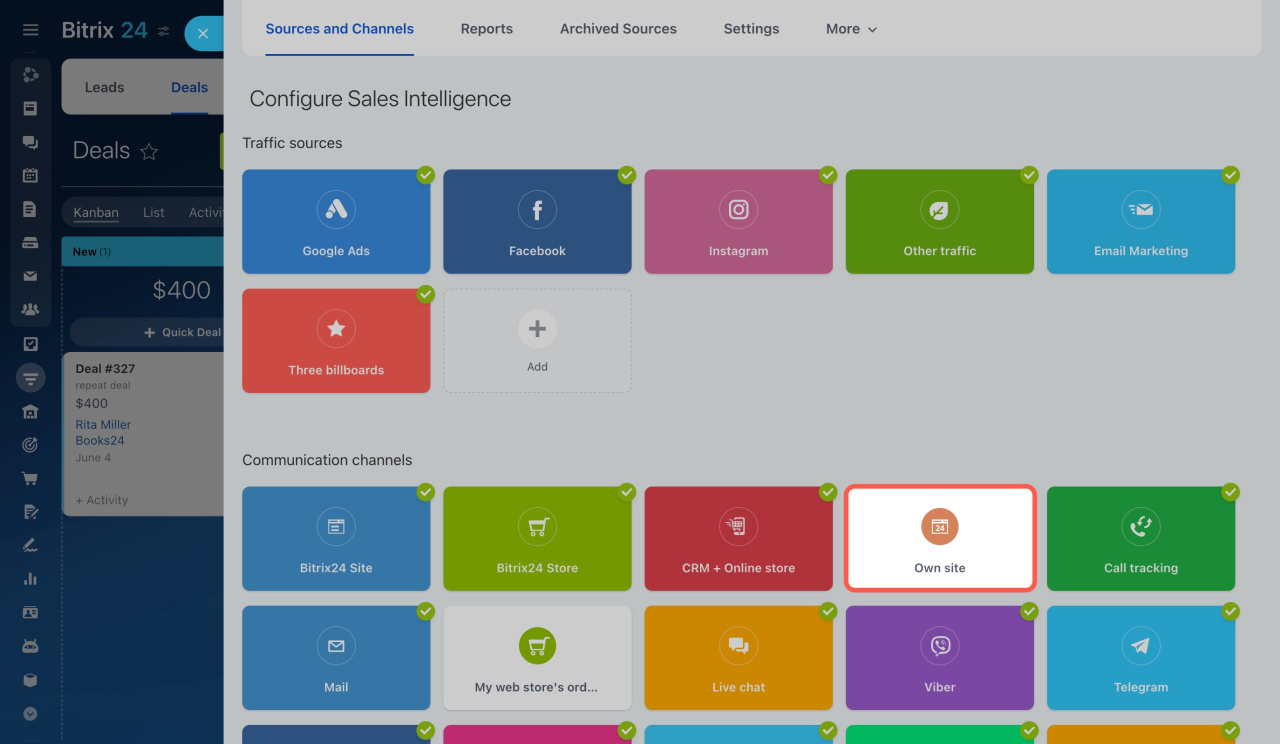
- Go to CRM > Analytics > Sales Intelligence > Own site.
- Enter your website address.
- Click Test site.
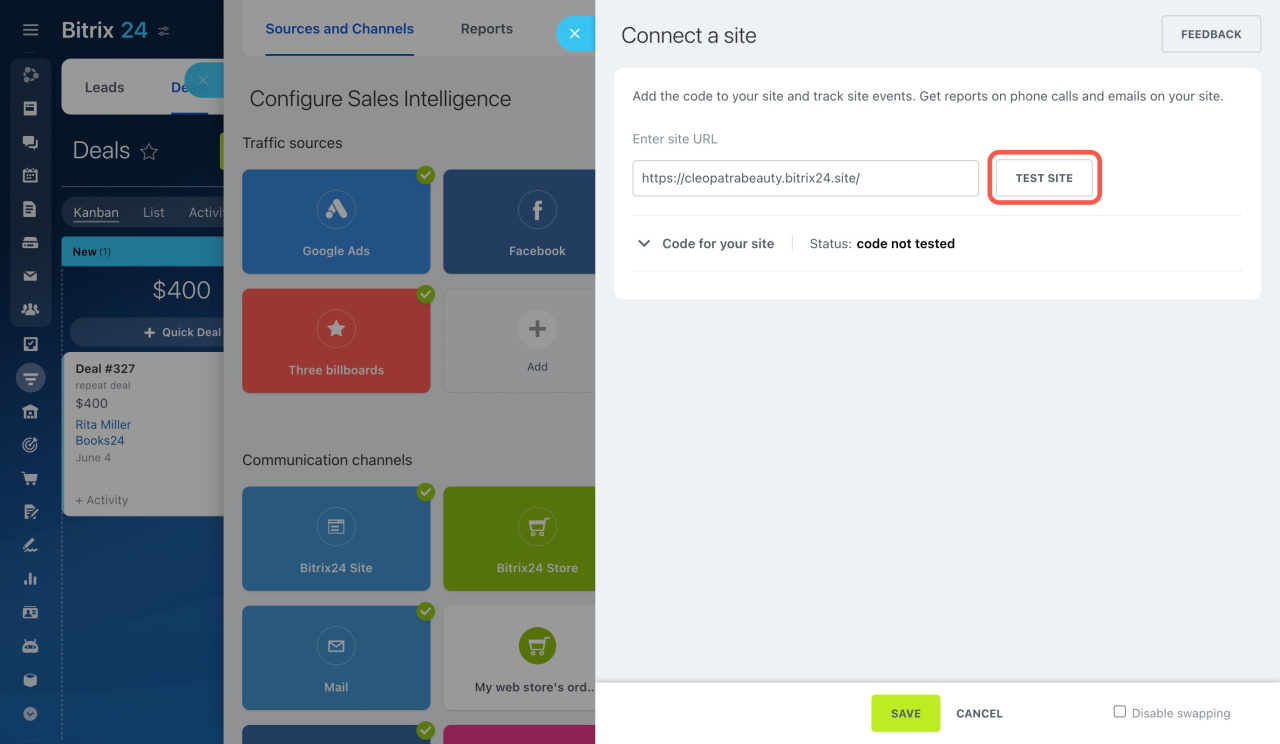
If your website uses a Bitrix24 widget or CRM form, it connects automatically.
For other websites, add the tracking code before the closing </body> tag.
If the phone number does not change, check the following:
- Make sure the numbers on your site match the numbers in Own site settings.
- Check your page layout. It should match the recommended structure.

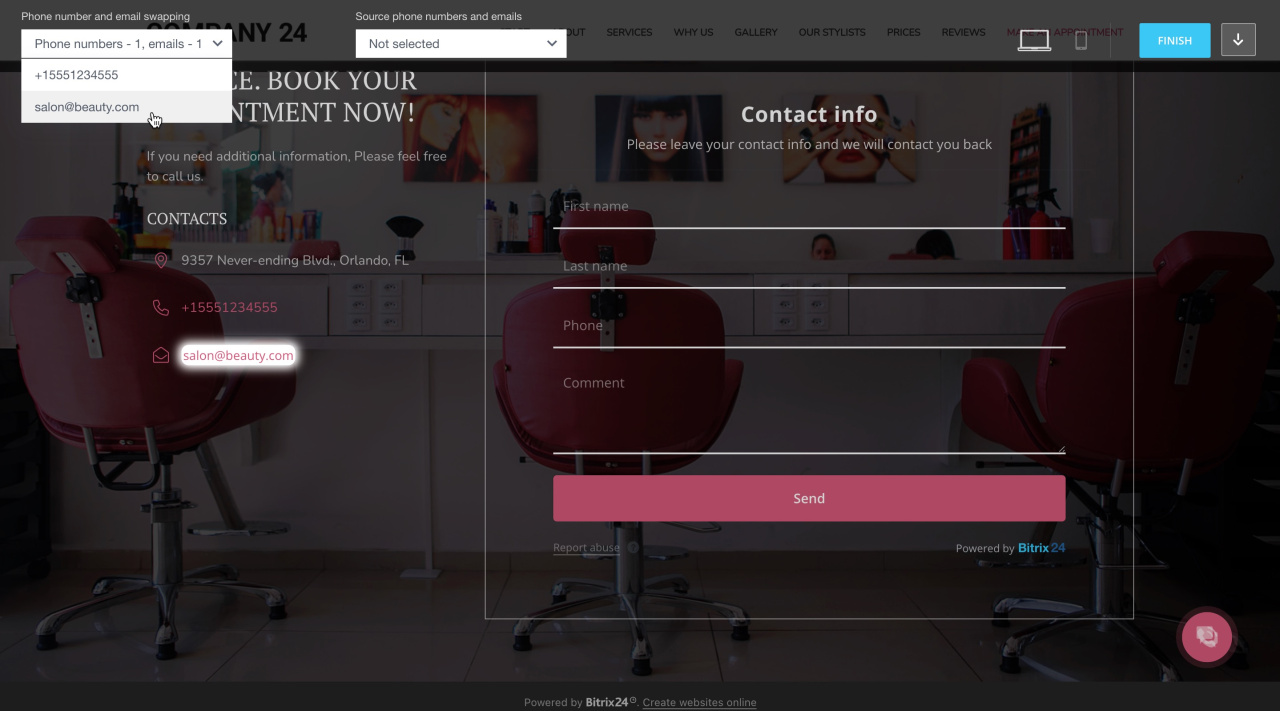
Bitrix24 automatically detects phone numbers and email addresses on your site. Click View on site to continue.
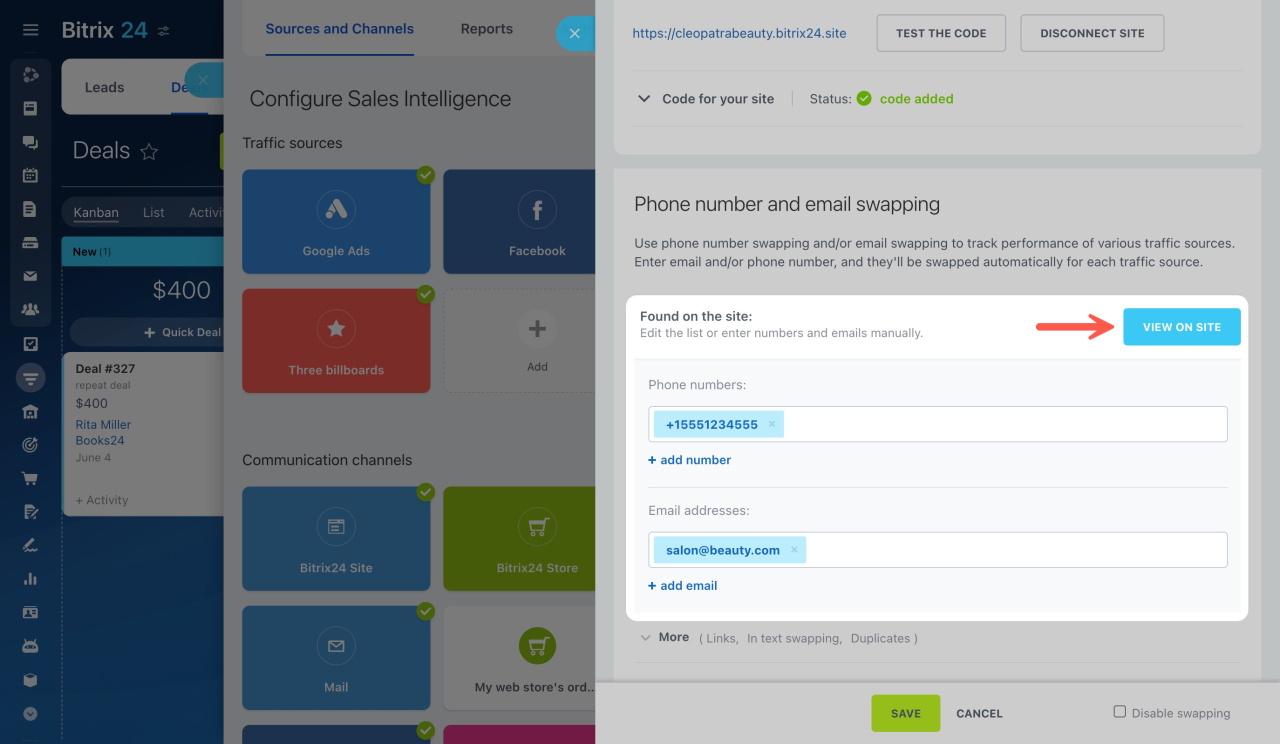
At the top of the page, you will see a toolbar:
- The first list shows all detected phone numbers and email addresses. Select one to highlight its location on the page.
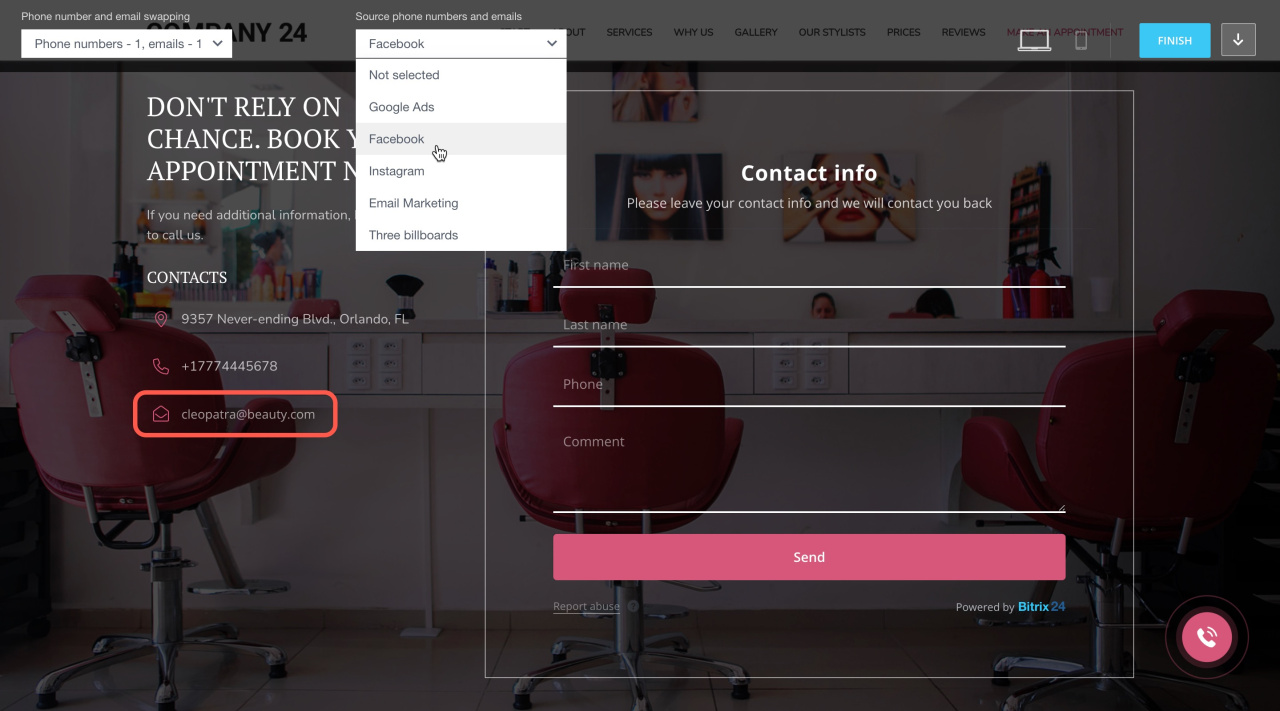
- The second list shows how the page appears for different traffic sources, such as Facebook. The contact details change automatically based on the source.
Check the result
When a visitor clicks your website link from Facebook, they will see the assigned email address.
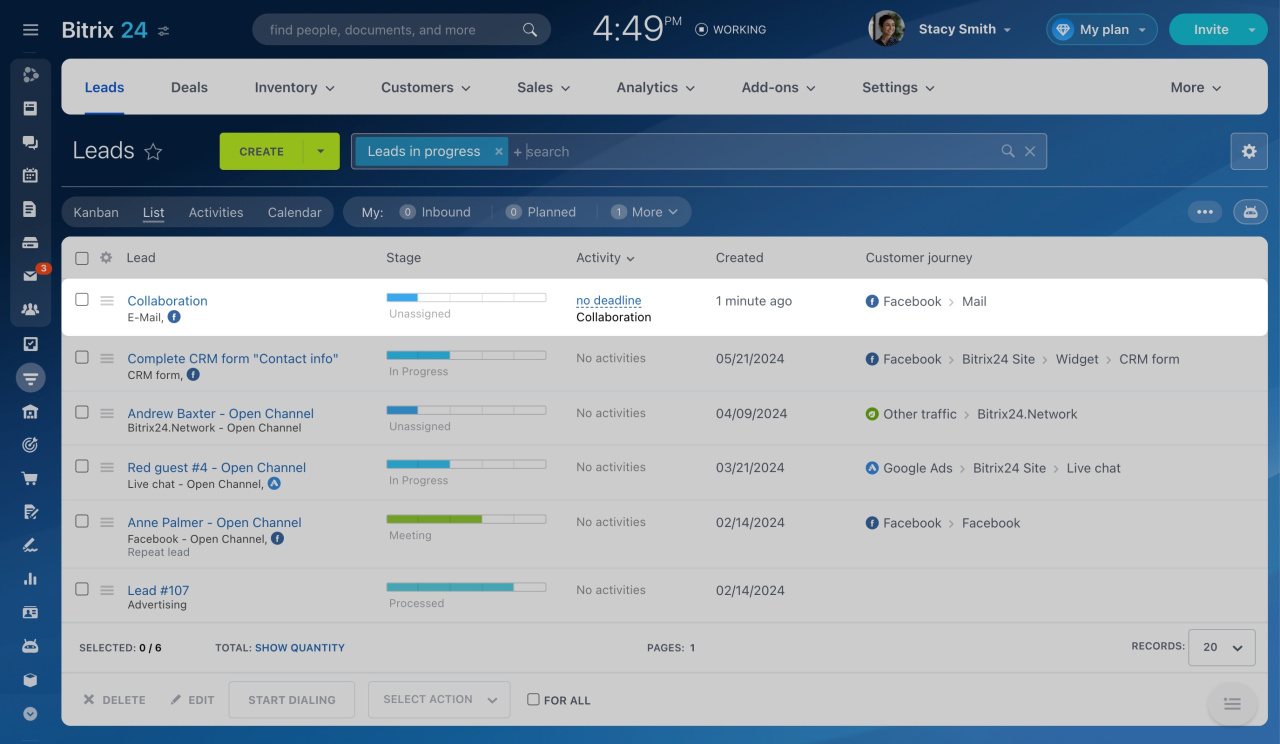
If they send an email, Bitrix24 records the source. You will see Facebook > Mail in the Customer journey section.
In brief
- Sales Intelligence shows different contact details based on traffic sources.
- Set up UTM parameters and assign phone numbers or emails to each source.
- Connect your website. Bitrix24 will automatically swap and track contact details.



