


Start and manage workflows in the Bitrix24 mobile app. Check how long approvals take and reduce delays.
This article explains how time indicators work and how to optimize your workflows.

Start a workflow
- Open the mobile app.
- Go to Menu.
- Open the Workflows tab.
- Tap the Plus (+) icon.
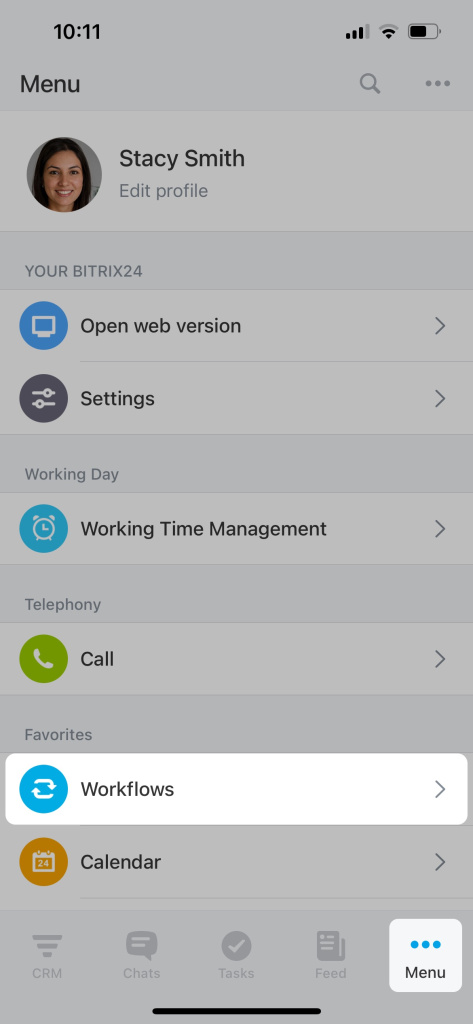

You will see a list of available workflows.
5. Select a workflow and tap Continue.
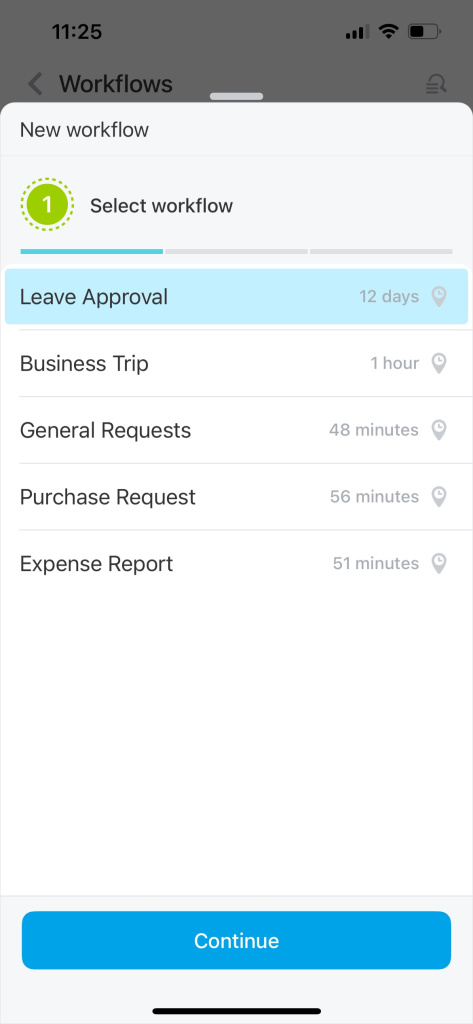
Example: Leave approval
- Read the instructions and tap Continue.
- Fill in the required fields.
- Tap Start.

Your request will appear in the Workflows tab. You can track its progress there.
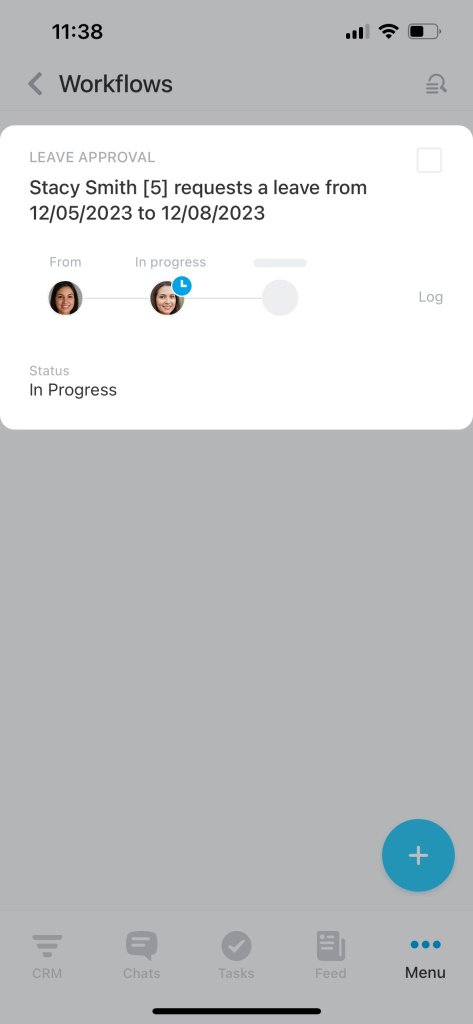

Reduce workflow execution time
If a workflow takes too long, review its structure and steps.
Common issues to check:
-
No backup during absence. If someone is unavailable or overloaded, tasks can stall. Reassign tasks or involve additional team members.
-
Unclear starting point. If users don’t know what to do first, the workflow slows down. Add clear instructions to each field.
-
Delayed approvals. Approvers may miss requests. Add reminder notifications to keep things moving.
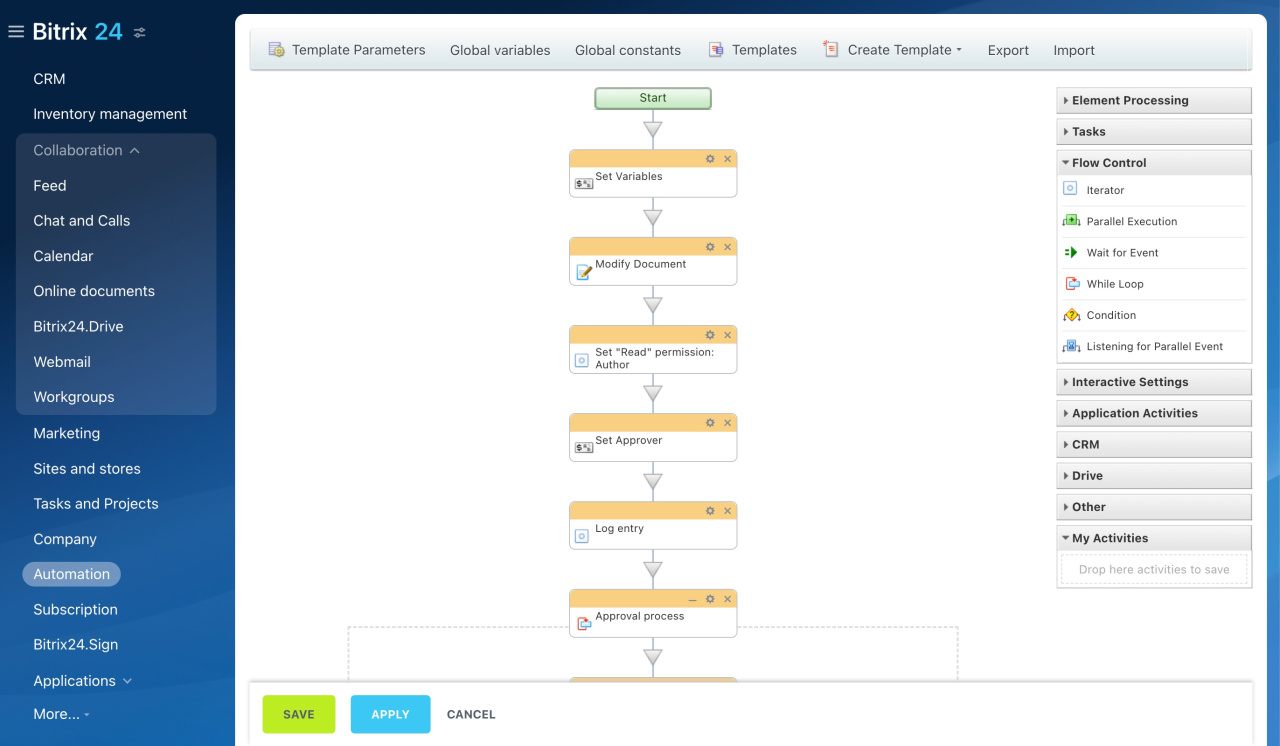
Use the Workflow Designer to update templates and automate task assignments.
Edit a workflow
To review and edit a certain workflow,
- Go to Automation.
- Open the Workflows tab.
- Select Workflows in Feed.
- Choose a workflow.
- Click the gear icon (⚙️).
- Select Configure workflows.
- Open the required workflow template.
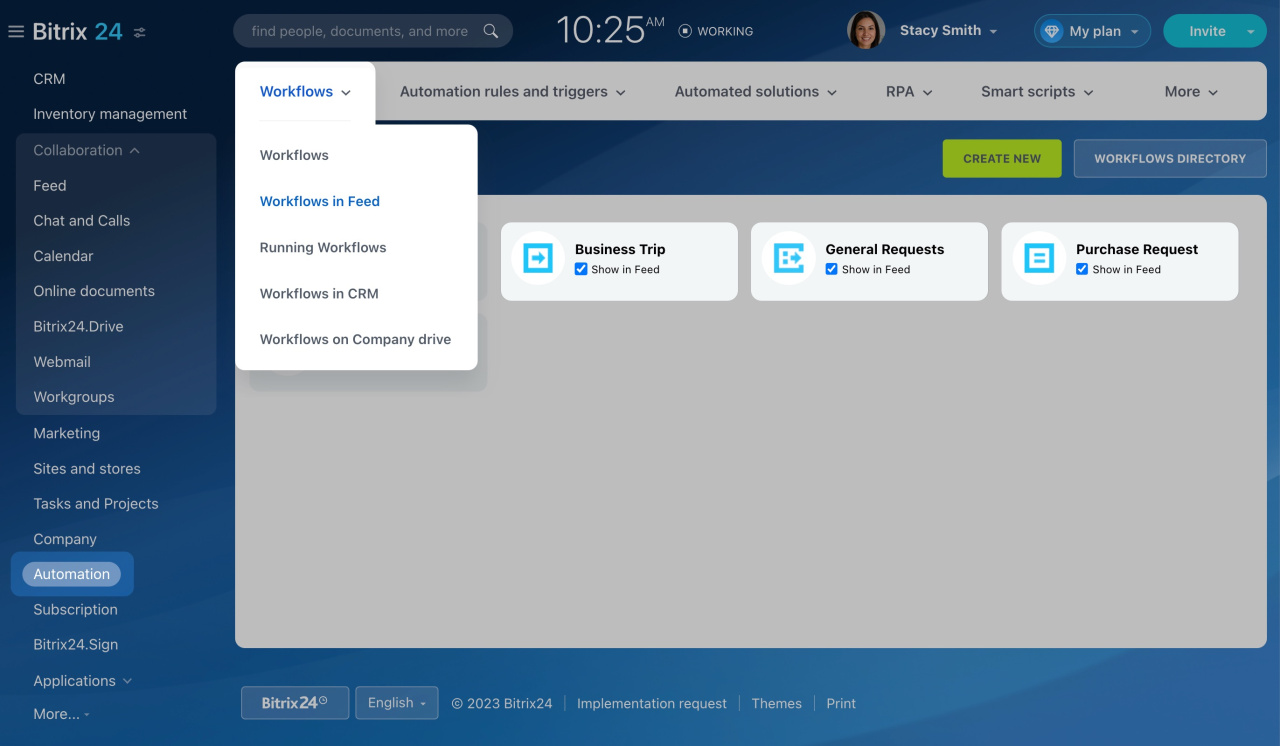
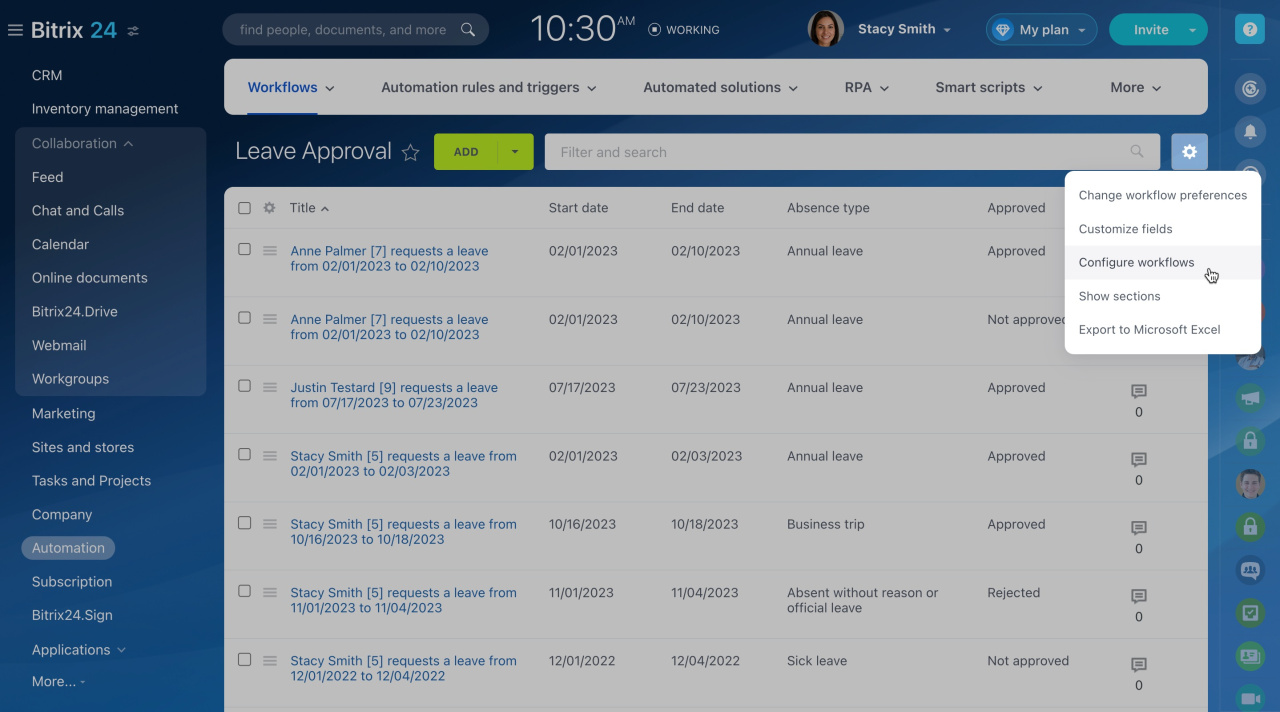
The Workflow Designer will open. Update the workflow settings as needed.
All workflow setup consultations and support are provided exclusively by Bitrix24 partners.
In brief
- Workflows are available in the mobile app.
- Check execution time to understand approval delays.
- Use the Workflow Designer to reduce approval time.



