🚚 Miễn phí giao hàng toàn quốc

✅ Tặng Gói Hỗ trợ online trọn đời

✅ Giá cạnh tranh nhất thị trường

✅ Miễn phí tư vấn giải pháp

🚚 Miễn phí giao hàng toàn quốc

✅ Tặng Gói Hỗ trợ online trọn đời

✅ Giá cạnh tranh nhất thị trường

✅ Miễn phí tư vấn giải pháp

Hotline: 0943.199.449

Địa chỉ: Tầng 1, tòa nhà Deli, 75 Hoàng Văn Thụ, P. Cầu Kiệu

Bitrix24 Helpdesk

Hide IDs at the beginning of text fields in Power BI

In Microsoft Power BI, some report fields include ID numbers before the text value.

For example, in a standard sales report, an employee name may appear together with the employee ID.
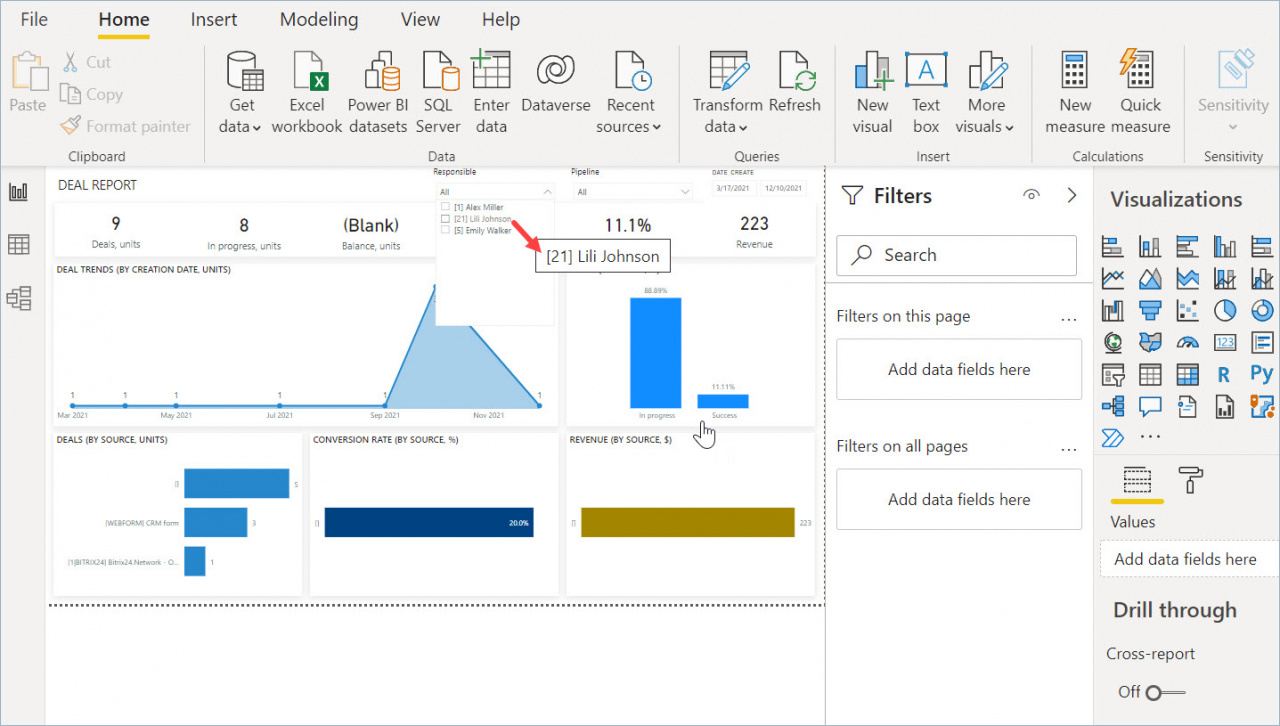
If you do not need the ID values in the report, you can remove them.


Hide IDs in a field

  1. Select the table you want to edit.
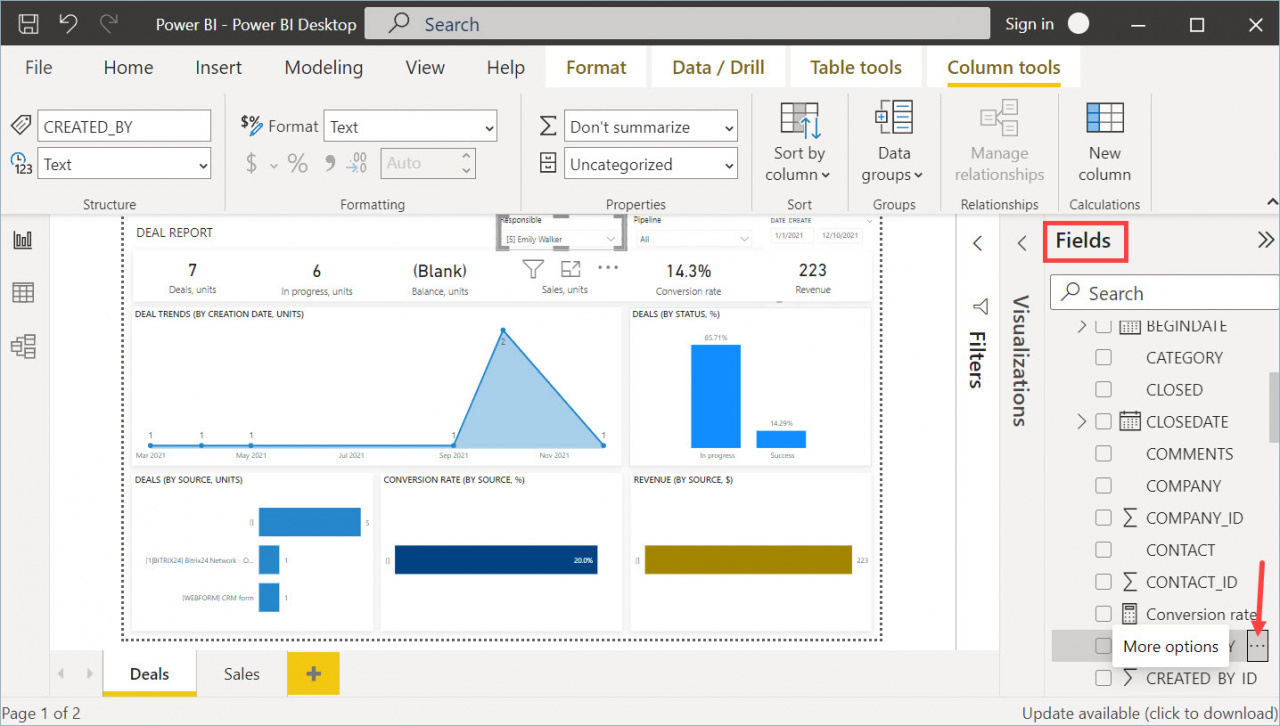
  2. Click the More options button next to the field.
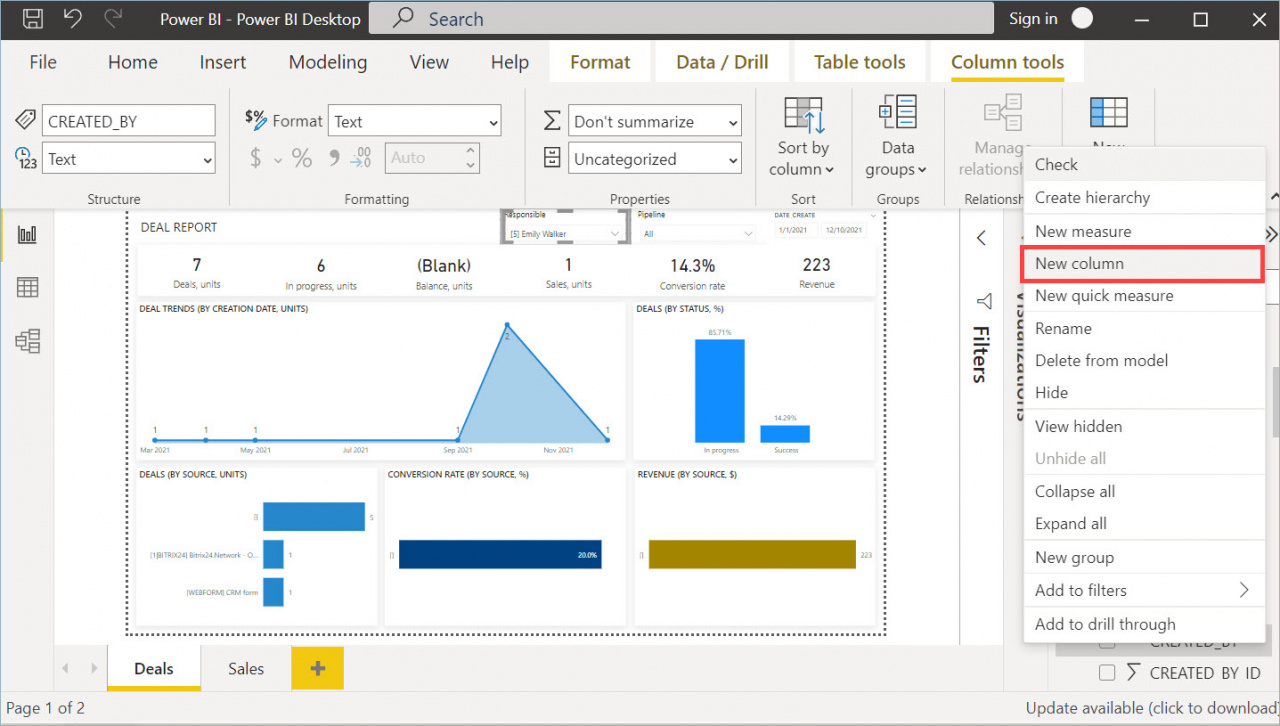
  3. Click New column.
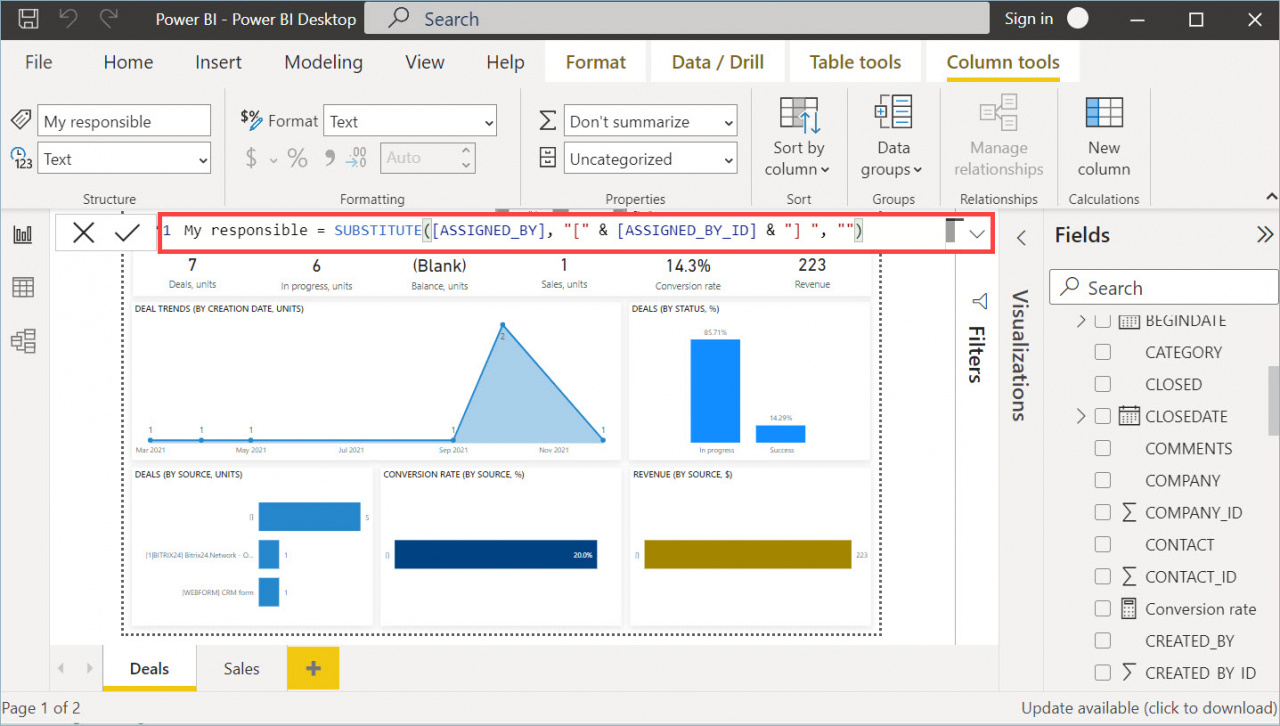
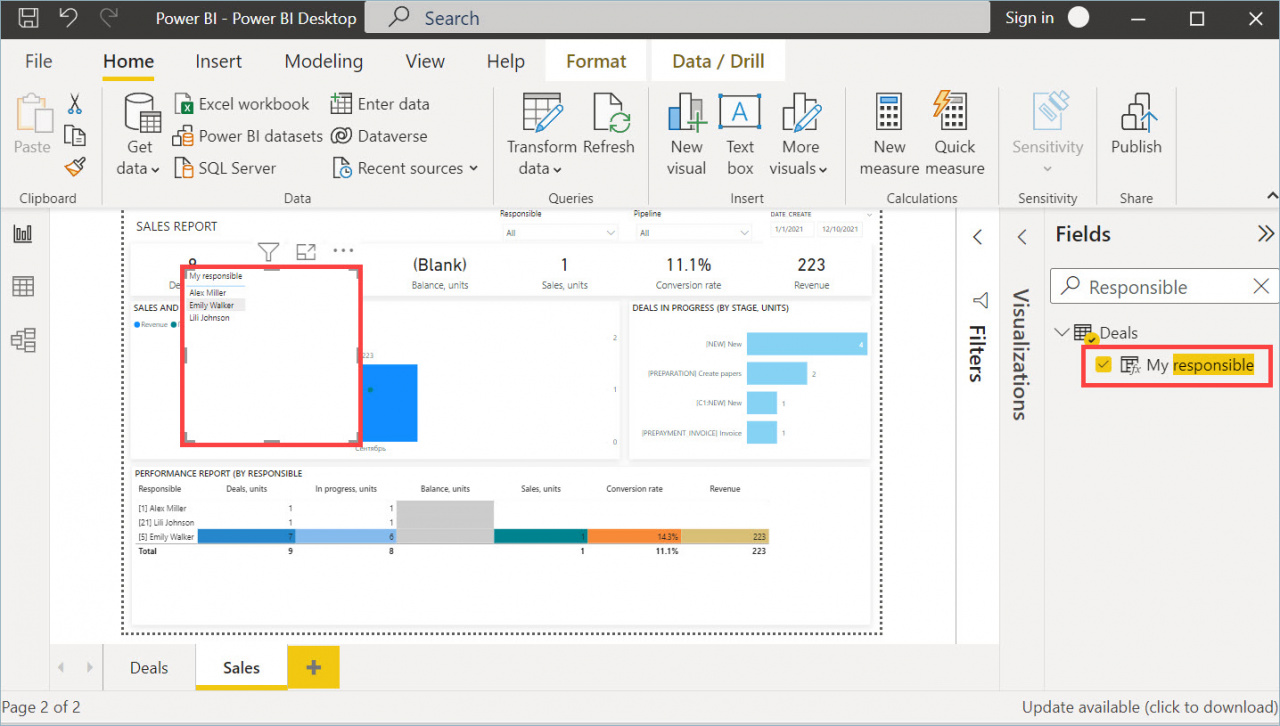
  4. Add the following formula: My responsible = SUBSTITUTE([ASSIGNED_BY], "[" & [ASSIGNED_BY_ID] & "] ", "")
After you save the formula, a new column appears in the Fields section.

Show the new column and hide the original one. Employee names in the report now appear without ID numbers.

Was this information helpful?
Thank you for your feedback.
Get Implementation Help from a Partner
That's not what I'm looking for
Complicated and incomprehensible text
The information is outdated
It's too short. I need more information
I don't like the way this tool works
Get your Bitrix24 set up by local professionals
FIND BITRIX24 PARTNER NEAR ME
implementation_helper_man
Go to Bitrix24
Don't have an account? Create for free
Related articles
Limit the number of columns in a Microsoft Power BI entity Filter report data by different dates in Microsoft Power BI Transfer CRM entities to Microsoft Power BI Connect Microsoft Power BI Add multiple SPAs to a Power BI report
Zalo
0943.199.449