
🚚 Miễn phí giao hàng toàn quốc

✅ Tặng Gói Hỗ trợ online trọn đời

✅ Giá cạnh tranh nhất thị trường

✅ Miễn phí tư vấn giải pháp

🚚 Miễn phí giao hàng toàn quốc

✅ Tặng Gói Hỗ trợ online trọn đời

✅ Giá cạnh tranh nhất thị trường

✅ Miễn phí tư vấn giải pháp

Hotline: 0943.199.449

Địa chỉ: Tầng 1, tòa nhà Deli, 75 Hoàng Văn Thụ, P. Cầu Kiệu

Bitrix24 Helpdesk

Quick access page bar in Bitrix24

The quick access button is available in Tasks, CRM and Profile sections. It is used to collapse a task or a deal form and then open it again via the quick access page bar.
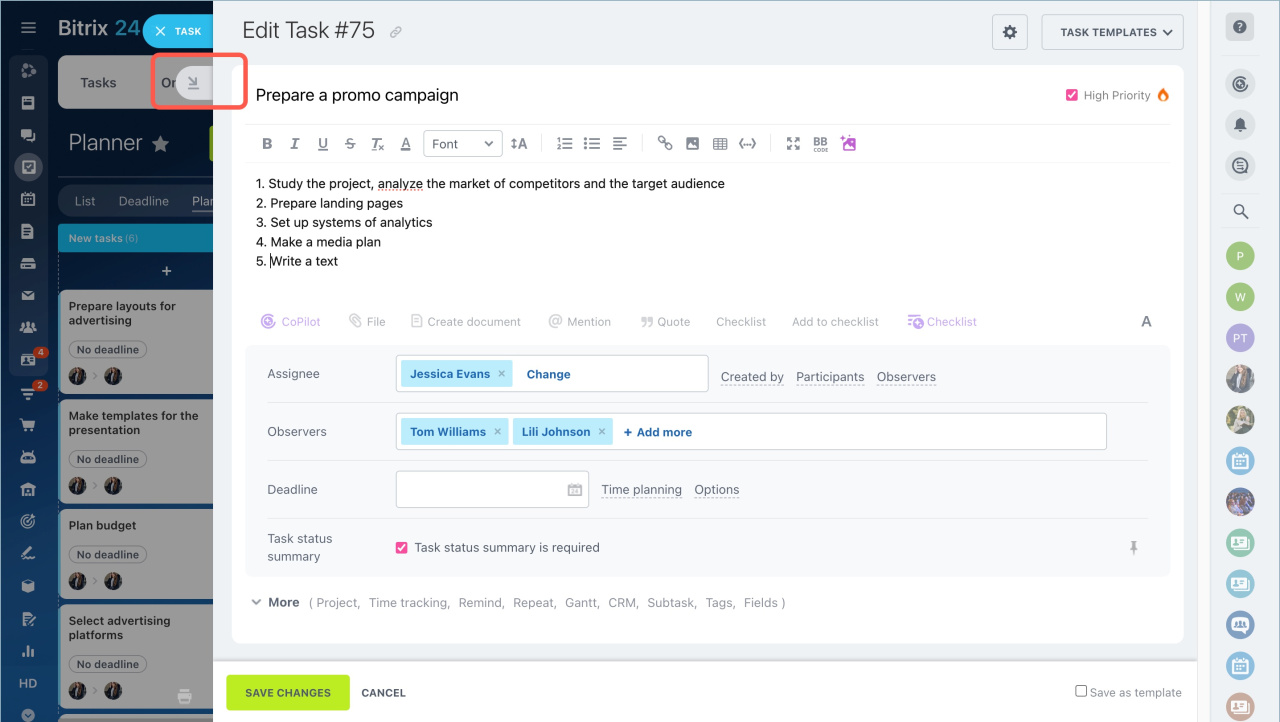
How to use the quick access page bar:

  • Move the cursor over the page bar to view the name and the type of the collapsed element.
  • Click on the bar to open the page.
  • Click the Menu(≡) to expand or collapse the quick access page bar.
  • Click on the dots to open a list of previously collapsed pages or remove all pages from the bar.
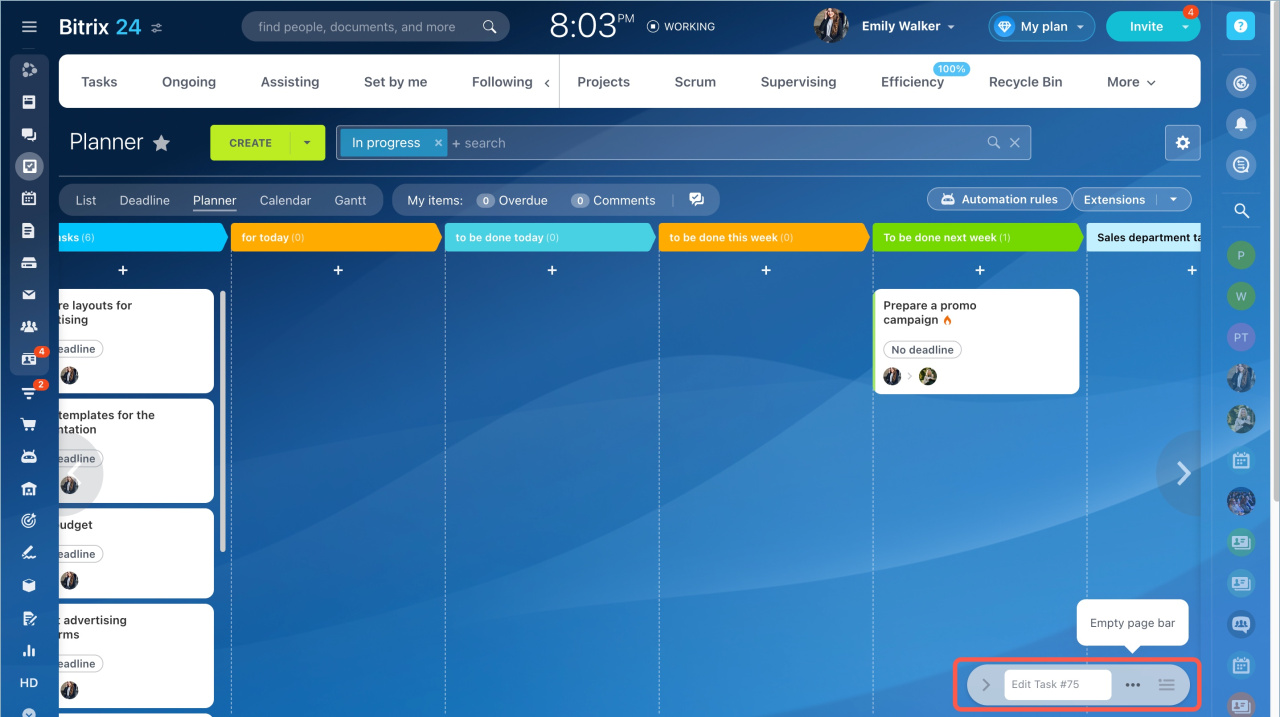
Quick access in Bitrix24 makes it easy to find tasks, deals and employees' profiles.


Was this information helpful?
Thank you for your feedback.
Get Implementation Help from a Partner
That's not what I'm looking for
Complicated and incomprehensible text
The information is outdated
It's too short. I need more information
I don't like the way this tool works
Get your Bitrix24 set up by local professionals
FIND BITRIX24 PARTNER NEAR ME
implementation_helper_man
Go to Bitrix24
Don't have an account? Create for free
Related articles
Limits on searchable tasks and CRM items FAQ: General questions Print Bitrix24 pages Allow access to your Bitrix24 for technical support Change the interface language How your Google data is used in integrations Delete a Bitrix24 account in the mobile app Data backup and recovery Delete Bitrix24 account Spam and unsolicited messages
Zalo
0943.199.449
