


By default, all your employees have full access to the company knowledge bases. You can adjust access permissions for all or specific knowledge bases of this type. Only administrators can configure these settings.
Bitrix24 plans and pricing
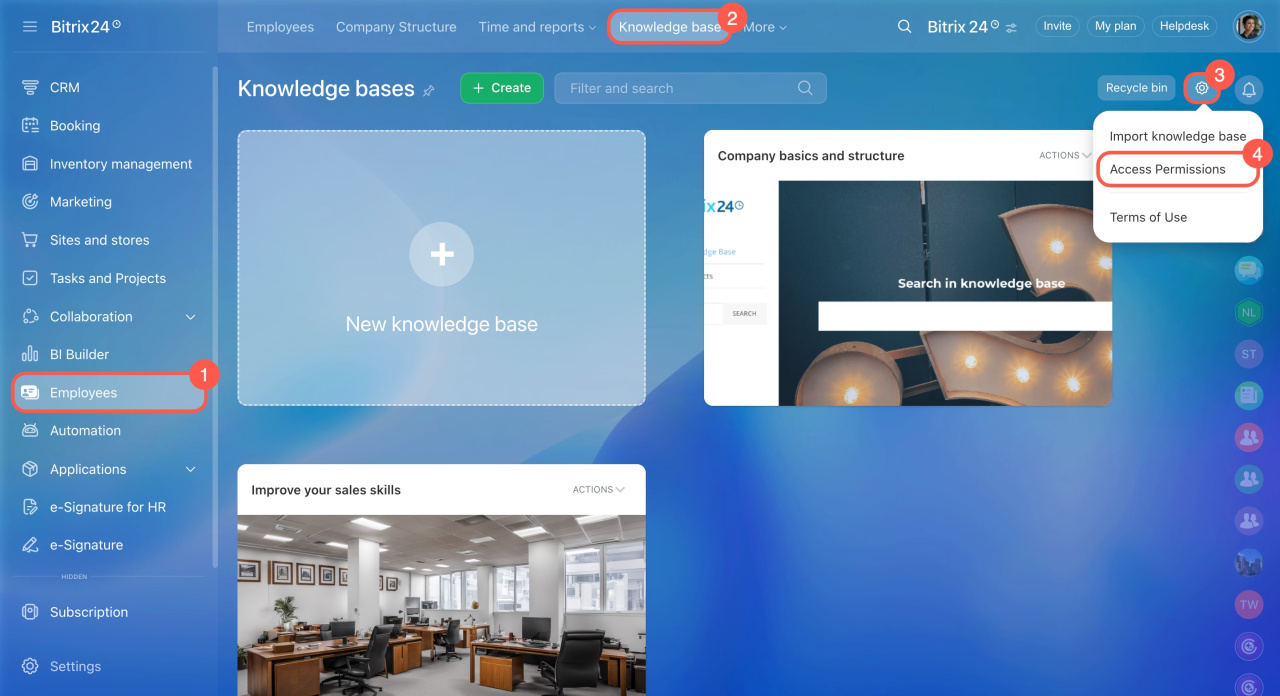
Step 1: Open access settings
- Go to the Employees section.
- Open the Knowledge base tab.
- Click Settings (⚙️).
- Select Access Permissions.
Step 2: Create a role
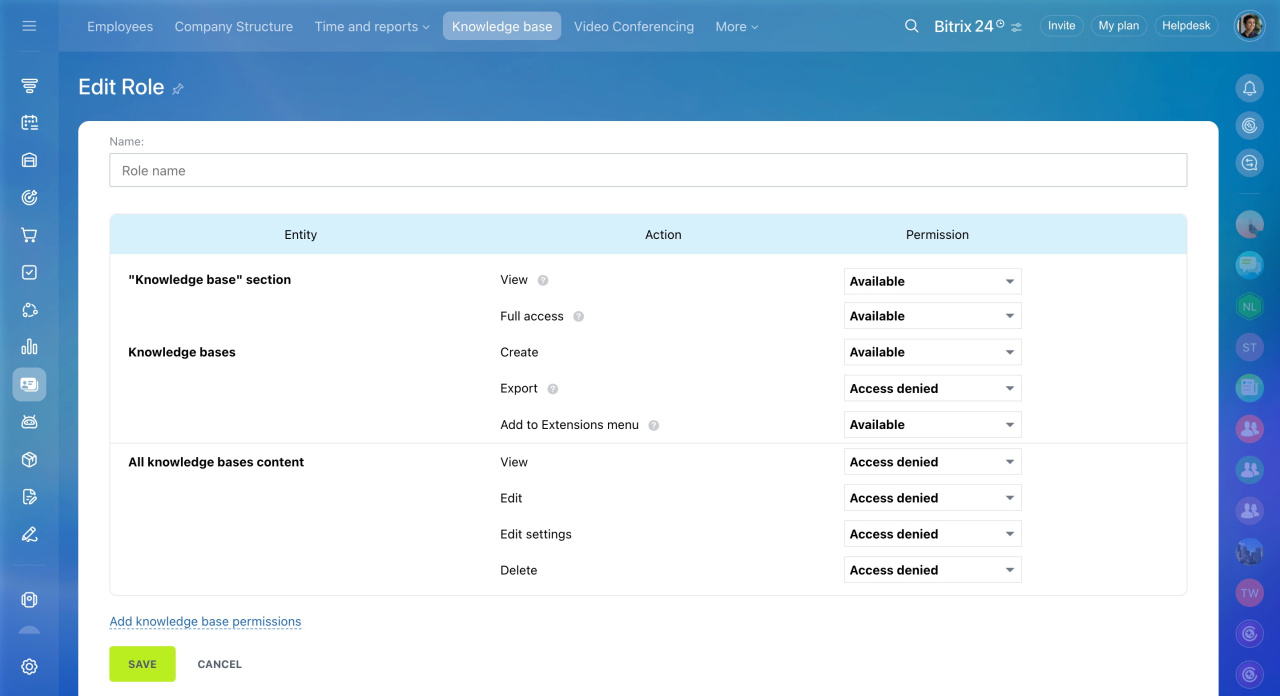
- Click Add in the roles block and name the role.
- Configure general access permissions, such as whether the knowledge base can be placed in different sections.
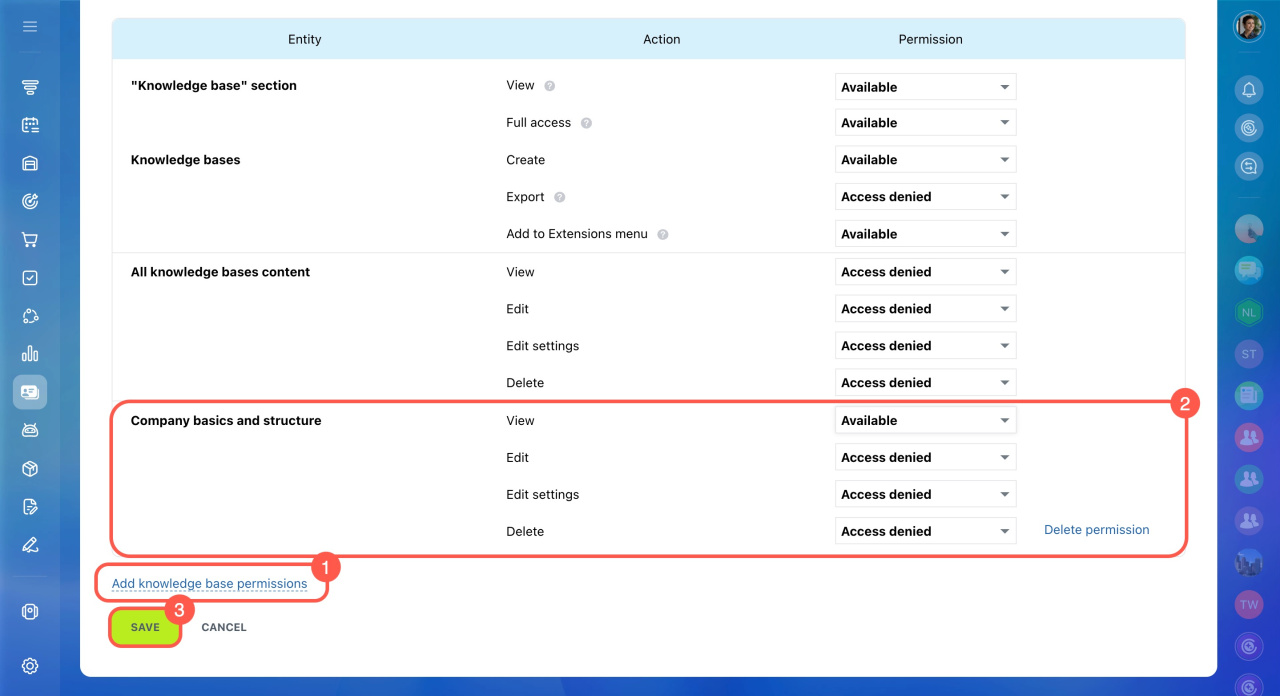
Add a knowledge base to a section - Click Add knowledge base permissions and select a specific knowledge base.
- Customize permissions for the selected knowledge base.
- Save the role.
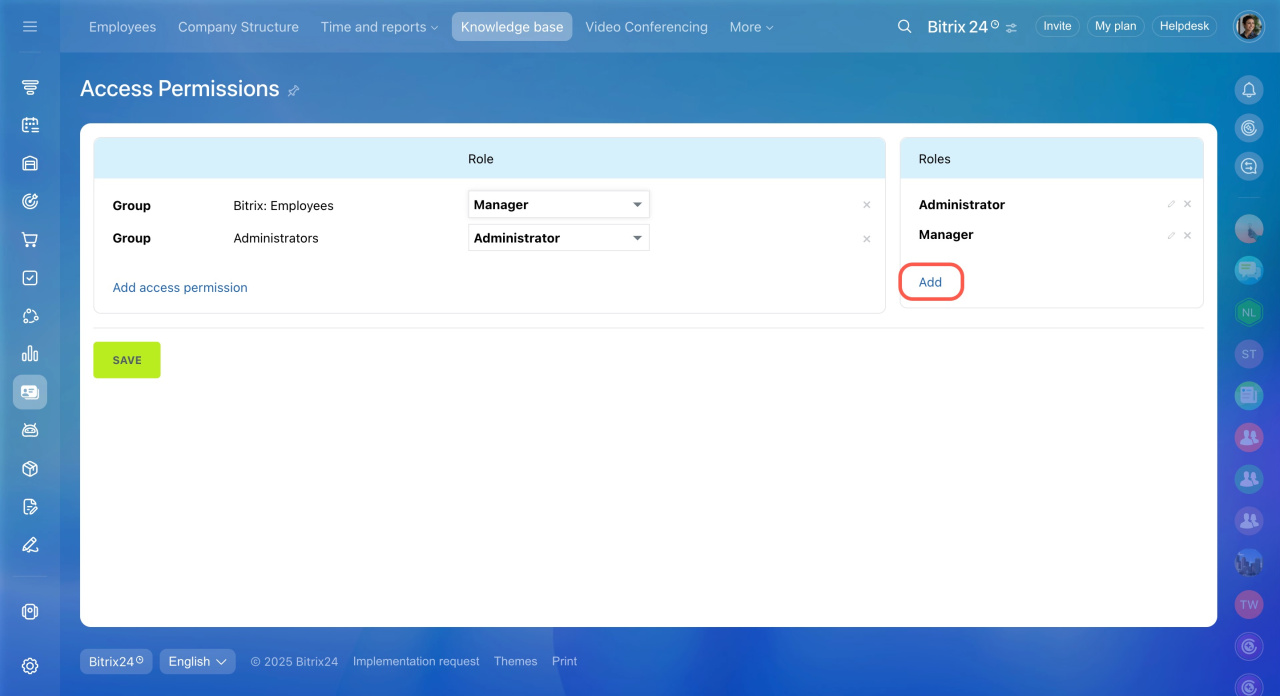
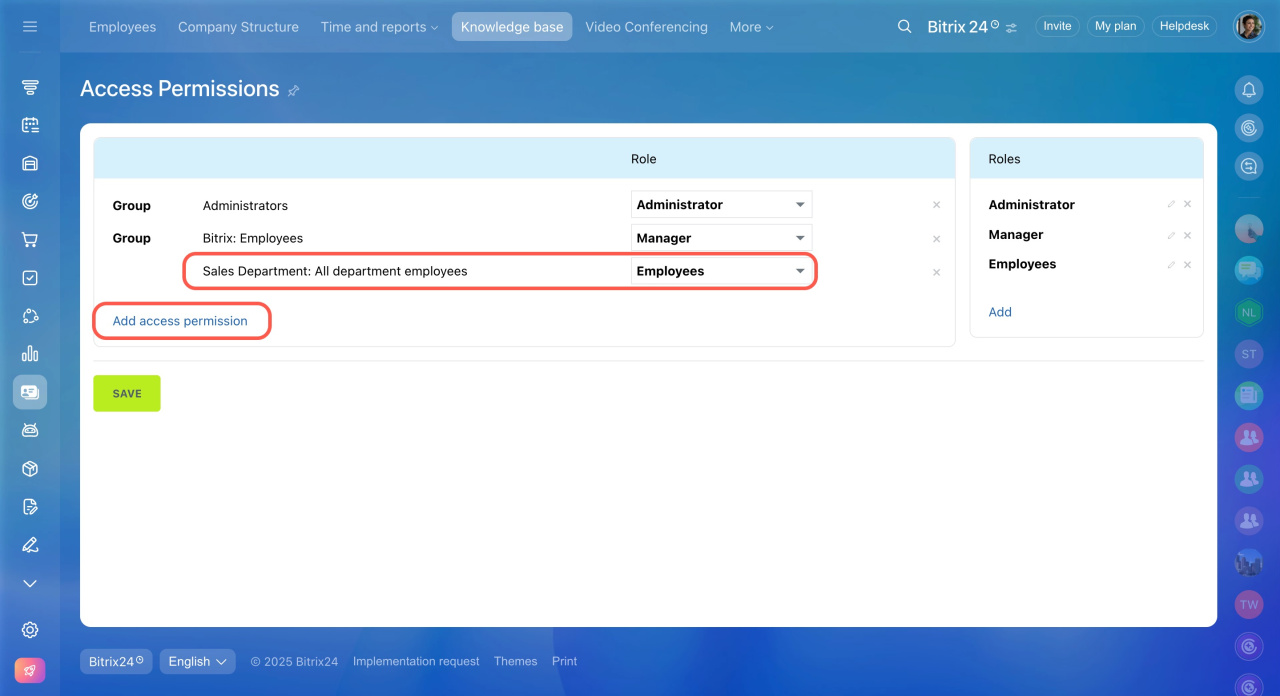
Step 3: Assign the role
Assign the added role to employees or departments.
To configure access permissions for workgroup (project) knowledge bases, see this article: Workgroup knowledge base: Access permissions.
In brief
-
By default, all employees have full access to the company knowledge bases.
-
Only administrators can configure access permissions for knowledge bases.
-
Permissions set in the Knowledge base section override individual knowledge base permissions.
-
You can create custom roles and assign them to employees or departments.


