


In Bitrix24, you can assign a former employee's email address to a new user. The steps depend on how the former employee used the email address:
- If the email was only a contact address, an administrator can update it in the former employee's profile.
- If the email was used to sign in to Bitrix24, the account owner must update it in their Bitrix24 Network profile.
In this article:
Check how an email address is used
To see how an employee uses an email address, open their profile and click Security in the top-right corner. Only Bitrix24 administrators can access this section.
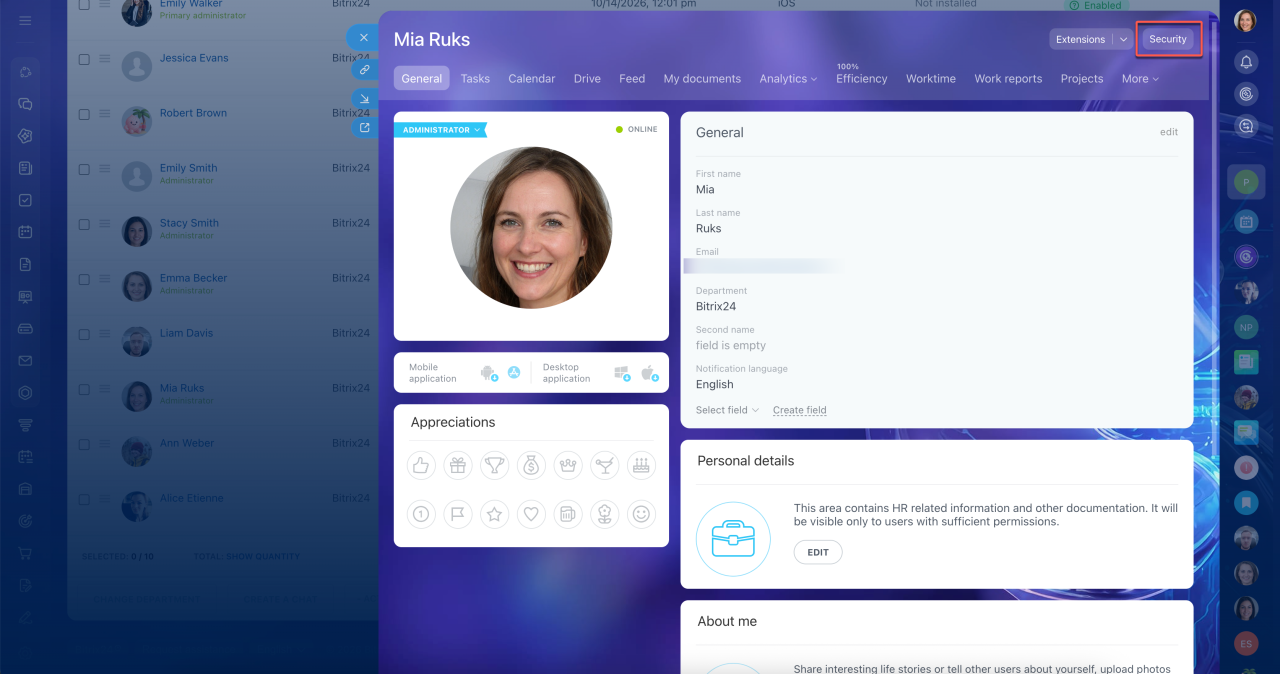
For example, you want to assign [email protected] to a new employee.
If the Security section shows a different email address, [email protected] is only a contact email address.
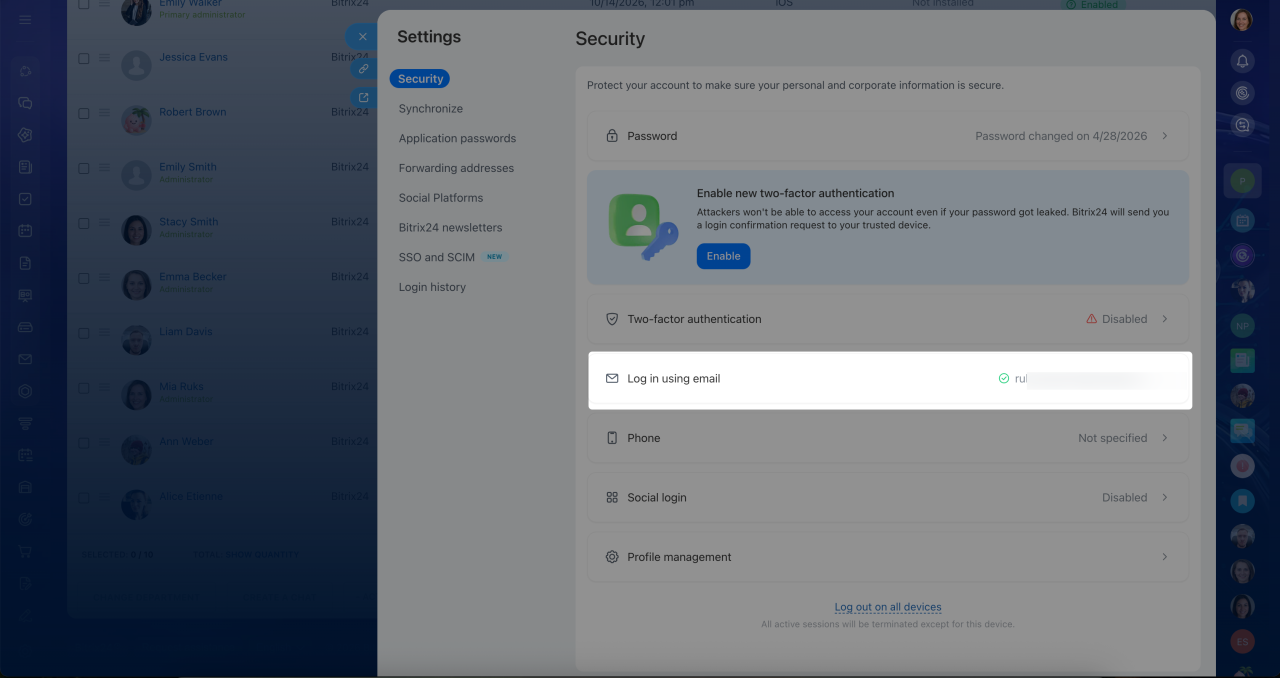 The Security section shows a different email address
If the Security section shows [email protected], the employee uses this address to sign in to Bitrix24.
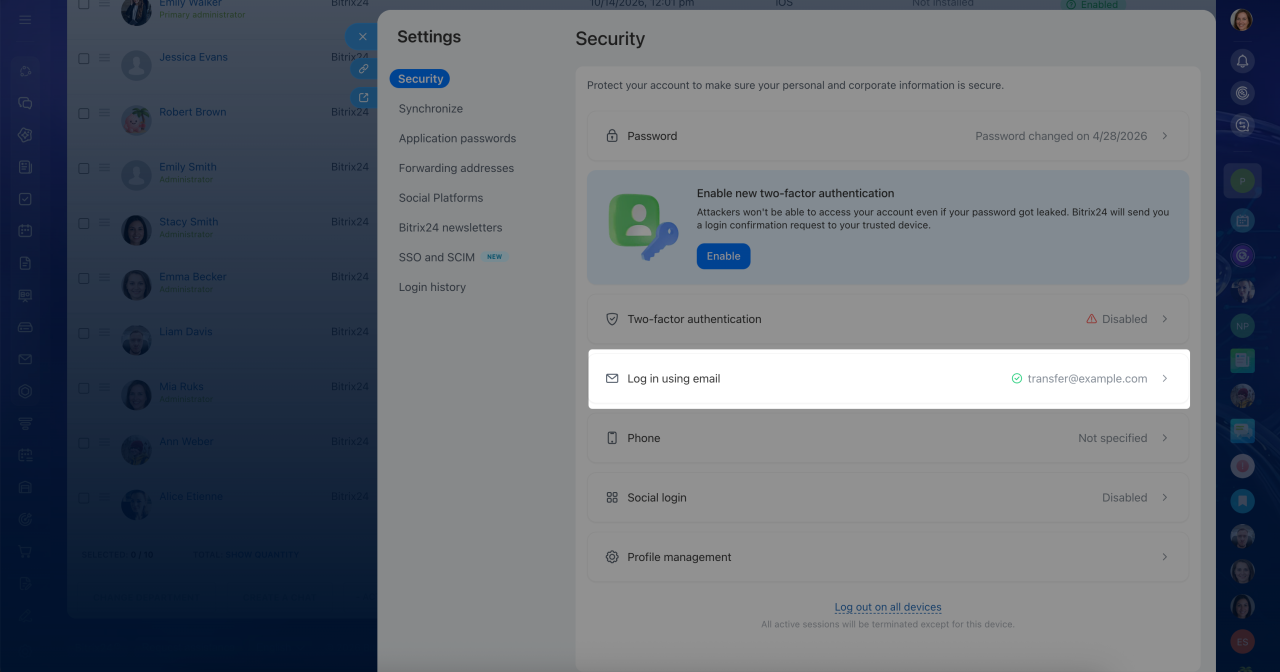 The Security section shows the email address
[email protected], which you want to assign to another employee
Update a contact email address
To remove an email address from a former employee's account:
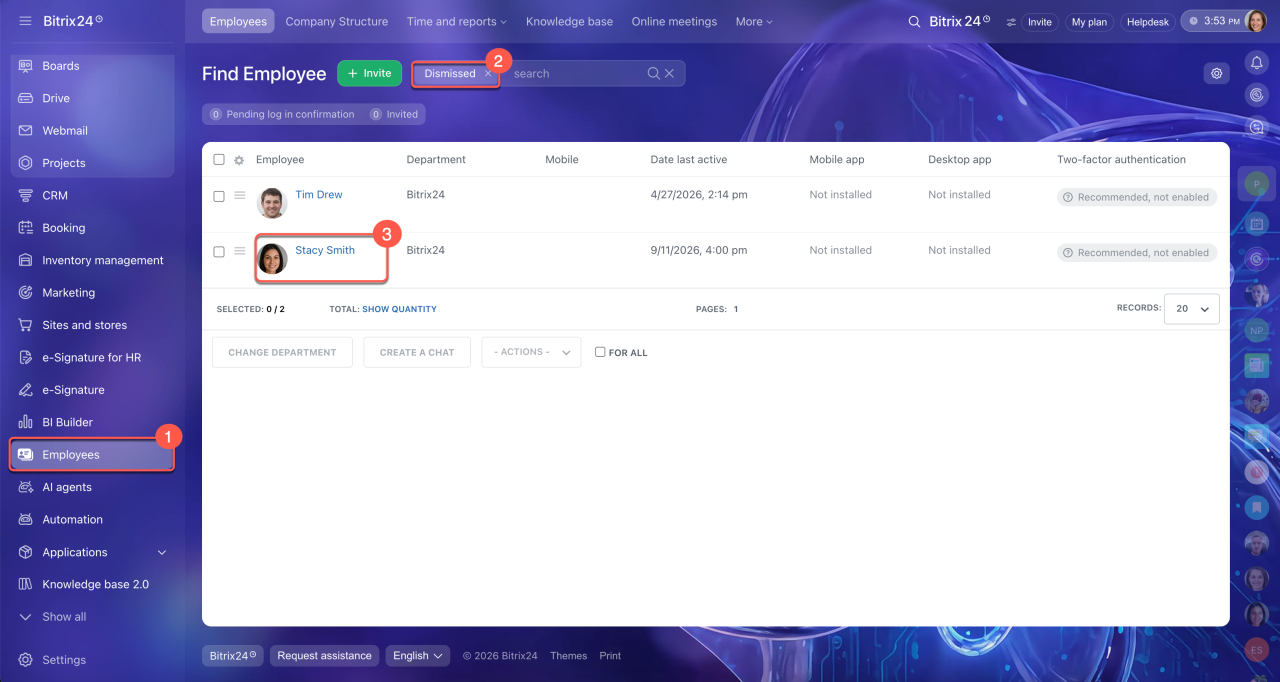
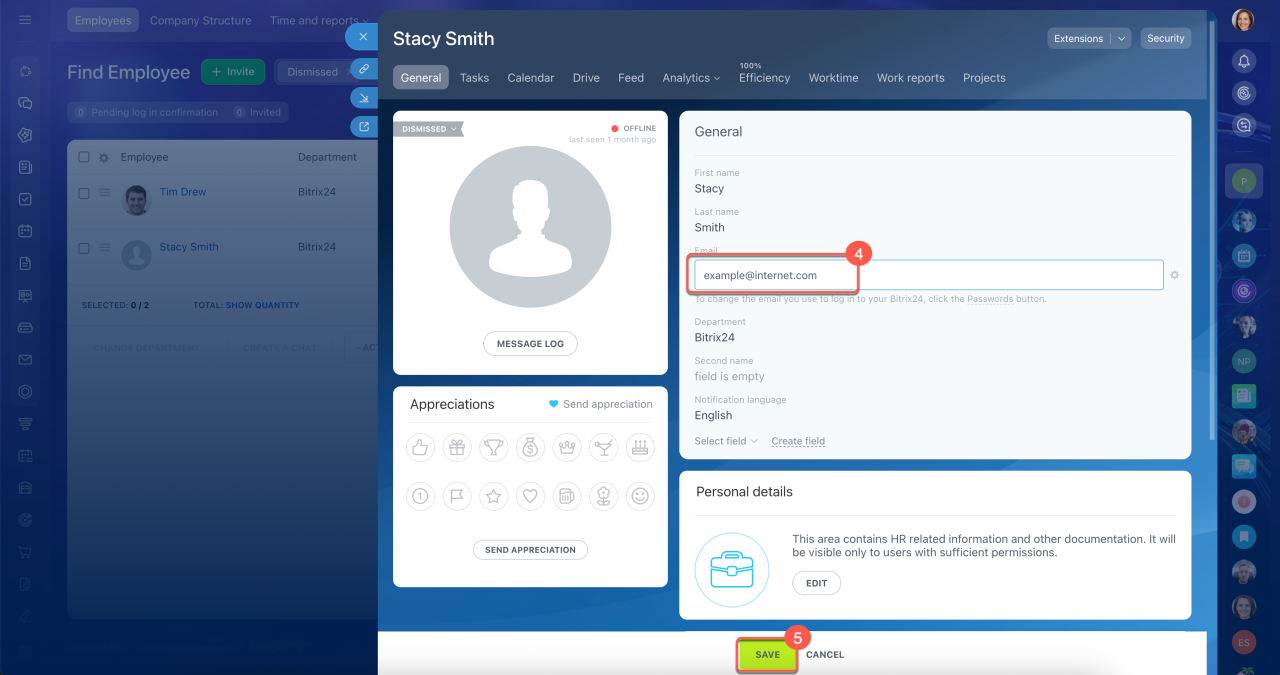
1–2. Go to Employees > Dismissed employees.
3. Open the former employee's profile.
4. Change the contact email address — in our example, this is [email protected].
5. Save your changes.
You can now assign [email protected] to a new user. For example, invite the new employee to Bitrix24 with this email address.
Update an email address used for sign-in
If the employee has already been dismissed. The former employee must update their email address in their Bitrix24 Network profile.
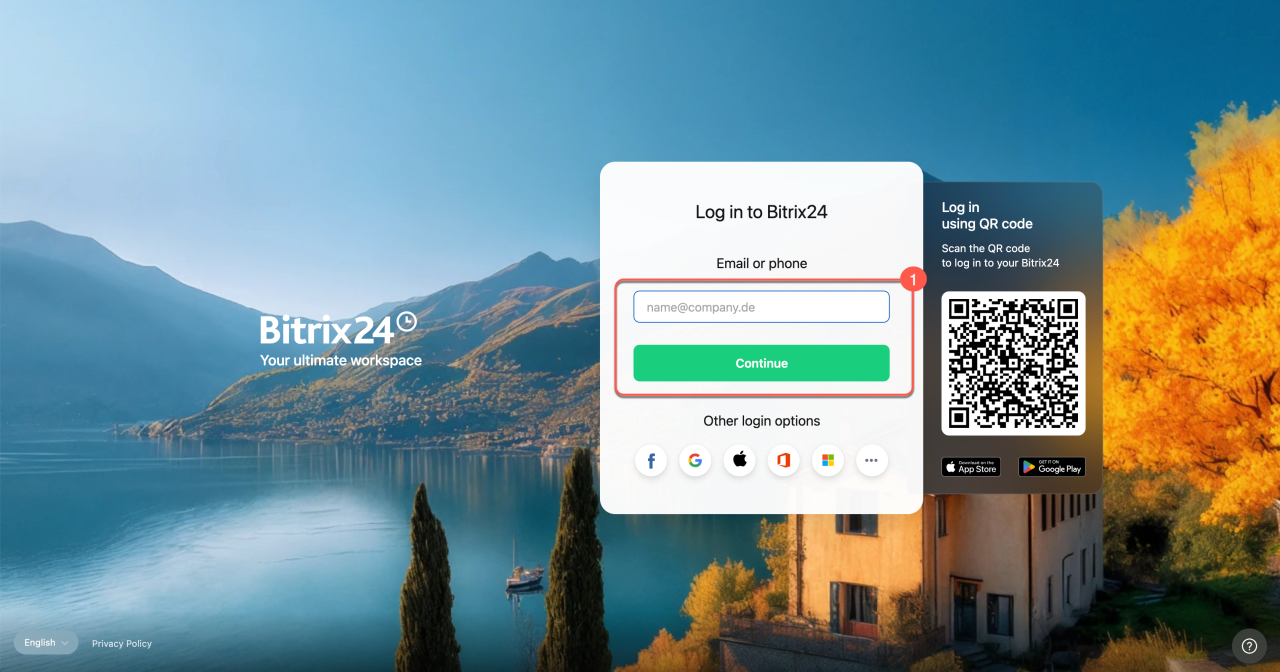
1. Open the Bitrix24 Network profile.
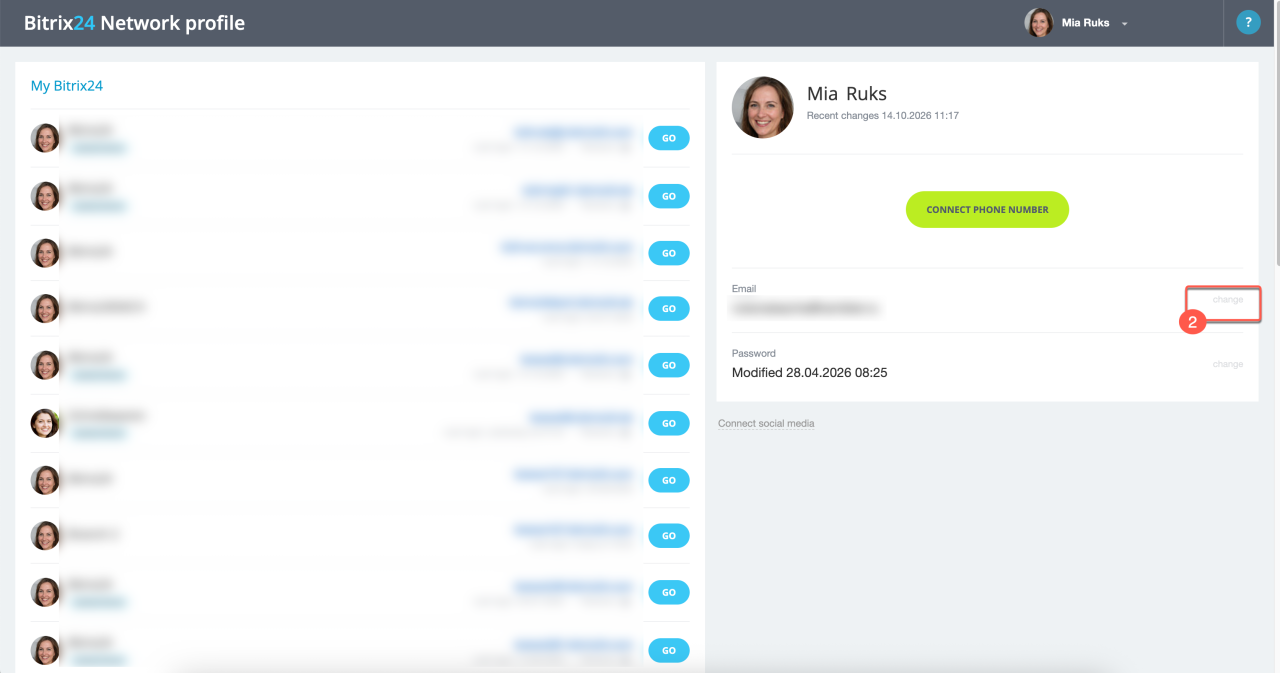
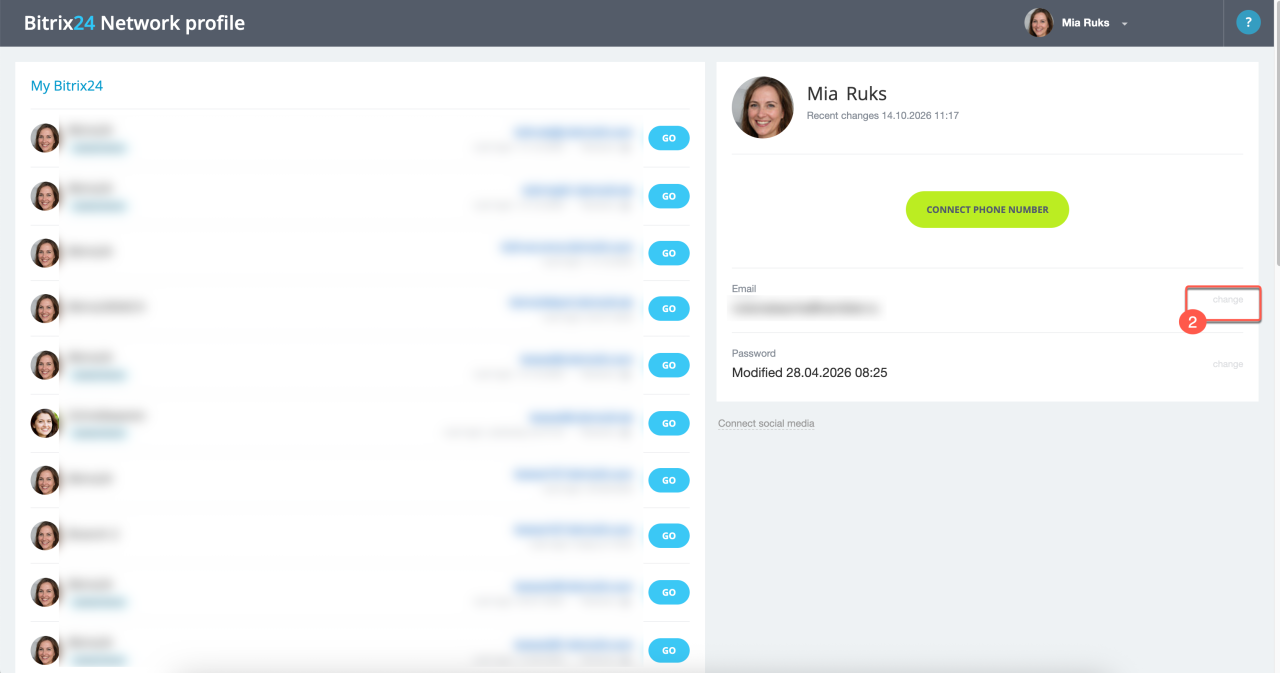
2. Click Change next to the email address.
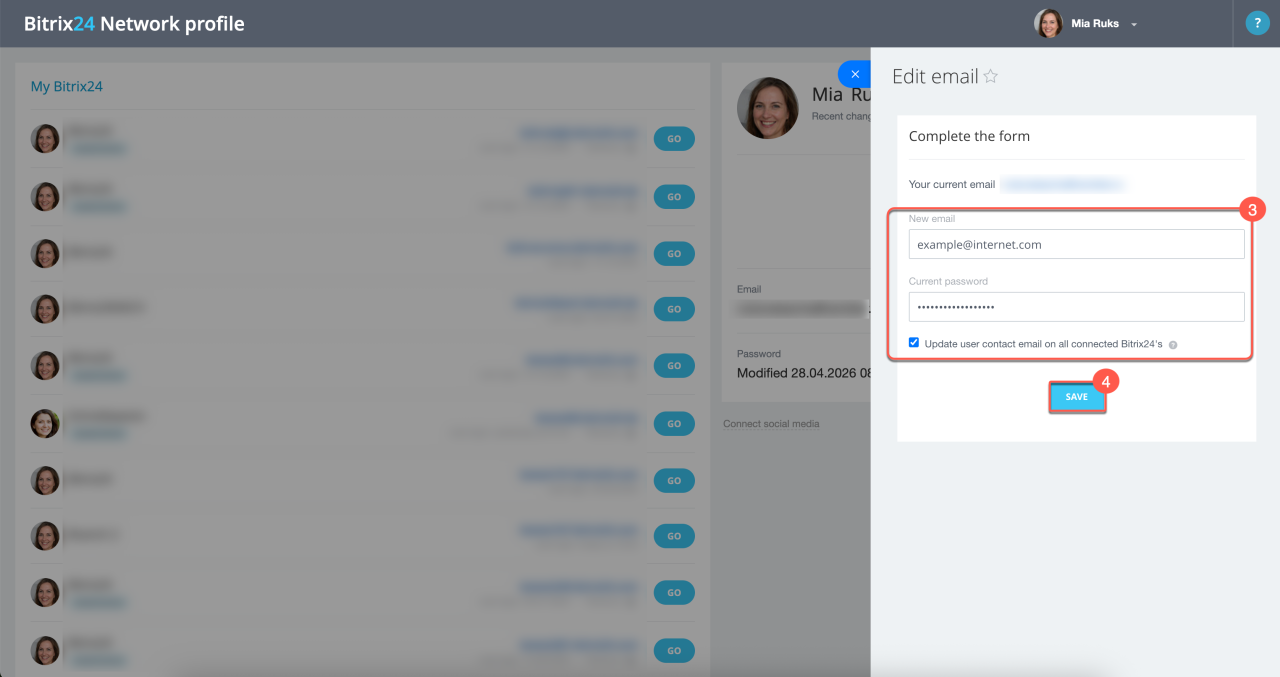
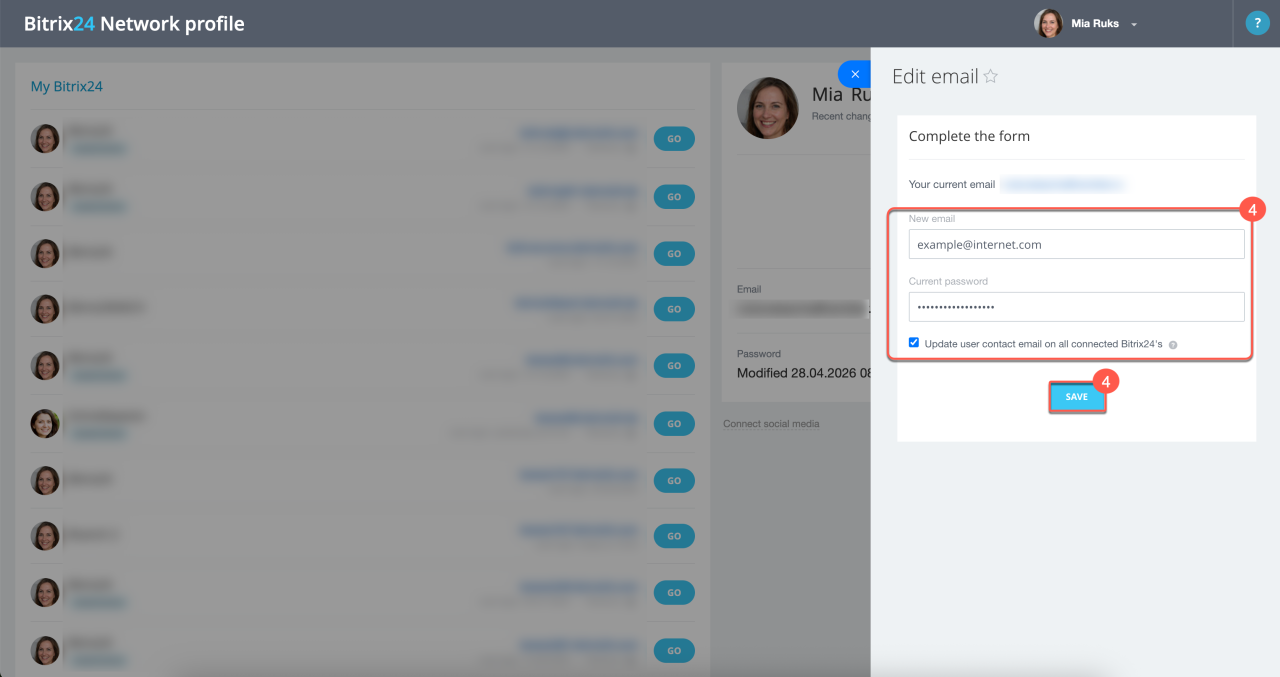
3. Enter a different email address that isn't already used in Bitrix24. In our example, this is [email protected]. You'll receive a message at this address to confirm the email change.
Change Bitrix24 login or password
4. Save your changes.
After that, an administrator can update the email address in the former employee's profile and assign the old address to a new user.
If the employee hasn't been dismissed. The employee can update their email address in their personal profile.
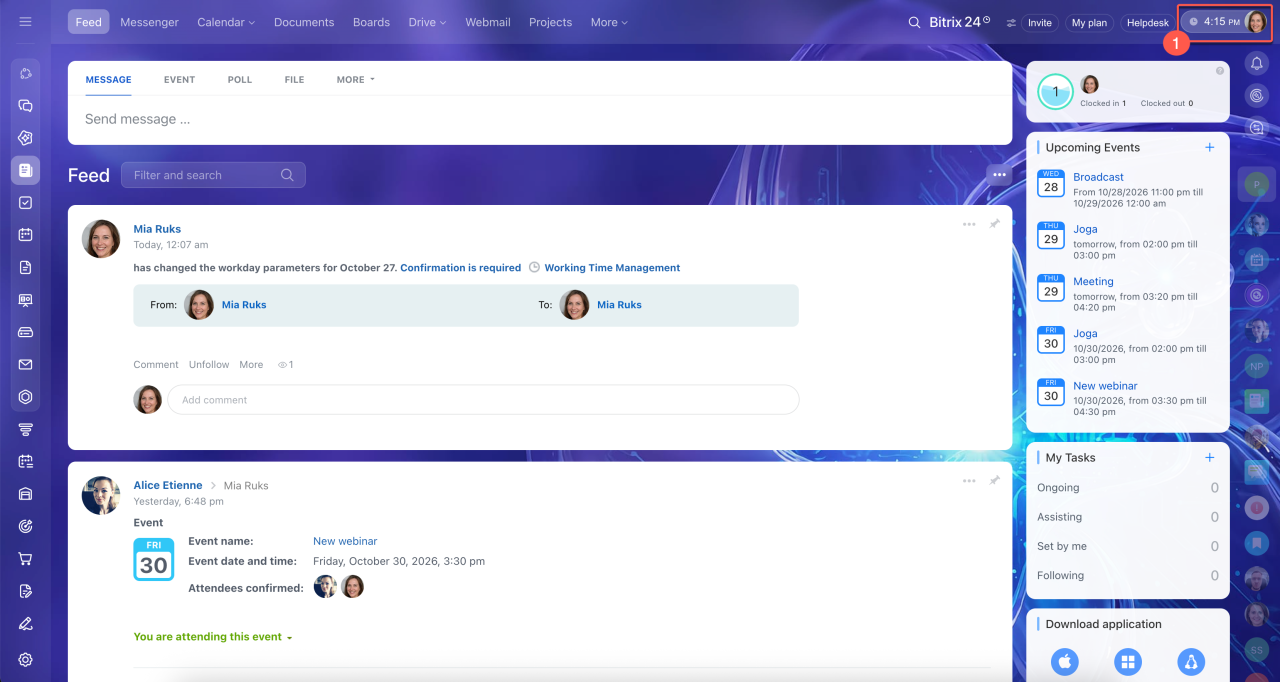
1. Click your profile photo in the top-right corner.
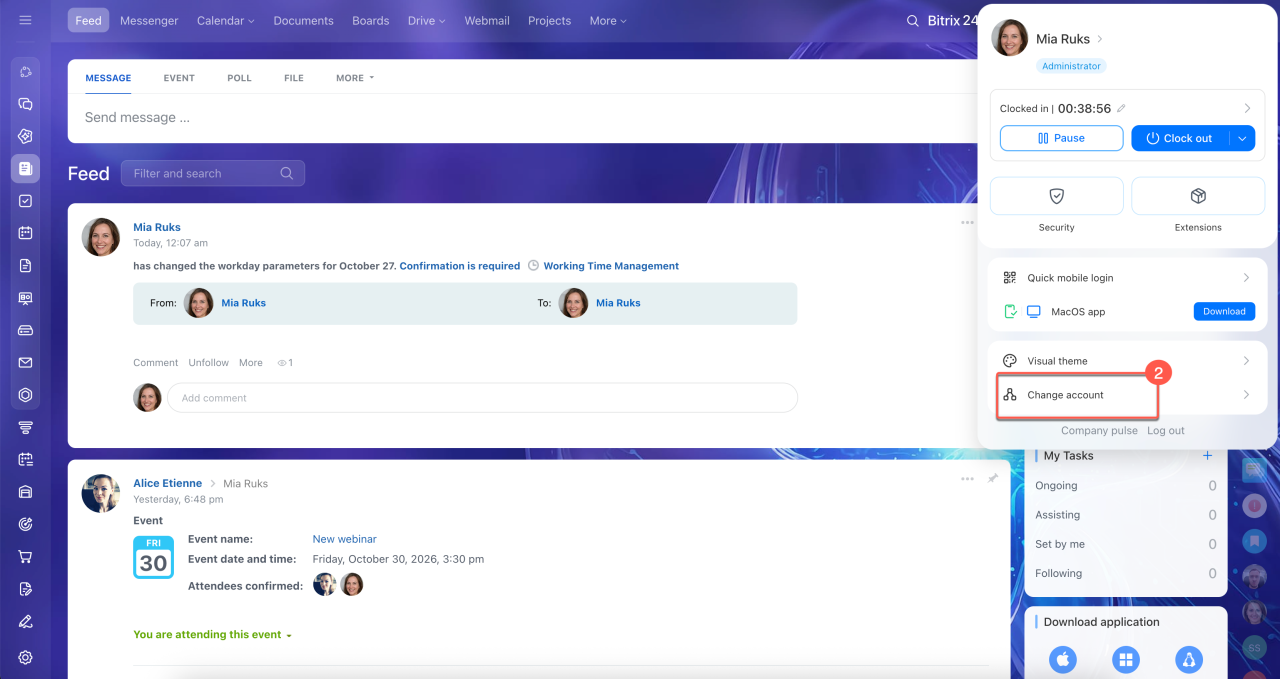
2. Select Change account.
3. Click Change next to the email address.
4. Enter a new email address that isn't already used in Bitrix24. In our example, this is [email protected]. You'll receive a message at this address to confirm the email change.
Change Bitrix24 login or password
5. Save your changes.
Delete a Bitrix24 account
In brief
- You can assign a former employee's email address to a new Bitrix24 user.
- The steps depend on whether the email was used as a contact address or to sign in to Bitrix24.
- To check how an email address is used, open the employee's profile and click Security. Only administrators can do this.
- If the email is only a contact address, an administrator can update it in the former employee's profile.
- If the email is used to sign in, the account owner must update it in their Bitrix24 Network profile.