


Booking in Bitrix24 lets you schedule customer appointments with specialists and reserve equipment or facilities. It works well for industries like healthcare, beauty services, and venue rentals.
You can schedule services directly from a CRM item form. All booking data is saved automatically in the Booking section and in the customer’s record.
This helps you:
- Keep all bookings in the CRM item form
- Review customer history and suggest additional services based on past activity
Check if the Booking feature is available on your Bitrix24 plan.
Schedule a service
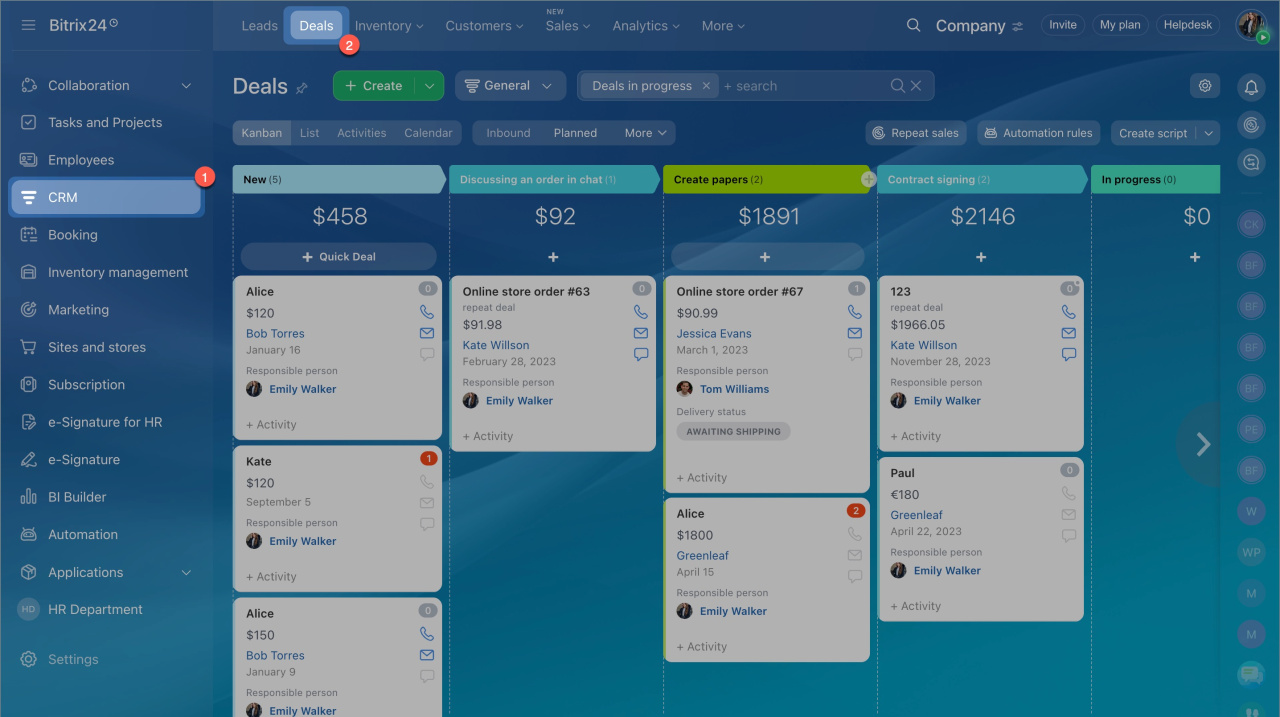
- Go to CRM > Deals.
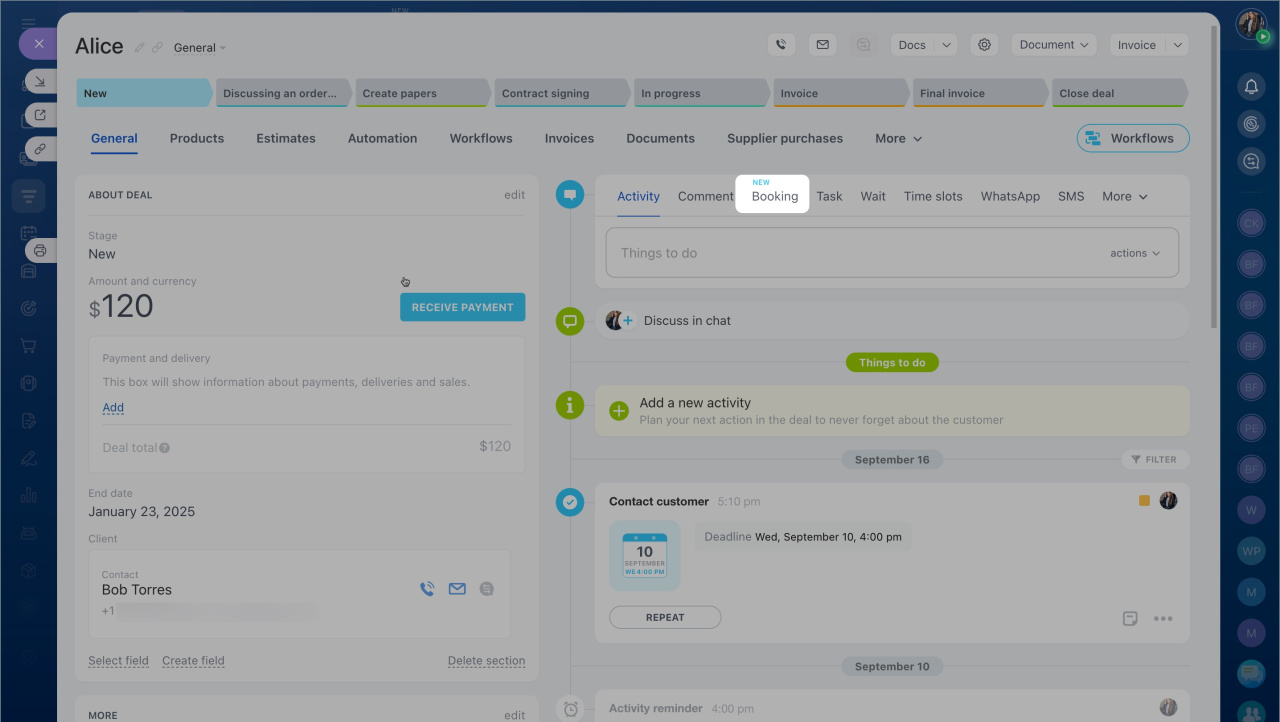
- Open a deal and click Booking in the timeline.
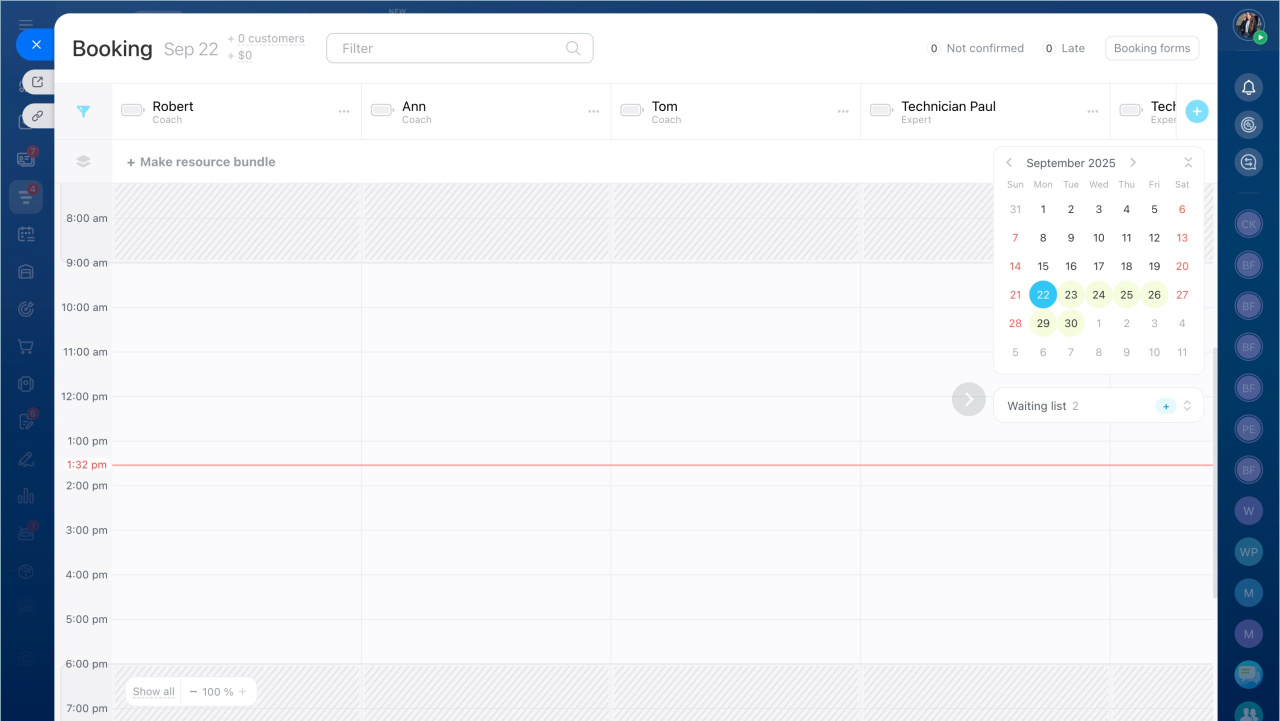
- Choose a time slot for the required resource and click Create. ResourcesResources include staff, equipment, or facilities used to provide services.
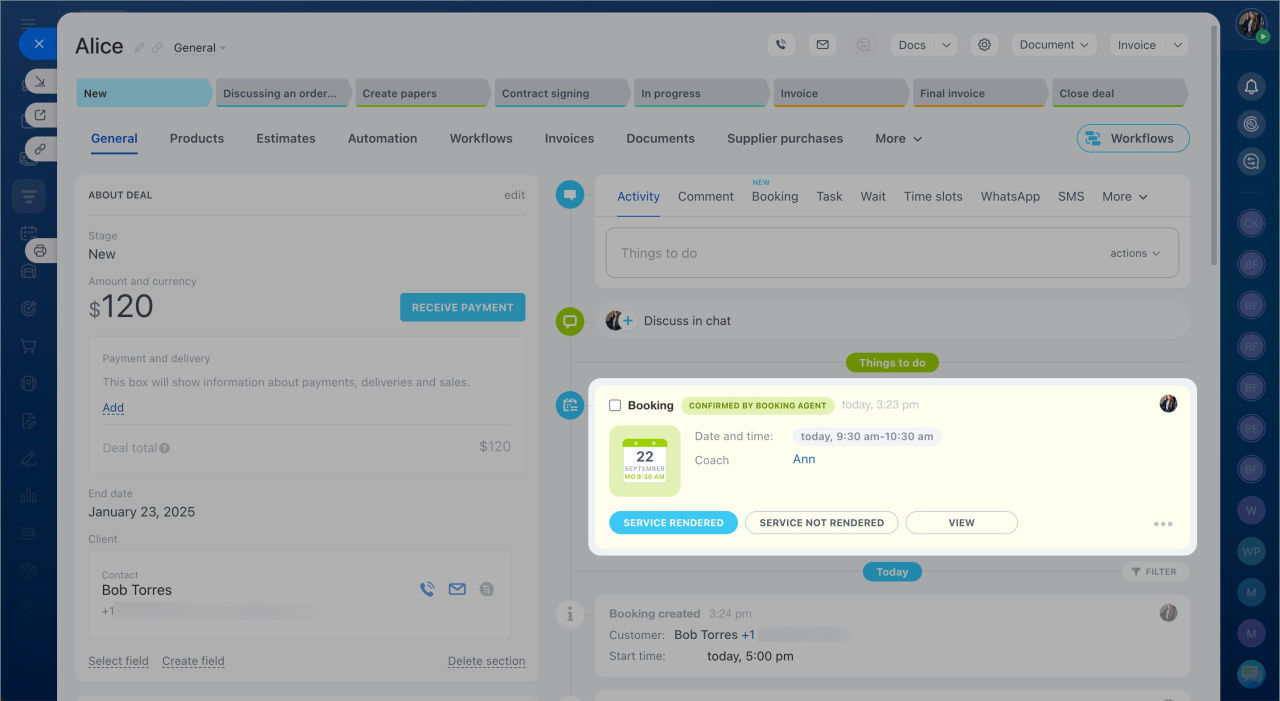
- The booking appears in the CRM item timeline.
Add a resource to Booking section
Confirm, edit, or cancel a visit
You can edit, confirm, or cancel the booking directly in the CRM item form.
Edit the booking. For example, you can change the visit time or select another specialist.
- Click View. You will automatically go to the Booking section.
- Move the booking record to another time in the schedule.
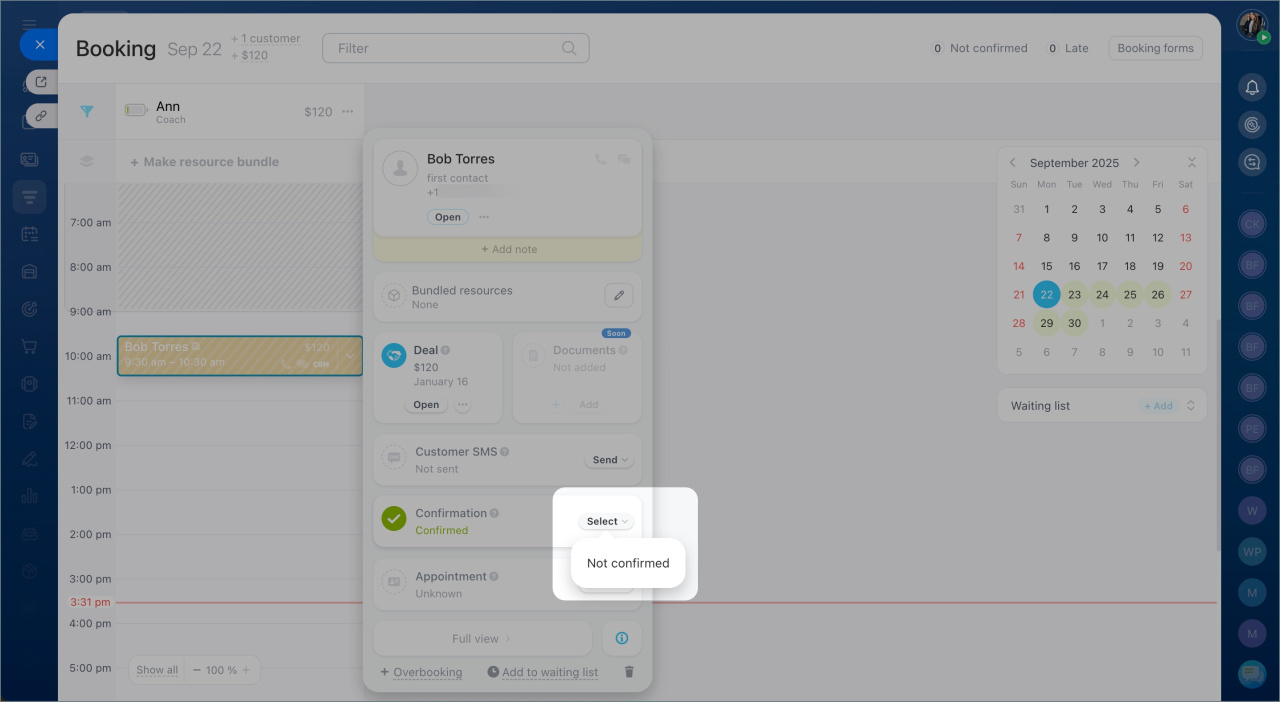
Confirm the booking.
- Click View in the Booking section.
- Select confirmed or not confirmed in the menu.
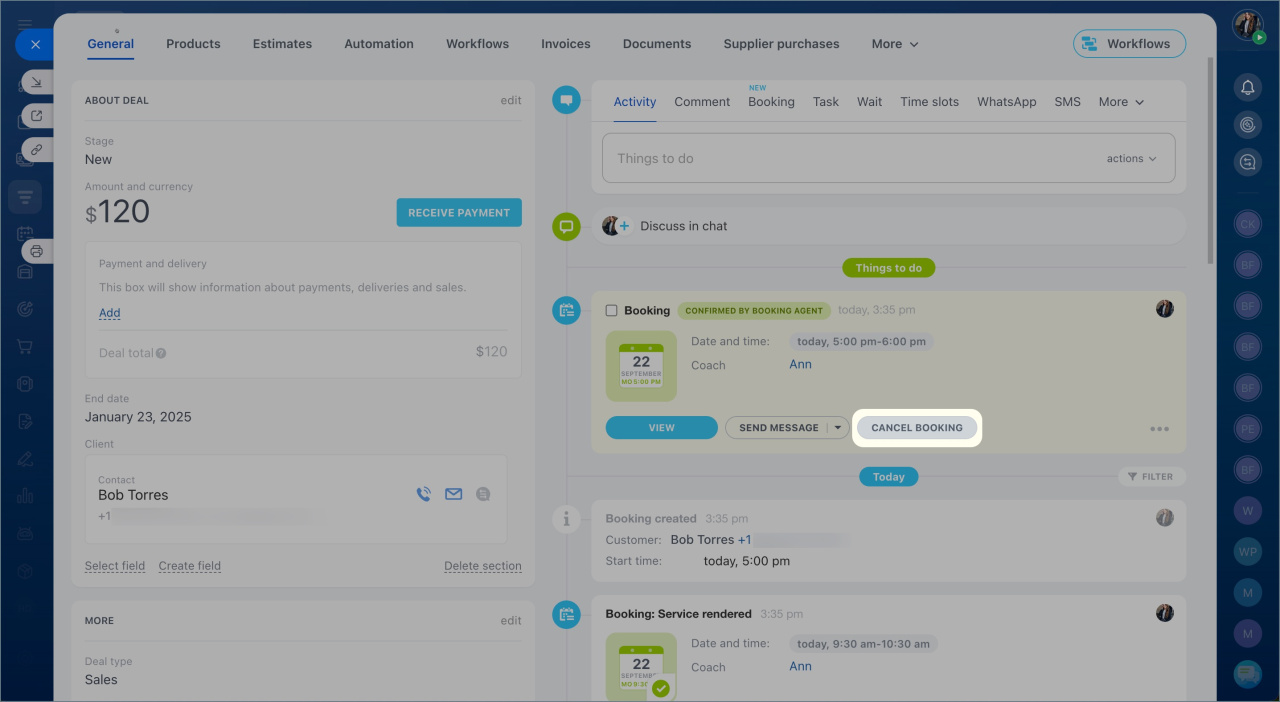
Cancel a booking. If you cancel a booking, the system does not send a notification to the customer. Contact them manually to offer a new time.
In brief
- You can schedule services directly from a CRM item form.
- All booking data is saved in both the Booking section and the CRM record.
- To create a booking, open a deal and click Booking in the timeline.
- You can edit, confirm, or cancel bookings from the CRM item form.



