Check-in is a new ritual to start your team's working day. It is a way to feel part of the team, even from a distance. It shows the place and the time the colleagues started the day.
Check-in does not collect statistics of the time worked by an employee. If you track working hours in Bitrix24, continue to use the Working time management tool.
How it works
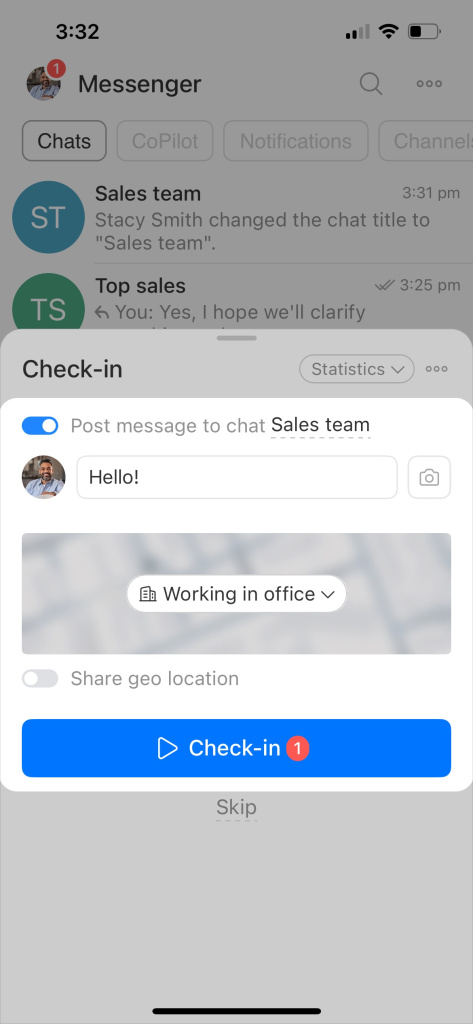
Before you start your workday, choose what to include in your check-in:
- Post message to chat. Turn this on to send a message to a chat or a specific user. Enter your text. If you skip this option, your workday starts without sending a message.
- Add an image. Take a photo of your workspace or upload any image.
- Share location. Set your location manually or enable automatic sharing.
If the geolocation isn't being sent, the Bitrix24 administrator should check the map provider in the Settings (⚙️) > Bitrix24 Settings > Advanced > Maps section. If Google is selected as the provider but no API key is specified, the geolocation won't be sent. Change the provider to OpenStreetMap.
Then tap Check-in.
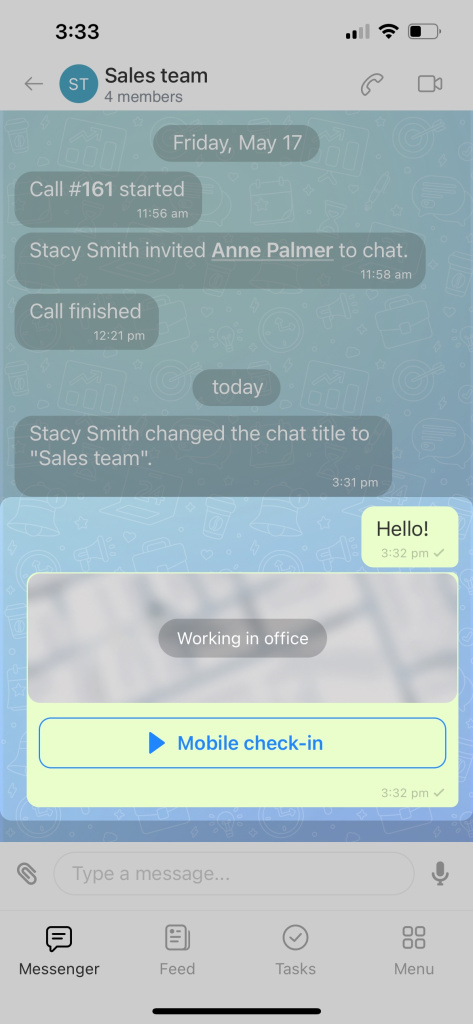
When the first person in the chat checks in, a message appears in the chat. Others can react to it.
Cancel a check-in
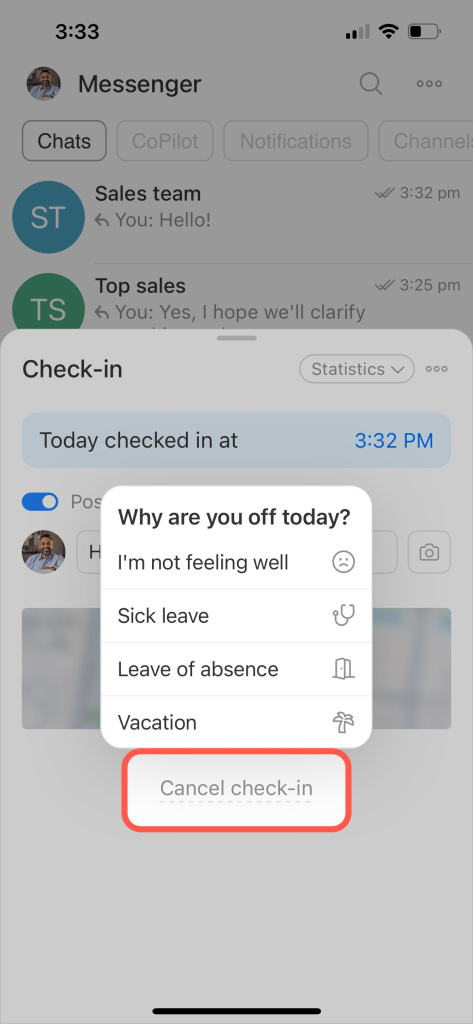
If you need to leave your workplace unexpectedly:
- Tap Cancel check-in.
- Enter a reason.
Mark absence
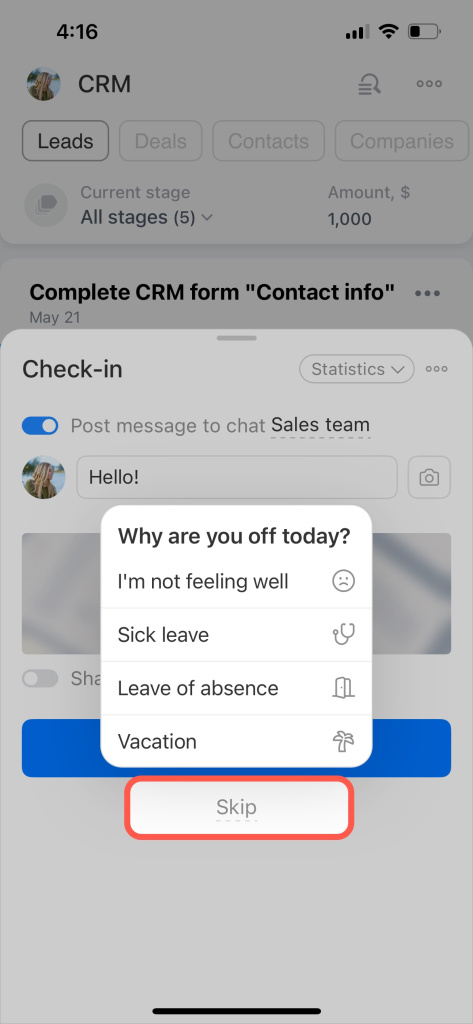
If you are not working that day:
- Tap Skip.
- Enter a reason.
Statistics
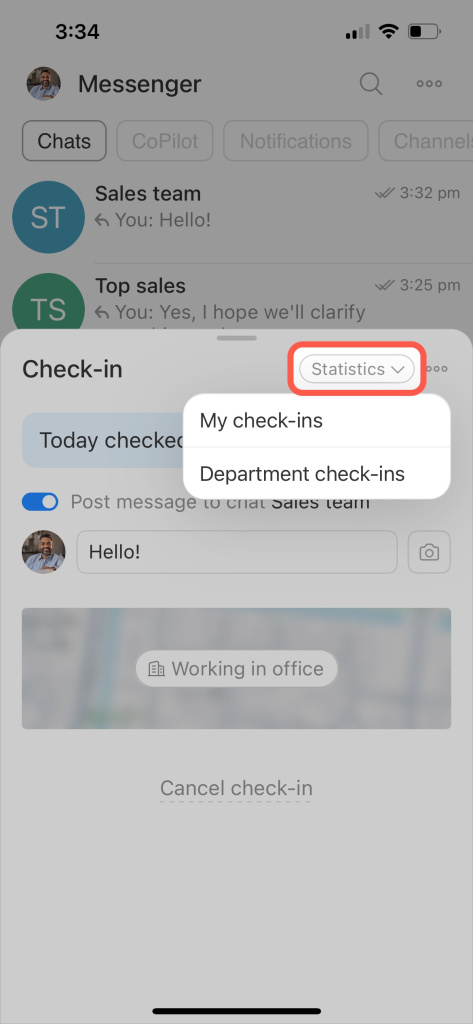
Tap Statistics and choose:
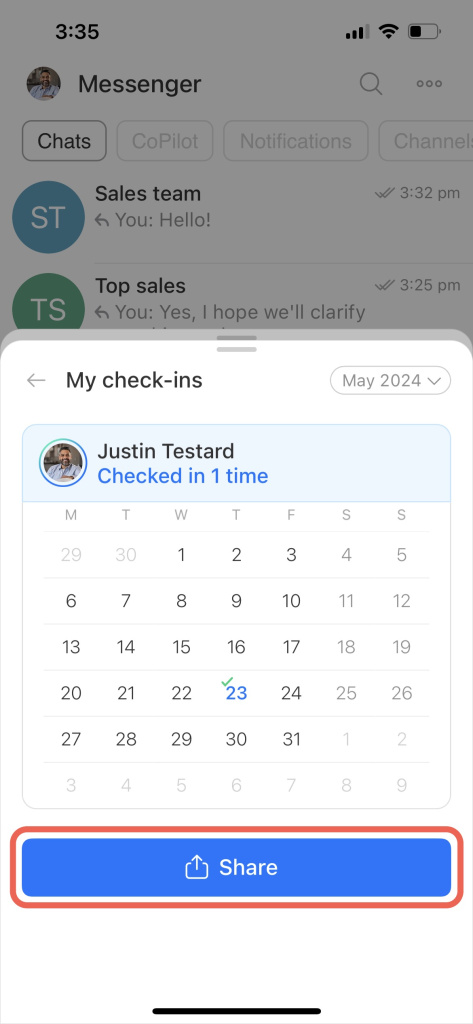
- My check-ins
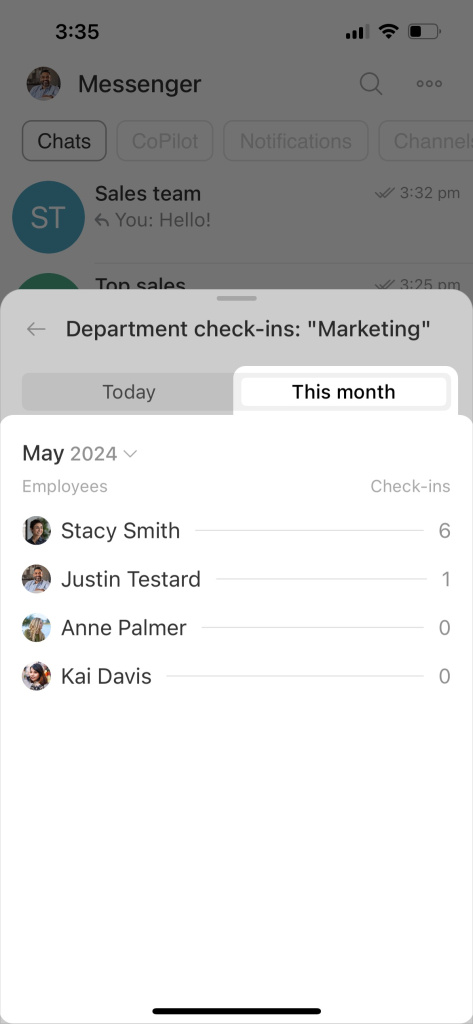
- Department check-ins
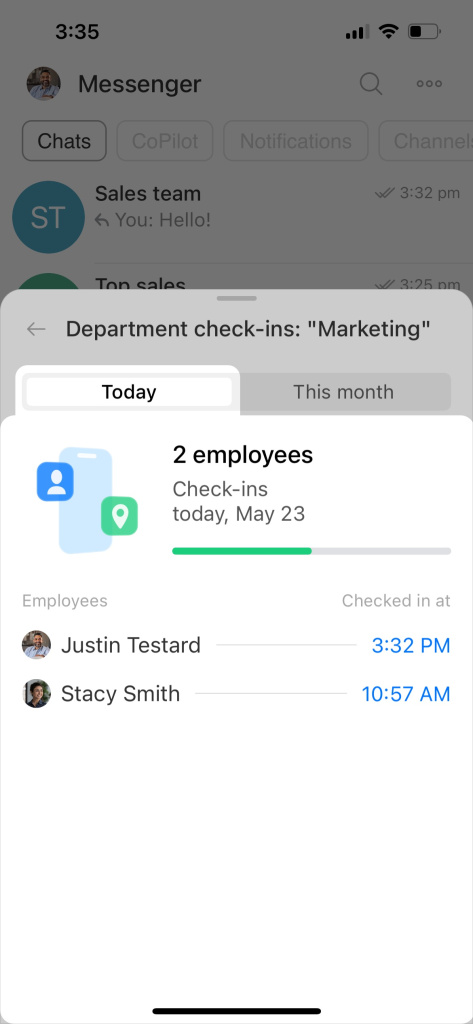
You can view two types of data:
- Today — shows who started work and their start time
- This month — shows the total number of check-ins per employee
To share statistics:
- Tap Share.
- Select a chat or a user.
Disable Check-in
To mute notifications:
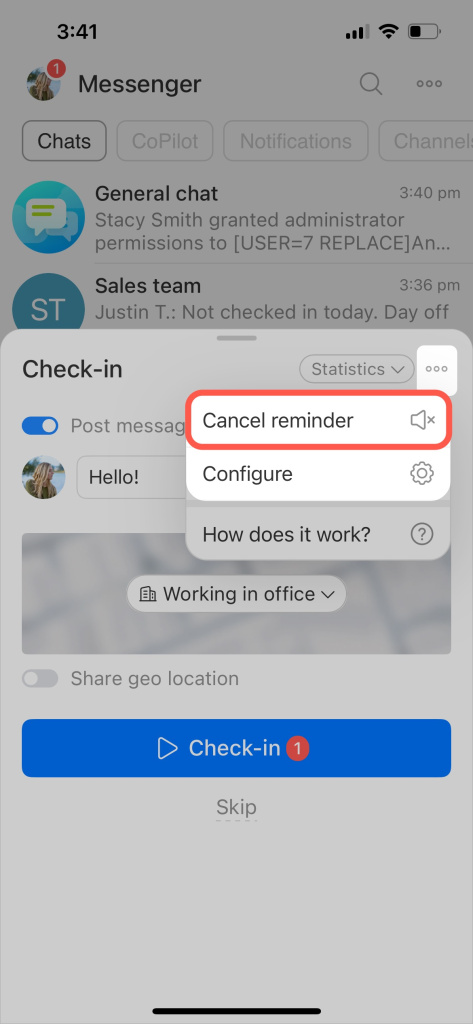
- Tap the menu (three dots).
- Select Cancel reminder.
To turn off the Check-in tool for everyone:
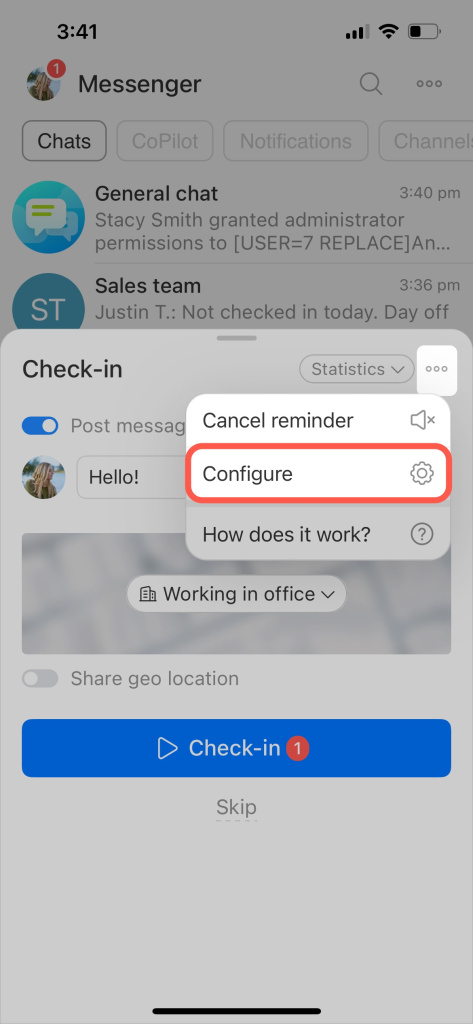
- Tap the menu (three dots).
- Select Configure.