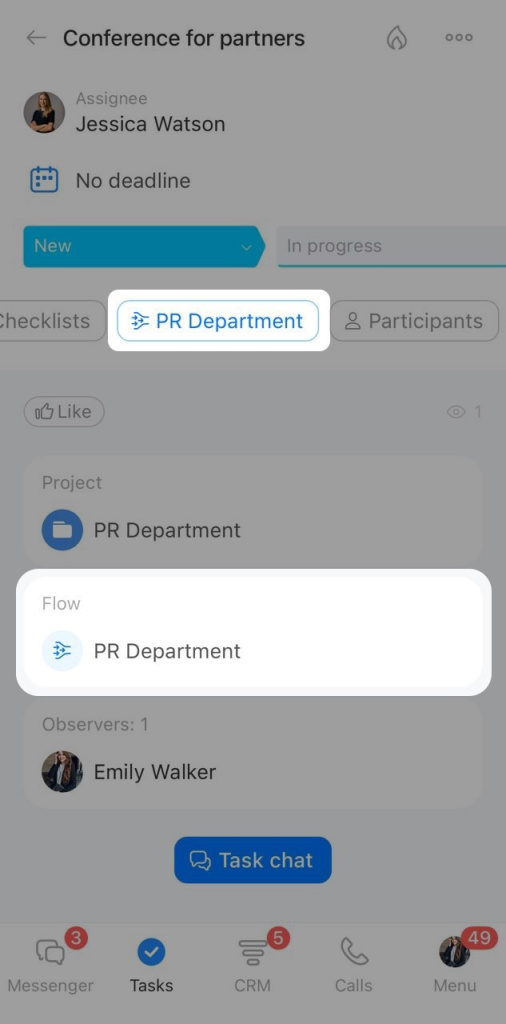
Flows help teams assign tasks when the creator does not know the right assignee. For example, you can send a task to the legal department's Flow, and the task will be assigned based on that Flow's rules.
In this article:
View the list of Flows
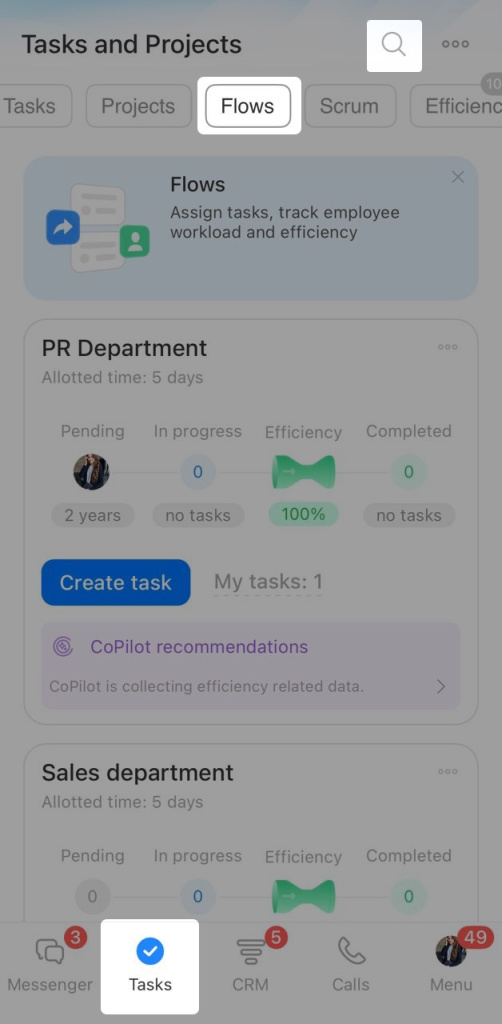
1. Tap Tasks in the bottom menu.
2. Open the Flows section.
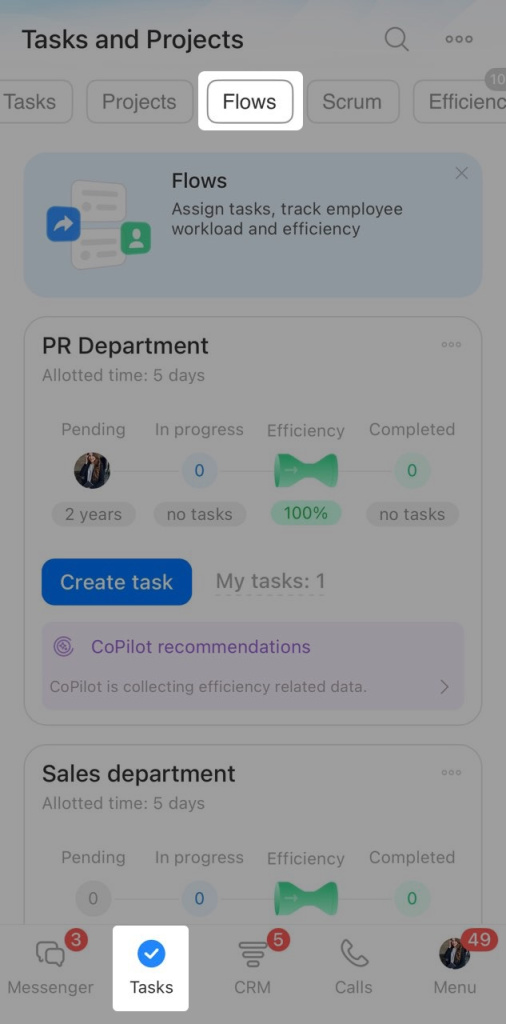
You'll see all available Flows here. Tap any Flow to view its details.
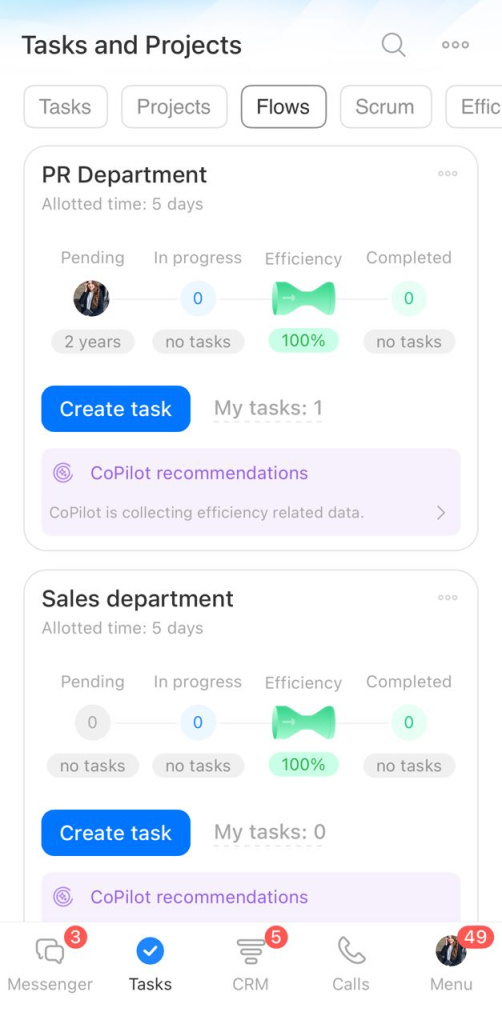
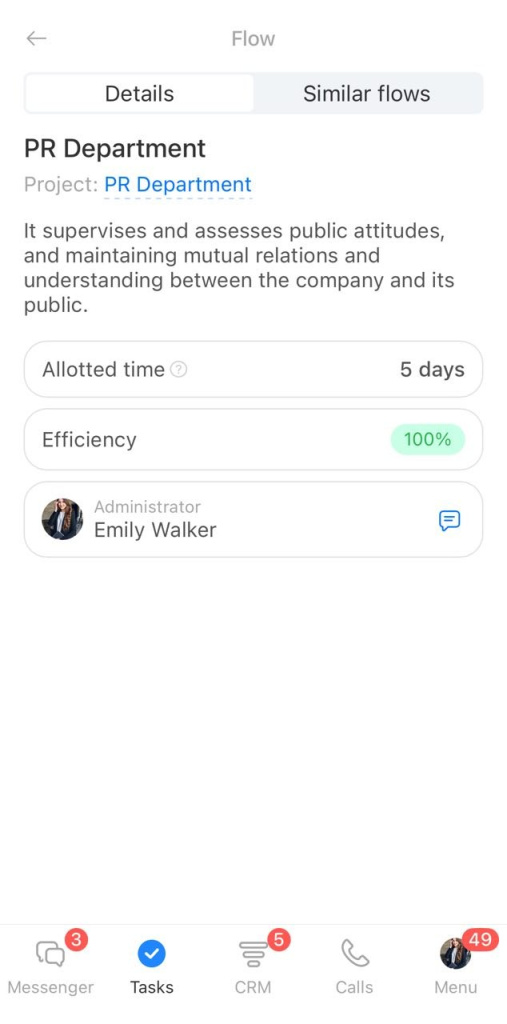
Each Flow shows:
- Name
- Description
- Linked project
- Task deadline
- Efficiency
- Flow administrator
The Similar flows tab shows flows created by the same employee.
Find a Flow
1. Tap Tasks in the bottom menu.
2. Open the Flows section.
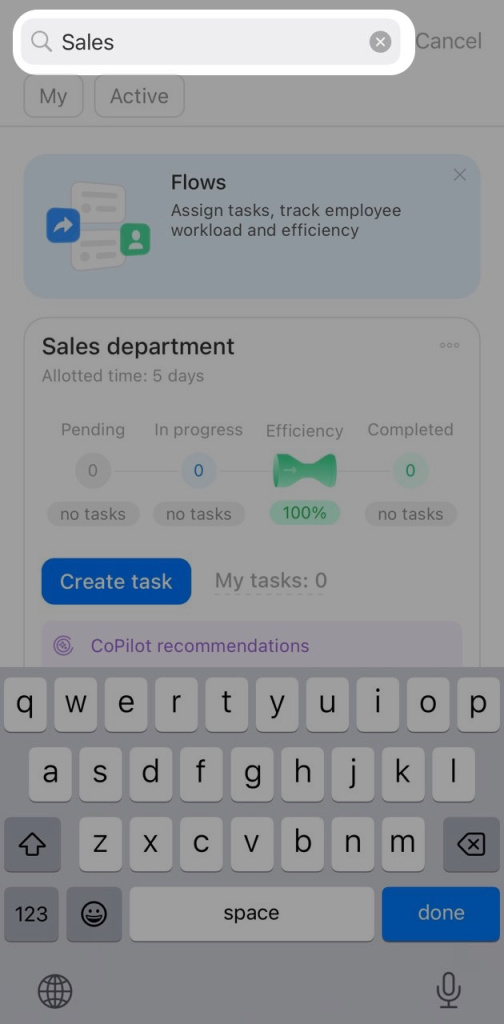
3. Tap the Search icon.
Start typing the flow name. Matching results will appear in the list.
Create a task in a Flow
1. Tap Tasks in the bottom menu.
2. Open the Flows section.
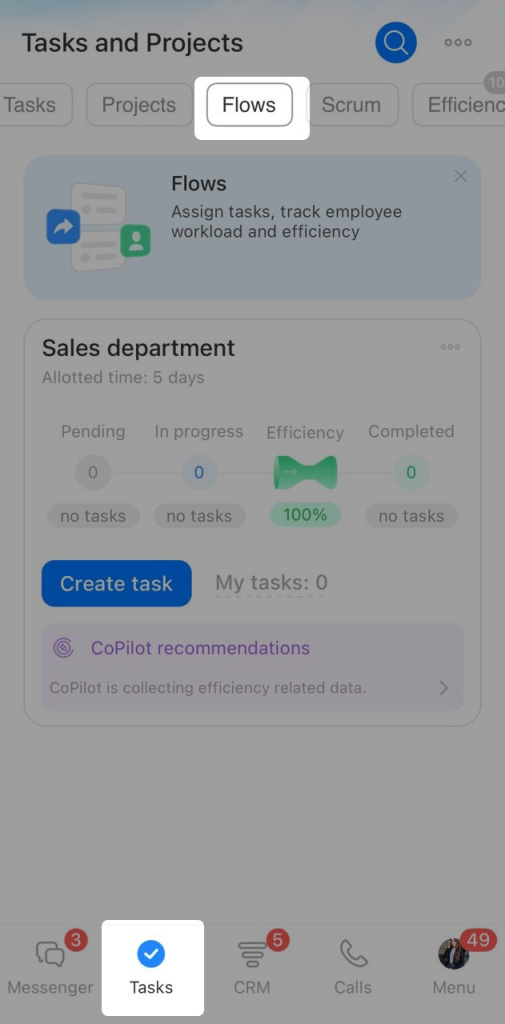
3. Find the flow you need and tap Create task.
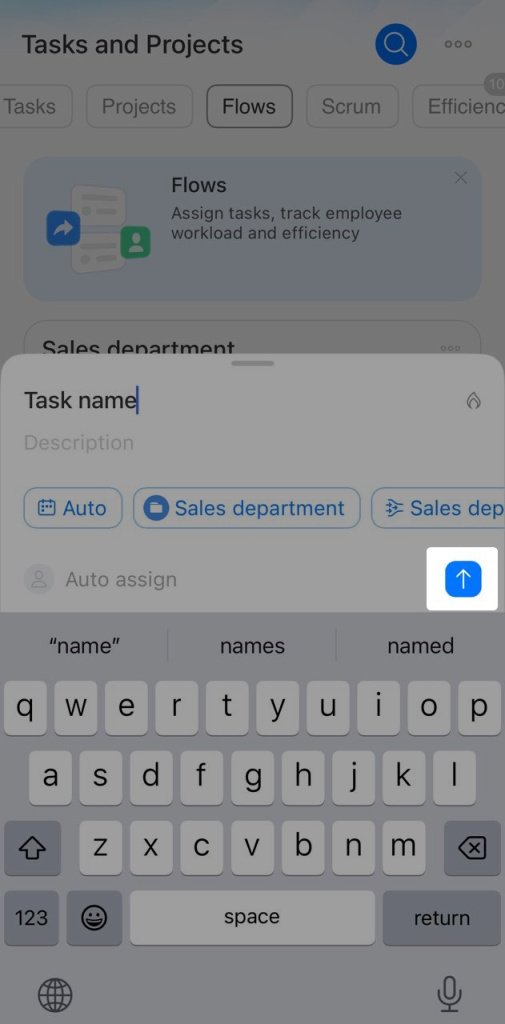
Enter the task name and description. You can also attach files, add time tracking, and fill in other fields. The assignee, deadline, and project are filled in automatically. Tap Send (↑). The task will appear in the main task list.
Find tasks from a Flow
1. Tap Tasks in the bottom menu.
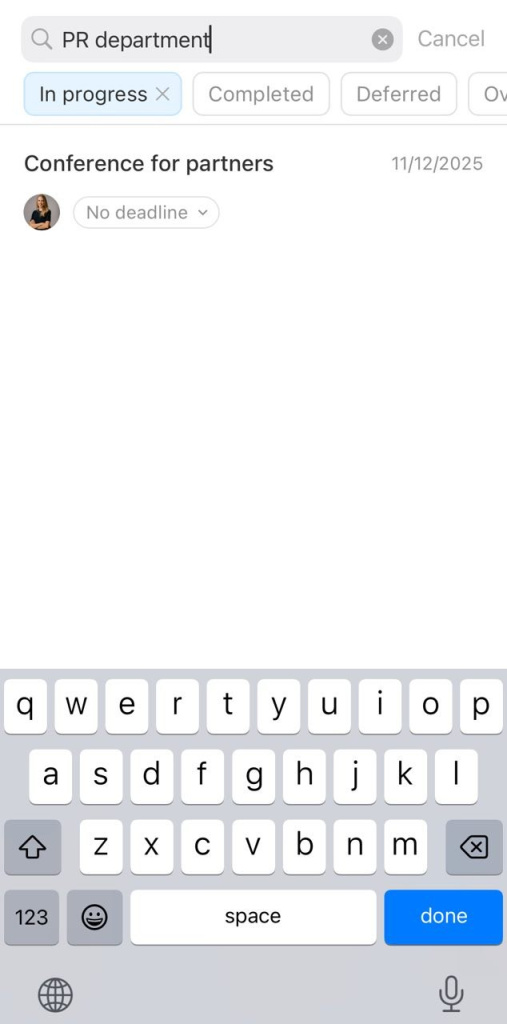
2. Open Search at the top of the screen.
3. Enter the Flow name. The list will show all tasks from that Flow. It will also show tasks whose names include the word you entered.
To make sure a task belongs to the right flow, open the task. You'll see the linked flow in the flows section.