


The Primary administrator is the employee who created the Bitrix24 account. System notifications, such as plan renewal reminders, news, and webinar invites, are sent to their email address.
If the Primary administrator leaves the company, you need to dismiss them from Bitrix24 and transfer their rights to another administrator. Only an employee with administrator rights can do this.
To prevent an accidental ownership transfer, Bitrix24 requires the Primary administrator to confirm the dismissal.
Send a dismissal request
On paid plans, except Basic. You can dismiss the Primary administrator and receive their rights by sending a request to the employee who currently holds that role.
1. Go to Menu > Employees.
2. Click Three dots (...) > Dismiss next to the employee.
3. Click Send request.
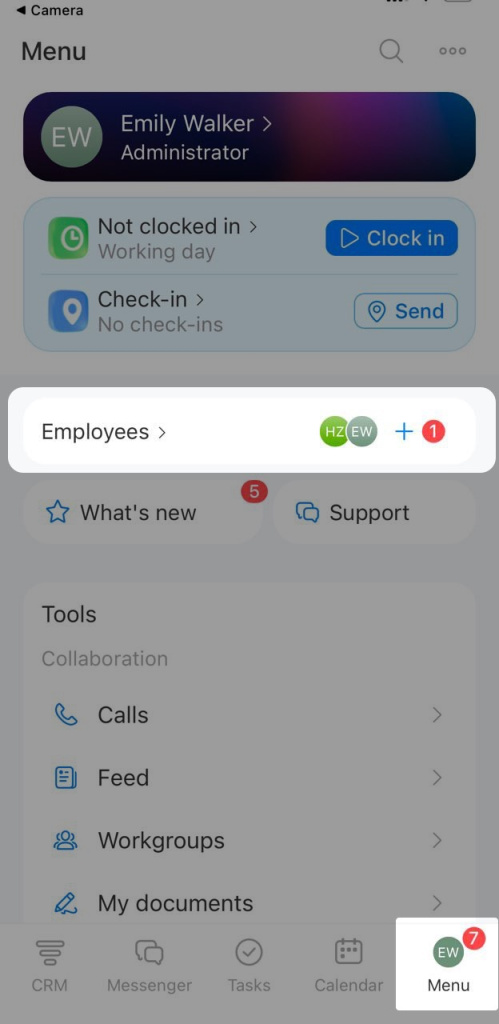
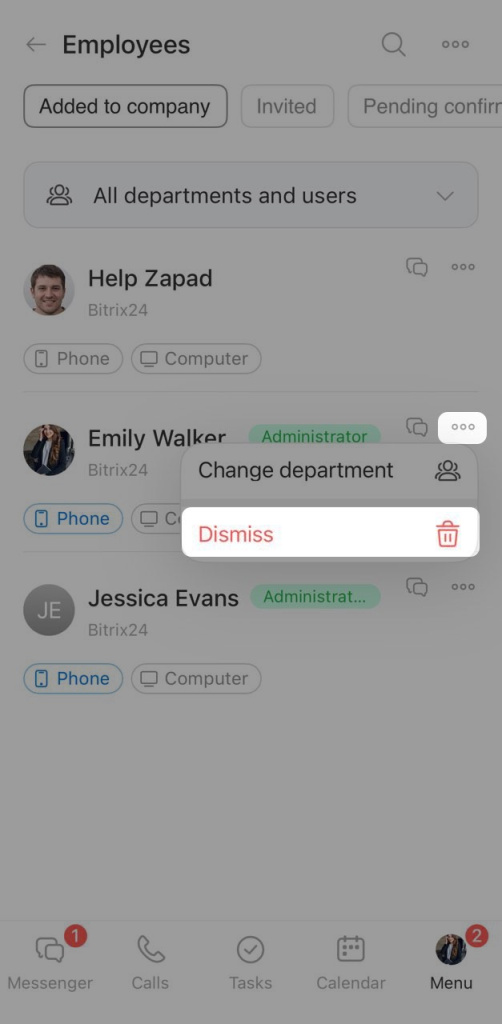
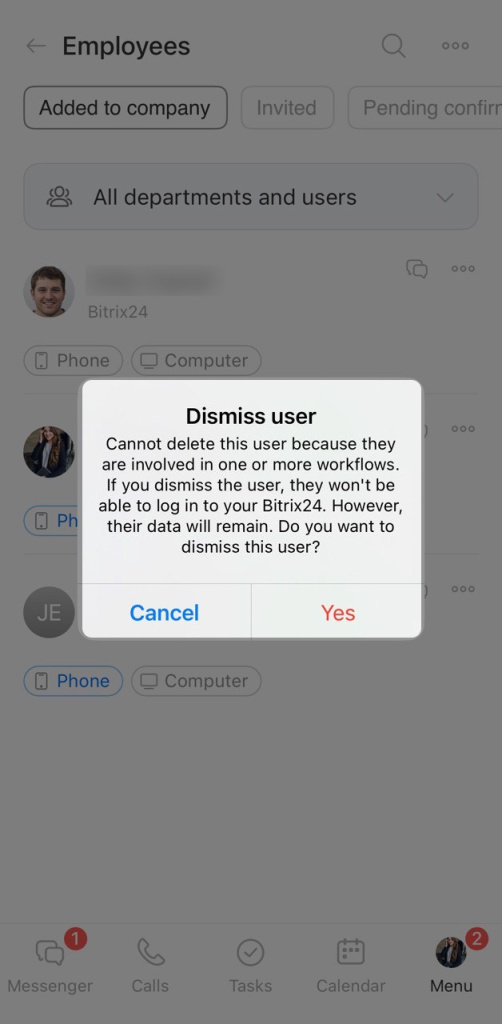
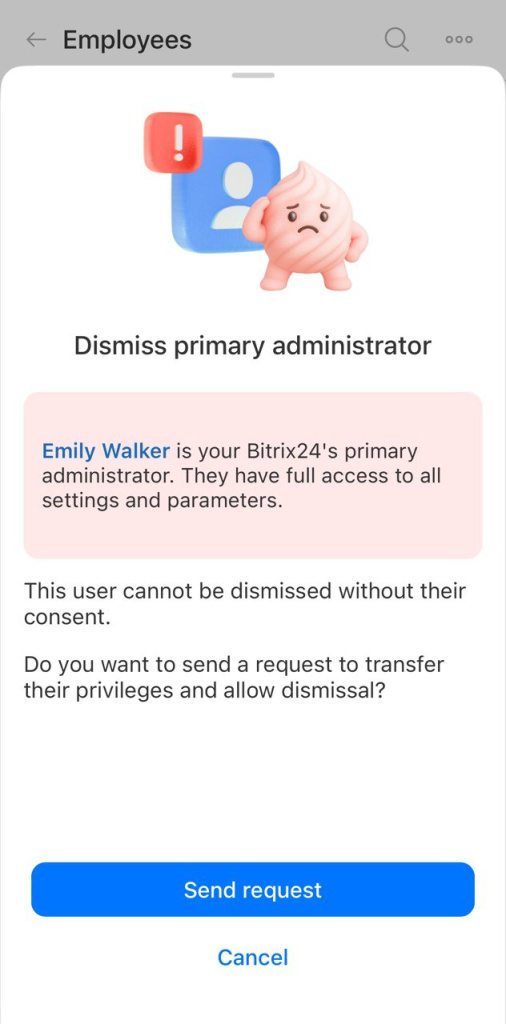
When the administrator responds, you will get a message in chat from the Admin bot.
On the Basic plan. The Primary administrator must manually transfer their rights to another employee. After the transfer, the Primary administrator becomes a regular user automatically and can be dismissed without confirmation.
Receive confirmation
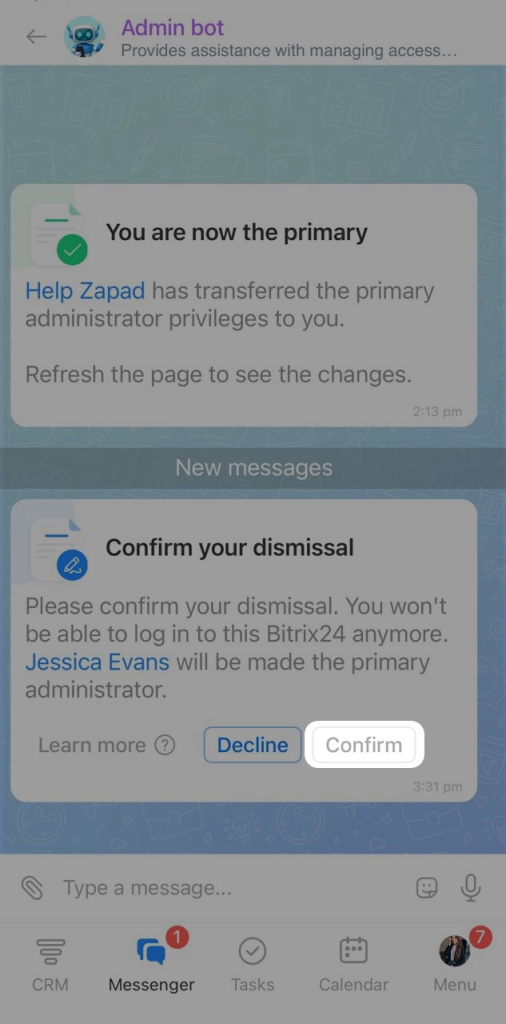
The Primary administrator will get a message from the Admin bot asking them to confirm the dismissal. The message also shows which employee sent the request.
1. Click Confirm.
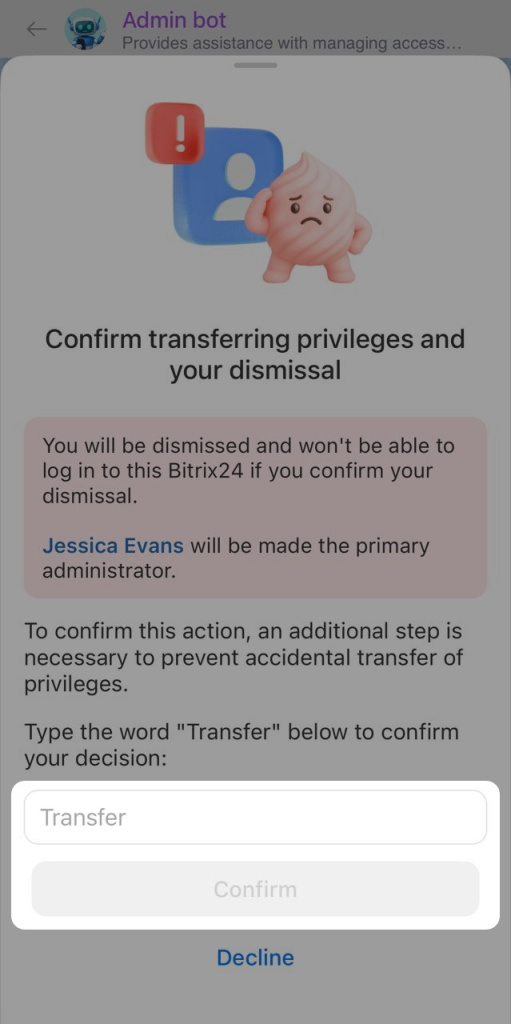
2. Enter the word Transfer in the confirmation field.
3. Click Confirm. After this, you will be dismissed and will no longer have access to Bitrix24. The primary administrator rights will be transferred to another employee.
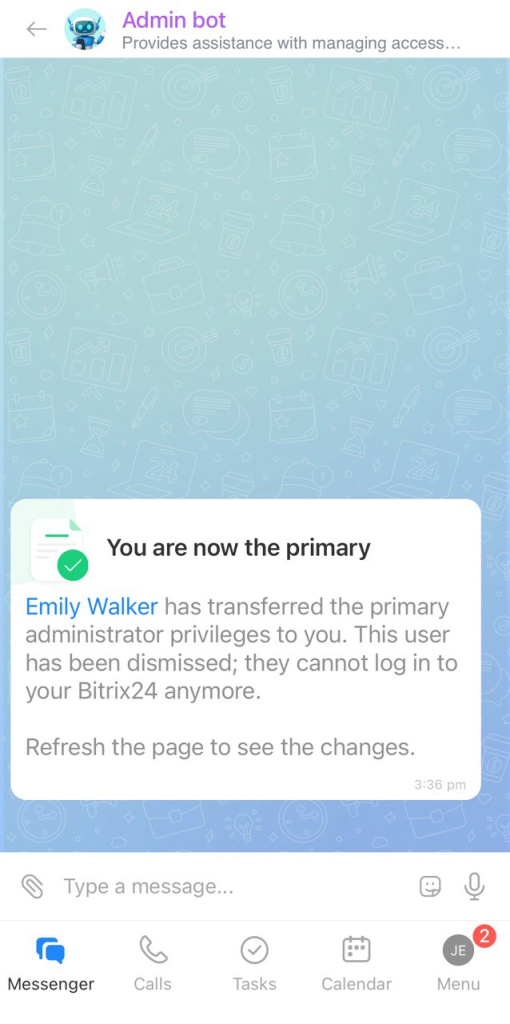
If the administrator confirms the dismissal, the new Primary administrator will get a message from the Admin bot.
If the administrator declines the dismissal, contact them to find out why. If needed, send a new request.



