


The employee list shows all users in your Bitrix24 account. You can view contact details, check which apps employees use, see dismissed employees, and invite new users.
View installed Bitrix24 apps
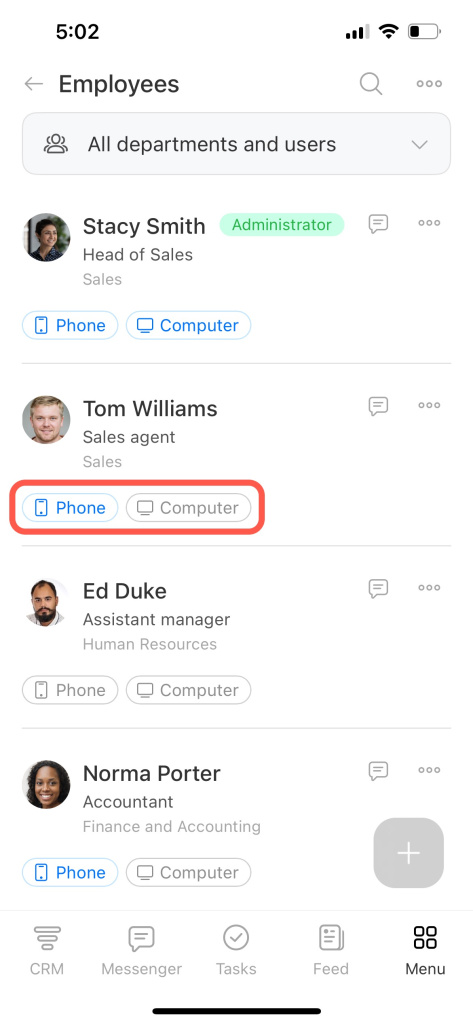
Phone and computer icons show whether an employee has Bitrix24 apps installed. If an app is installed, the icon is blue.
If no apps are installed, ask the employee to install them to stay connected.
Dismiss or transfer employees
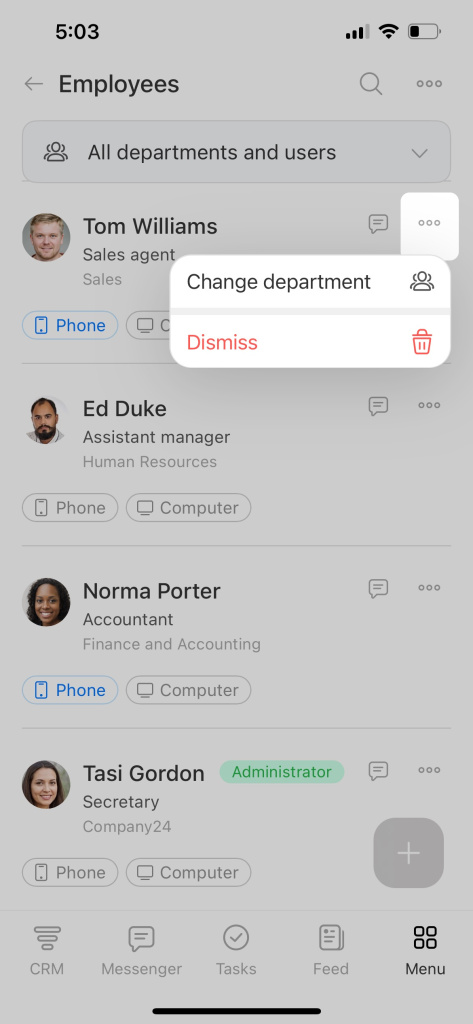
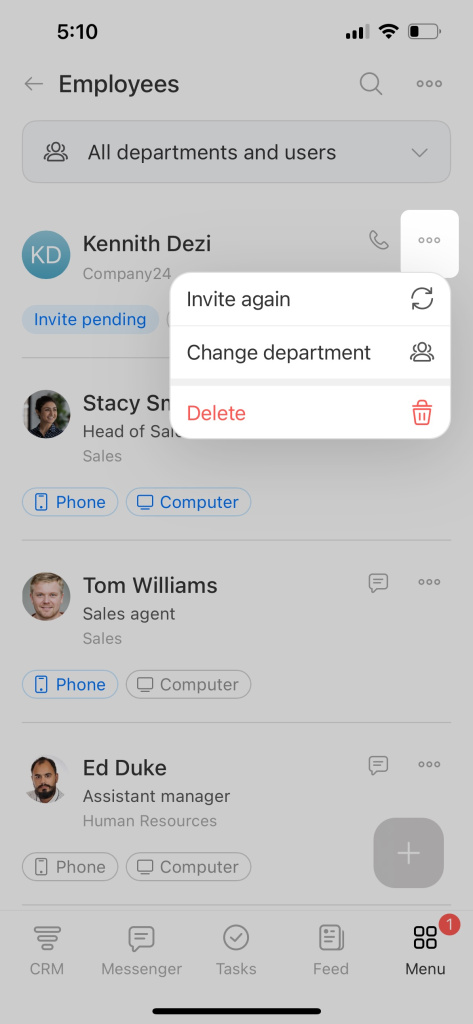
Administrators can dismiss employees or move them to another department.
- Tap the three dots next to the employee’s name.
- Select the action.
Find employees
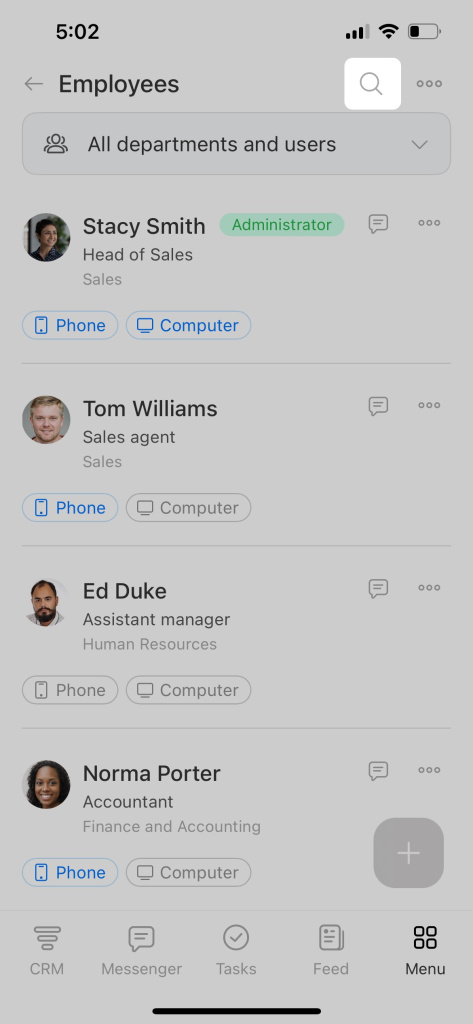
Use filters or search to find employees or groups. Tap the search icon to open filters.
Standard filters
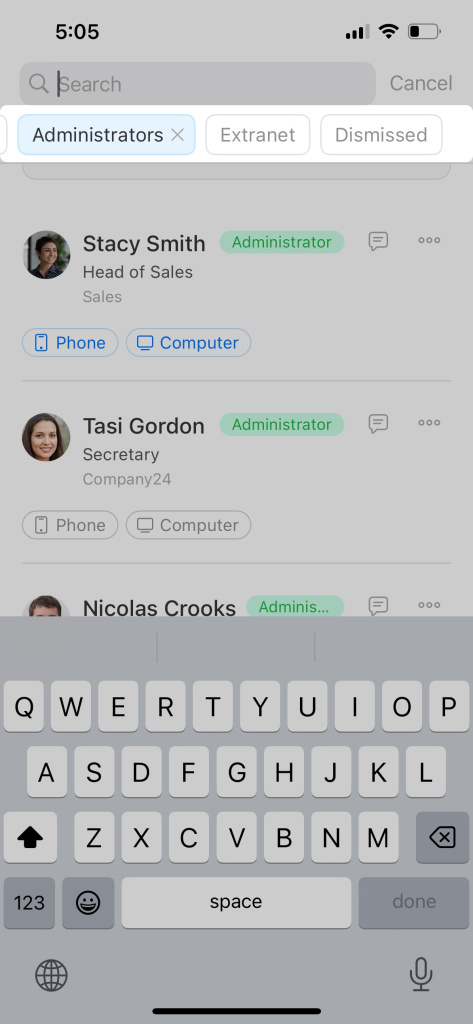
- Added to company — active employees in your Bitrix24 account.
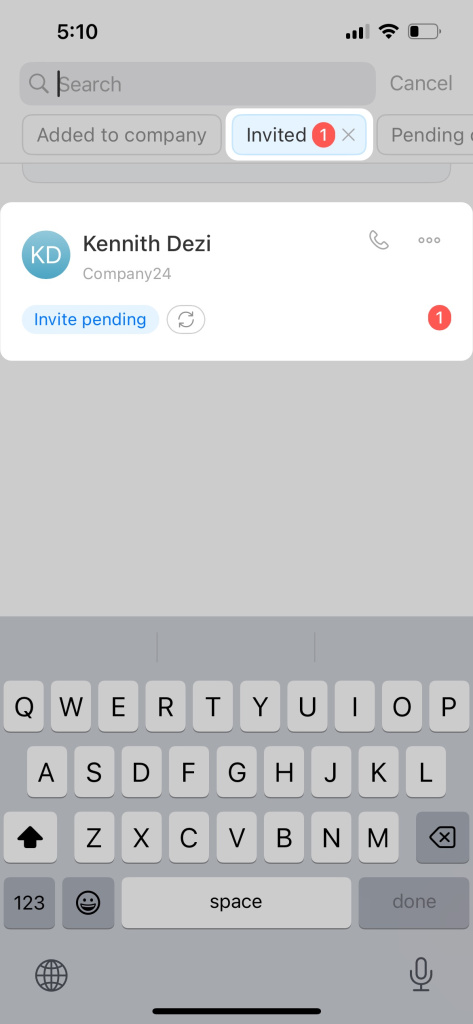
- Invited — users who received an invitation but have not accepted it yet. You can resend the invite or delete the user.
- Pending confirmation — users who accepted the invite and wait for admin approval.
- Administrators — users with admin permissions.
- Extranet — invited and active extranet users.
- Dismissed persons — former employees.
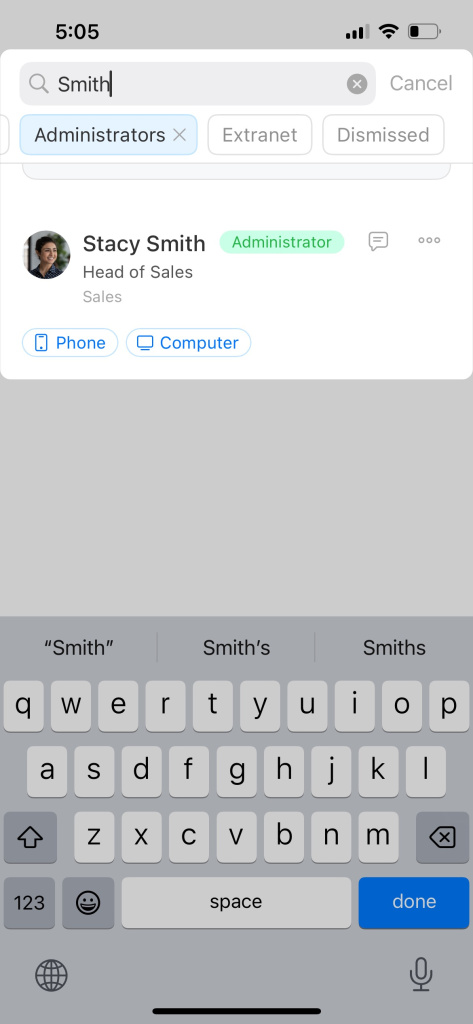
Search by name
Start typing an employee’s last name in the search bar. Bitrix24 will show matching results.
Filter by department
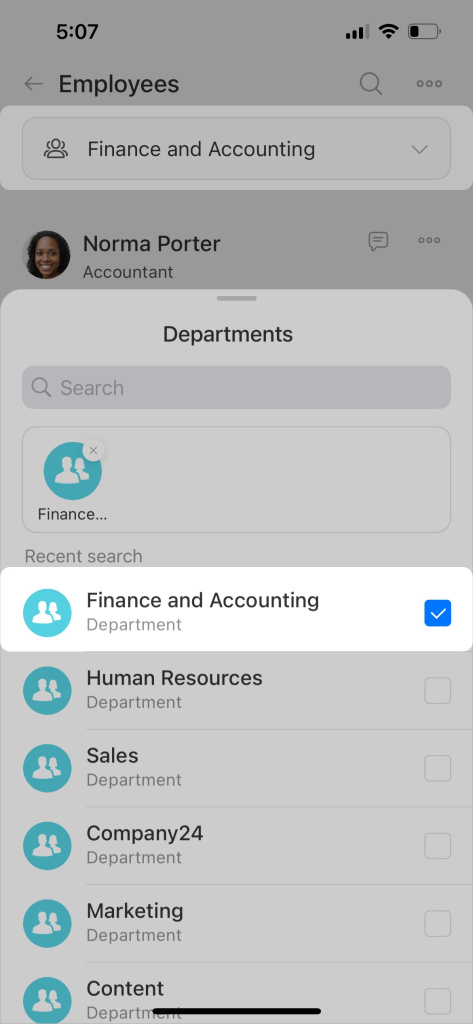
To filter by department:
- Tap the bar at the top of the list.
- Select the department.
Invited users counter
The Invited filter shows how many users have been invited but have not accepted yet.
You can resend the invitation or delete the user. Tap the three dots and select the action.
You can delete a user if you sent the invite or if you are an administrator.
The Pending confirmation counter shows users who accepted the invite and are waiting for approval. Only administrators can see this counter.
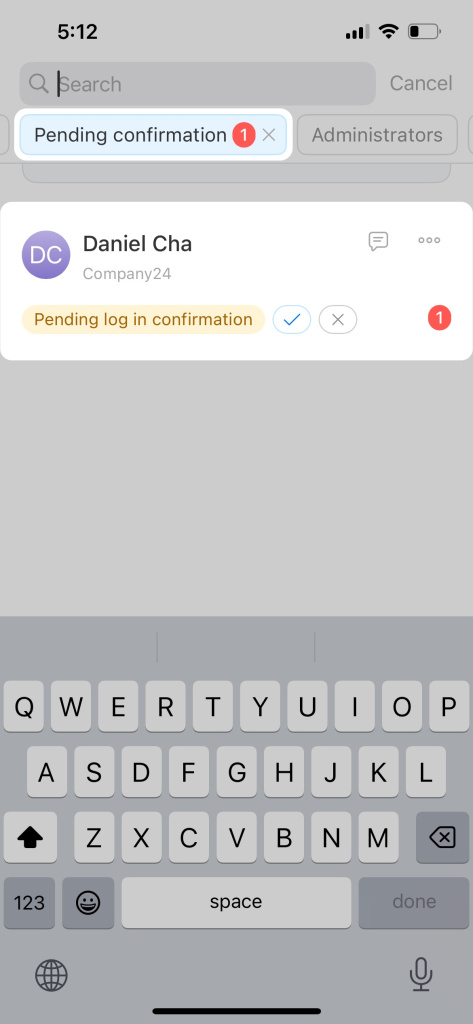
To manage access:
- Tap the checkmark to approve the user. They will be able to log in.
- Tap the cross to deny access. Use this if the invite was sent to the wrong person. The user will be removed from Bitrix24.



