🚚 Miễn phí giao hàng toàn quốc

✅ Tặng Gói Hỗ trợ online trọn đời

✅ Giá cạnh tranh nhất thị trường

✅ Miễn phí tư vấn giải pháp

🚚 Miễn phí giao hàng toàn quốc

✅ Tặng Gói Hỗ trợ online trọn đời

✅ Giá cạnh tranh nhất thị trường

✅ Miễn phí tư vấn giải pháp

Hotline: 0943.199.449

Địa chỉ: Tầng 1, tòa nhà Deli, 75 Hoàng Văn Thụ, P. Cầu Kiệu

Bitrix24 Helpdesk

Deadline view in tasks

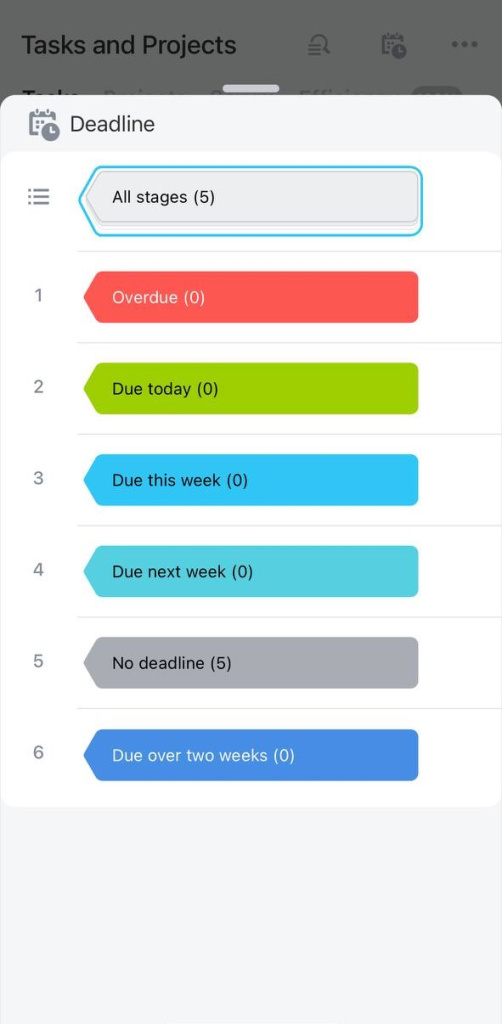
The Deadline view sorts tasks into columns based on their due dates. Use it to track tasks and complete them on time.


Deadline view stages

The Deadline view includes six stages:

  1. Overdue
  2. Due today
  3. Due this week
  4. Due next week
  5. No deadline
  6. Due over two weeks

Open the All stages menu.
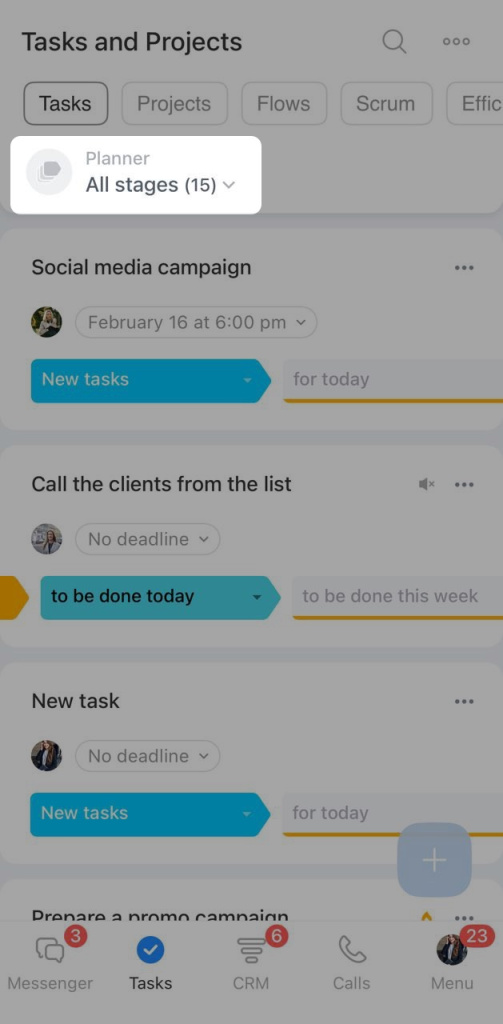
Select a stage to view tasks that are due during that time period.


Create a task

Click + in any stage.
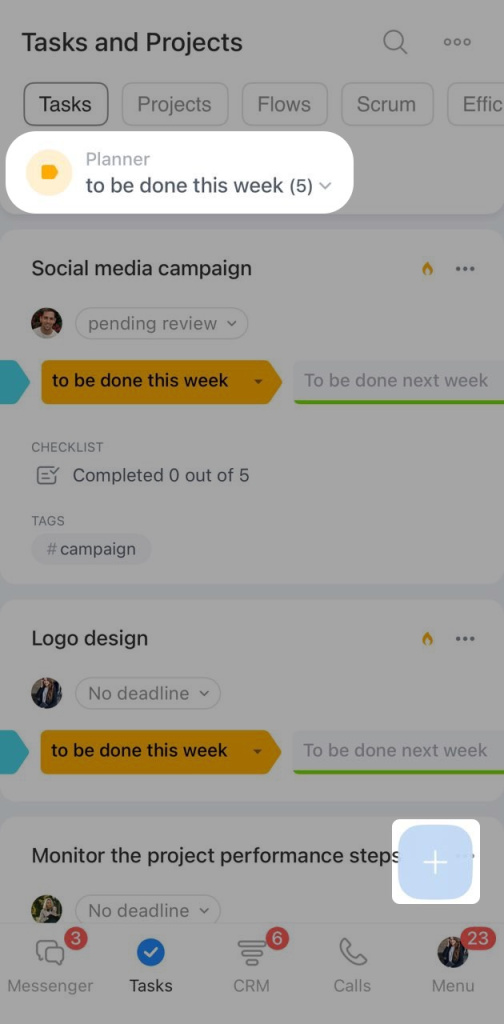
Enter the task name and fill in the fields. By default, the deadline is set to one week after the task is created. You can choose a different deadline. The task will move to the matching stage automatically.
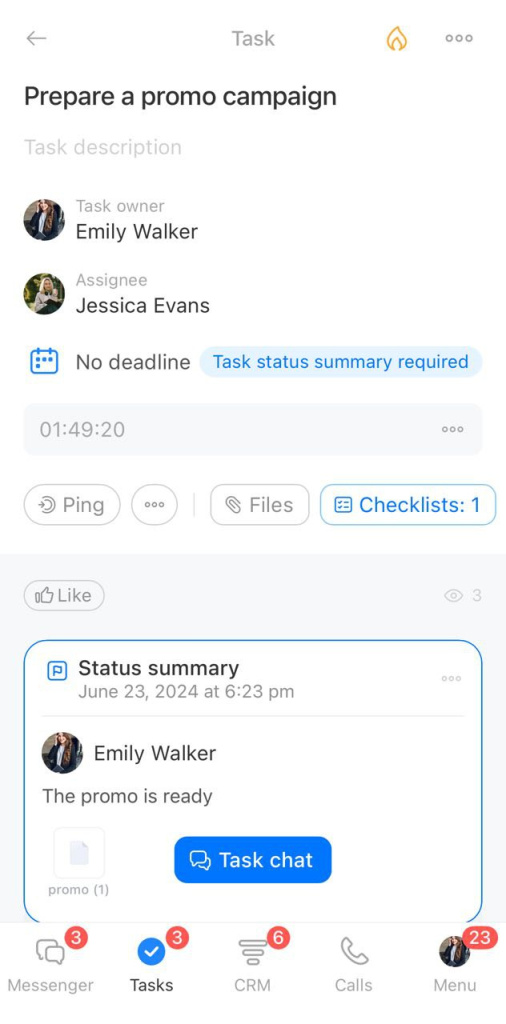

Move a task to another stage

When you move a task to another stage, its deadline changes automatically.

Select the task and click the stage.
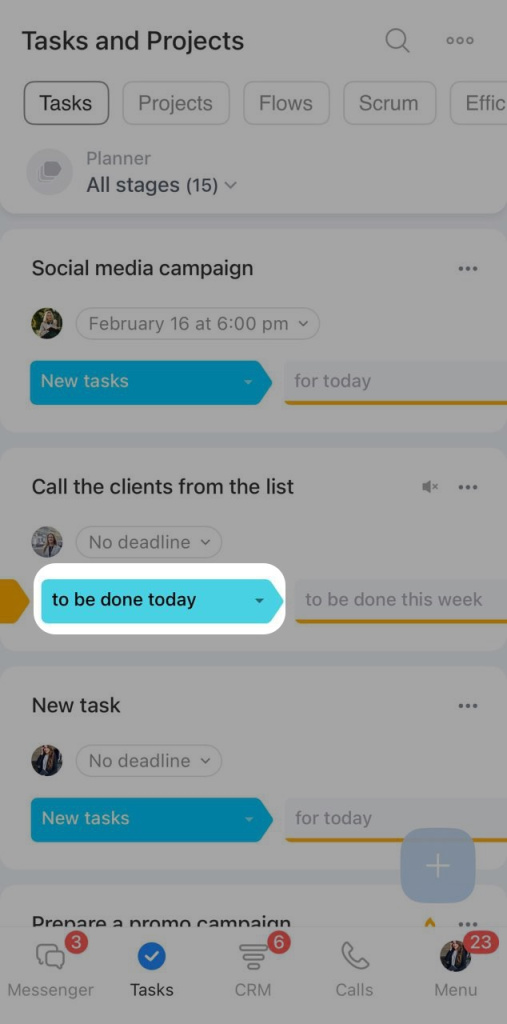
Select the stage where you want to move the task.
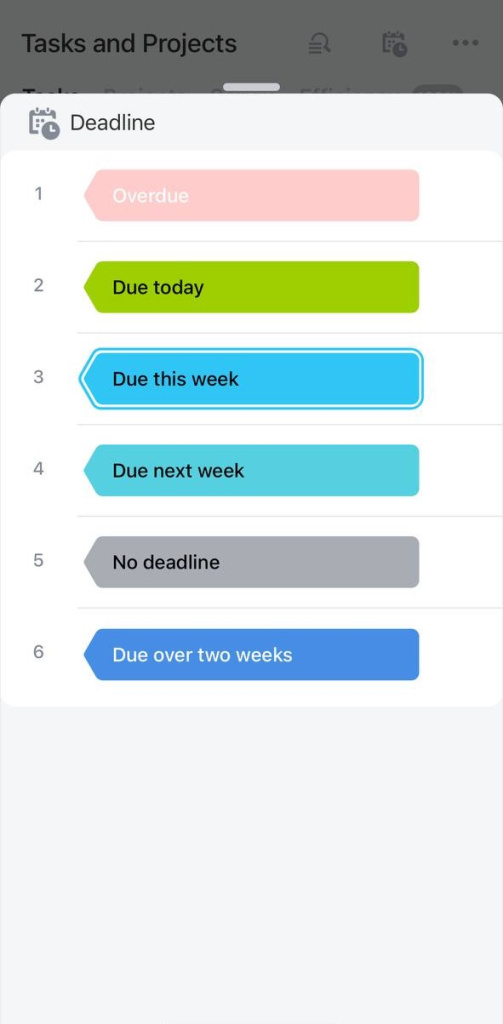
When you move a task to Due next week or Due over two weeks, Bitrix24 sets the new deadline to the last working day of the week. The last working day depends on your Bitrix24 settings and work schedule.


Was this information helpful?
Thank you for your feedback.
Get Implementation Help from a Partner
That's not what I'm looking for
Complicated and incomprehensible text
The information is outdated
It's too short. I need more information
I don't like the way this tool works
Get your Bitrix24 set up by local professionals
FIND BITRIX24 PARTNER NEAR ME
implementation_helper_man
Go to Bitrix24
Don't have an account? Create for free
Related articles
CoPilot Follow-Up: AI-powered speech analytics for video calls Create an event in the Bitrix24 mobile calendar Work with documents in the mobile CRM Switch CRM mode in mobile CRM Create a department in the Bitrix24 mobile app Configure email in the Bitrix24 mobile app Dismiss the primary administrator in Bitrix24 Configure Single Sign-On (SSO) for Bitrix24 Flows in the Bitrix24 mobile app Employee list in the Bitrix24 mobile app
Zalo
0943.199.449