🚚 Miễn phí giao hàng toàn quốc

✅ Tặng Gói Hỗ trợ online trọn đời

✅ Giá cạnh tranh nhất thị trường

✅ Miễn phí tư vấn giải pháp

🚚 Miễn phí giao hàng toàn quốc

✅ Tặng Gói Hỗ trợ online trọn đời

✅ Giá cạnh tranh nhất thị trường

✅ Miễn phí tư vấn giải pháp

Hotline: 0943.199.449

Địa chỉ: Tầng 1, tòa nhà Deli, 75 Hoàng Văn Thụ, P. Cầu Kiệu

Bitrix24 Helpdesk

Planner view in tasks

Planner view in Tasks uses personal stages. You can organize stages by task type, workflow step, or department.

Only the employee who created a stage can see it in Planner view.

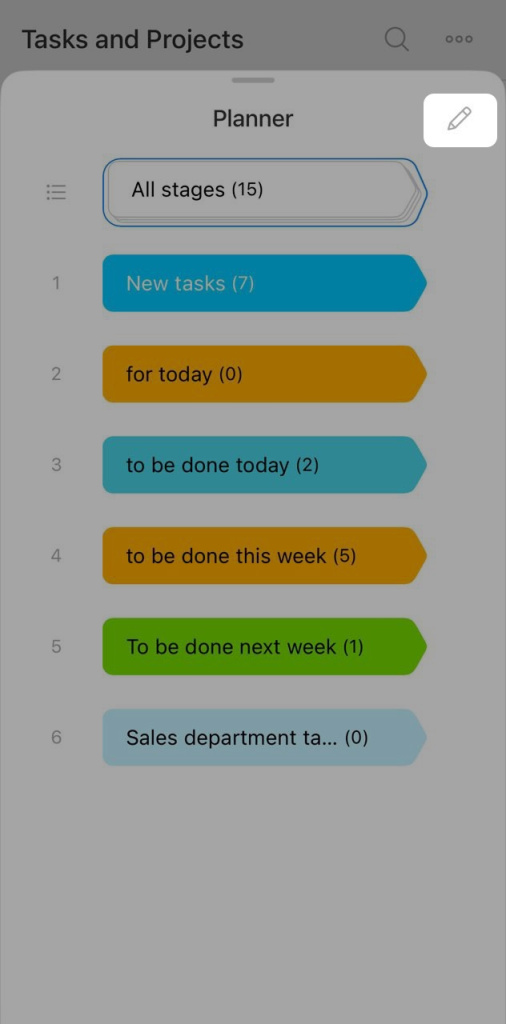
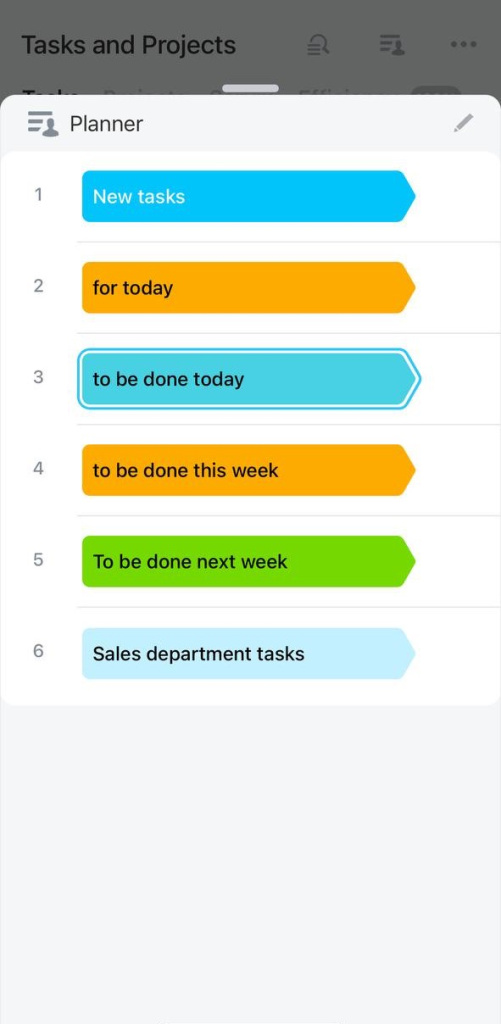
By default, Tasks includes these stages:

  • New tasks
  • To be done next week

All existing tasks appear in the New tasks column. You can rename default stages, create new ones, and move tasks between stages.


Create a stage

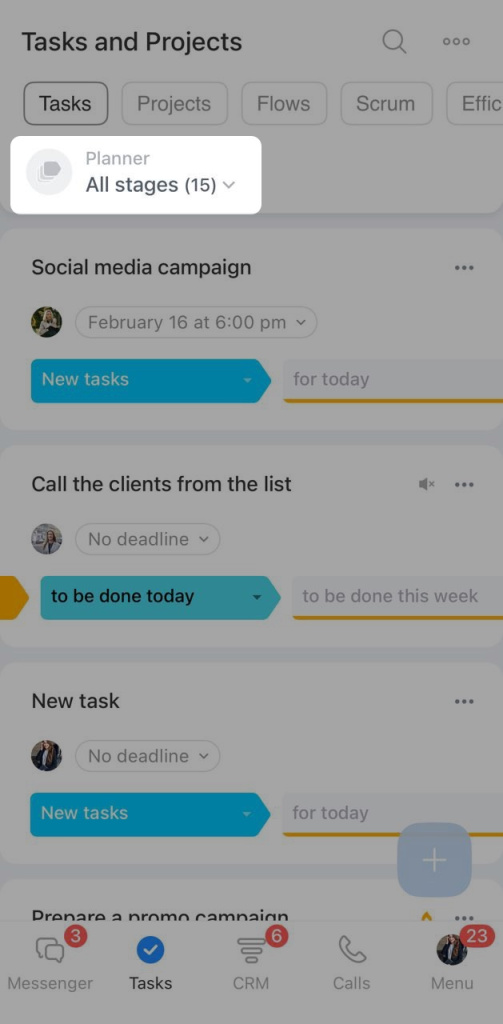
  1. Open the All stages menu.
  2. Click the pencil icon.
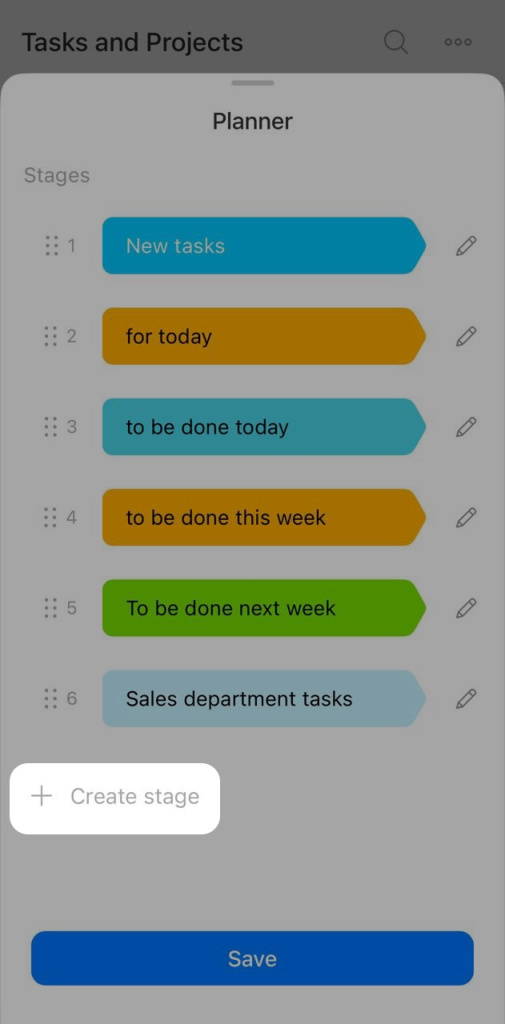
  3. Click + Create stage.
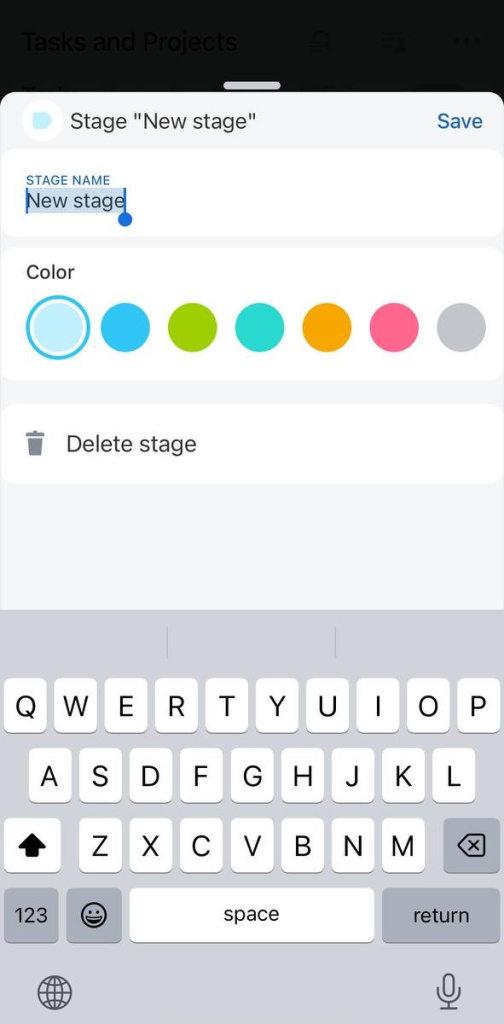
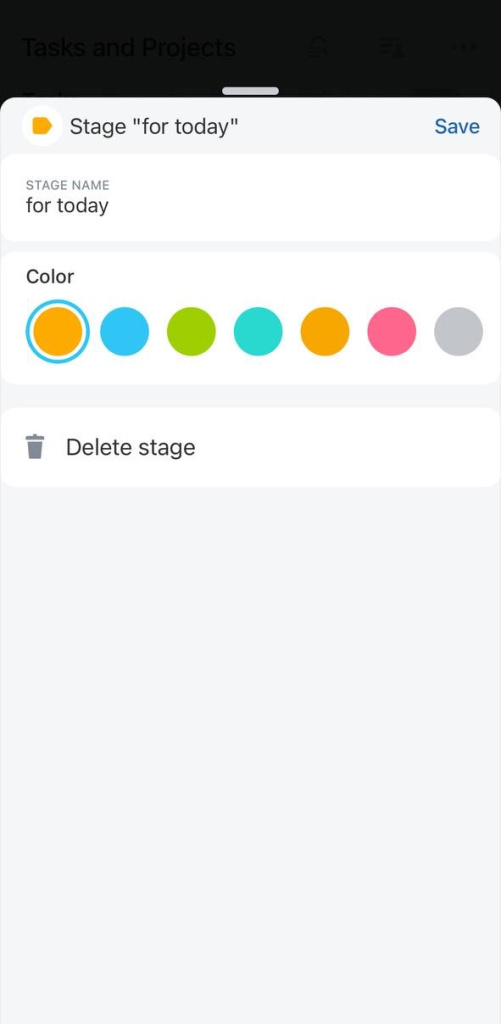
  4. Enter a stage name and choose a color.
You can also change the order of stages. Drag a stage to a new position in the list.
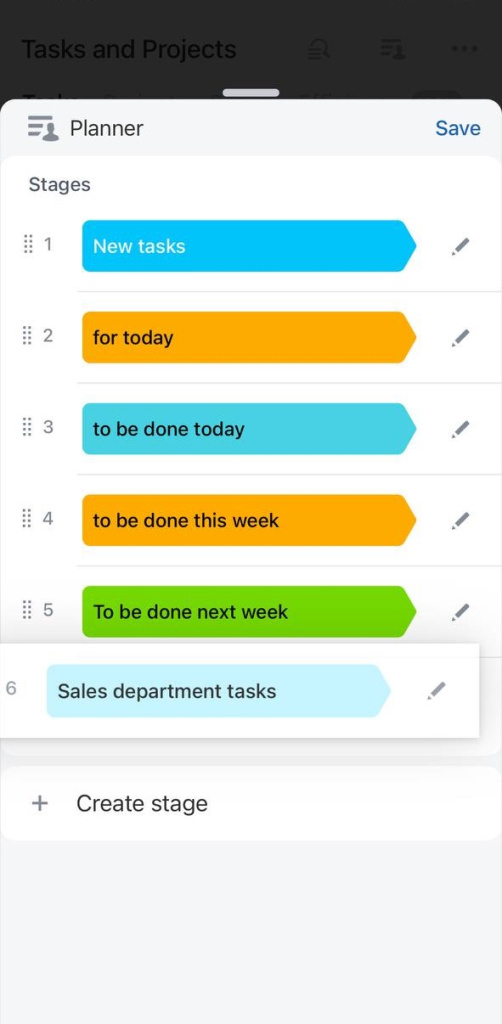
After you create a stage, you can move tasks into it.


Create a task

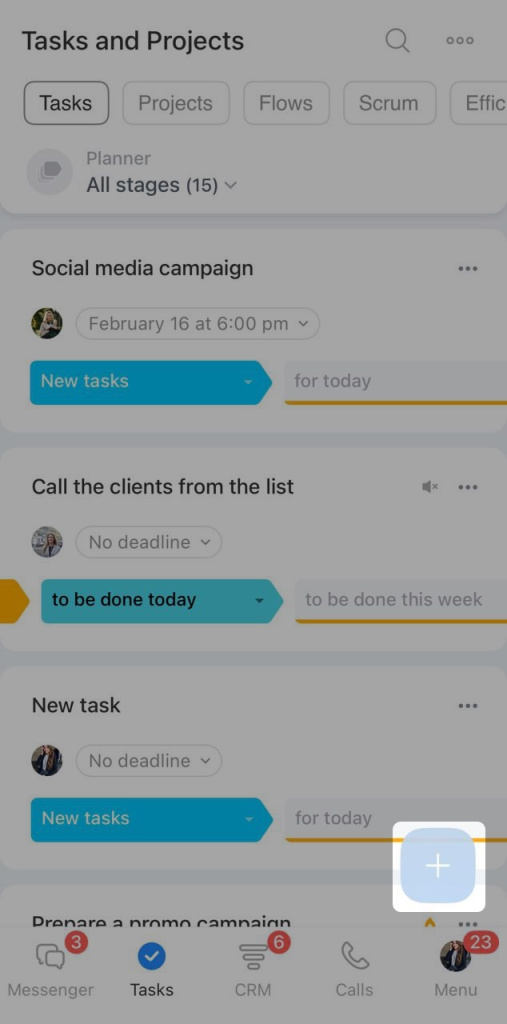
  1. Click the + button in any stage.
  2. Enter the task name.
  3. Fill in the required fields.

New tasks appear in the New tasks column by default. You can move them to another stage at any time.


Move a task to another stage

  1. Open the task in the Tasks section.
  2. Select the stage where you want to move the task.
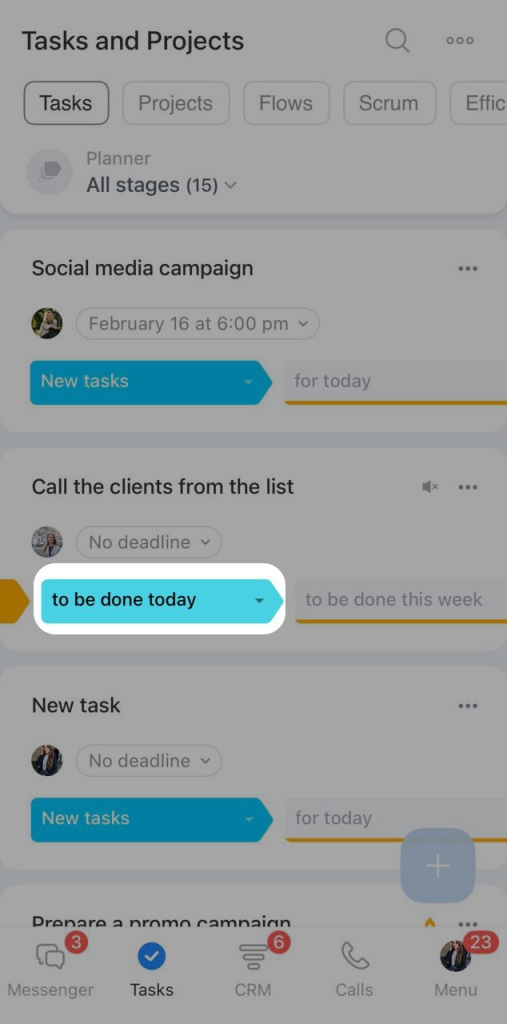
Moving a task to another stage does not change its deadline.


Edit or delete a stage

  1. Open the All stages menu.
  2. Click the pencil icon.
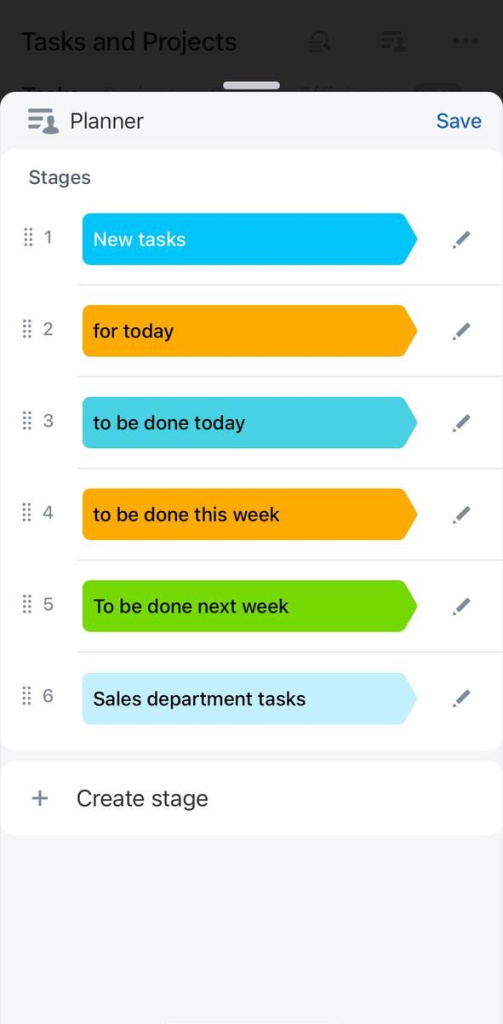
  3. Find the stage you want to change and click the pencil icon next to it.
  4. Edit the stage name or color, or delete the stage.
Was this information helpful?
Thank you for your feedback.
Get Implementation Help from a Partner
That's not what I'm looking for
Complicated and incomprehensible text
The information is outdated
It's too short. I need more information
I don't like the way this tool works
Get your Bitrix24 set up by local professionals
FIND BITRIX24 PARTNER NEAR ME
implementation_helper_man
Go to Bitrix24
Don't have an account? Create for free
Related articles
Invite a customer to Telegram chat Switch CRM mode in mobile CRM Create an event in the Bitrix24 mobile calendar Invite a customer to Telegram chat Login history in the Bitrix24 mobile app Inventory management in the mobile app Work with documents in the mobile CRM Message or call a colleague in the Bitrix24 mobile app CoPilot Follow-Up: AI-powered speech analytics for video calls Employee profile in the Bitrix24 mobile app
Zalo
0943.199.449