To ensure stable call quality, check your network and device settings.
Equipment and connection requirements
Devices and apps. You can join video calls in a browser, Bitrix24 Messenger, or the mobile app. Always use the latest version. Older versions may cause connection issues.
Recommended browsers:
- Safari for macOS
- Google Chrome for other systems
Connection speed. Plan for at least 10 Mbps per 20 participants.
Recommended speeds by video quality:
- 720p (30 fps): 1–2 Mbps
- 360p (30 fps): 0.5–1 Mbps
- 180p (30 fps): 0.1–0.5 Mbps
Video quality adjusts automatically based on your connection.
Use this formula to estimate bandwidth:
0.1–2 Mbps × number of participants × 2
Microphone. You need a working microphone for audio or video calls. Turn on the built-in or external microphone on your device.
Local network settings
Check your network configuration. Make sure these ports are open:
- 443
- 7881
- UDP 1024-65000
How to contact Bitrix24 Support
Technical requirements for Bitrix24 On-Premise
Video calls are available only with an active Bitrix24 On-Premise license.
Check the following settings:
-
Install these modules: Video calls (call), Mobile video calls (callmobile), and Telephony (voximplant).
-
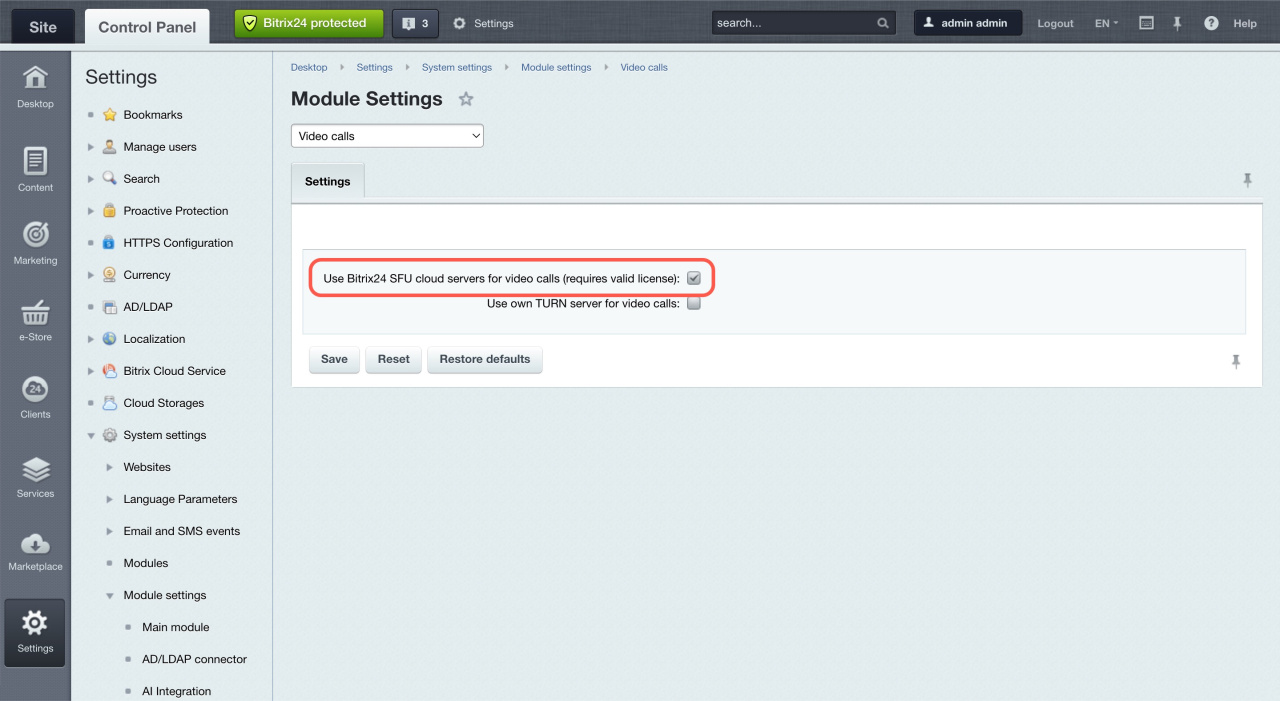
Enable Use Bitrix24 SFU cloud servers for video calls in the Video calls (call) module settings.
-
Make sure
/bitrix/services/main/ajax.phpis accessible from outside your network. If you restrict access by IP, contact Bitrix24 Support. -
Verify your domain and set up an SSL certificate. You can use your own certificate or a free one from Let’s Encrypt.
Configure certificates