


Ready dashboards include all filters and chart links by default. To get more useful insights from your data, customize the dashboard to fit your needs. You can disable filters, rearrange charts, or remove widgets you do not use.
To customize a dashboard:
- Open the BI Builder section.
- Select a dashboard.
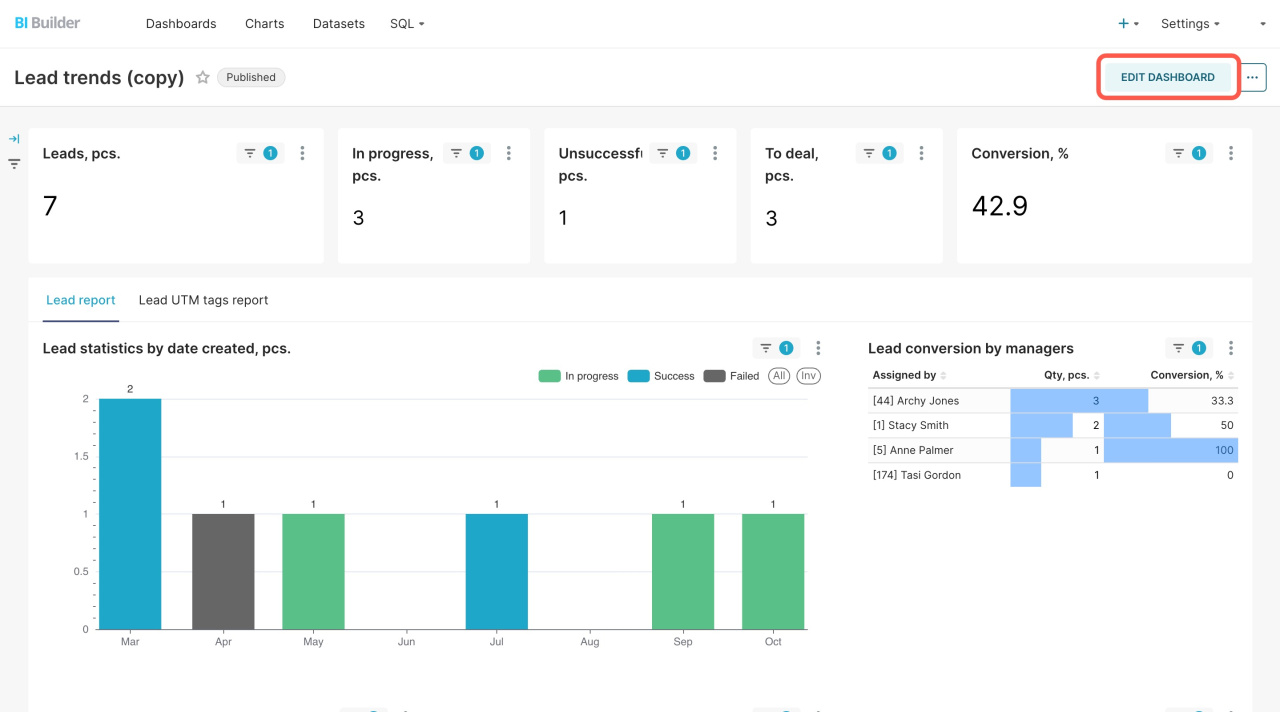
- Click Edit.
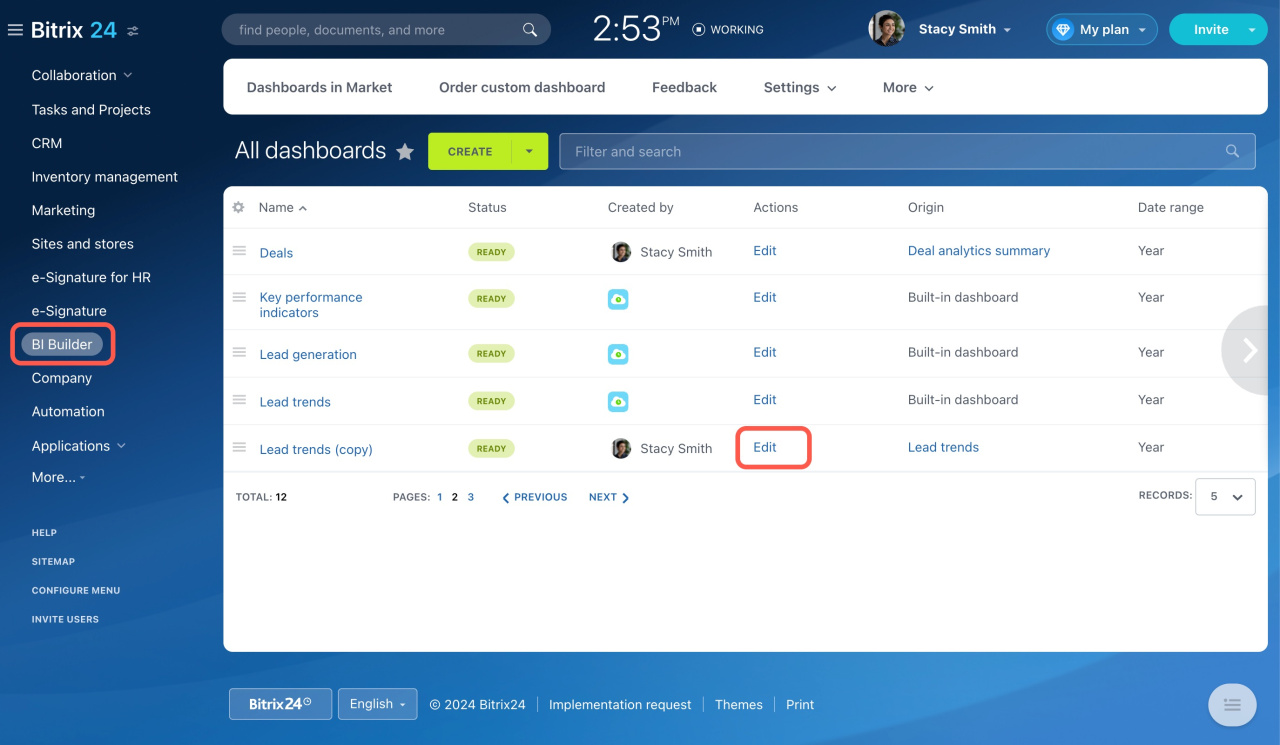
After that, you can configure the dashboard in several ways.
Configure cross-filters
Cross-filters connect charts on the dashboard. When you click an element in one chart, related charts update automatically.
For example, if you select an employee in the Lead conversion by managers table, all connected charts show data for that employee.
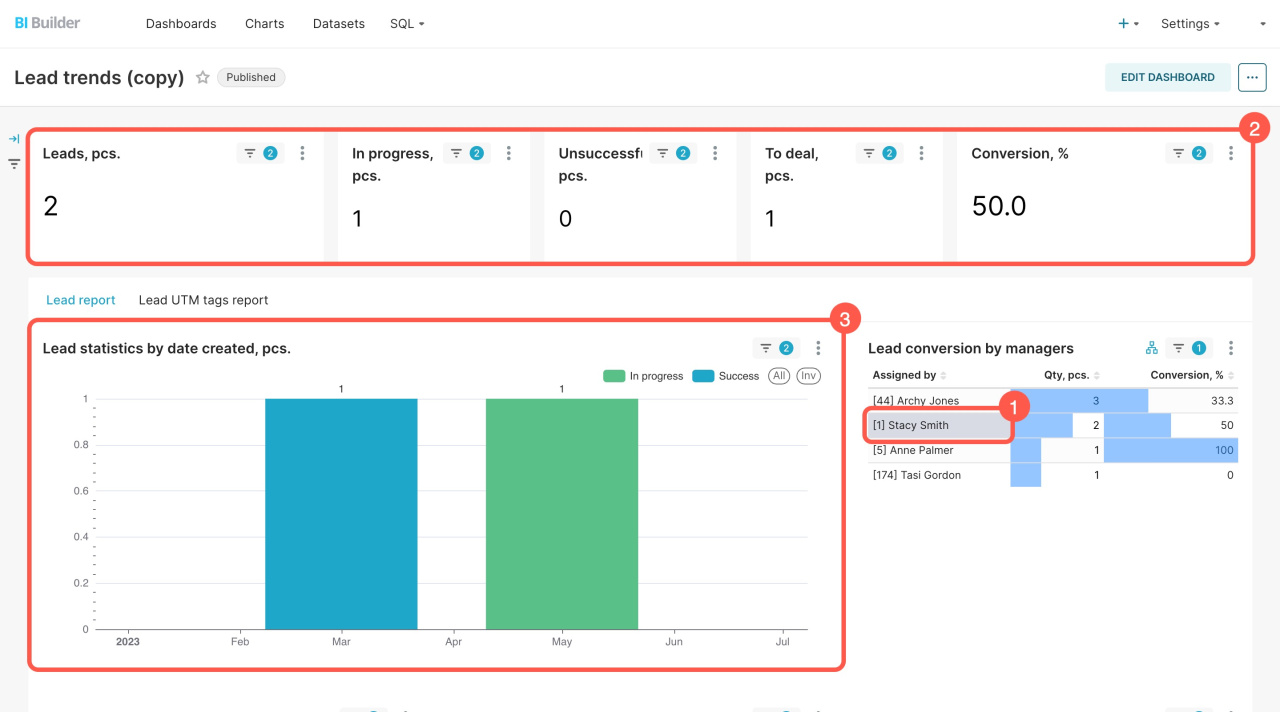
By default, all charts in the dashboard are connected through cross-filters. Before you start using a dashboard, review these connections and check how they affect other charts.
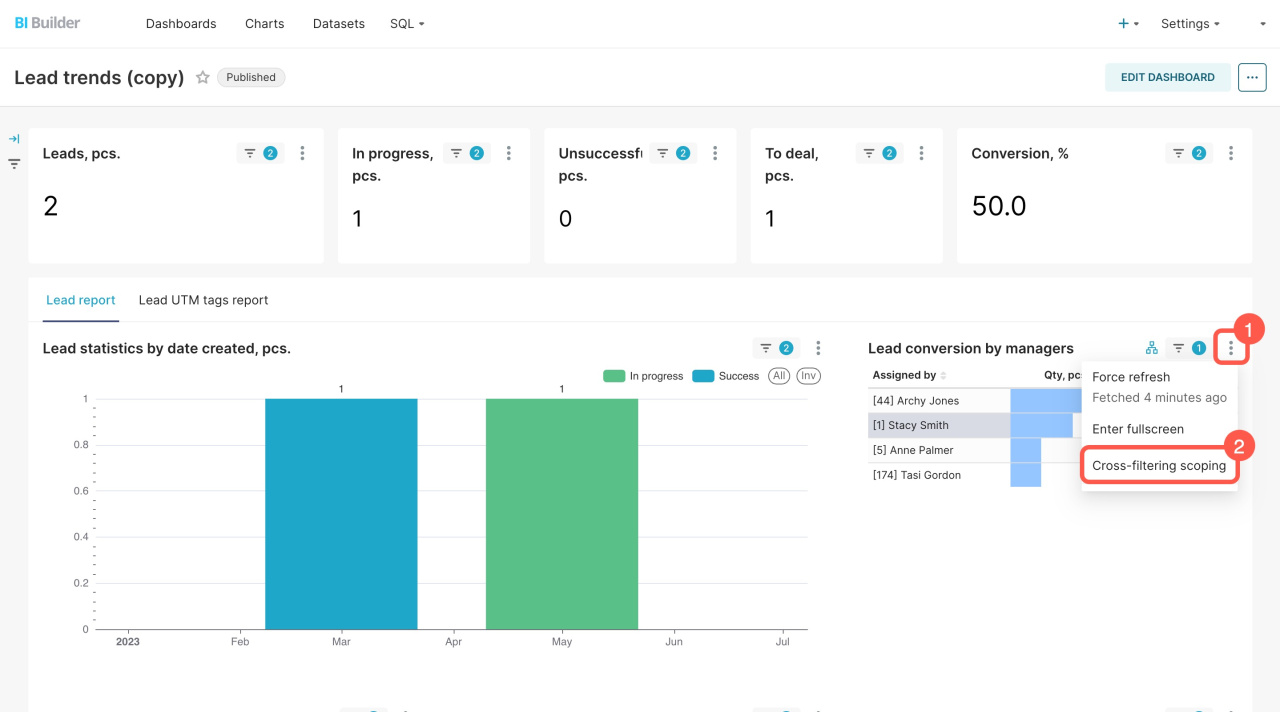
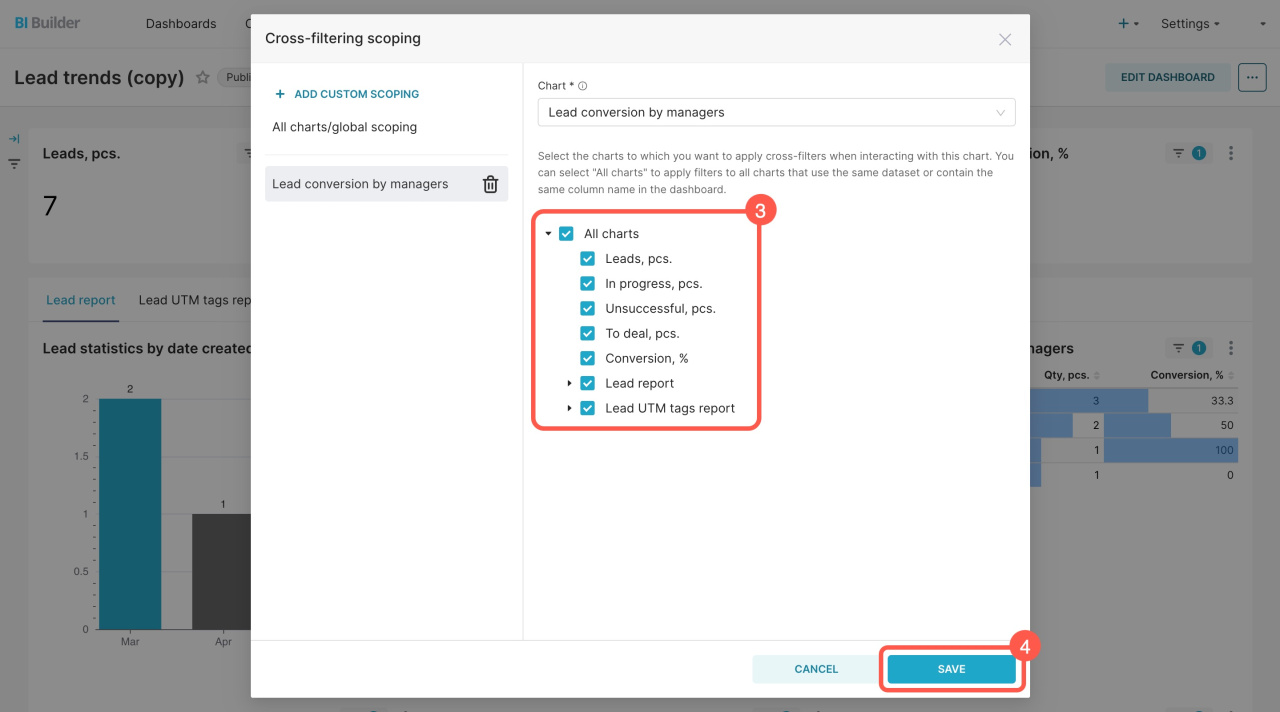
To disable chart links:
- Open the Menu (≡).
- Select Cross-filtering scoping.
- Disable the links you do not need.
- Click Save.
Move dashboard elements
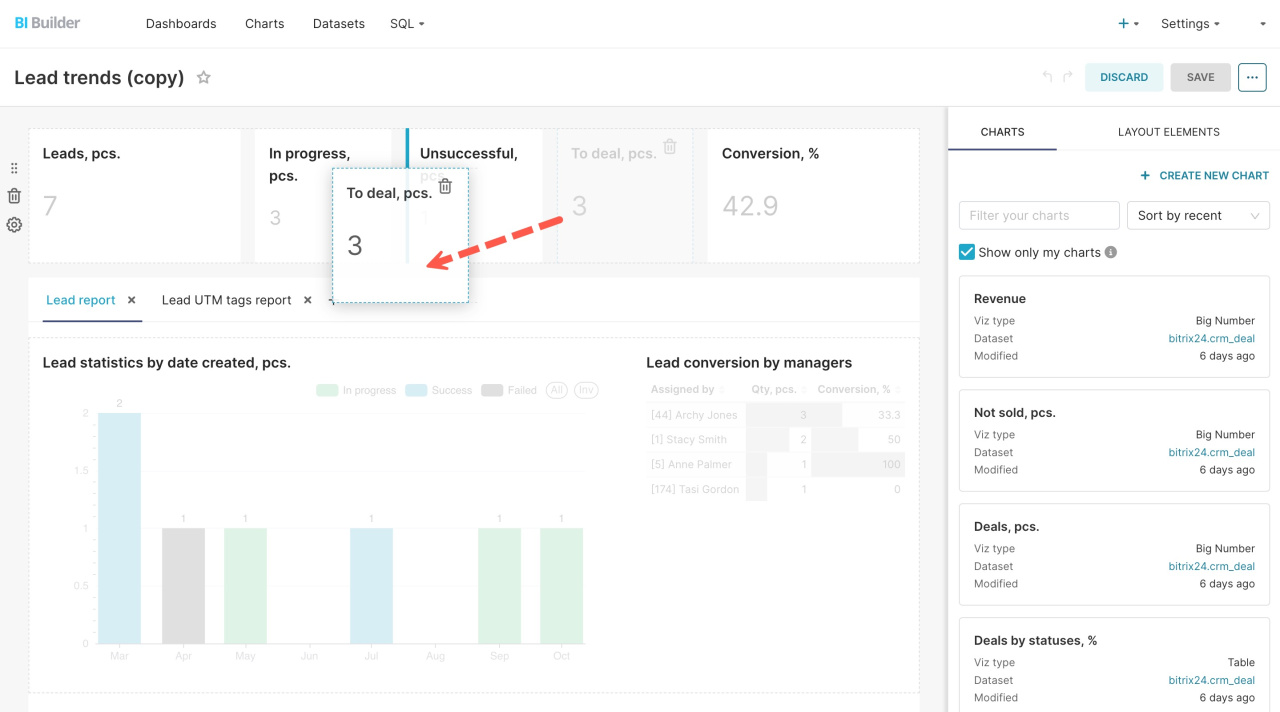
You can change the layout of dashboard elements at any time.
- Click Edit Dashboard.
- Select an element.
- Drag it to a new location.
Remove unnecessary elements
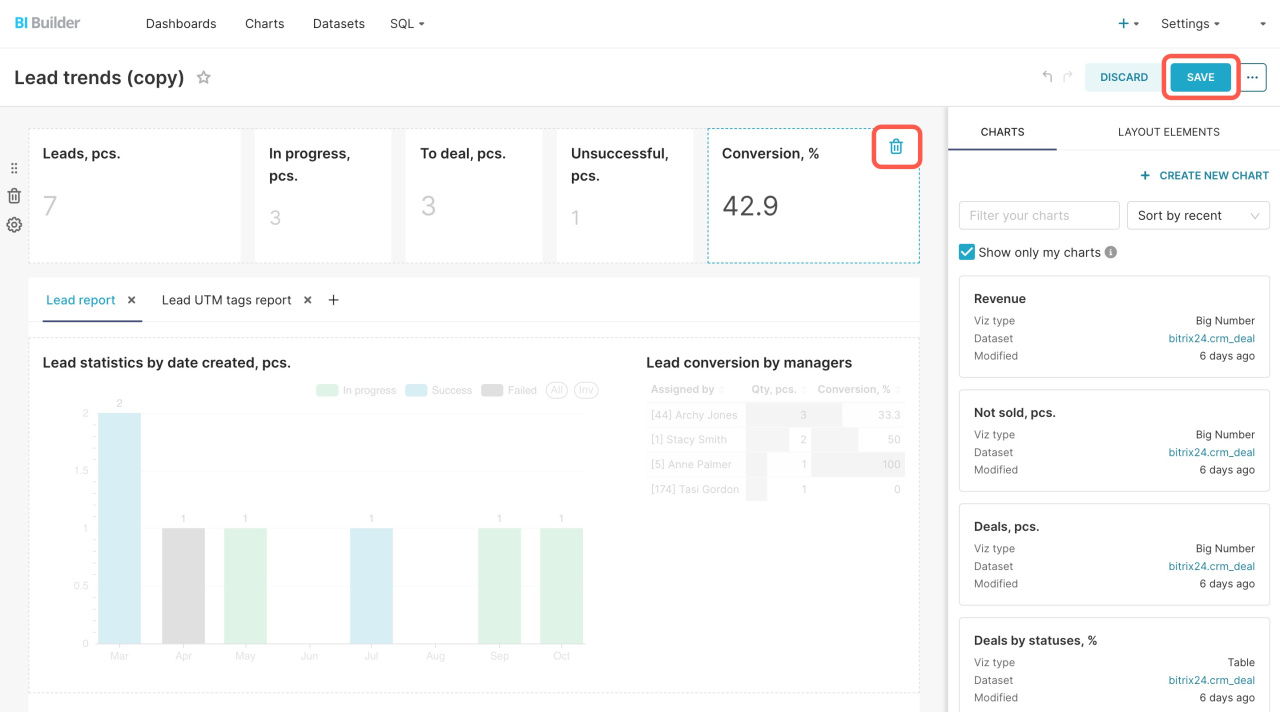
If you do not need a chart or table, remove it from the dashboard.
- Click the delete icon next to the chart or table.
- Save the changes.
In brief
- Ready dashboards include filters and chart links by default.
- Customize dashboards to focus on the data that matters to you.
- Use cross-filters to connect charts and analyze related data.
- Review cross-filter settings before you start working with a dashboard.
- In edit mode, you can move or remove dashboard elements.



