


In BI Builder settings, you can manage key dashboard and report options:
- Set the default dashboard date range
- Choose the report language and time zone
- Refresh dashboard data
- Set up datasets
- Update the encryption key
- Configure parameters and visibility
Go to BI Builder > Settings > General preferences.
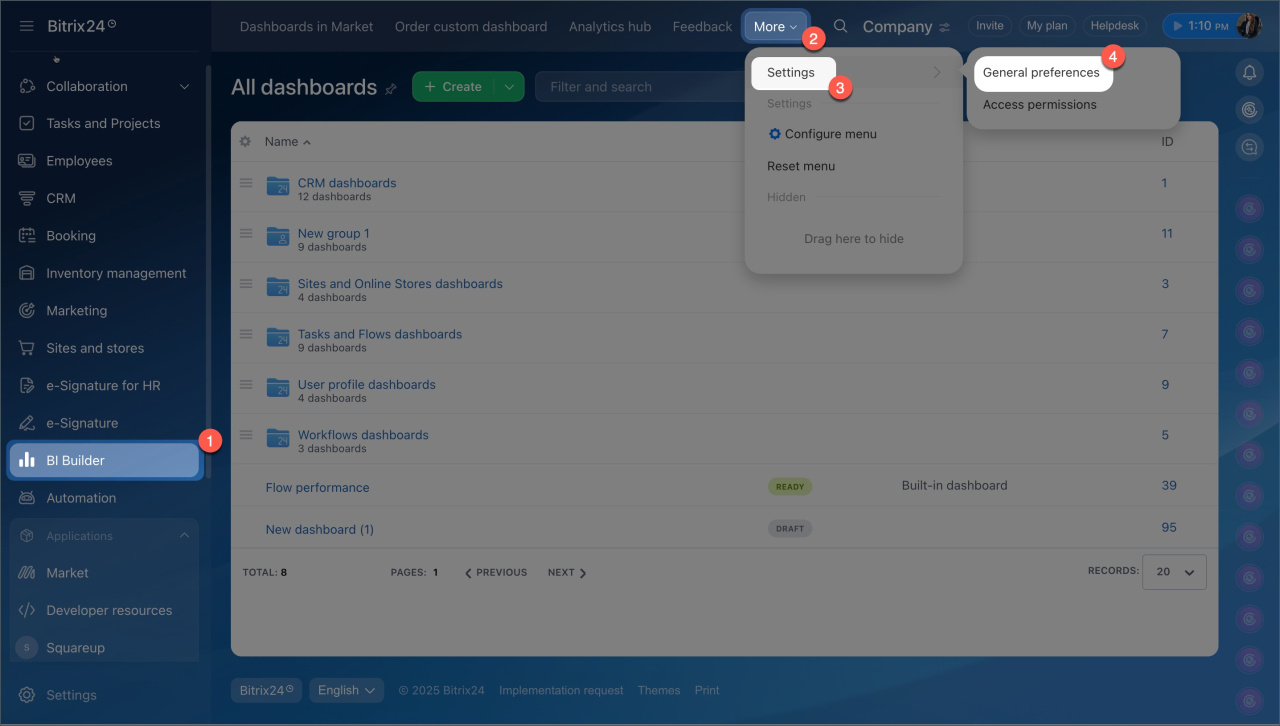
Default dashboard date range. Set a default time period for dashboard data, such as a year, month, or week. The date range affects dashboard loading and processing speed. To speed up loading, select only the date range you need.
You can set a separate period for each dashboard in the BI Builder filters.
Set up the dashboard date range
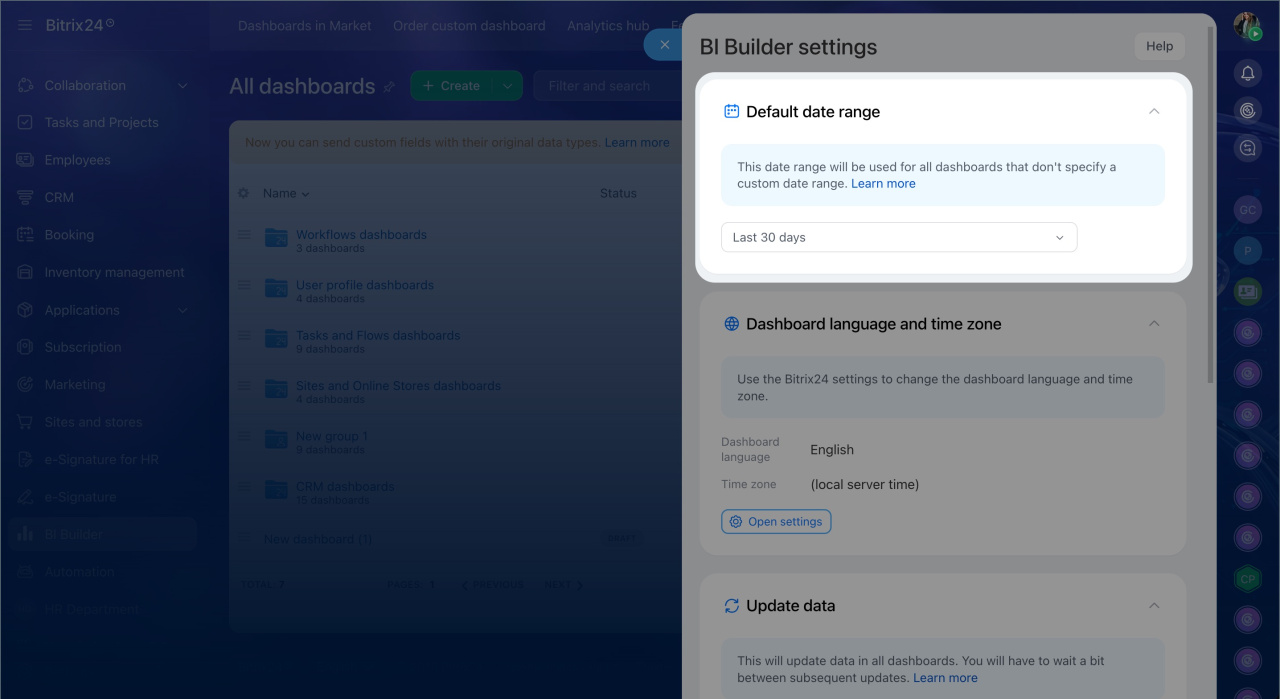
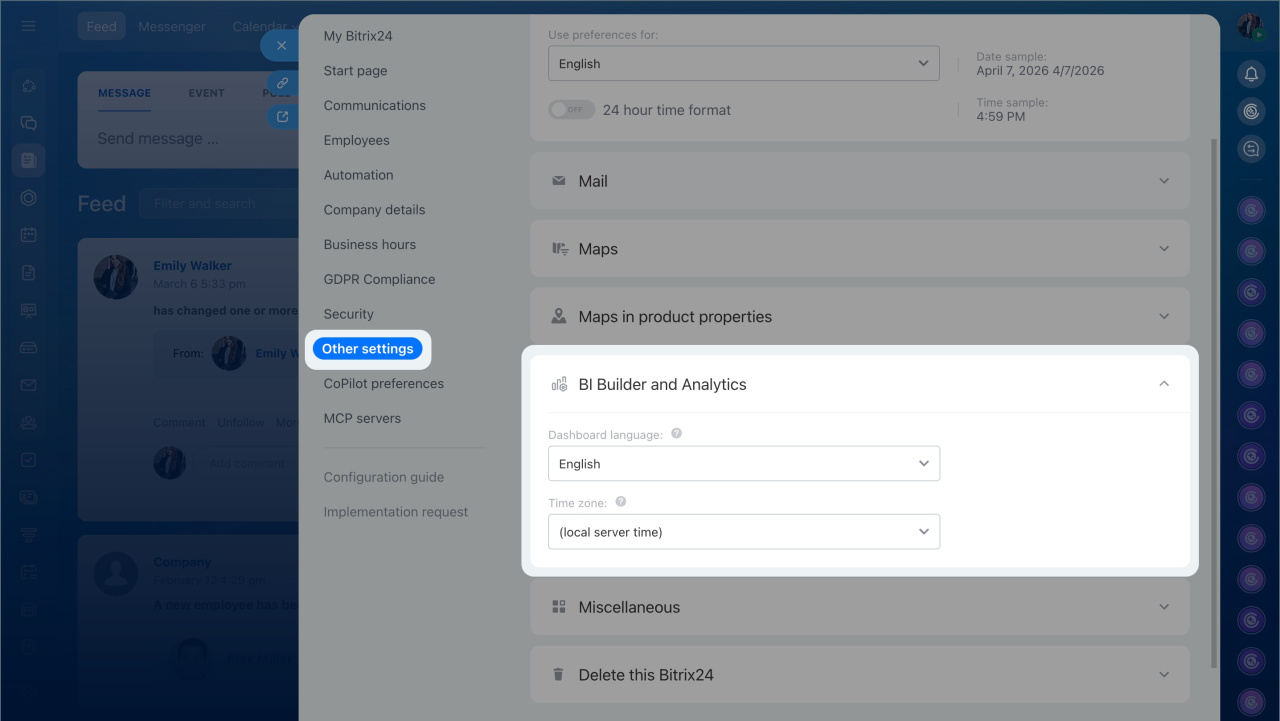
Report language and time zone. Choose the language for labels, metrics, and interface elements in reports. Set a time zone to keep dates and times consistent.
To update these settings:
- Click Change.
- Select a language and time zone.
- Save your changes.
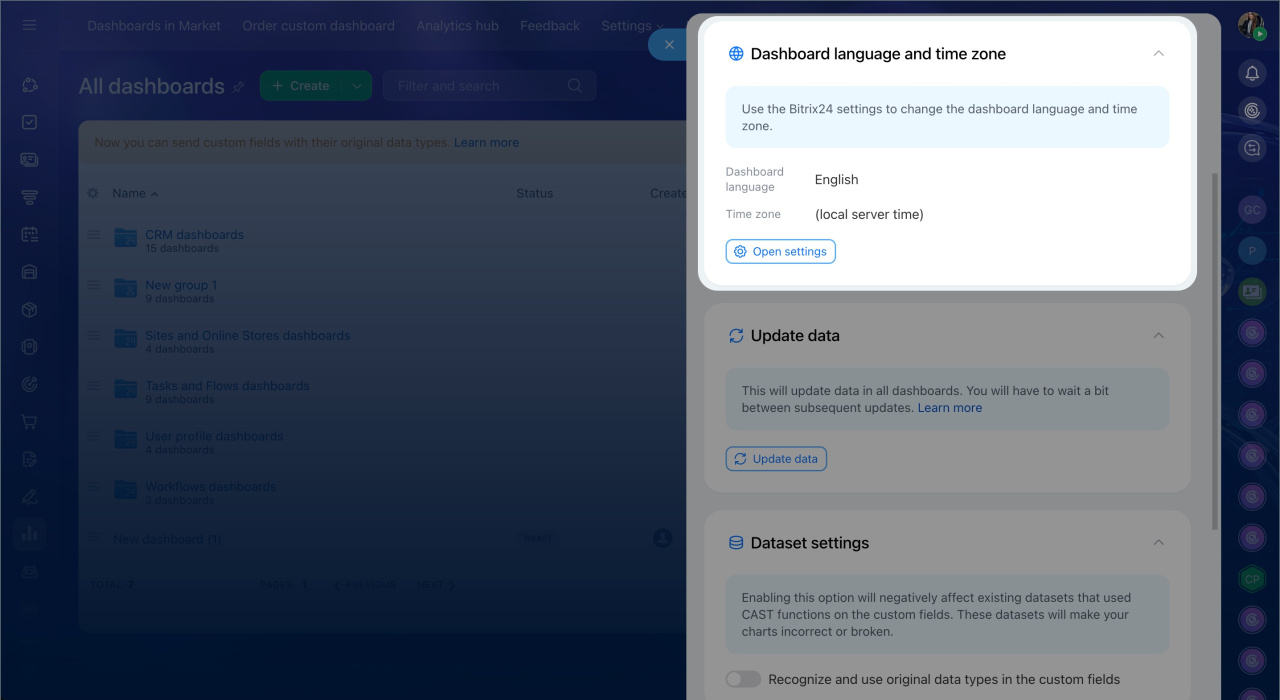
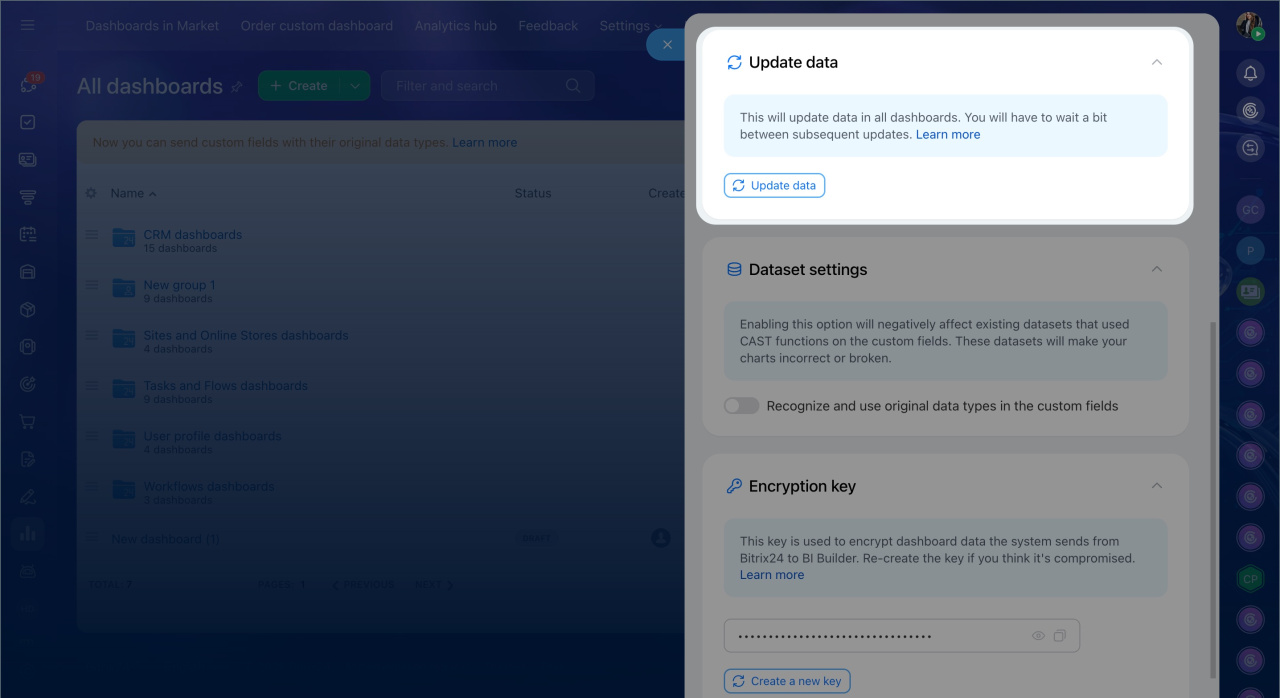
Update data. Click Update data to refresh data in all dashboards. Hover over the button to see when the next update is available.
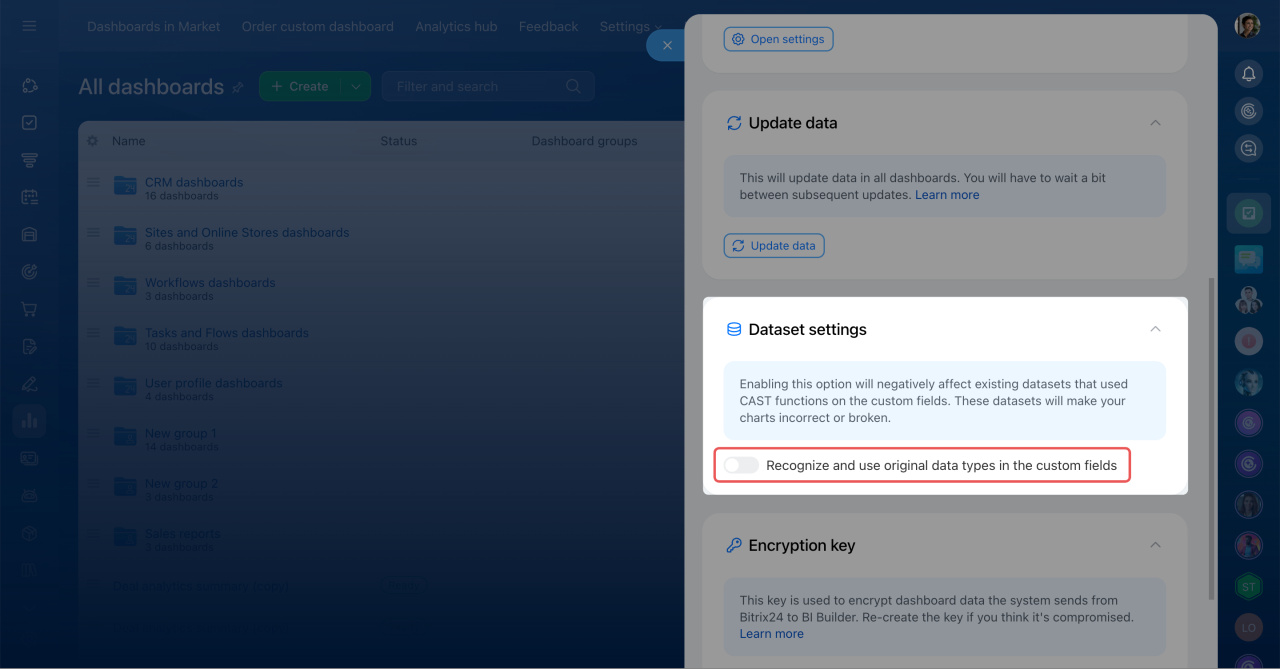
Dataset settings. Enable Recognize and use original data types in the custom fields so that numbers, dates, and yes/no values are processed in the appropriate format in reports. This setting applies to all reports.
If your datasets use the CAST function to convert custom fields, charts may not work correctly after you enable this setting. Check these datasets and remove unnecessary type conversions if needed.
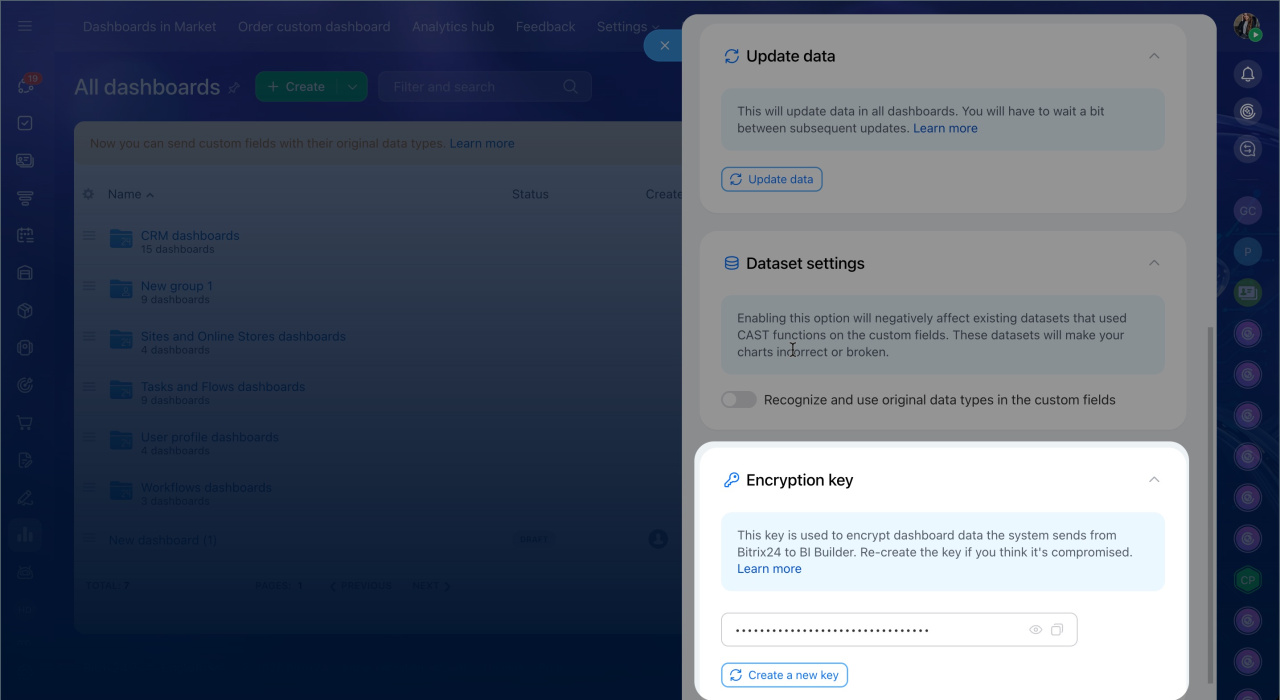
Encryption key. The encryption key links your Bitrix24 data to BI Builder. If you think the key is compromised, refresh it to keep your data secure.
If all keys were removed by mistake, refresh them to restore access.
Manage keys in BI analytics
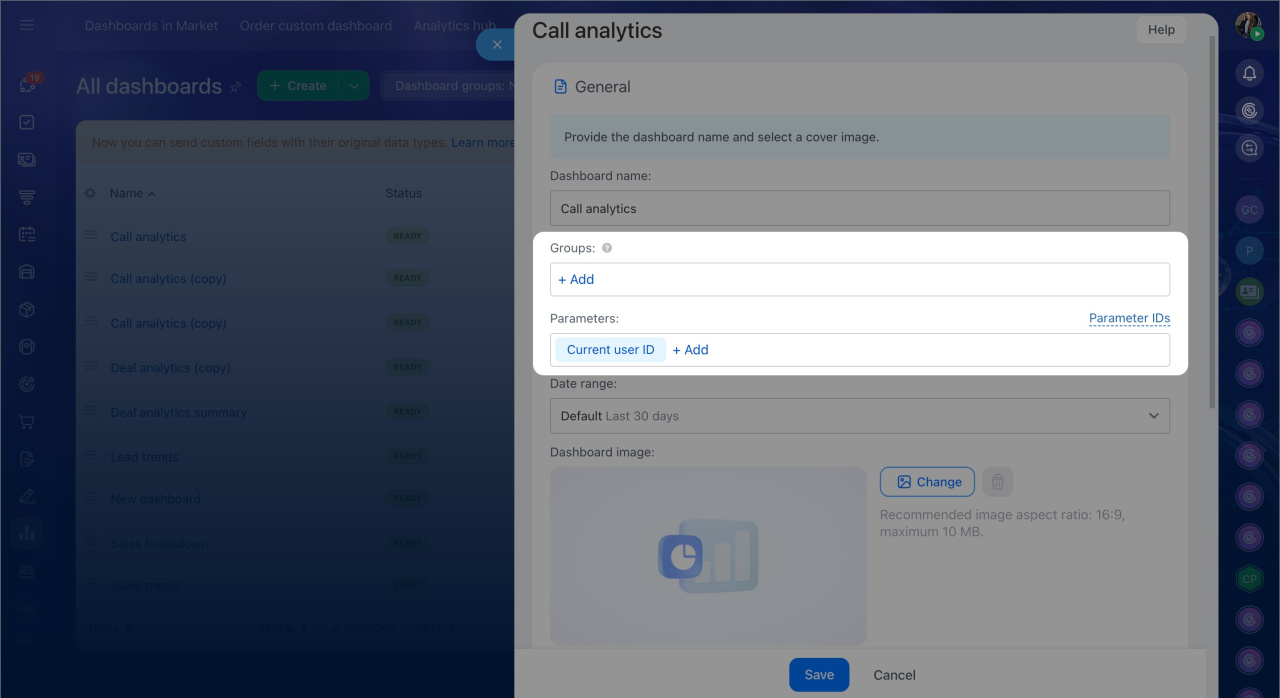
Dashboard groups and parameters. Dashboard groups organize reports by topic. Each group links to a specific Bitrix24 tool or section.
Parameters help you filter data and control what appears in reports.
Configure dashboard parameters in BI Builder
Open report settings to:
- Configure parameters
- Choose where the dashboard appears in Bitrix24
- Manage visibility
Configure access permissions for BI Builder
In brief
- You can set up BI Builder in BI Builder > Settings > General preferences.
- Set the date range for which dashboards display data. This can be a year, month, week, or another interval.
- Choose a report language and time zone for consistent analytics.
- Refresh data manually when you need the latest metrics.
- Update the encryption key to maintain secure access.
- Use dashboard groups and parameters to organize and filter reports.