


Delete a dashboard from the action menu in BI Builder. If its charts or datasets are used in other dashboards, you cannot delete it right away. Remove the linked elements first, then try again.
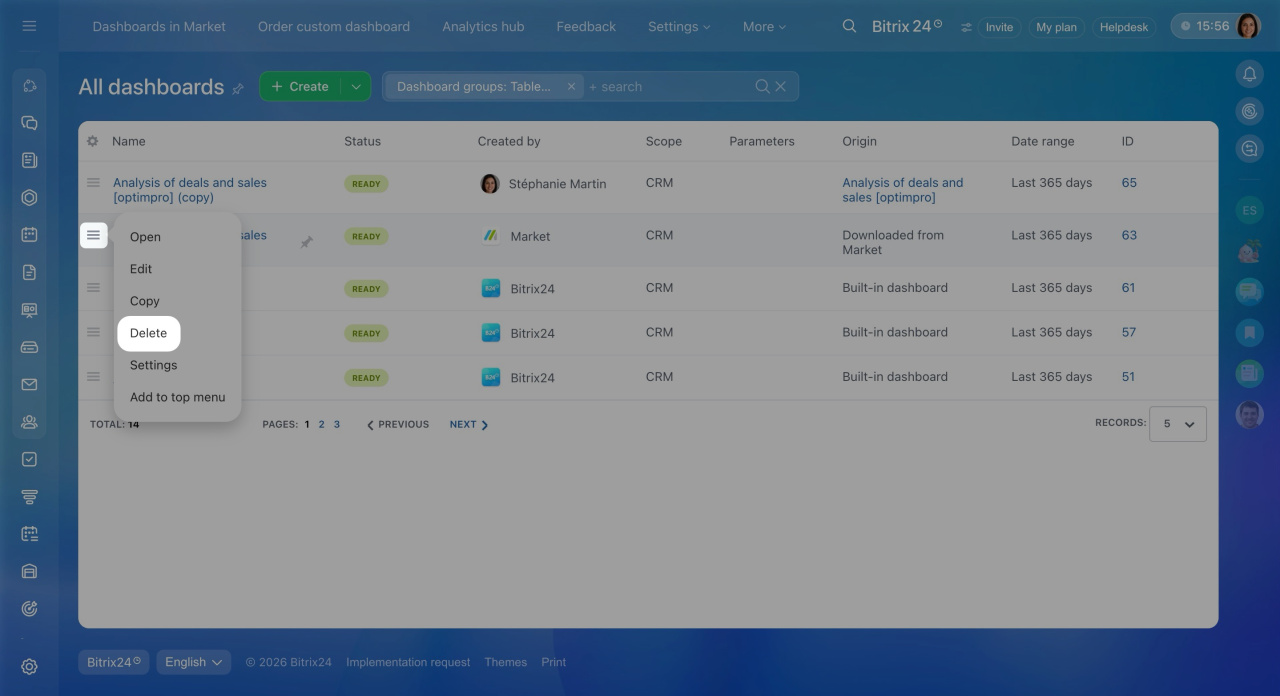
Open the BI Builder section. Select the dashboard from the list and click
Menu (≡) > Delete. If the charts and datasets are not used in other dashboards, confirm deletion.
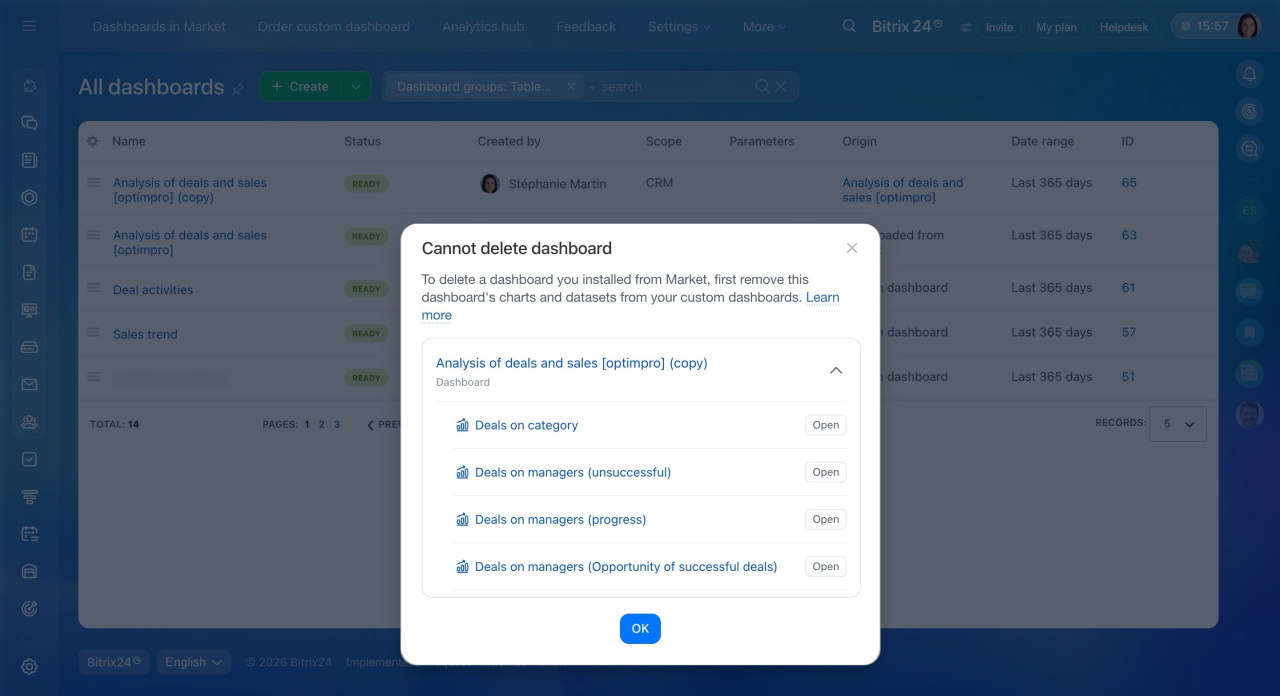
If charts or datasets are used in other dashboards, a message appears instead of the confirmation window. The dashboard cannot be deleted.
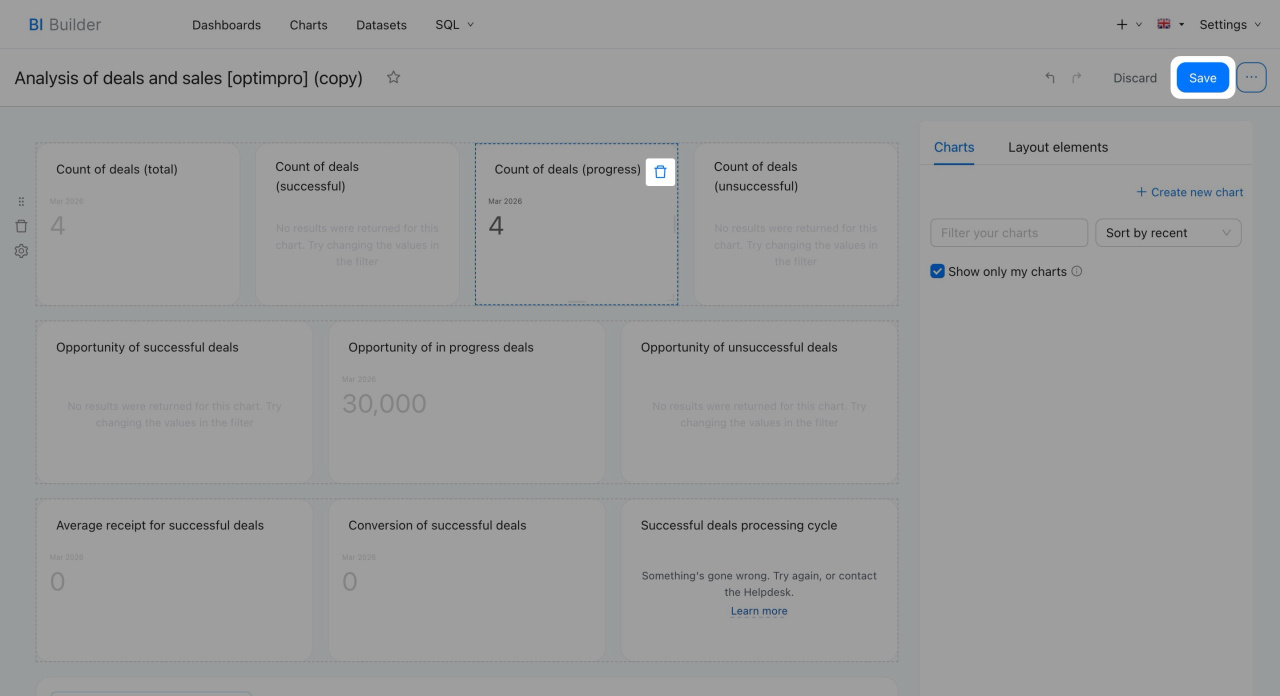
Bitrix24 shows the linked elements. For example, a chart or dataset used in another dashboard. Open that dashboard, delete the elements, and save the changes.
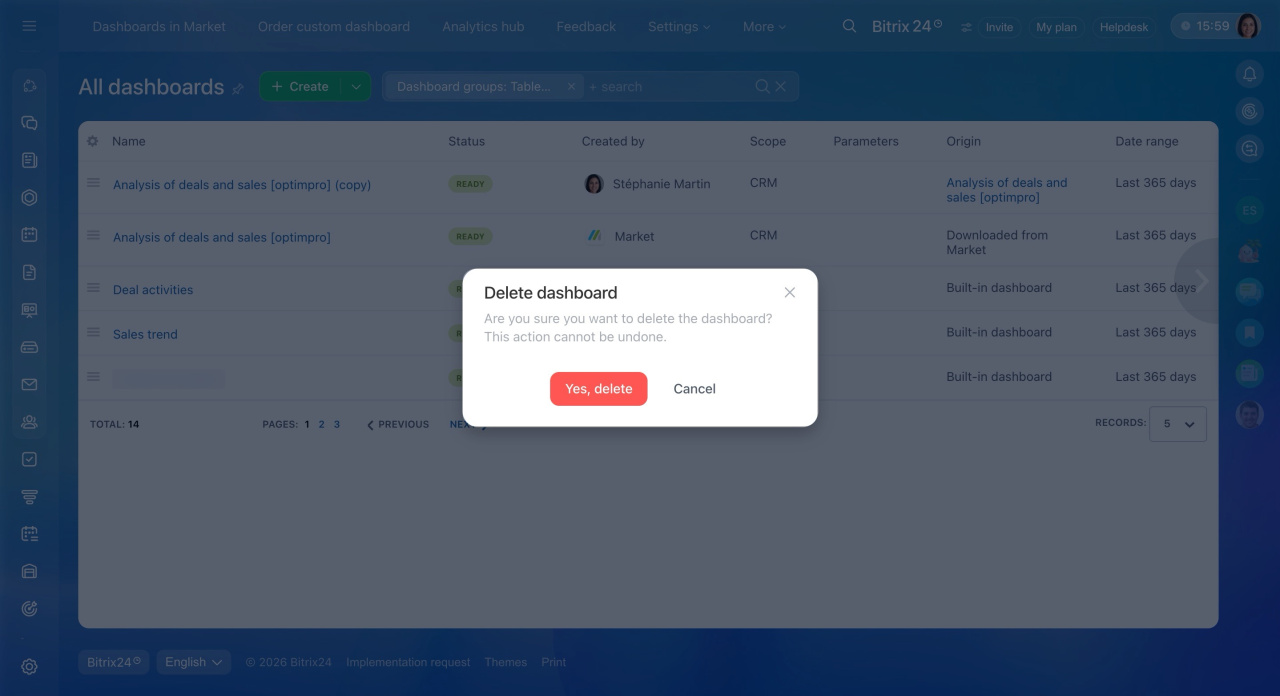
- Go back to the dashboard, click Menu (≡) > Delete.
- Confirm the action. After you remove all linked elements, the dashboard deletes without errors.
In brief
- Delete dashboards installed from the Bitrix24 Marketplace using the action menu in BI Builder.
- If the dashboard’s charts or datasets are used in other dashboards, deletion is blocked. Remove the linked elements first, then try again.



