


Bitrix24 includes built-in document templates. You can edit an existing template or create your own.
Create a document template
Open the document you want to use as a template or create a new file in a text editor.
For example, if your company already uses an invoice document, you can turn it into a CRM template for your team. Add symbolic codes to the document.
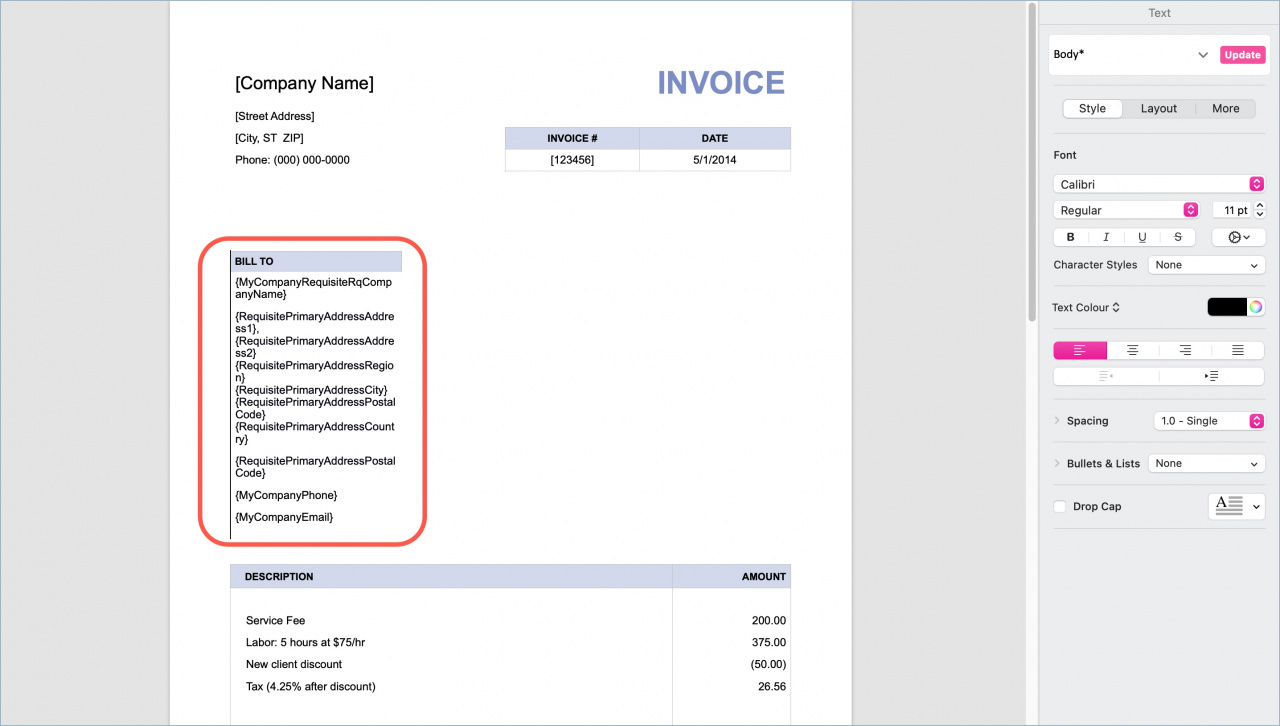
To view the list of symbolic codes:
- Go to Document > Add new template.
- Open Settings > Fields.
Edit document templates in CRM


When the template is ready, save it in DOCX format. The size of the template should be no more than 2 MB. This template can be uploaded to Bitrix24.
Add a product list
You can add a product list to a template in two ways.
Create a list. Use the {PRODUCTS.BLOCK_START} and {PRODUCTS.BLOCK_END} symbolic codes to mark the beginning and end of the block. Add product fields inside the block.
{PRODUCTS.BLOCK_START}
{ProductsProductName}
{ProductsProductQuantity}
{ProductsProductMeasureName}
{ProductsProductPriceRaw}
{ProductsProductPriceRawSum}
{TotalRaw}
{PRODUCTS.BLOCK_END}
Bitrix24 automatically repeats this block for every product.
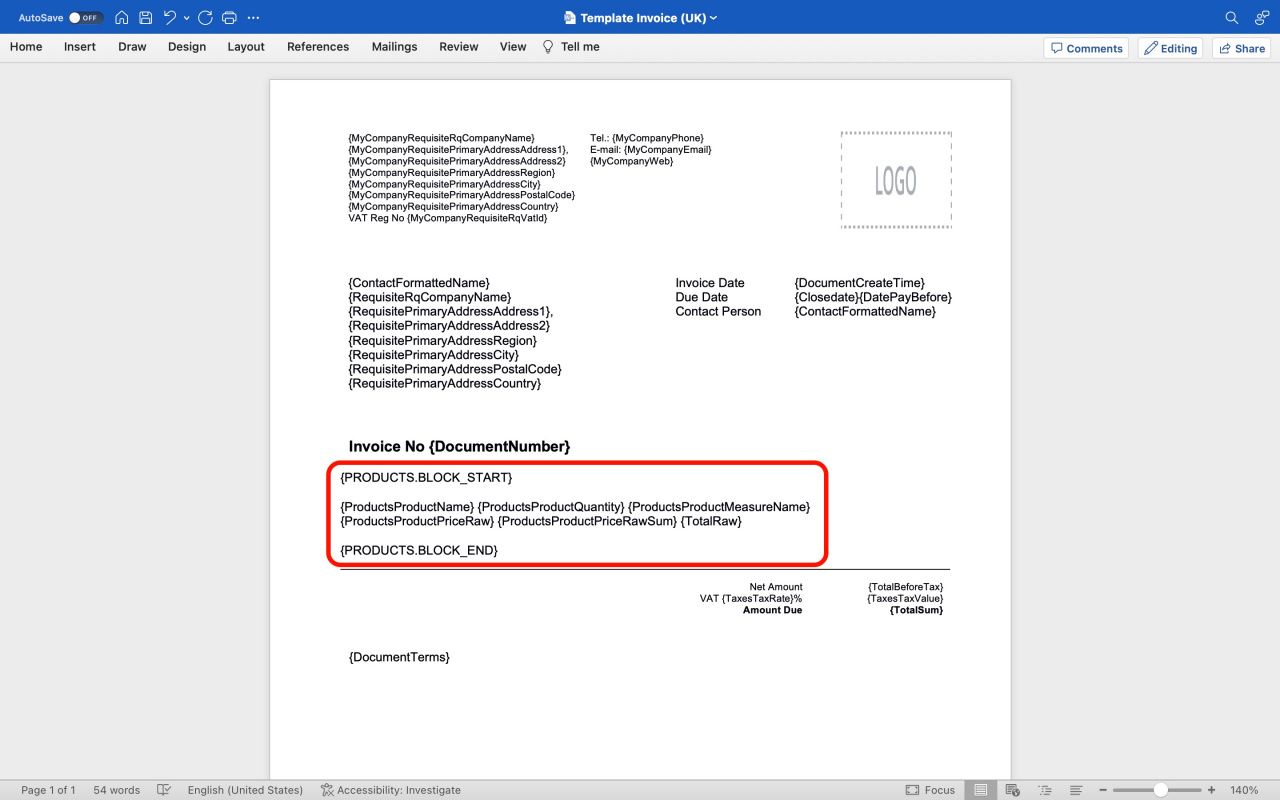
These symbolic codes match the following fields:
{ProductsProductName}— Product name{ProductsProductQuantity}— Product quantity{ProductsProductMeasureName}— Unit of measurement{ProductsProductPriceRaw}— Original price{ProductsProductPriceRawSum}— Total original price for the product{TotalRaw}— Total original price{TaxesTaxValue}— Tax amount{TaxesTaxRate}— Tax rate{TotalSum}— Total amount
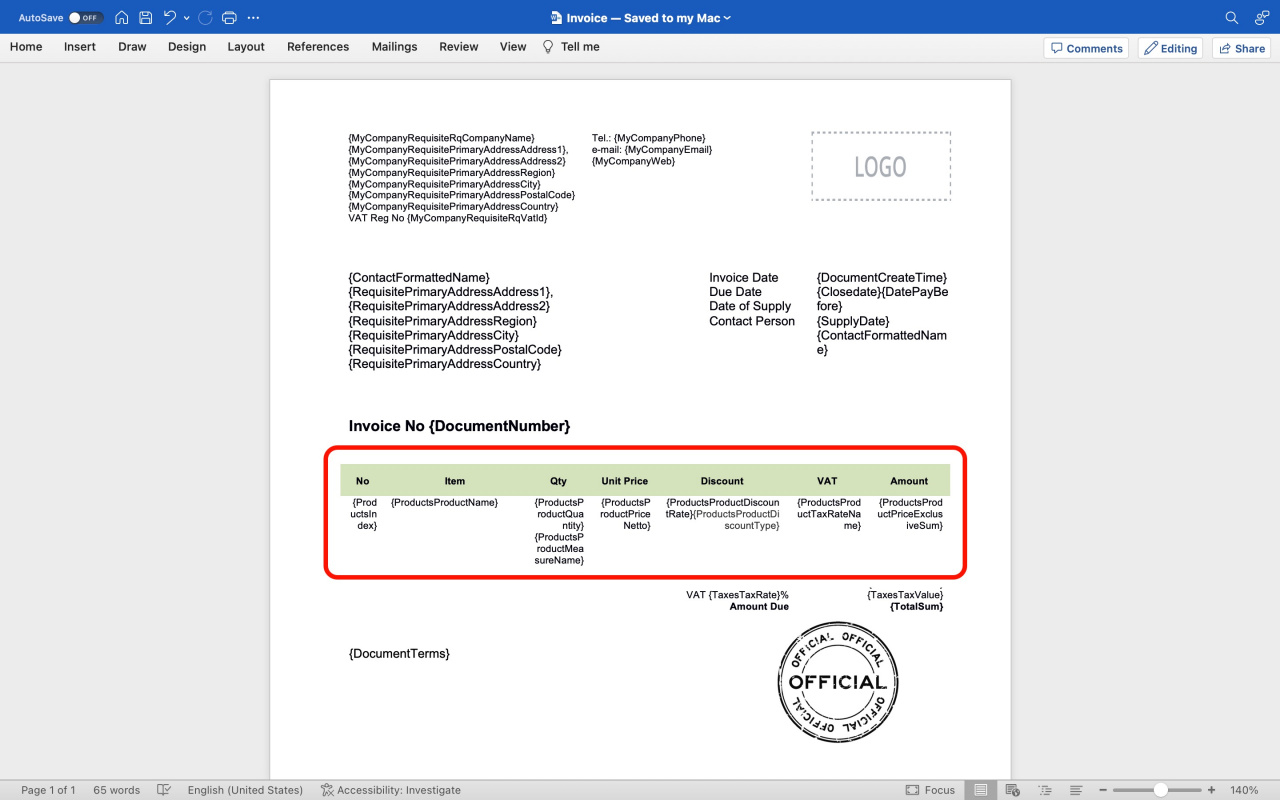
Create a table with a list of products.
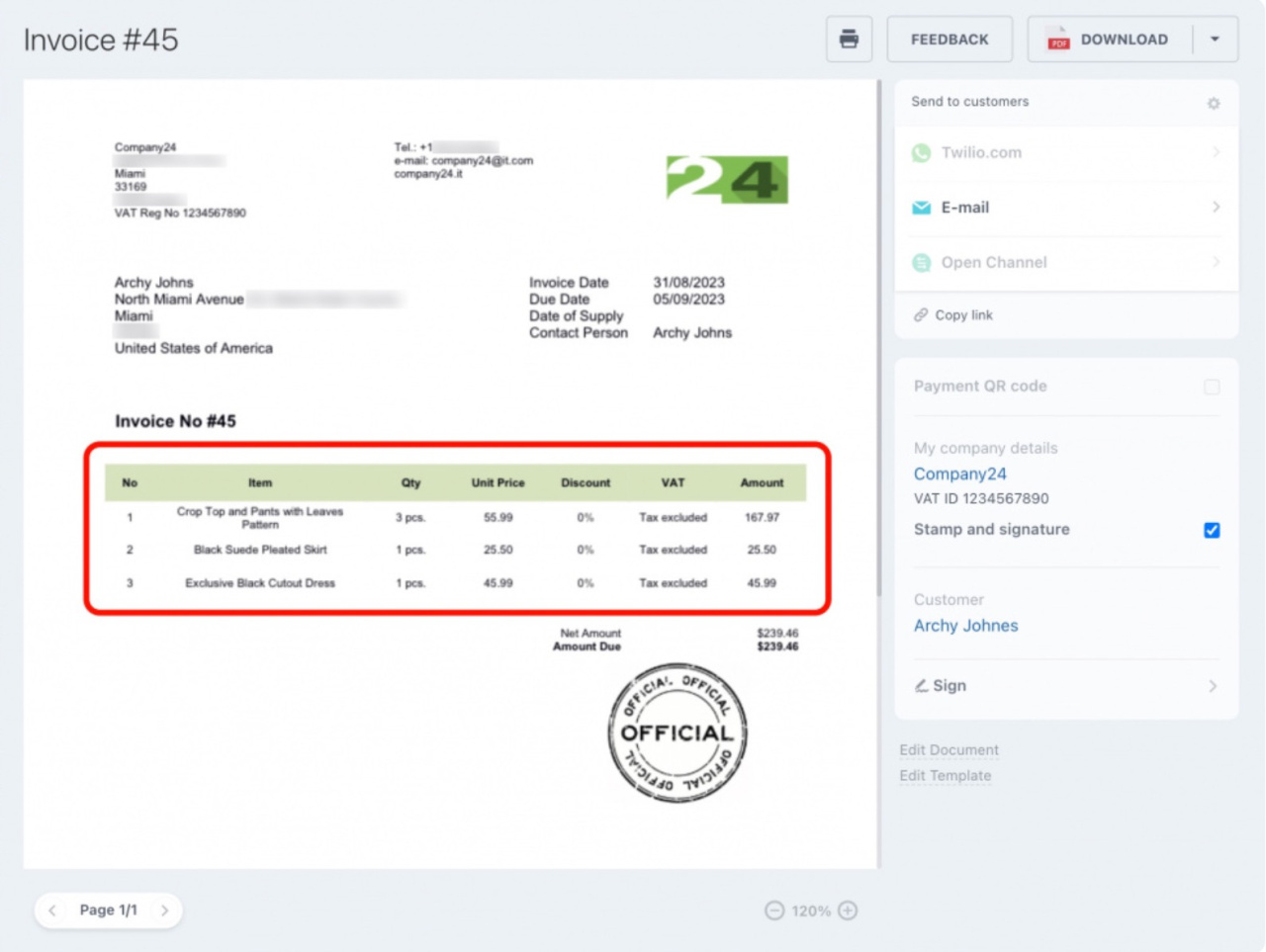
Insert symbolic codes into a table in your document. Bitrix24 automatically creates a new row for each product.
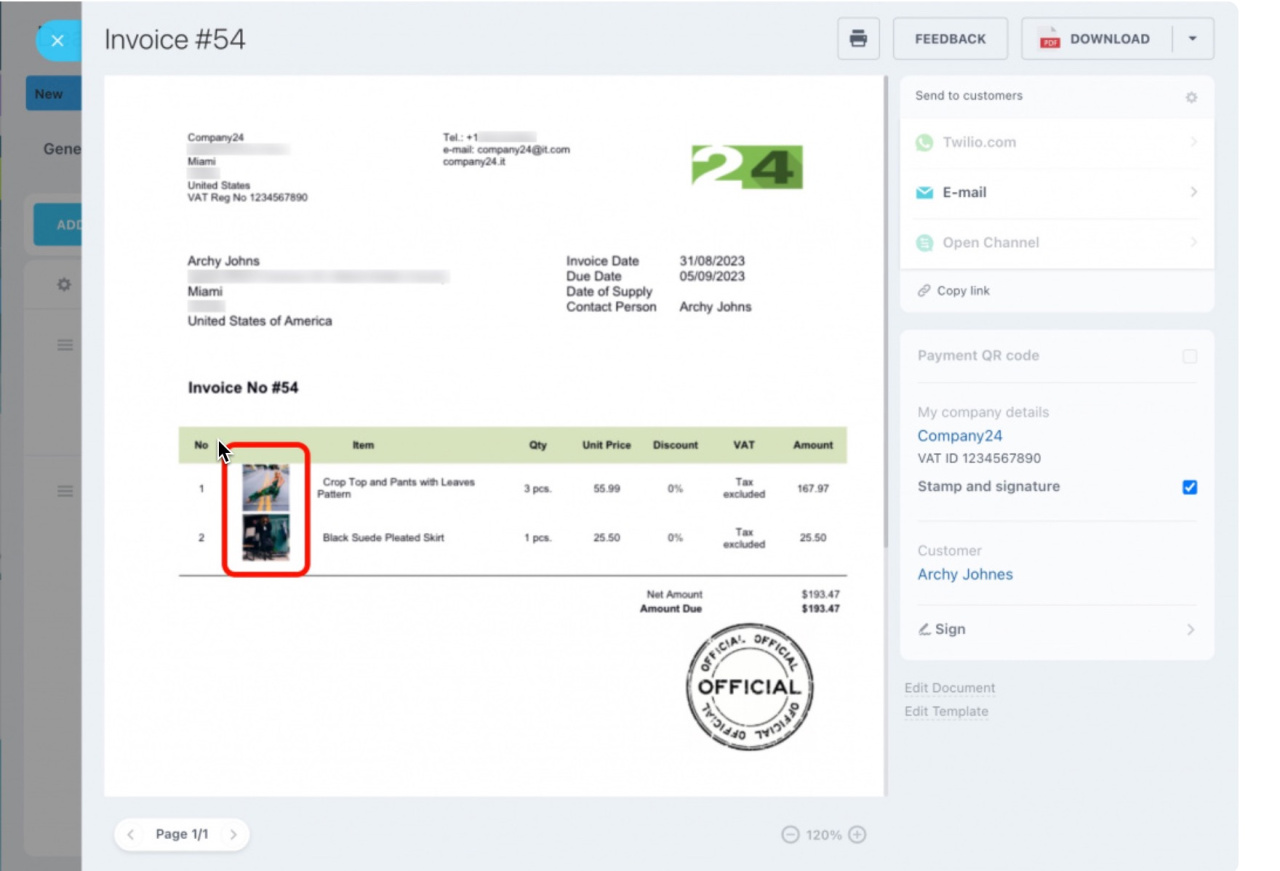
The generated document looks like this:
Add product images
To add product images to a table, follow the same steps you use to add a logo, stamp, or signature to a document template.
Add an image, stamp, or signature to document templates
Old product form
Use these symbolic codes:
{ProductsProductPreviewPicture}{ProductsProductDetailPicture}
New product form
Use these symbolic codes:
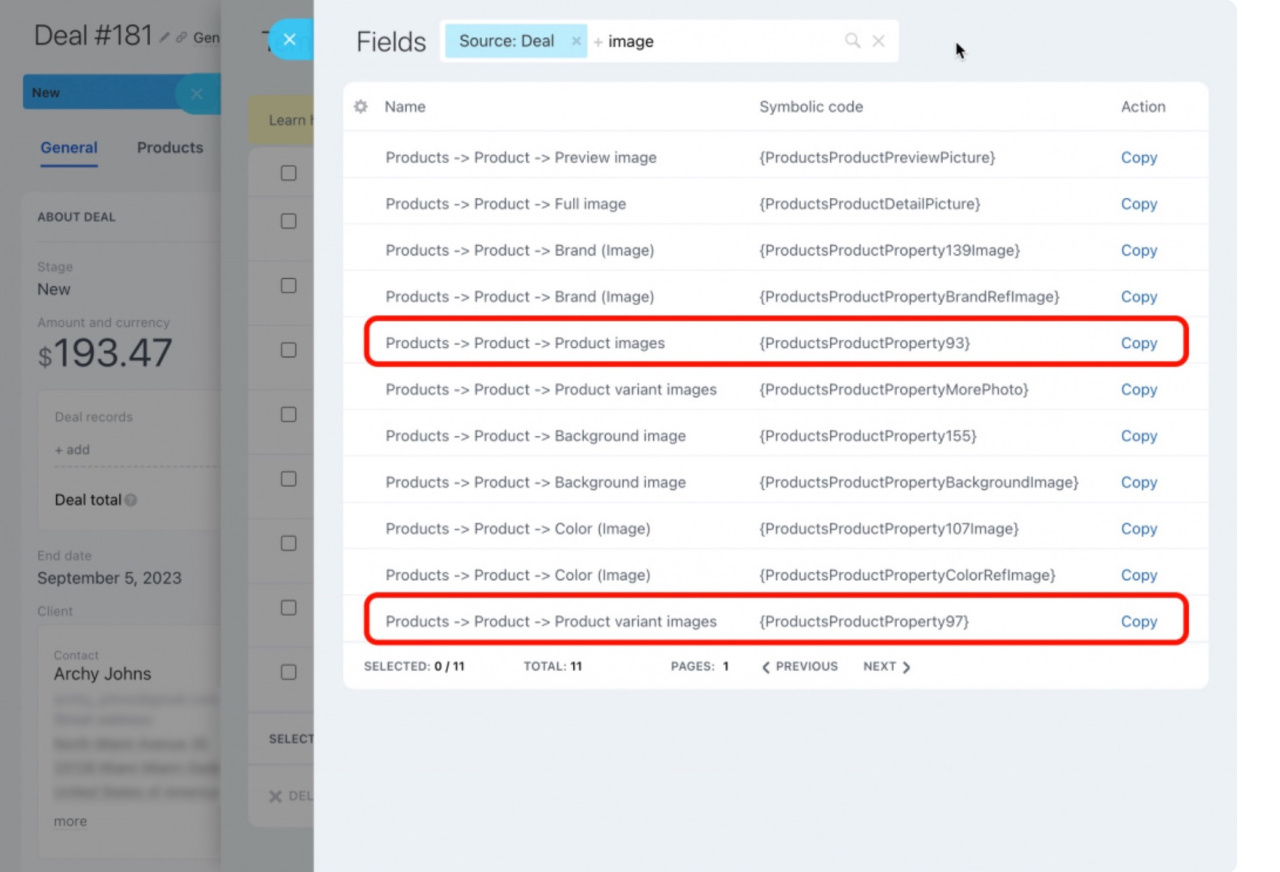
{ProductsProductPropertyMorePhoto}— Displays product variant images{ProductsProductPropertyXX}— Displays product and variant images
Replace XX with the field ID from your Bitrix24 account. You can find it on the Fields page.
Upload a template to Bitrix24
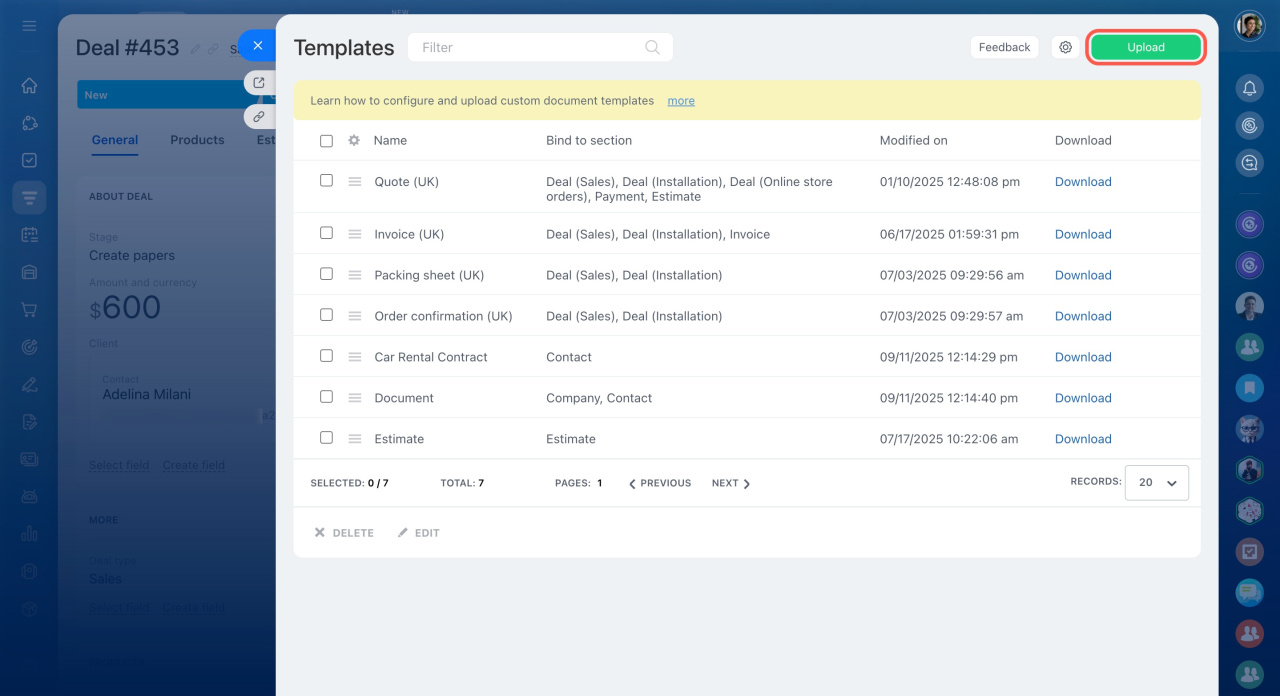
After you create the template, upload it to CRM.
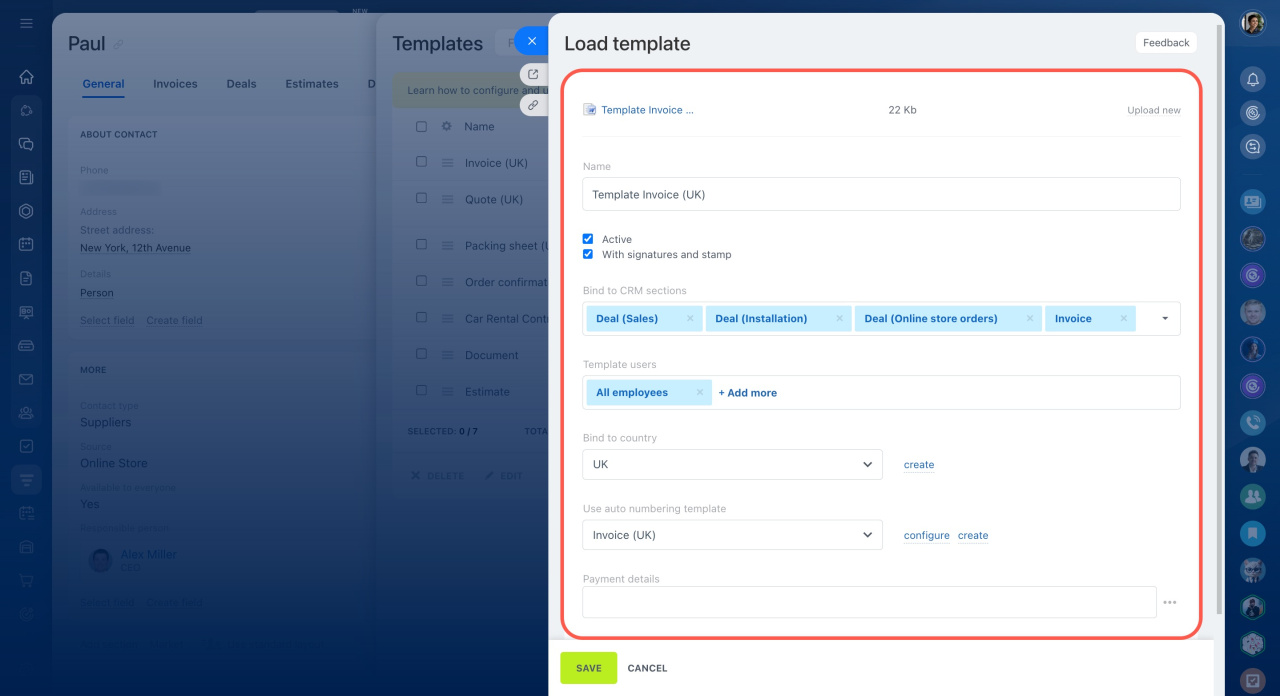
Then configure the template settings:
- Name
- Access permissions
- CRM section bindings
Customize document templates in CRM
To test the template:
- Open the Document tab.
- Select the template.
Bitrix24 creates a document based on your template.

In brief
- Bitrix24 includes standard document templates that you can customize.
- Use symbolic codes to insert CRM data into templates automatically.
- You can add symbolic codes to documents your company already uses.
- Templates must be in DOCX format and smaller than 2 MB.



