


Bitrix24 chats help you find information quickly. You don't need to scroll through entire conversations or ask colleagues to find what you need. You can search by keyword, jump to messages from a specific date, or use the chat sidebar.
For example, a colleague sent you a contract earlier in the month, but you don't remember the file name. Open the Files section in the sidebar to find the contract in the list.
In this article:
Find a message by keyword
Use chat search if you remember a word or phrase from the message.
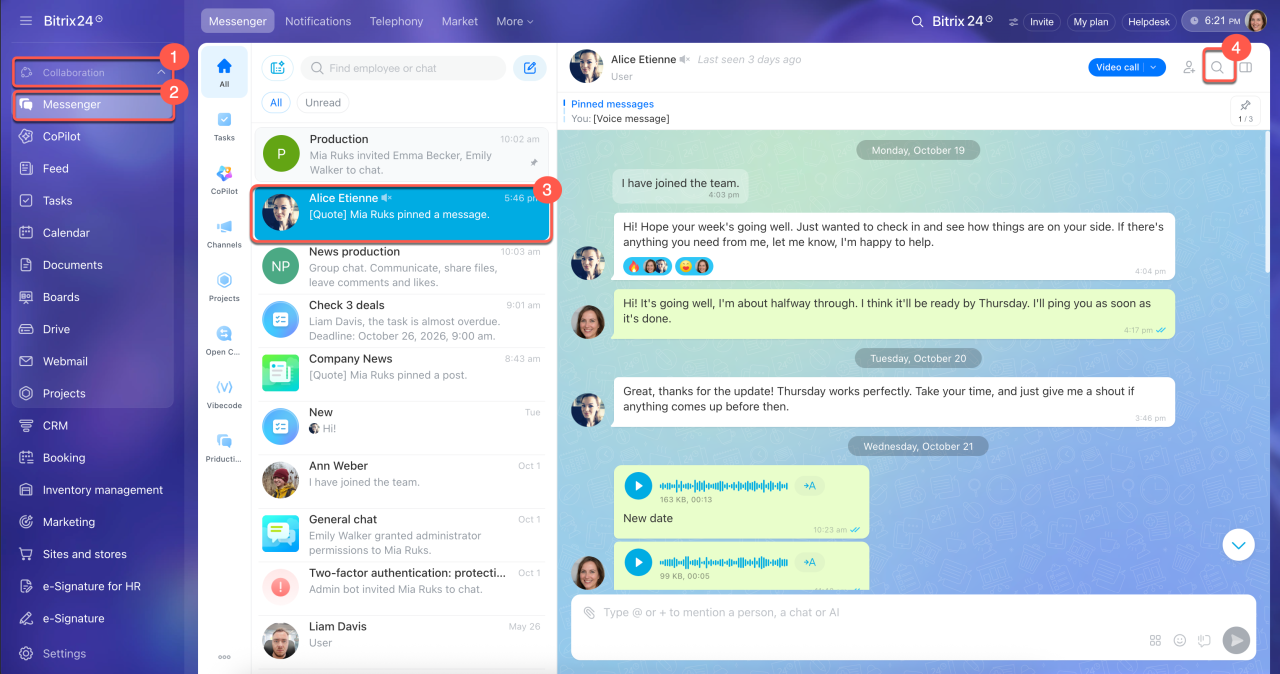
- Go to Collaboration > Messenger.
- Open the chat you need.
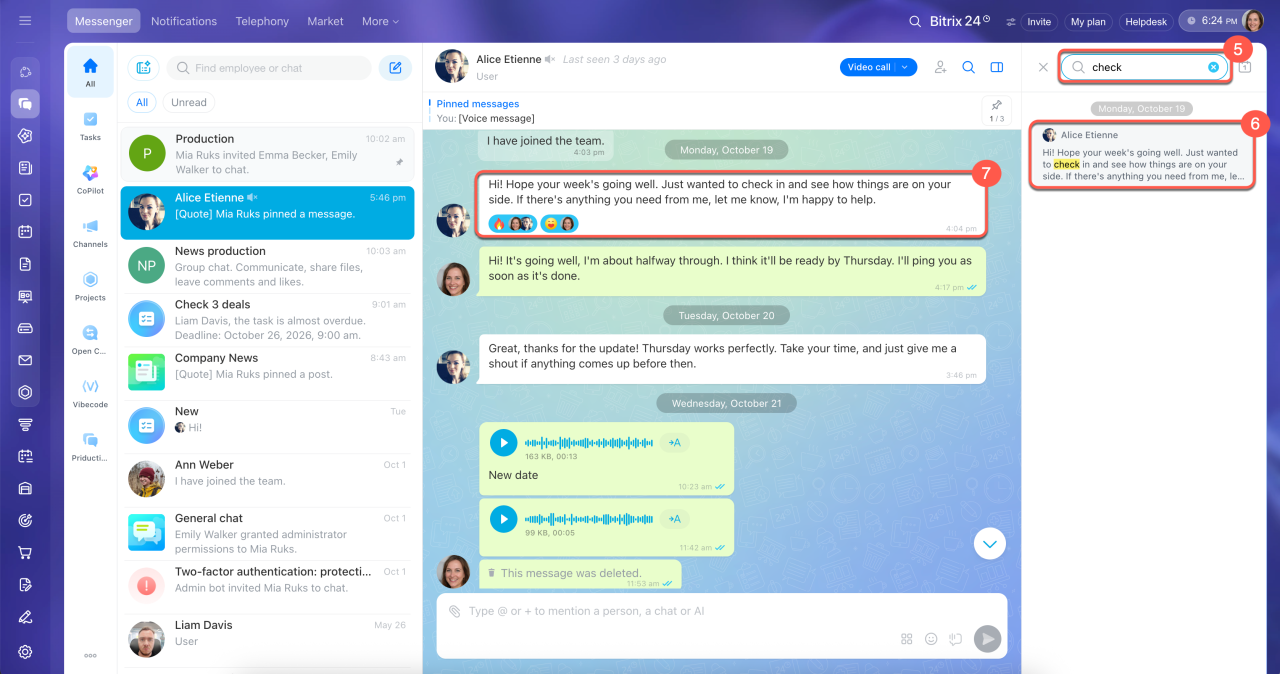
- Click the magnifying glass icon in the chat header.
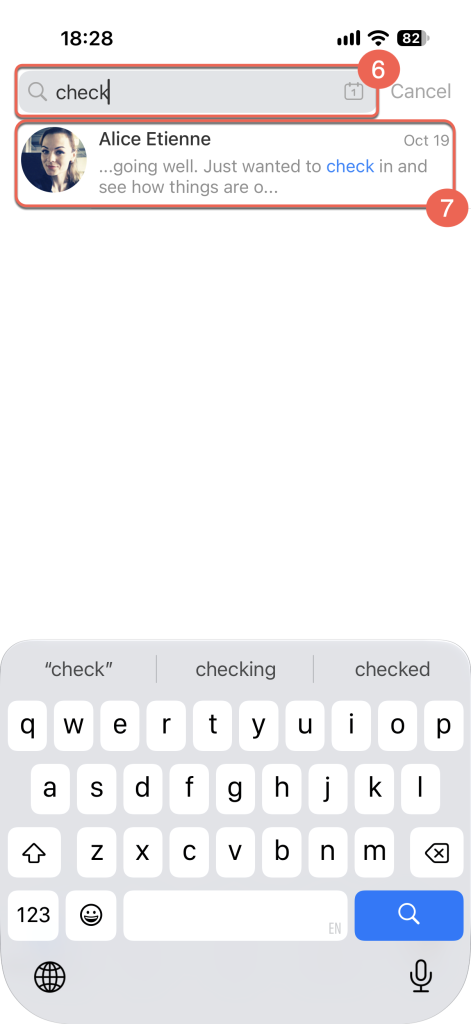
- Enter a word or phrase in the search field. Bitrix24 shows messages that contain the word or part of it.
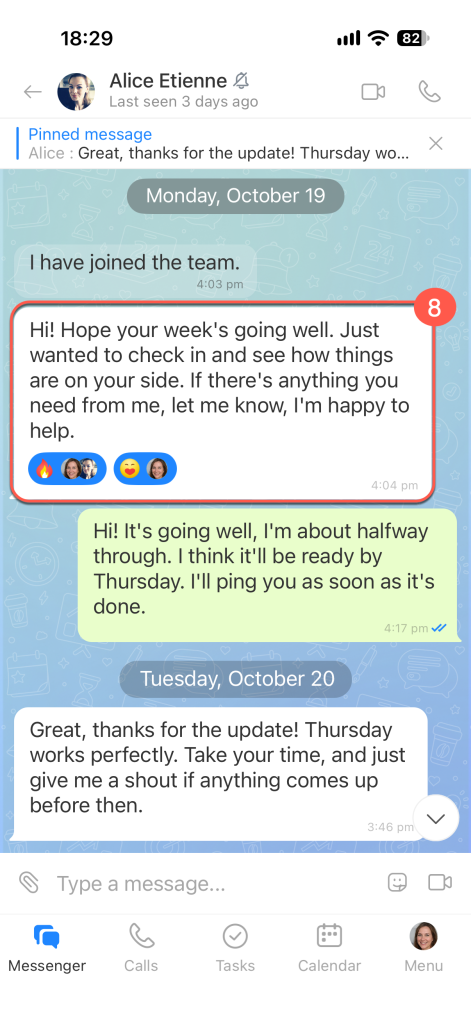
- Click the message you need to jump to that part of the conversation.
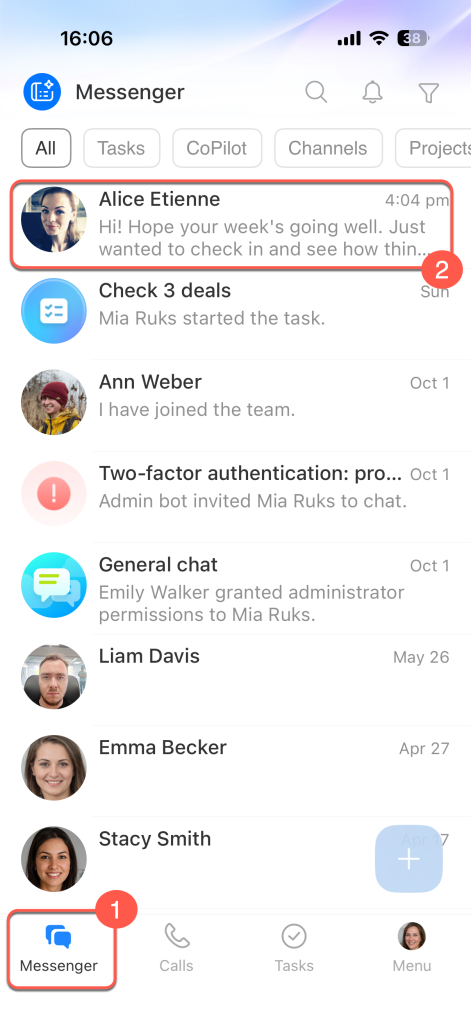
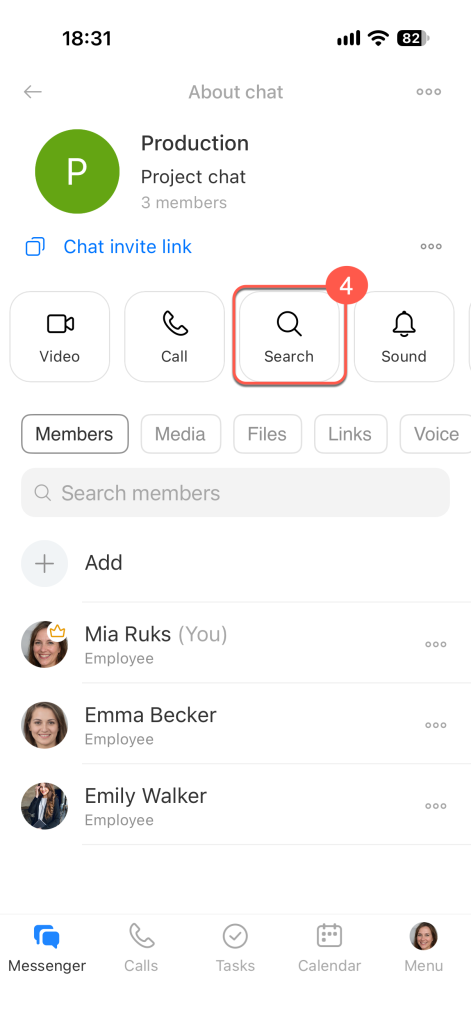
- Go to Messenger and open the chat you need.
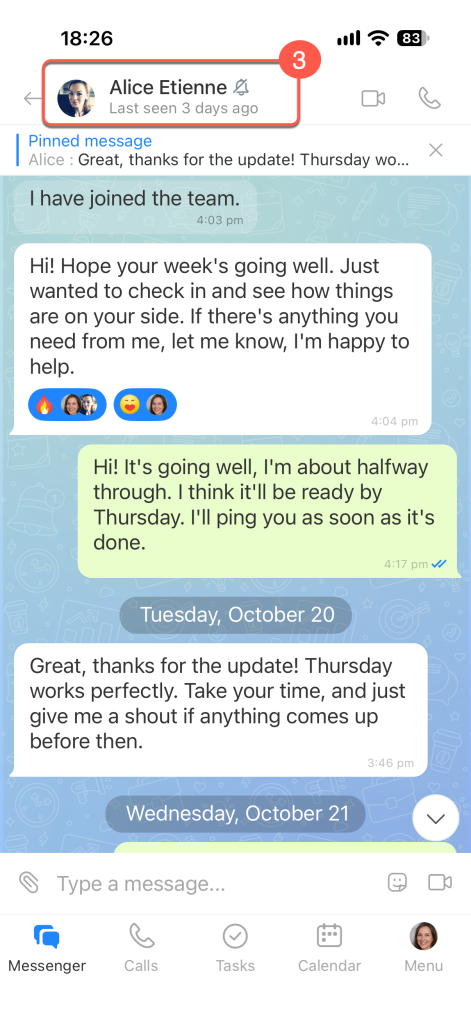
- Tap the chat name in the header to open the sidebar.
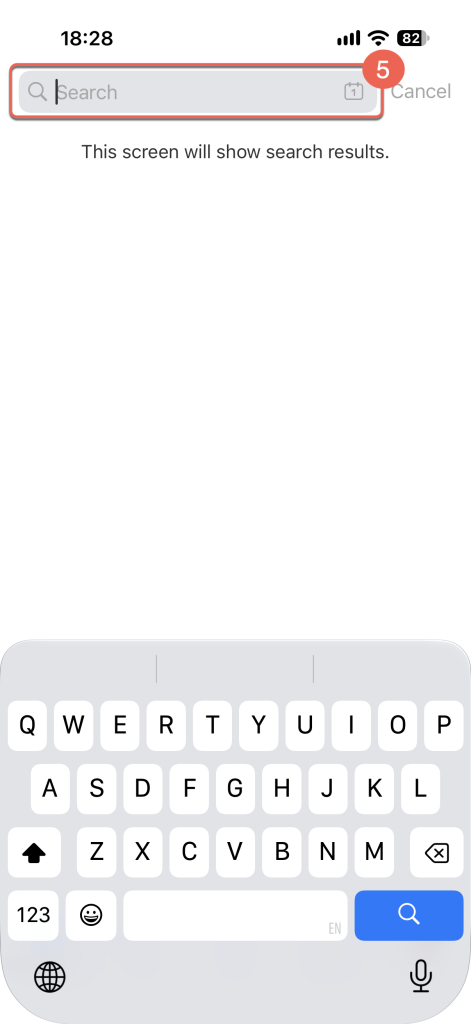
- Select Search and enter a keyword or phrase in the search field.
- Tap the message you need to jump to that part of the conversation.
Go to messages from a specific date
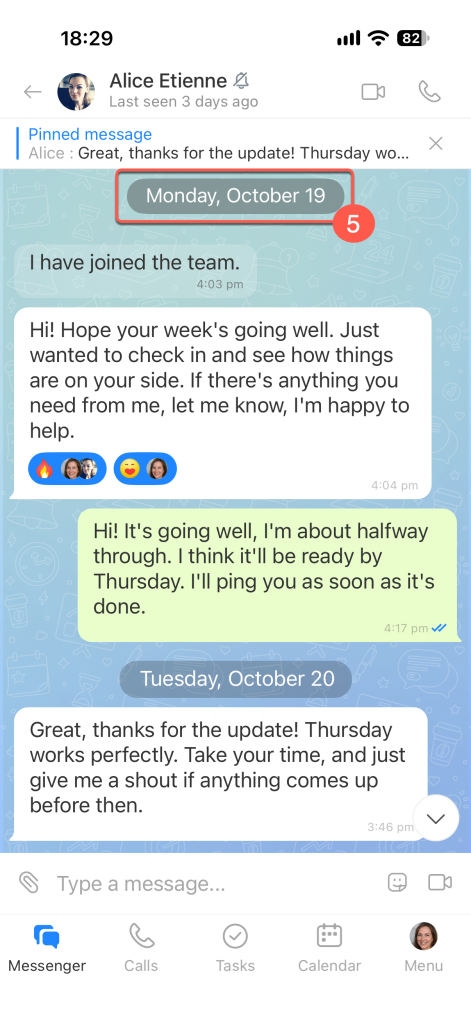
Use the calendar if you remember when the conversation took place.
- Click the magnifying glass icon in the chat header.
- In the search panel, click the calendar icon in the top-right corner to open the calendar.
- Select a day. Dates with messages are highlighted in the calendar, and Bitrix24 opens the first available message from that date.
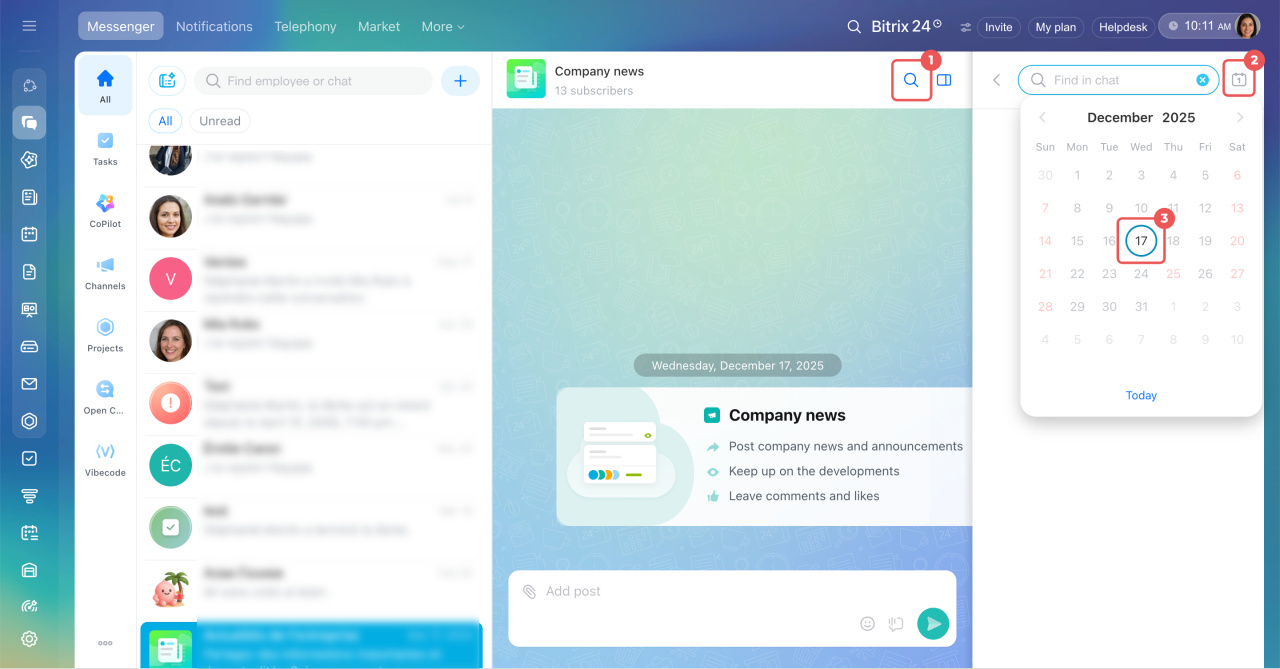
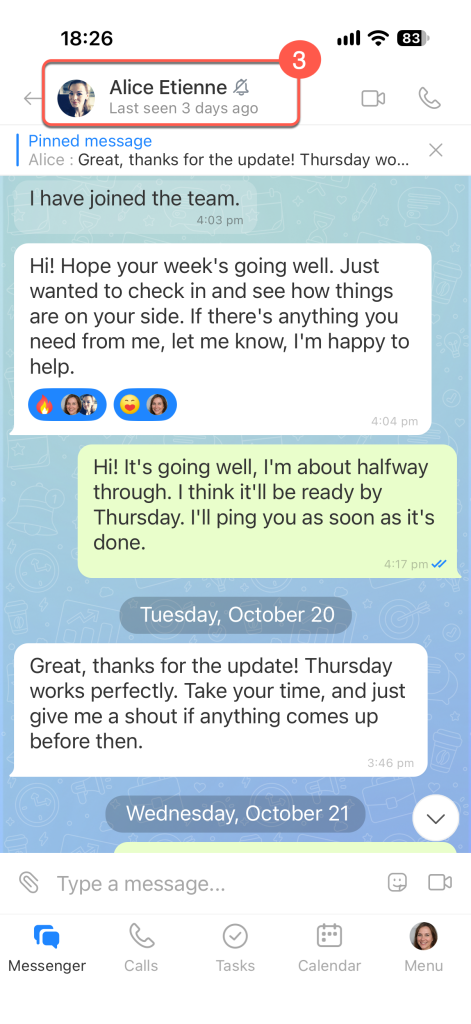
- Tap the chat name in the header to open the sidebar.
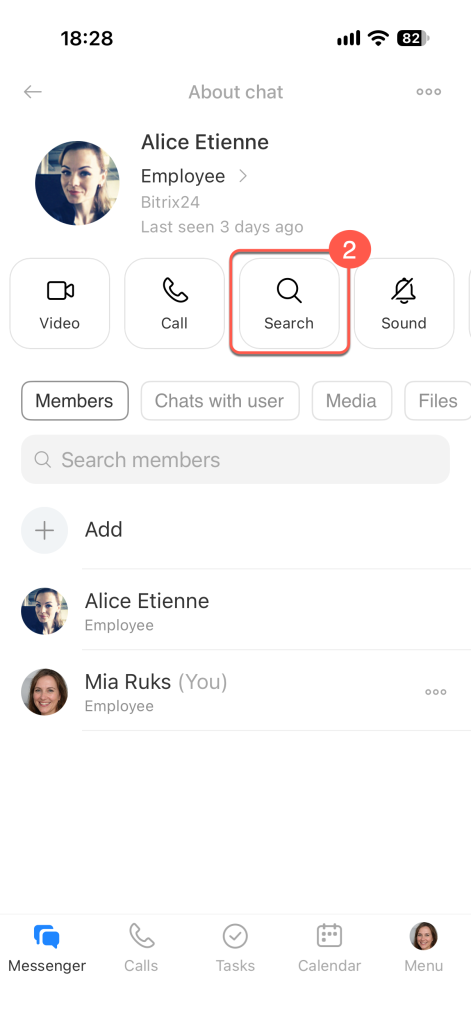
- Select Search.
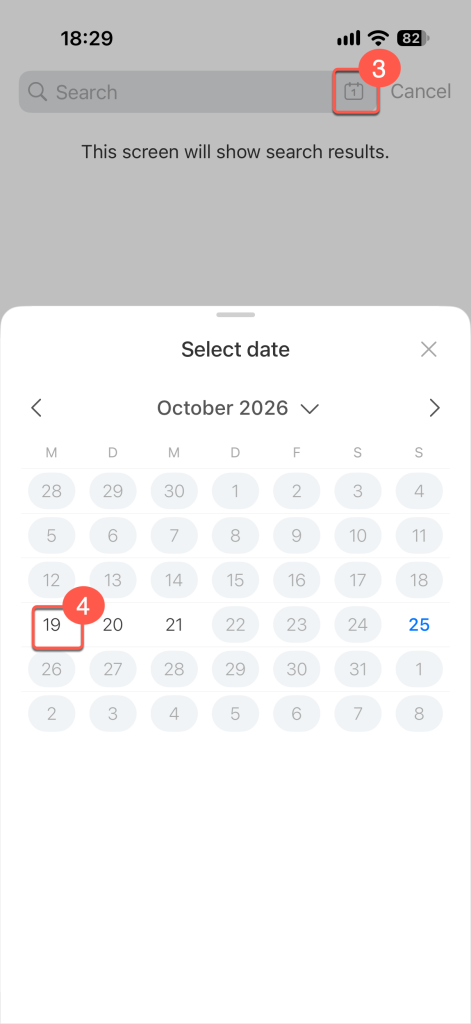
- Tap the calendar icon in the top-right corner to open the calendar.
- Select a day. Dates with messages are highlighted in the calendar, the search closes, and the chat scrolls to messages from that date.
Find a file, link, or other item
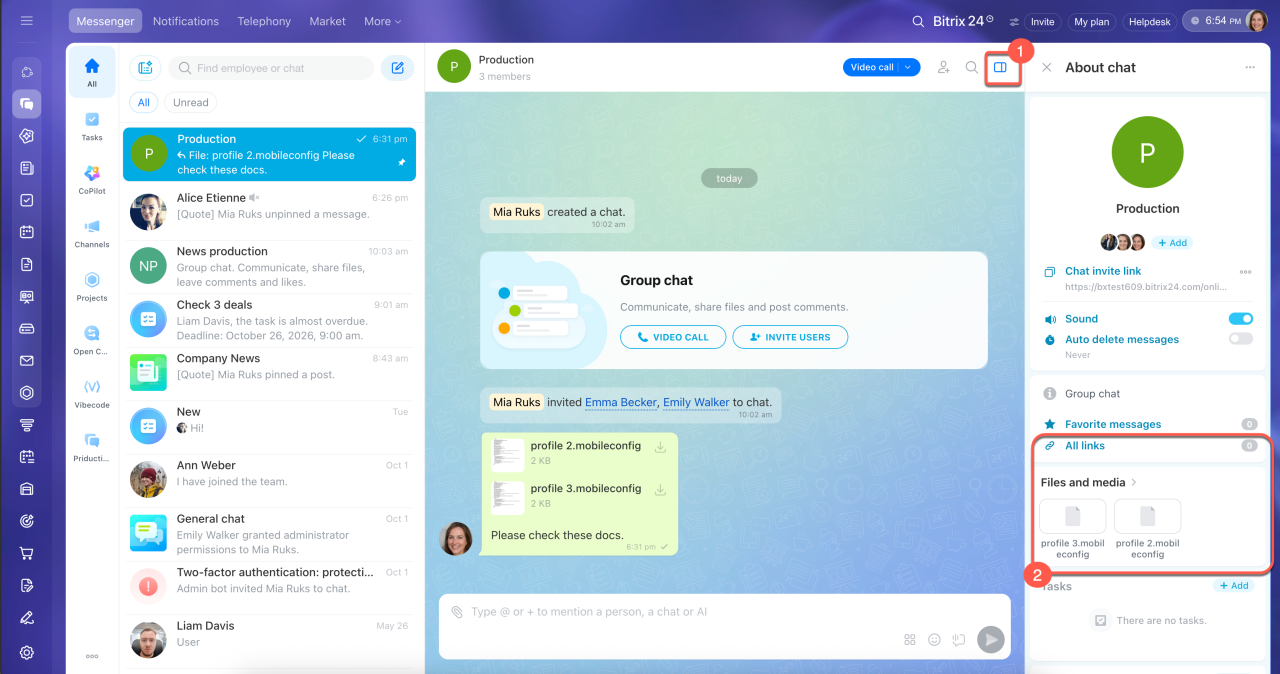
Use the sidebar to find a file, image, link, voice message, or video message.
- Click the sidebar icon in the top-right corner — a rectangle with a vertical divider.
- Select a section:
- All links — links shared in the chat.
- Files and media — images, videos, documents, voice messages, and video messages.
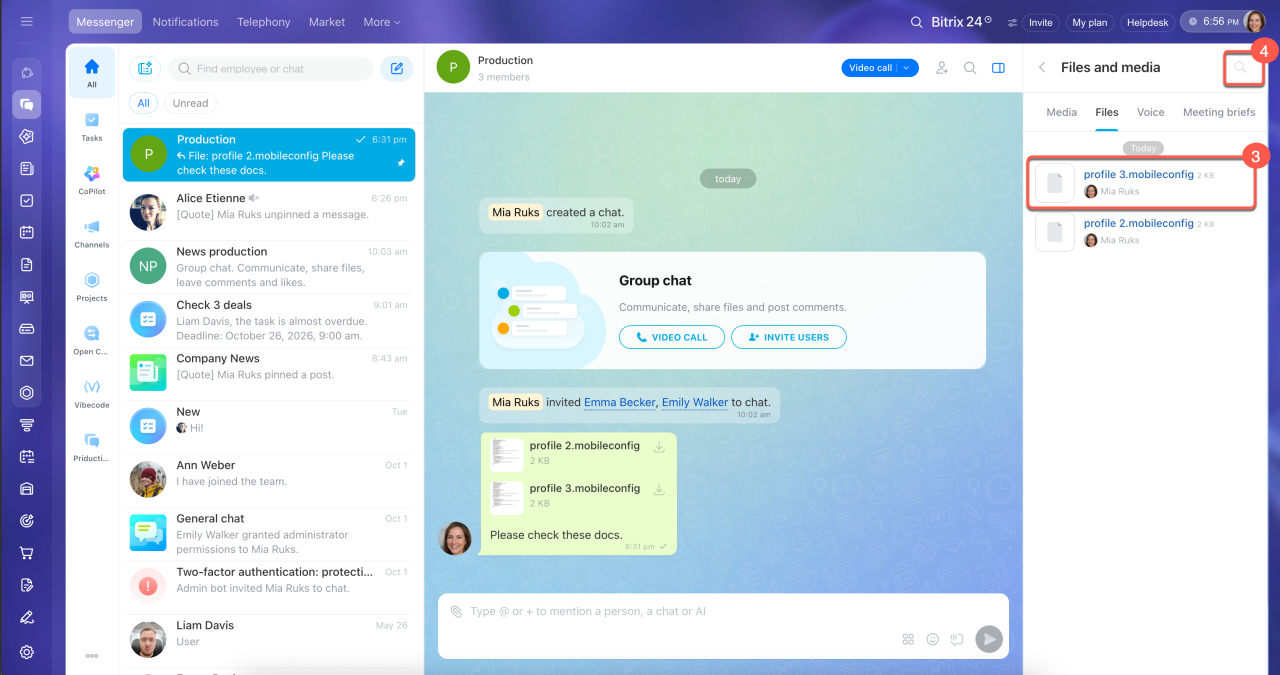
If you can't find the file in a personal chat's sidebar but are sure a colleague sent it, check the chats you share with that colleague.
- Click the sidebar icon in the top-right corner — a rectangle with a vertical divider.
- Click Chats with user, select the employee, and repeat the search in the sidebar.
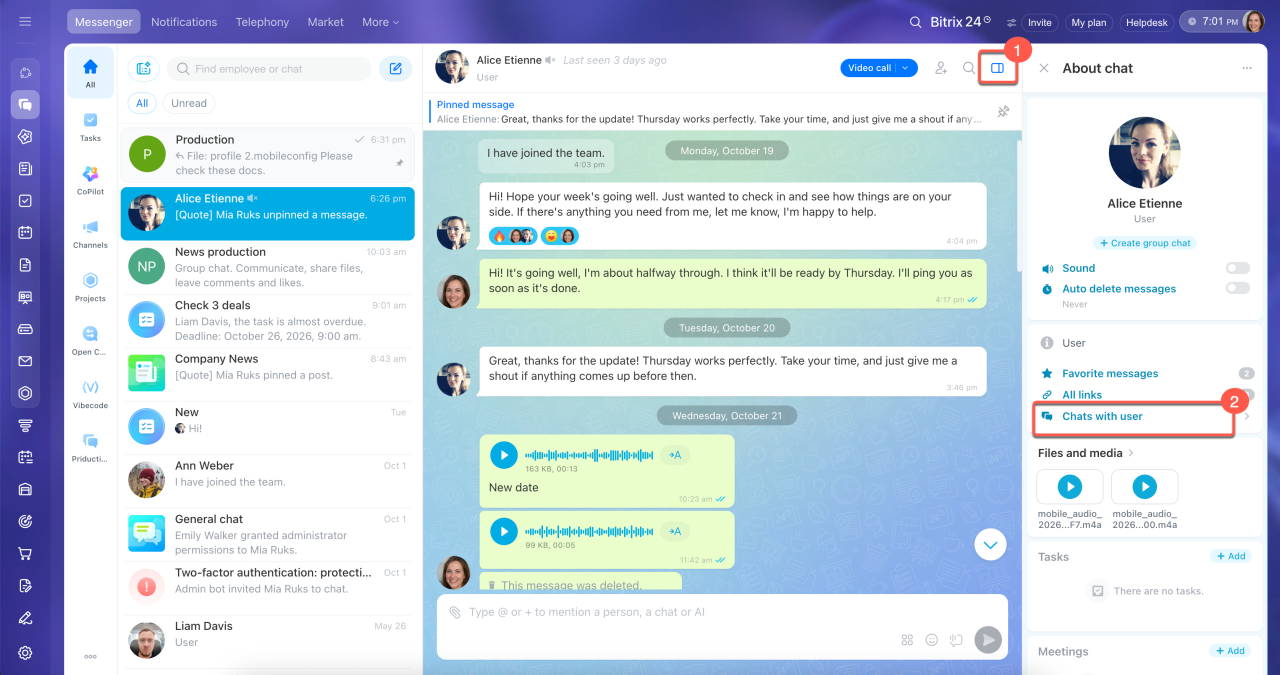
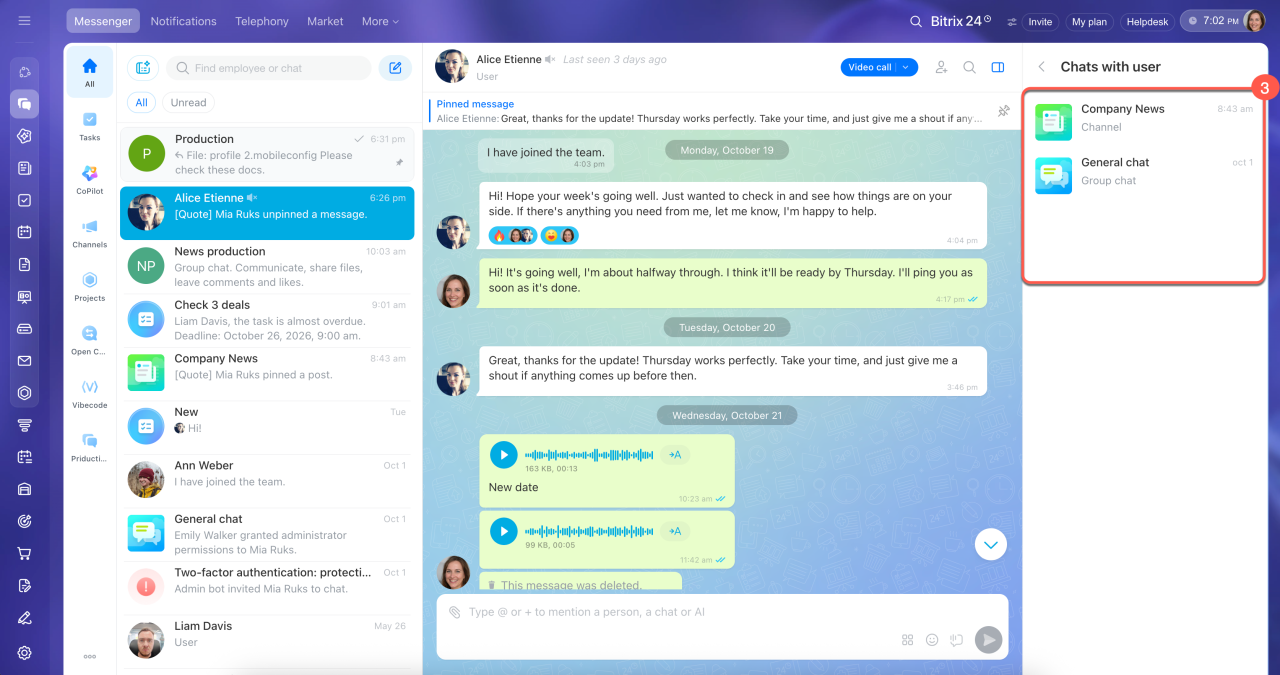
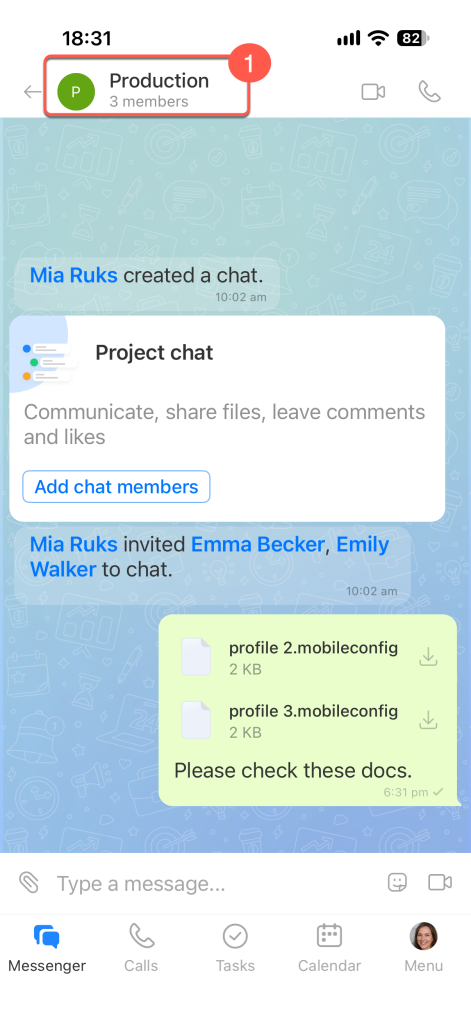
- Tap the chat name in the header to open the sidebar.
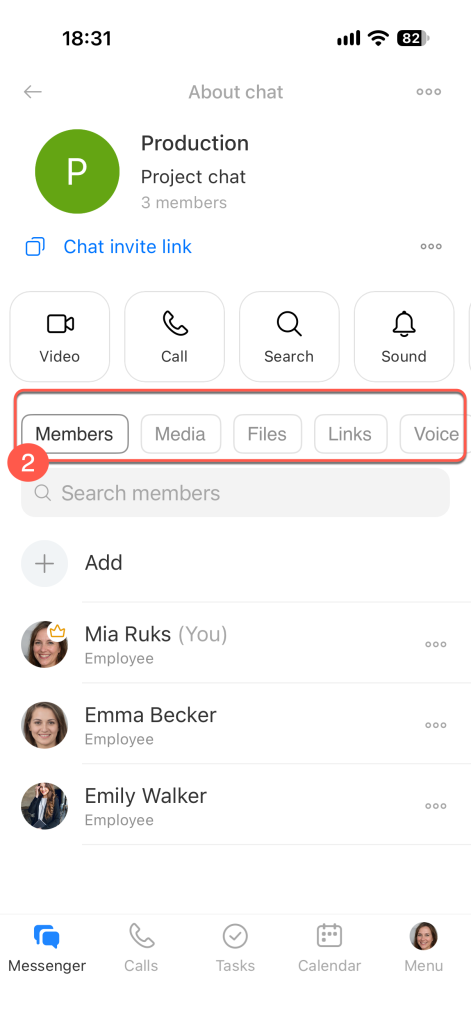
- Select a section:
- Media — images and videos shared in the chat.
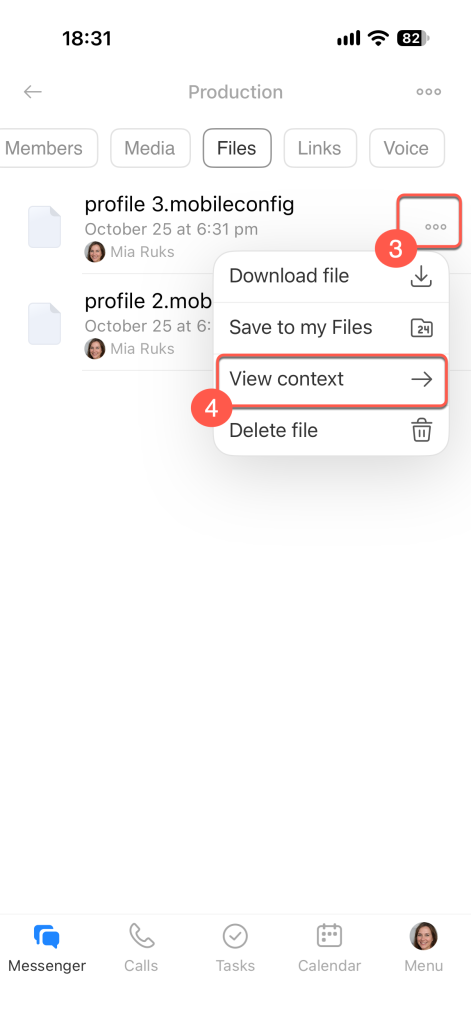
- Files — documents, archives, and other materials.
- Links — links shared in the chat.
- Voice — voice and video messages shared in the chat.
In brief
- Bitrix24 chats help you find information quickly by searching for keywords, jumping to a specific date, or using the sidebar.
- Keyword search finds matching messages in a chat.
- The calendar in the search panel takes you to messages from the selected day.
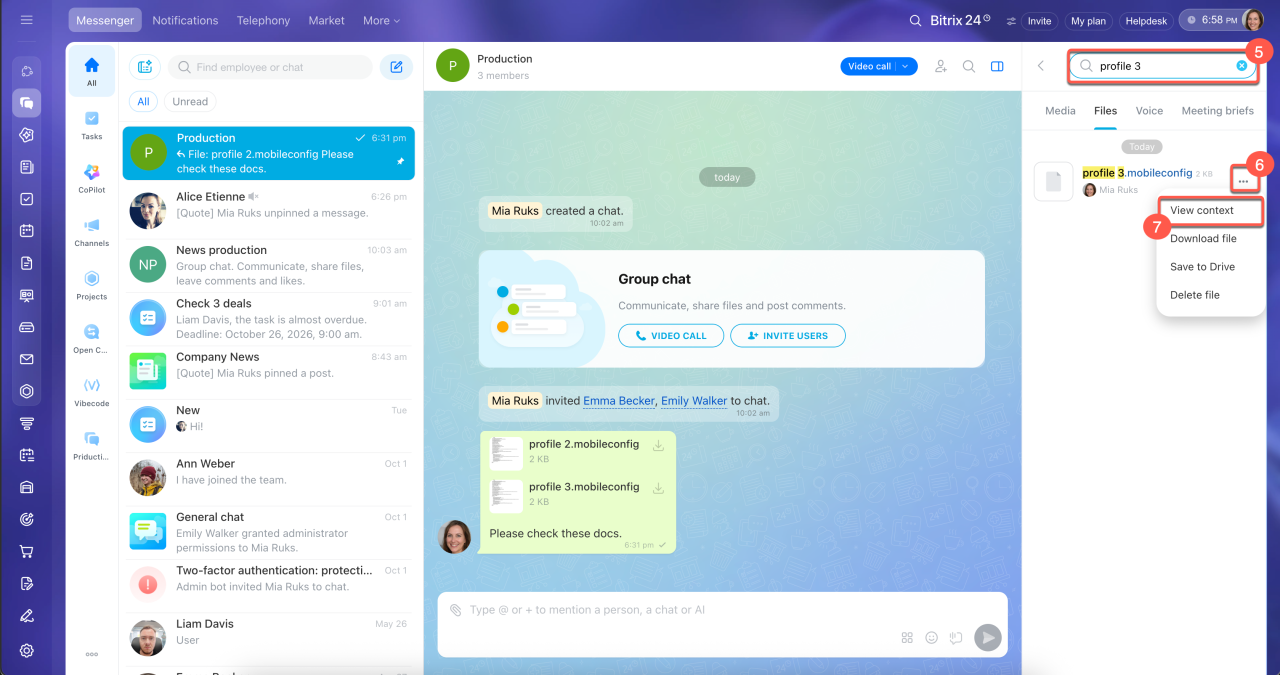
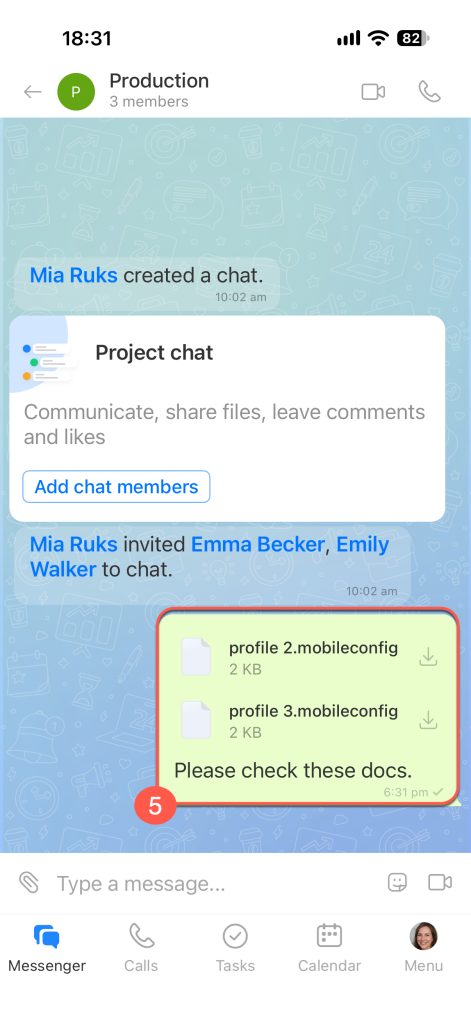
- The sidebar gives you access to files, media, links, and voice and video messages shared in a chat. Open an item's context menu and select View context to jump to the original message.