


A deal is a key step when working with a customer. Every deal starts with communication, whether you’re working with an individual or a company representative.
How deals, contacts, and companies are connected
The standard workflow links one contact to one company and one deal. Use this option when converting a lead by selecting Deal + Contact + Company mode. The system will automatically connect all three items.
This is not the only workflow in CRM. For example, one person can work for multiple companies. In the contact form, you can see links to all companies associated with that person.
Companies usually have multiple employees. You may work with several representatives from the same company at the same time. In this case, the company form shows all employees, and the deal can include multiple contacts.
To link a company and contacts:
- Open the CRM form. Select a company from the field menu or create a new one.
- A contact can be linked to more than one company. Click Add participant to add another company.
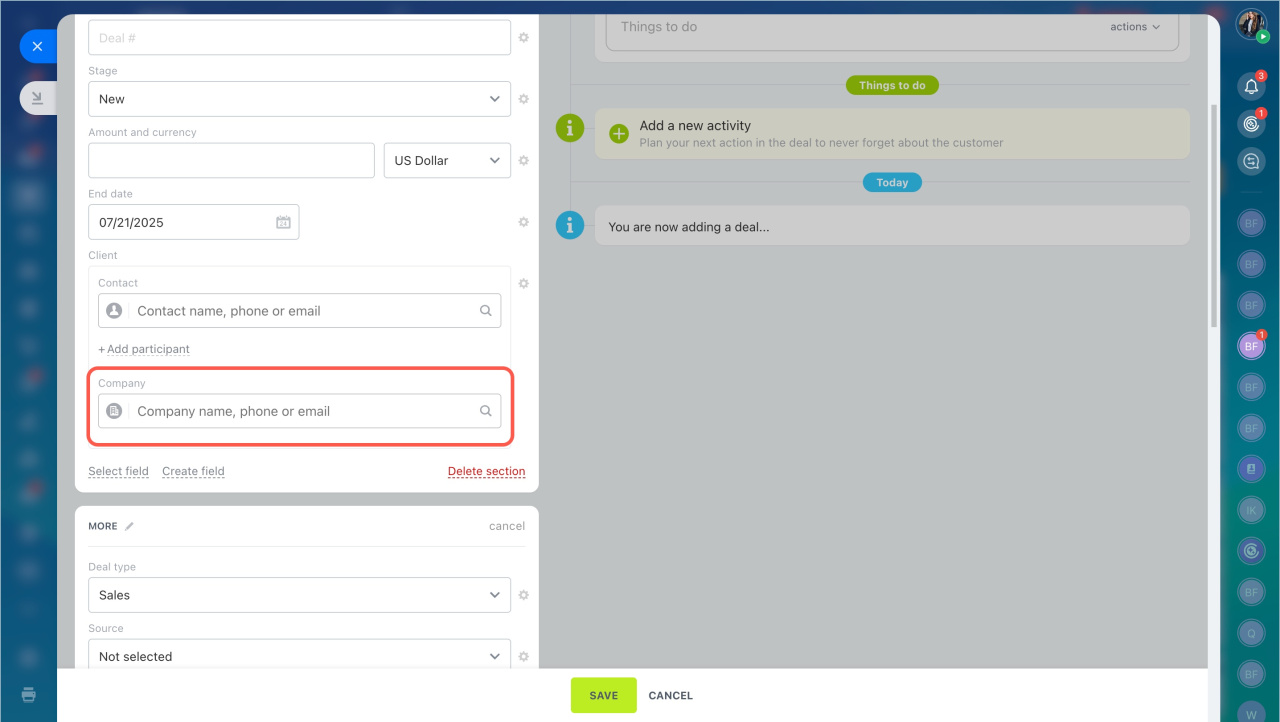
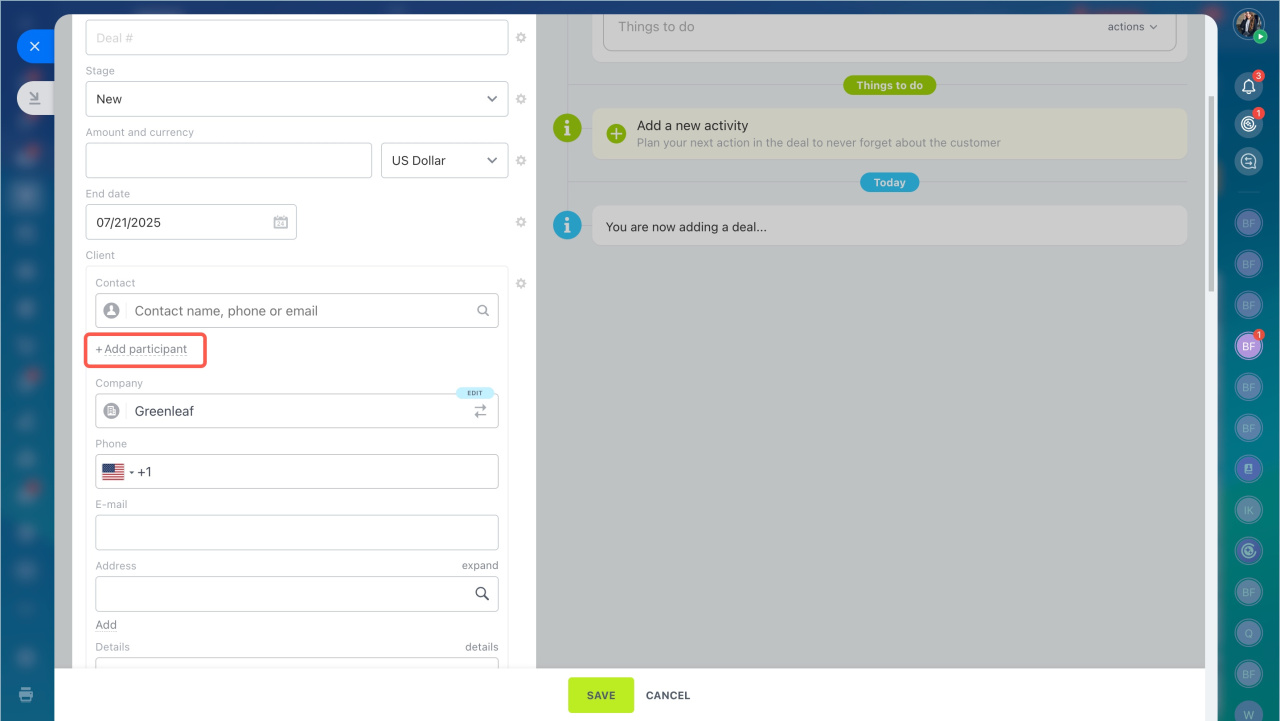
A deal can include multiple contacts but only one company. When you link a company to a deal, all contacts from that company are automatically added to the deal form.
If you don’t need all contacts, remove the extra ones using the cross icon.
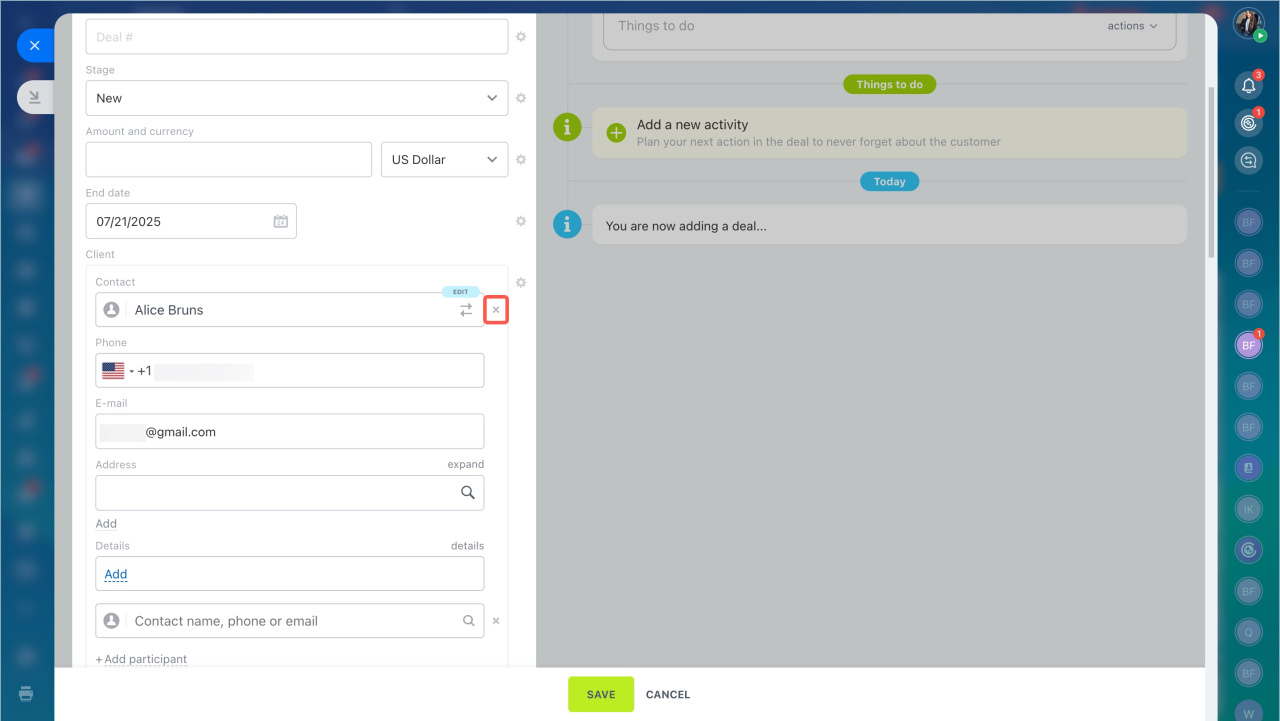
If you select the same company in another deal, only the contact you kept last time will be added.
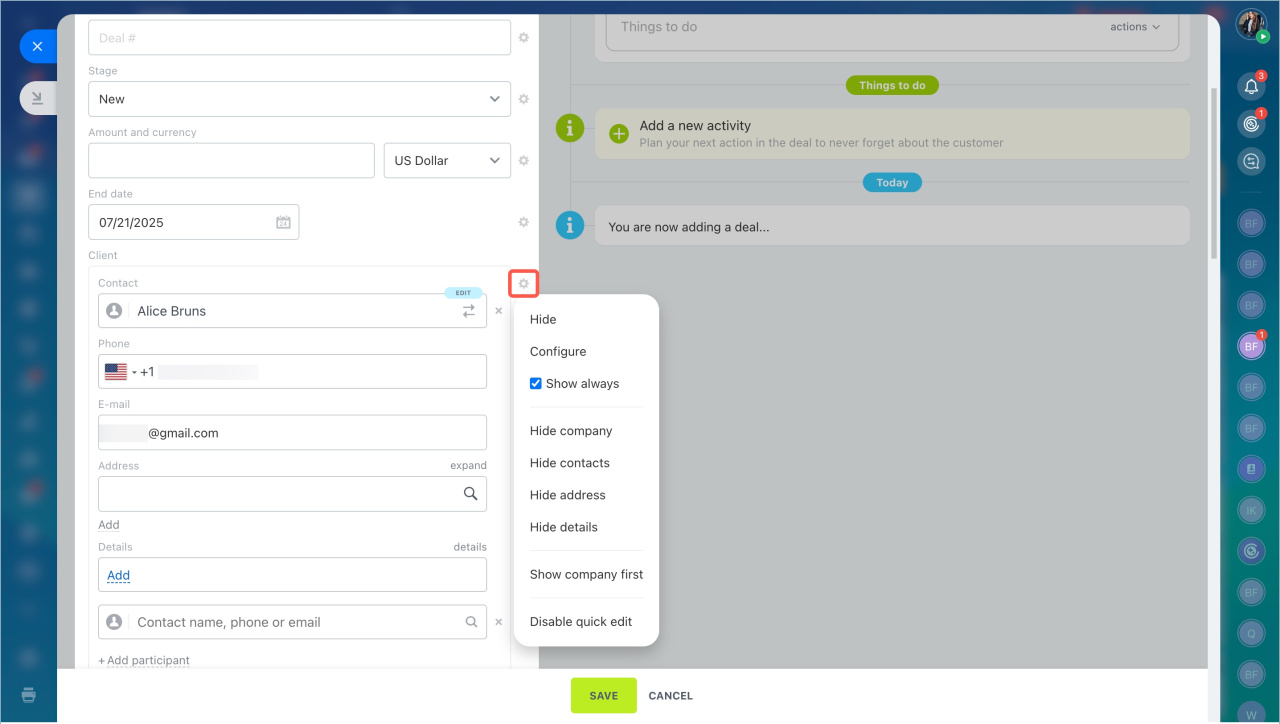
You can also customize the Client field. Click the gear icon.
In brief
- The standard workflow links one contact to one company and one deal. Use Deal + Contact + Company mode when converting a lead.
- Companies usually have multiple employees, and you can work with several representatives at the same time.
- Open the CRM form. Select a company or create a new one.
- A contact can be linked to multiple companies. Click Add participant to add another company.
- A deal can include multiple contacts but only one company. When you link a company, all its contacts are added automatically.



