


A collab lets you create and sign electronic documents with clients and external teams in one place. Guests can sign documents from their mobile devices.
If you are a guest, see how to sign electronic documents in a collab.
How employees work with electronic documents in a collab
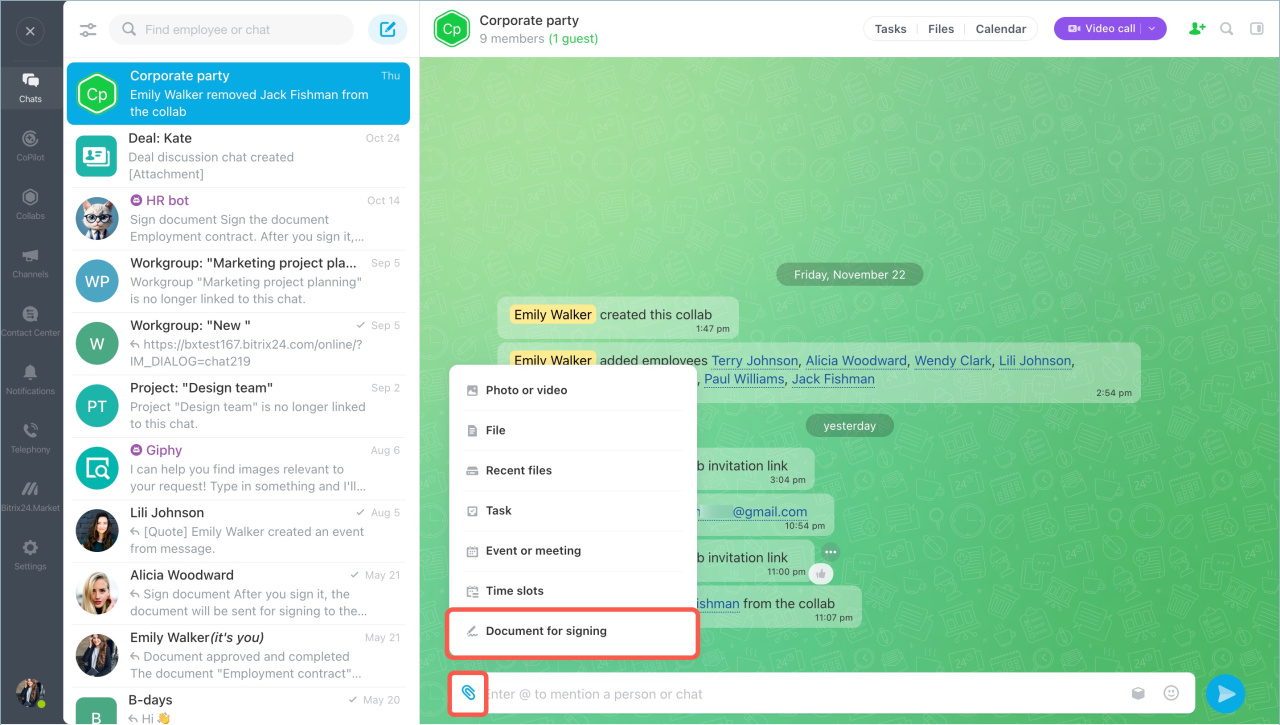
- Go to the Messenger section.
- Click Collabs and select a collab.
- Click the paperclip and select Document for signing.
Prepare the document
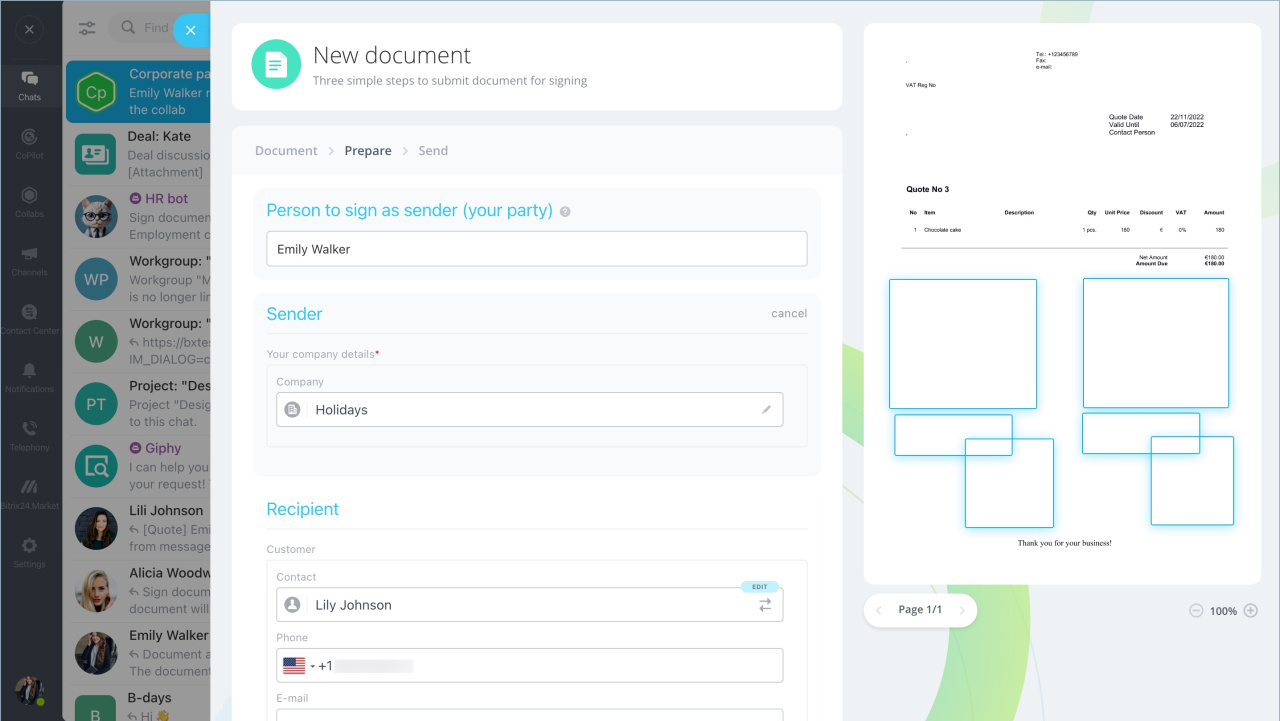
Select a template or upload a new file. Then fill in the fields:
- Person to sign as sender — the employee who signs the document on your side.
- Sender— your company details.
- Recipient — the guest’s contact details or a contact from CRM.
Set where stamps and signatures appear in the document. Add extra details if needed, such as a contract number.
Send the document
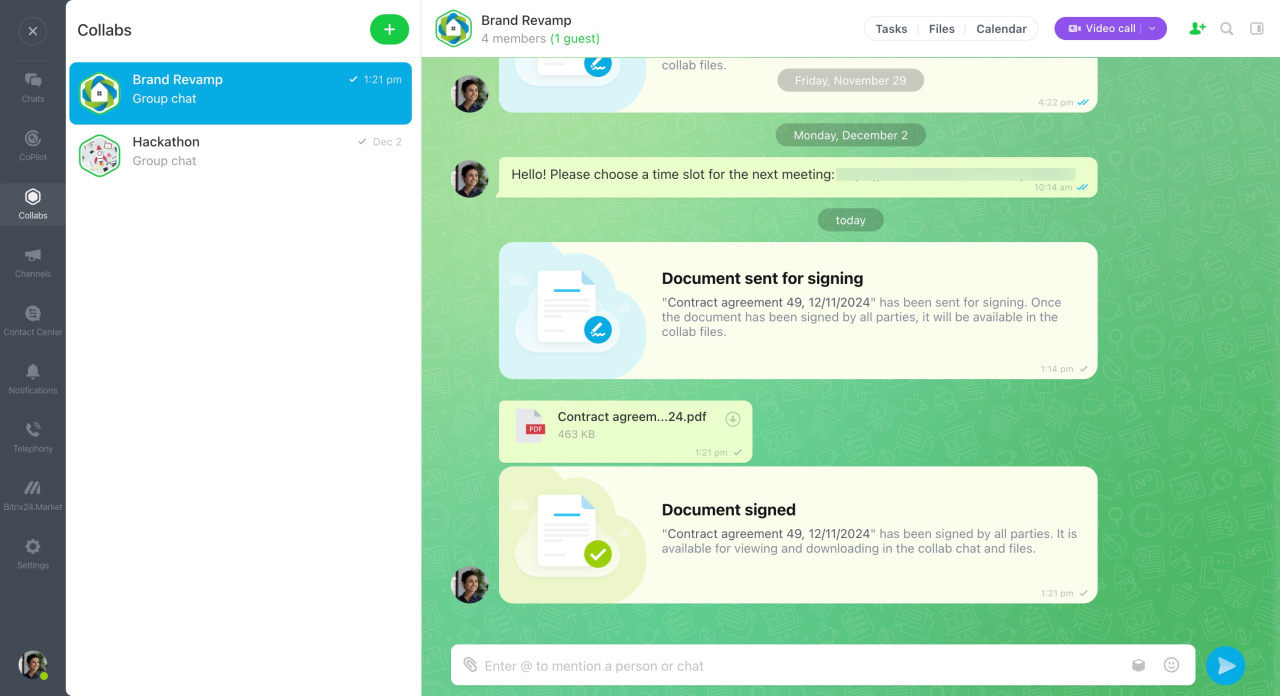
Check the information and send the document for signing. A notification appears in the collab chat.
The document is signed in this order:
- The responsible employee signs it.
- The other party signs it.
After all parties sign, the document appears in the collab chat and in files.
Create and send an electronic document for signing
How a first-party director signs an electronic document

How guests sign electronic documents in a collab
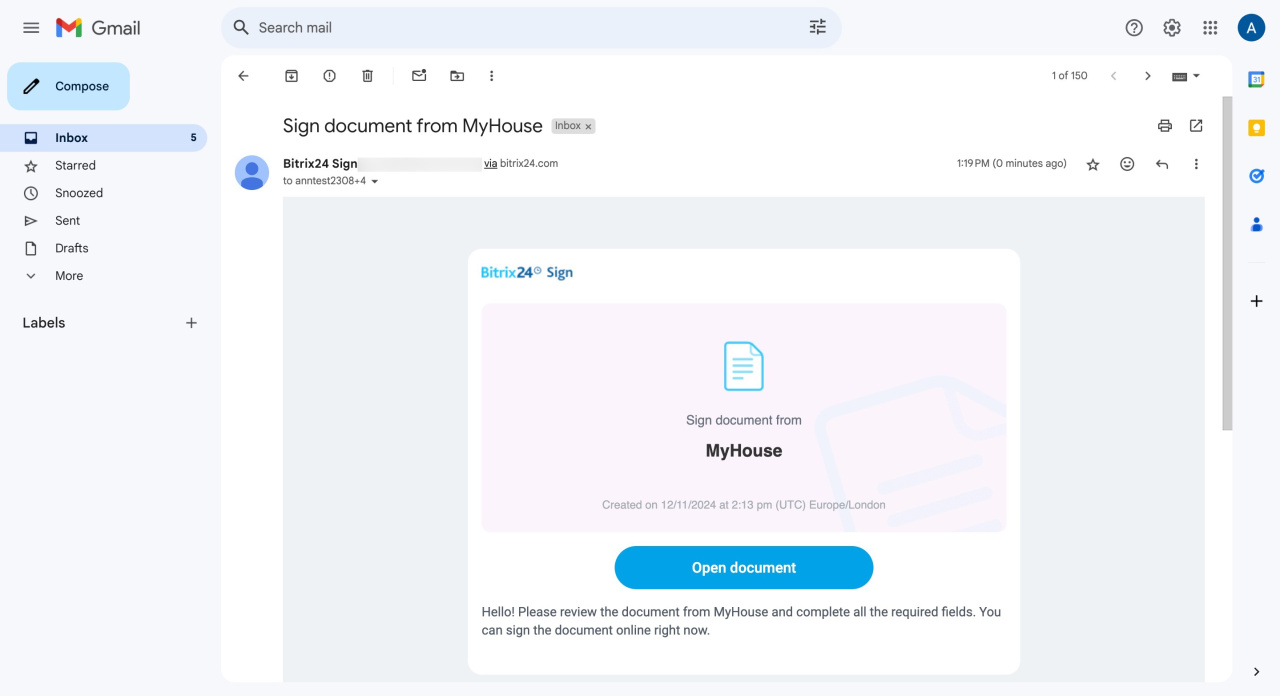
After the company representative signs the document, you receive a link by SMS or email. Open the link to access the document.
Sign the document
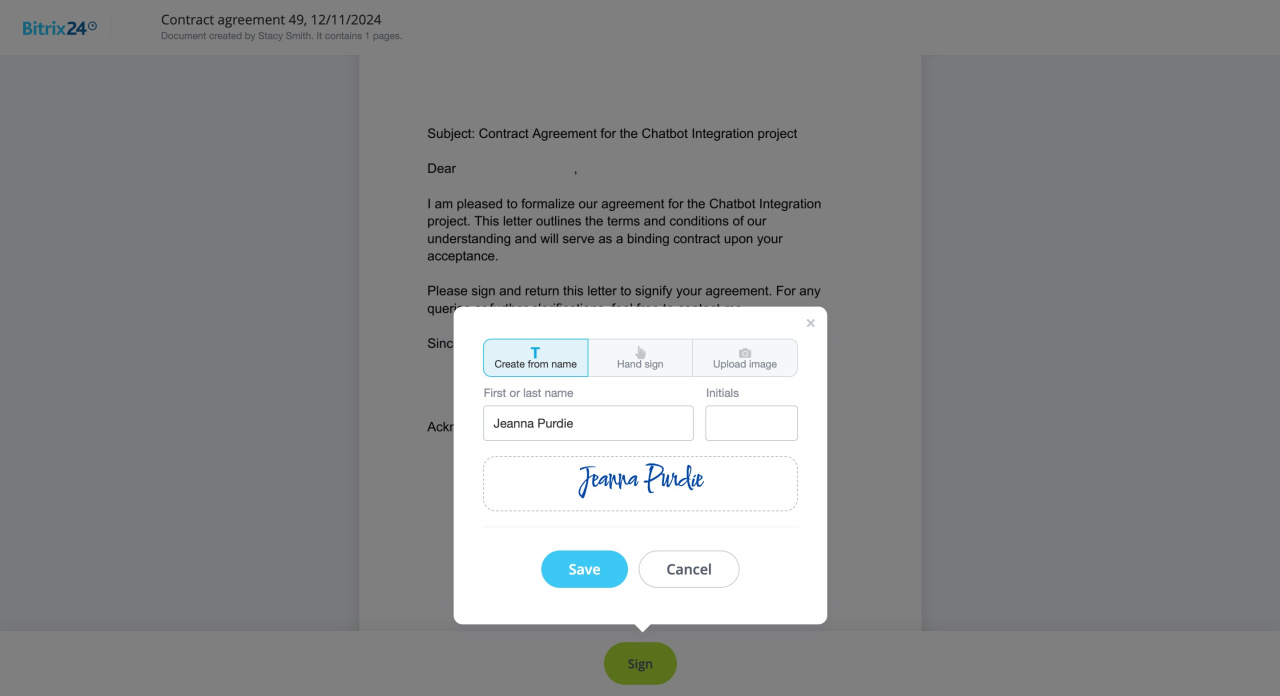
Fill in the required fields and choose a signing method:
- Create from name — enter your last name and initials to generate a signature.
- Hand sign — sign on a mobile device or tablet.
- Upload image — upload a photo of your signature.
After you sign, the document appears in the collab chat.
How the client signs an electronic document
In brief
- You can create and sign electronic documents in a collab.
- The process has three steps: create and send the document, sign it on your side, then get the other party’s signature.
- Signed documents are stored in the collab files.



