


A collab gives you one place to store and work with files when you collaborate with clients and external teams. You can create tasks, schedule events, and share documents, images, and videos. All files stay organized and easy to access.
If you are an employee or a collab owner, see how to work with collab files.
If you are a guest, see how to work with files in a collab.
How employees work with files in a collab
You can find files in two ways.
In the collab
- Go to the Messenger section.
- Click Collabs.
- Select a collab and click Files.
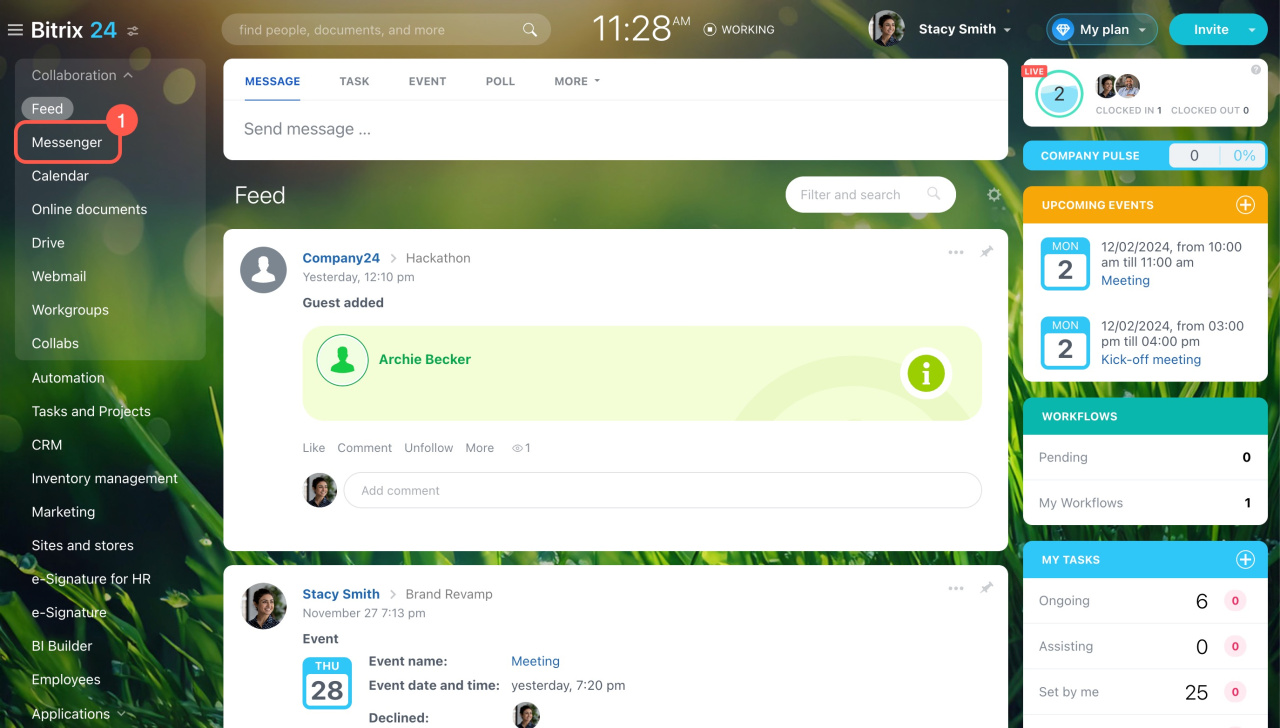
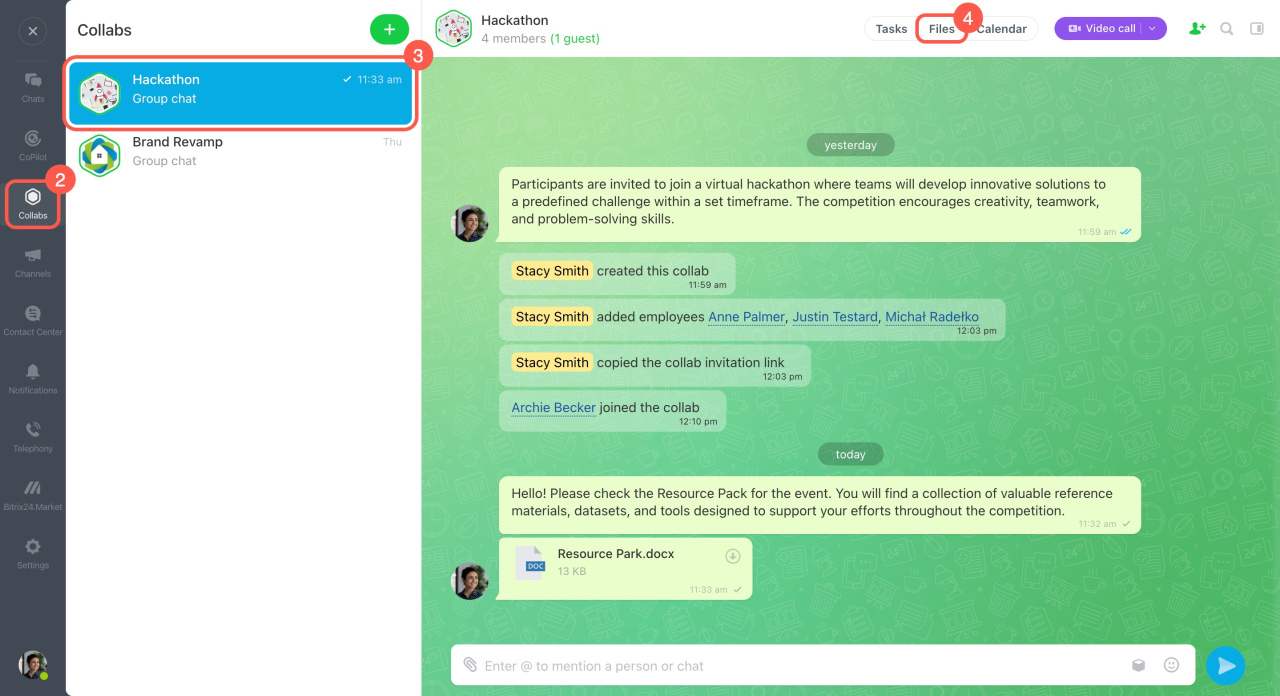
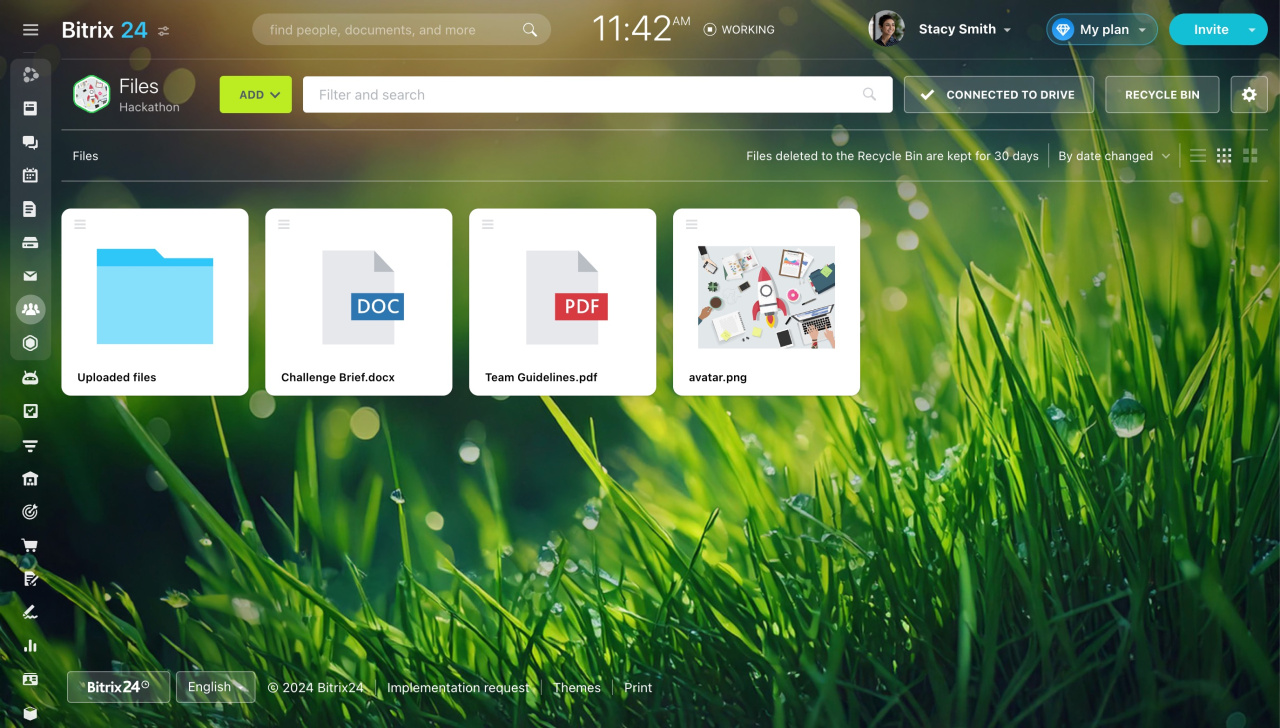
Files added in chat, events, or tasks are saved in the Uploaded Files folder. All members can access them. Files added to tasks also appear on the Drive.
Bitrix24 Drive
Work with Bitrix24 Drive documents
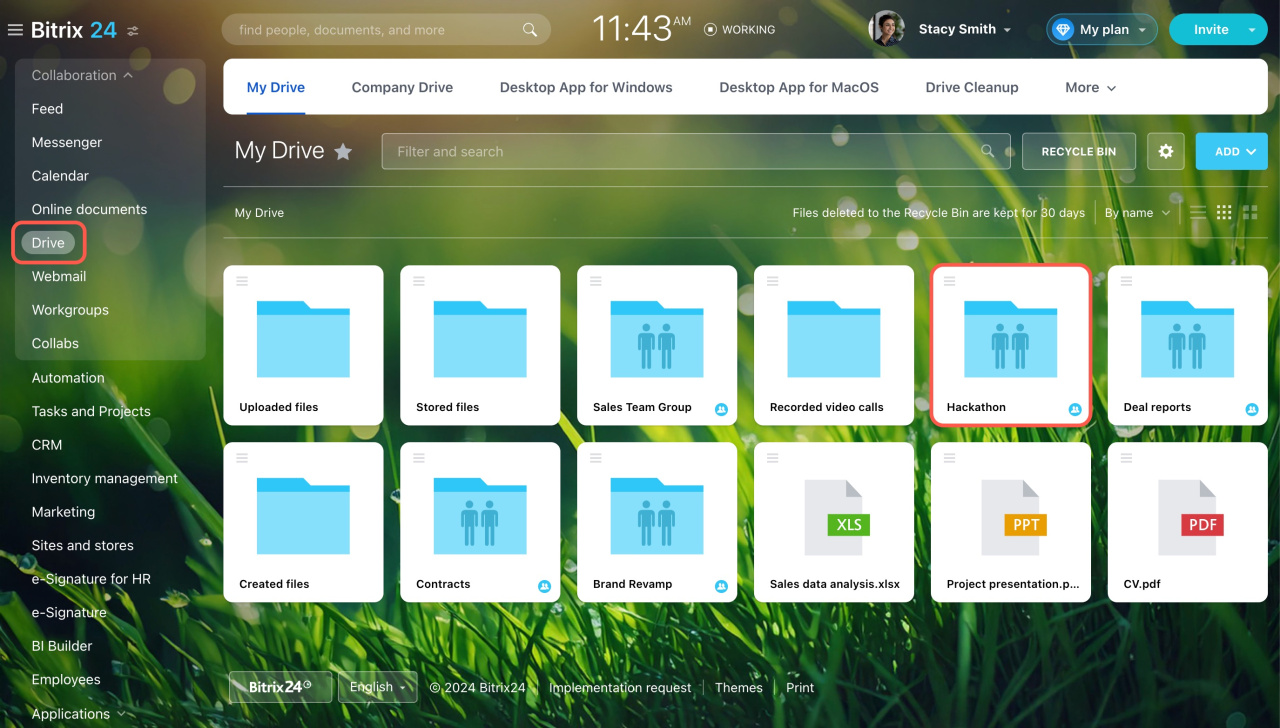
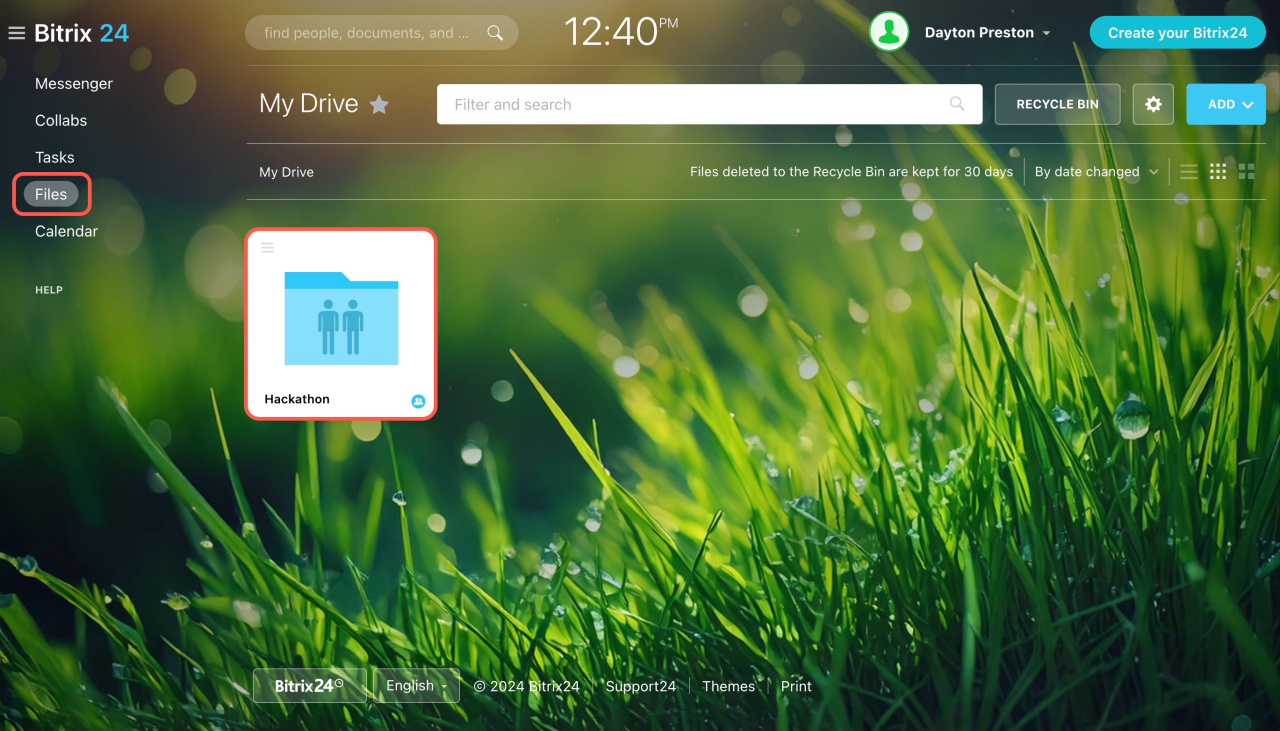
On the Drive. Go to Drive > My Drive and open the folder with the collab name. You can work with these files like any other Drive files.
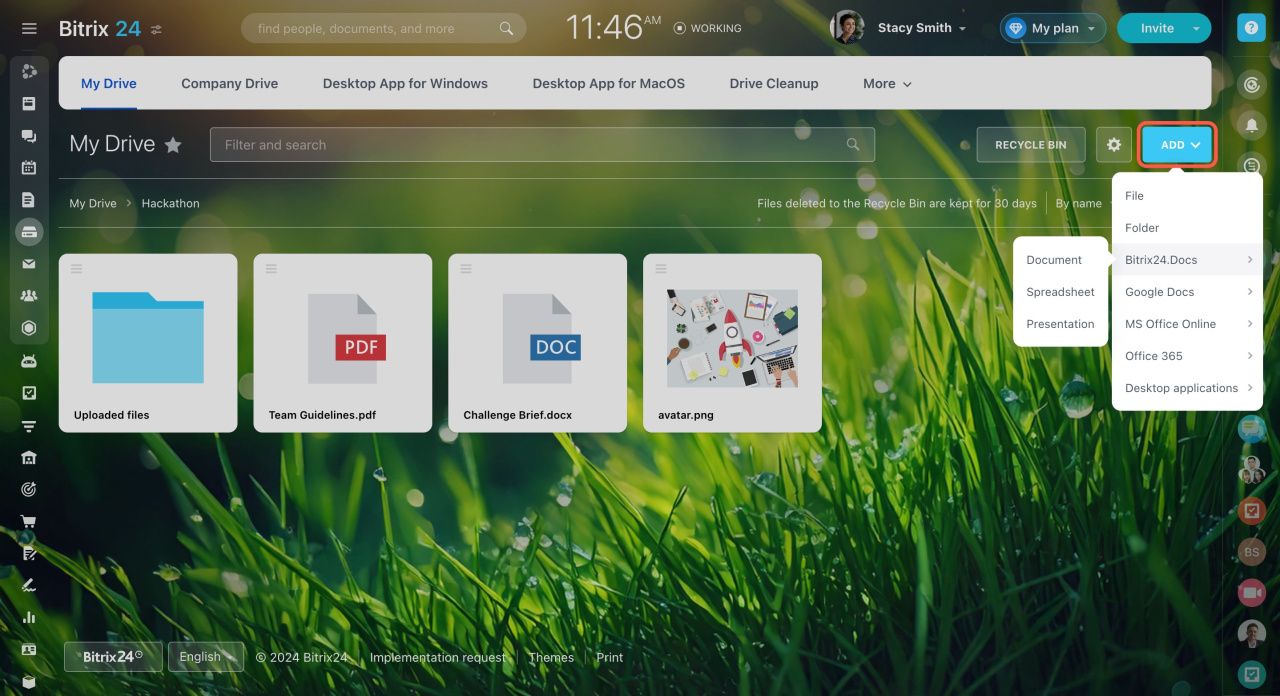
Create a file
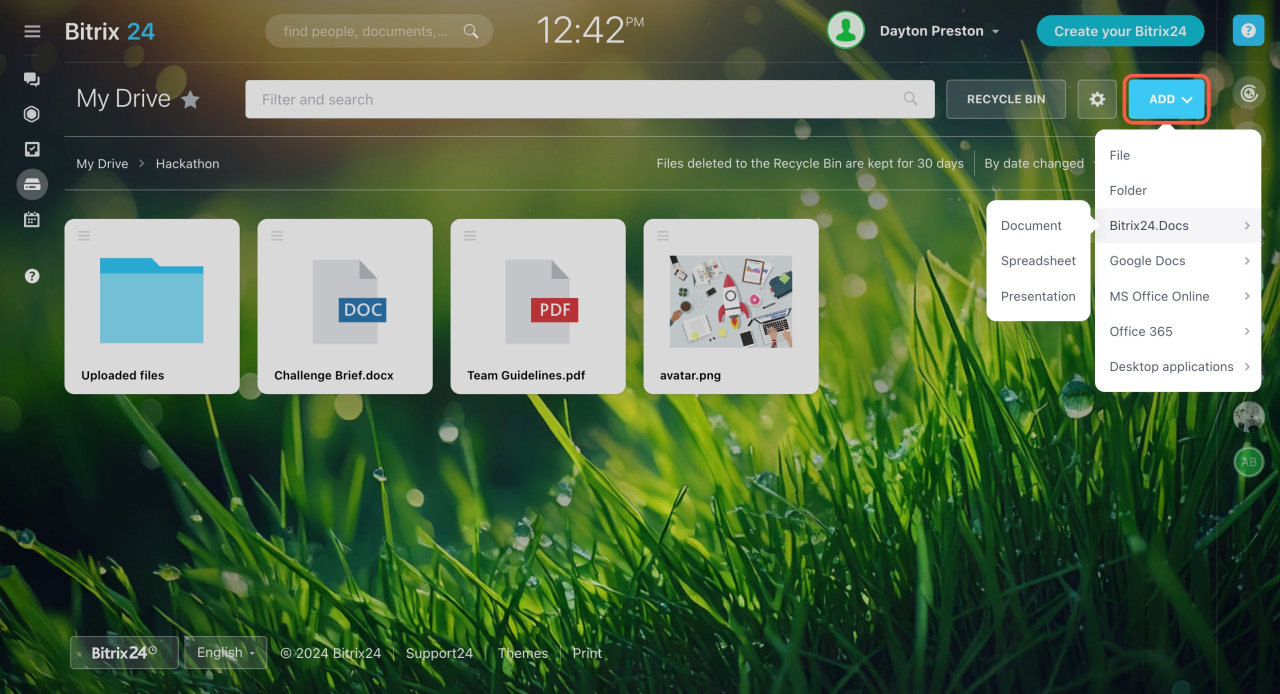
Click Add to upload a file or create a new one. Choose a document, spreadsheet, or presentation. Create folders to keep files organized.
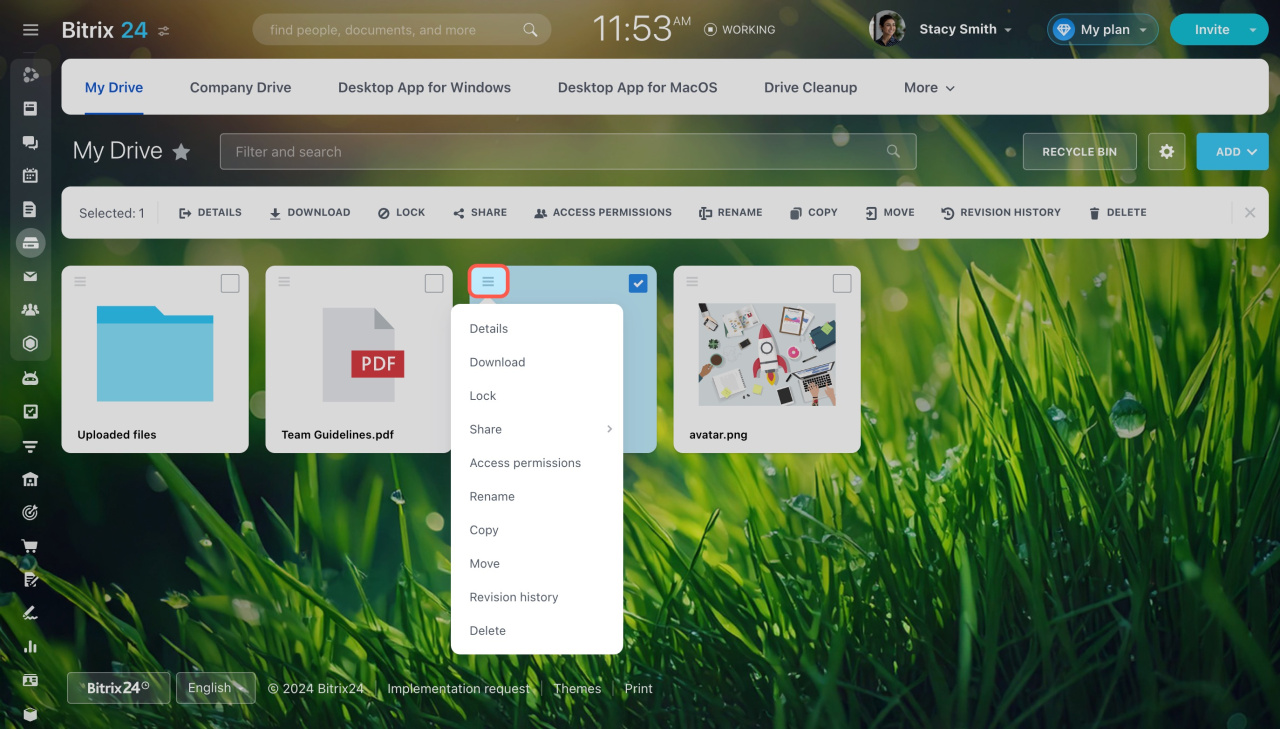
Manage files
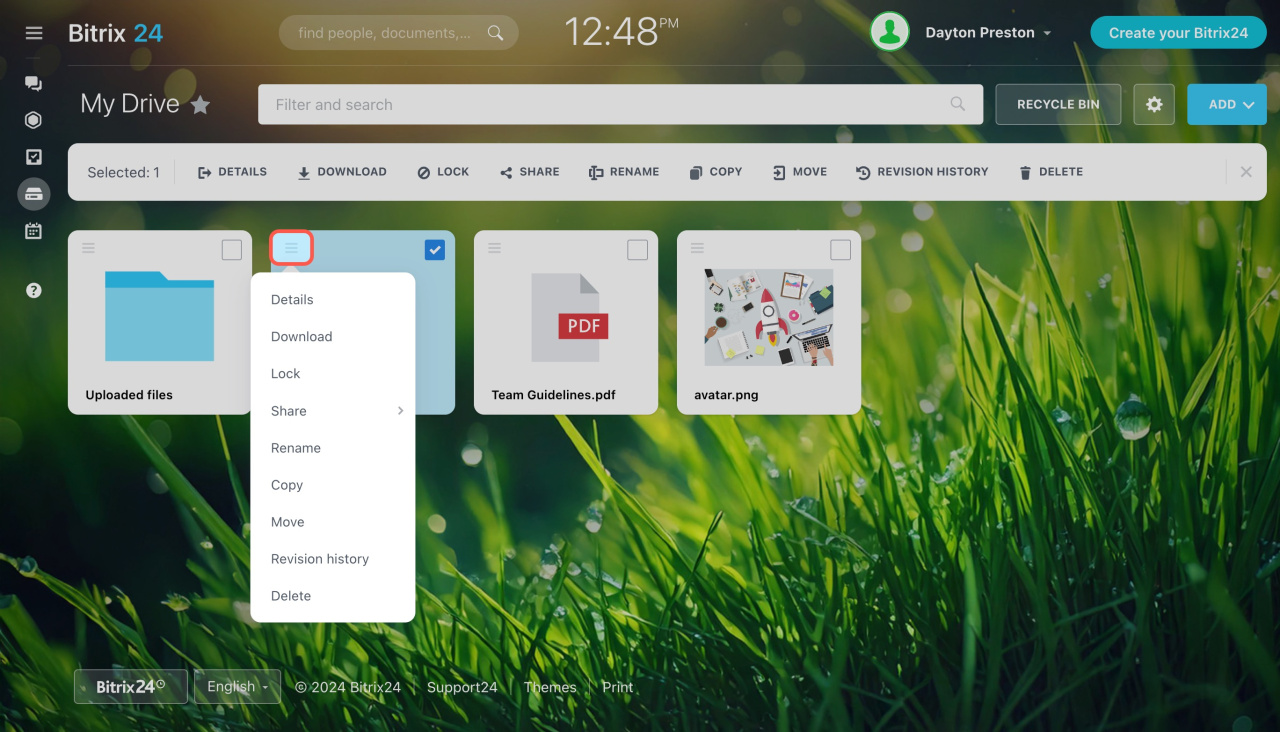
Click the menu icon (≡) next to a file and choose an action. For example, you can share, move, or delete the file.
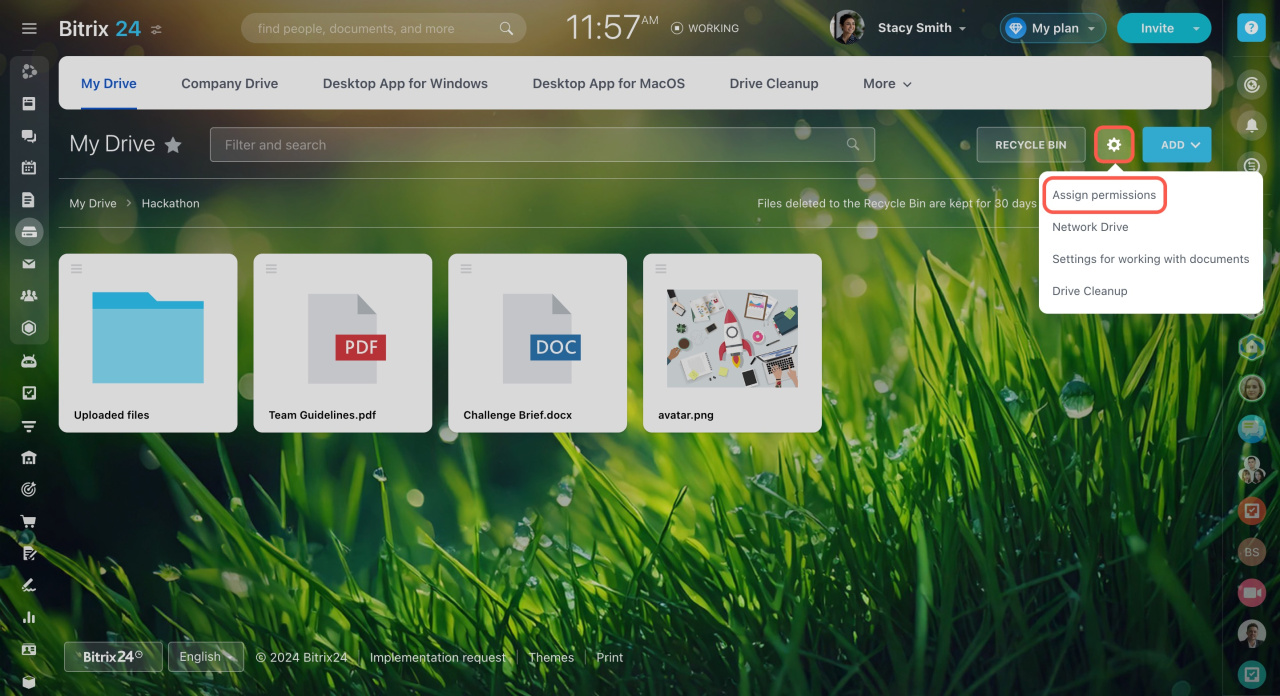
Set access permissions
Control who can view, edit, and delete files.
- Click Settings (⚙️).
- Open Access settings.
Set permissions for the collab owner, moderators, and members.
Configure access permissions to personal drive
How guests work with files in a collab
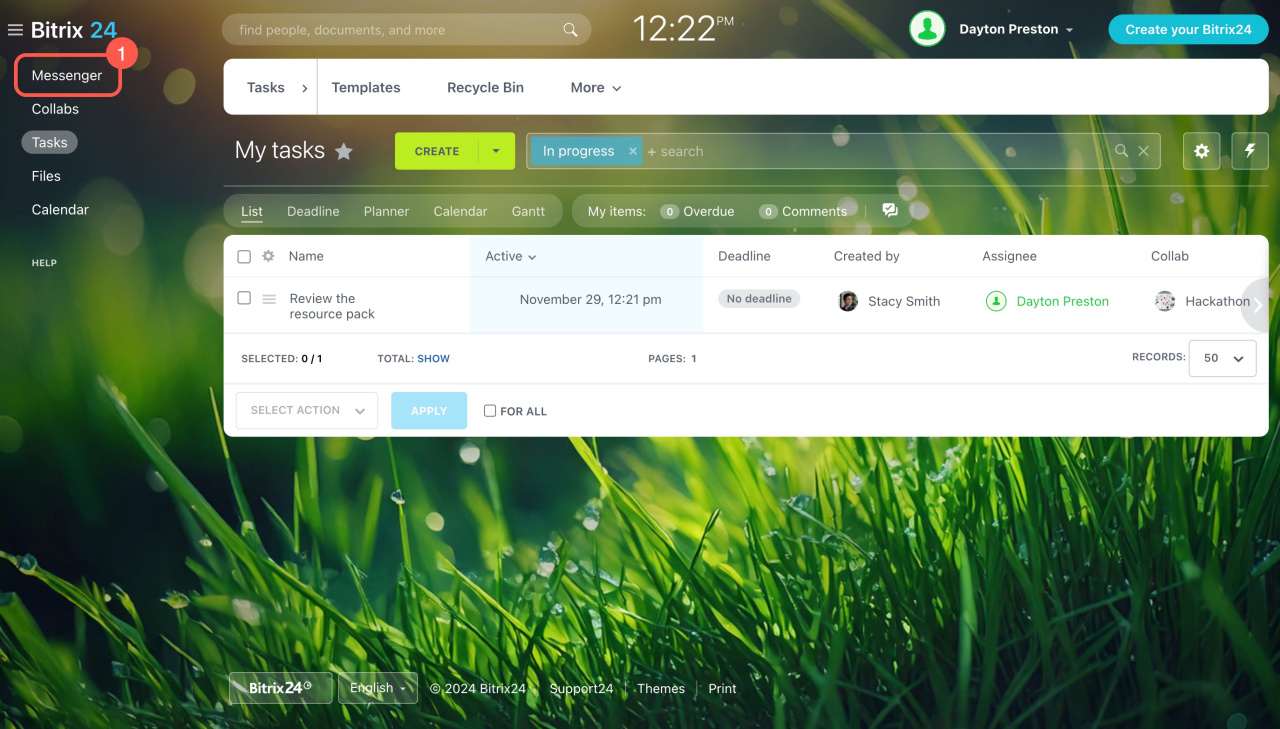
You can find files in two ways.
In the collab
- Go to the Messenger section.
- Click Collabs.
- Select a collab and click Files.
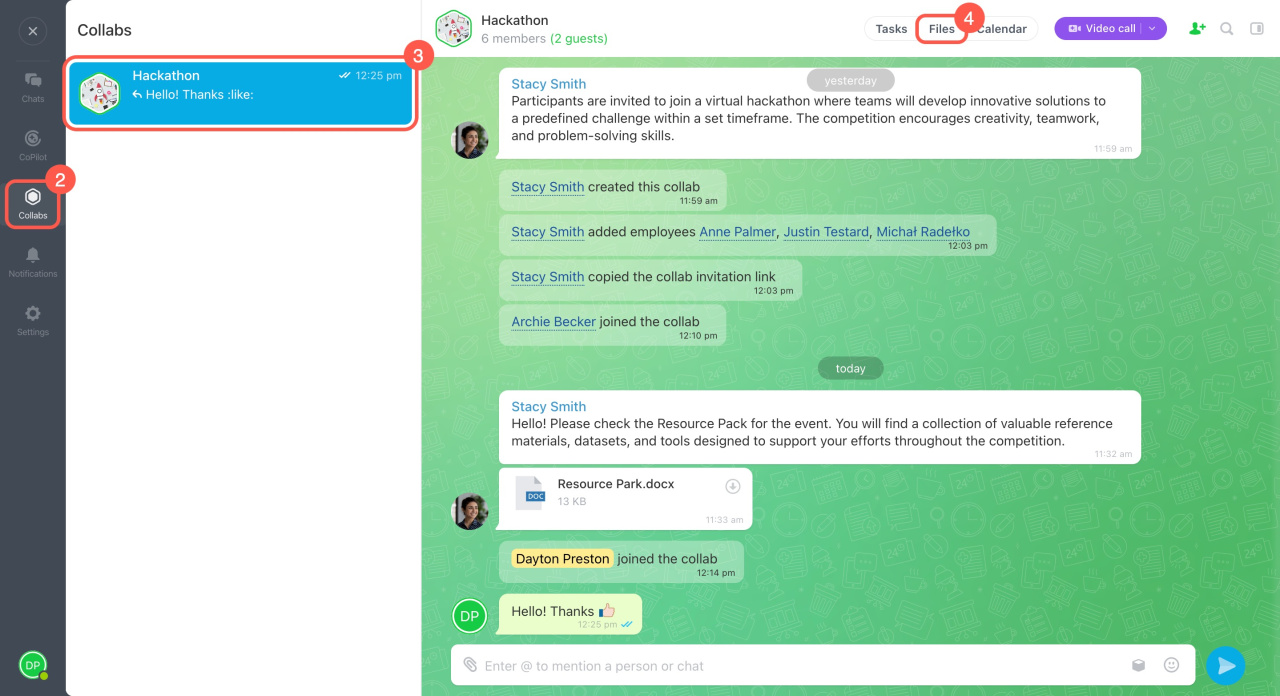
In the general file list. Open the Files section and find the folder with the collab name.
Create a file
Click Add to upload a file or create a new one. Choose a document, spreadsheet, or presentation. You can also create folders to organize files.
Manage files
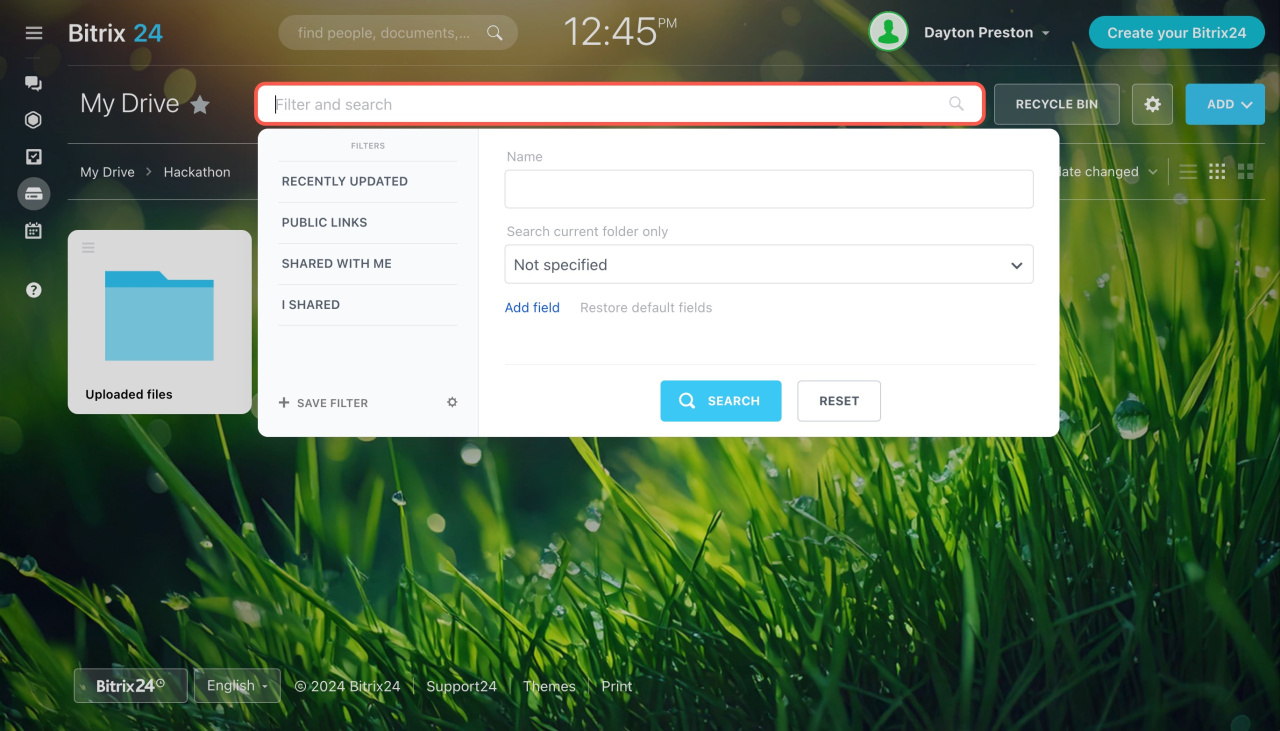
Use filters to find files quickly:
- Search field – find files by name.
- Filters – use preset filters or create your own
Click the menu icon (≡) next to a file to download, move, or take other actions.
In brief
- A collab keeps all files in one place for your team and external users.
- The collab owner controls file access permissions.
- You can find files in the collab or in the Drive folder.



