


Access Permissions in CRM
Roles in CRM
Roles fall into two categories:
- Personal role: Assigned to a specific employee.
- Group role: Assigned to a group, such as a department, workgroup, or project.
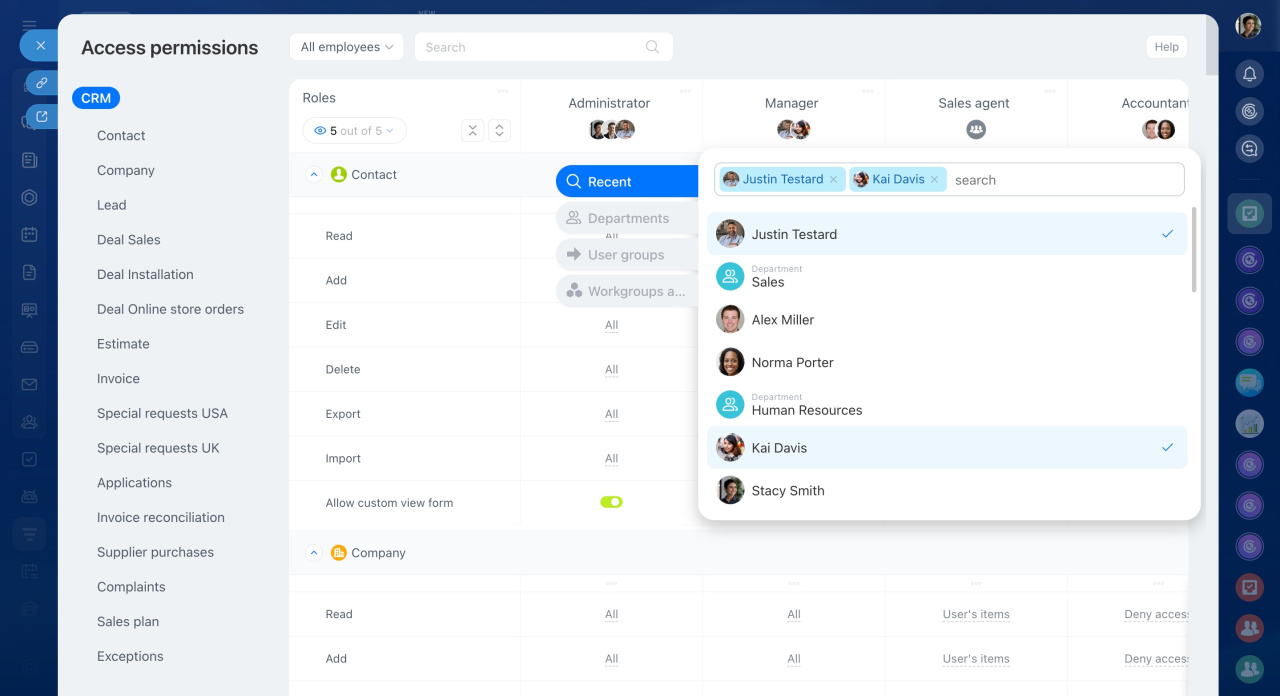
Access permission types
<Access permissions can be detailed or inherited.
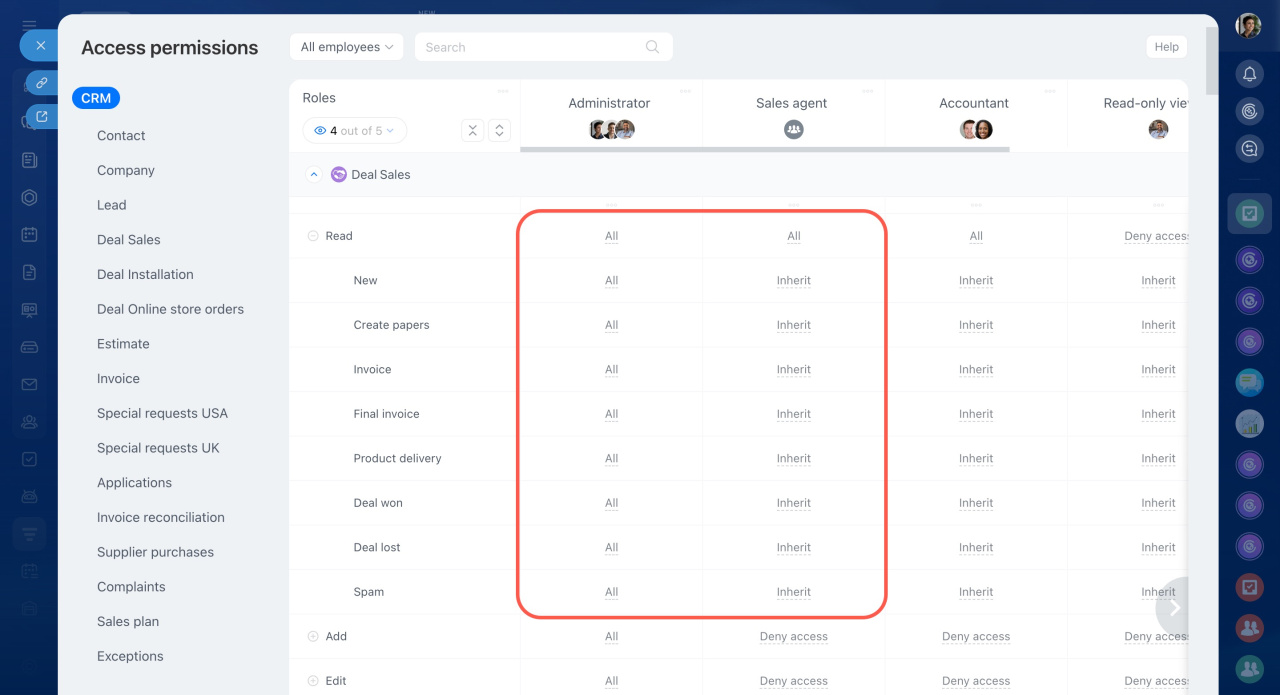
Detailed permissions apply to all items and stages.
Inherited permissions apply only to item stages. Instead of setting permissions for each stage, the stage follows a general rule.
First, define a general rule for an action, such as who can read or edit an item. Then choose one of the following for each stage:
- Use the general rule — Inherit. The stage follows the general rule. For example, if Read is set to All, all stages with Inherit also allow access for All.
- Set custom permissions. If you select a different value for a stage, it overrides the general rule.
Overlapping access permissions
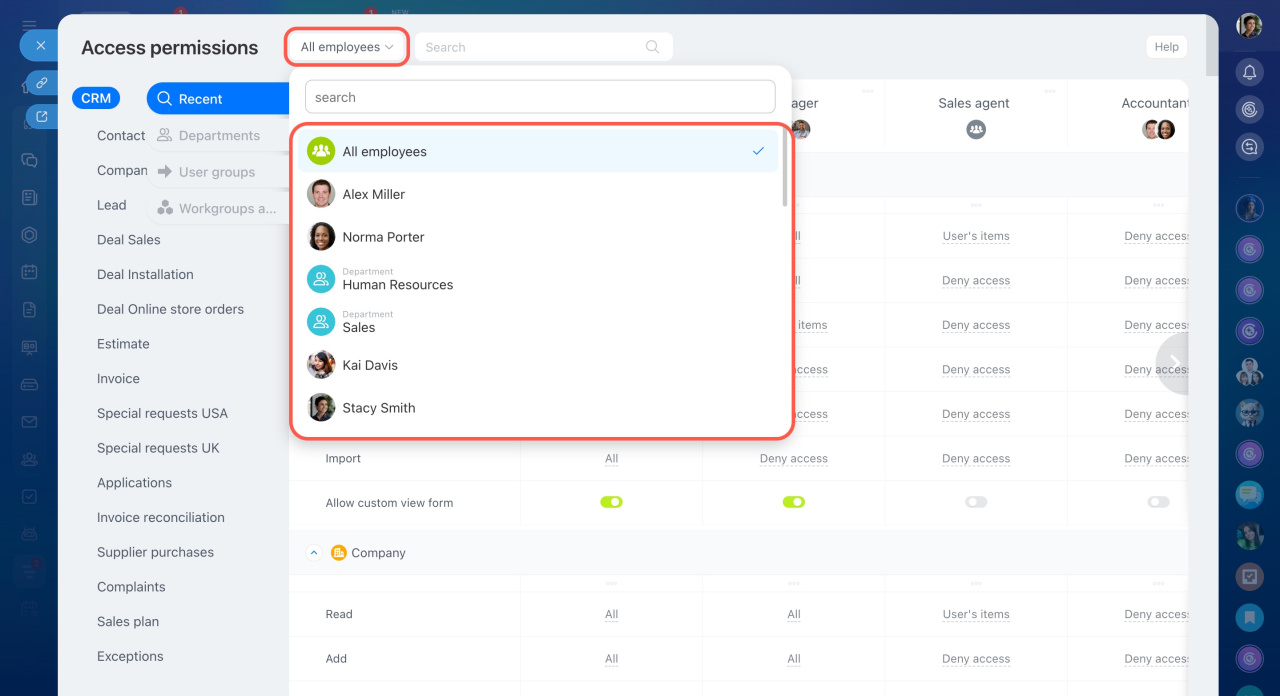
To review overlapping permissions:
- Select an employee in the field next to the search bar.
- Check the slider that shows their assigned roles.
This view helps you understand how permissions combine and lets you adjust them if needed.
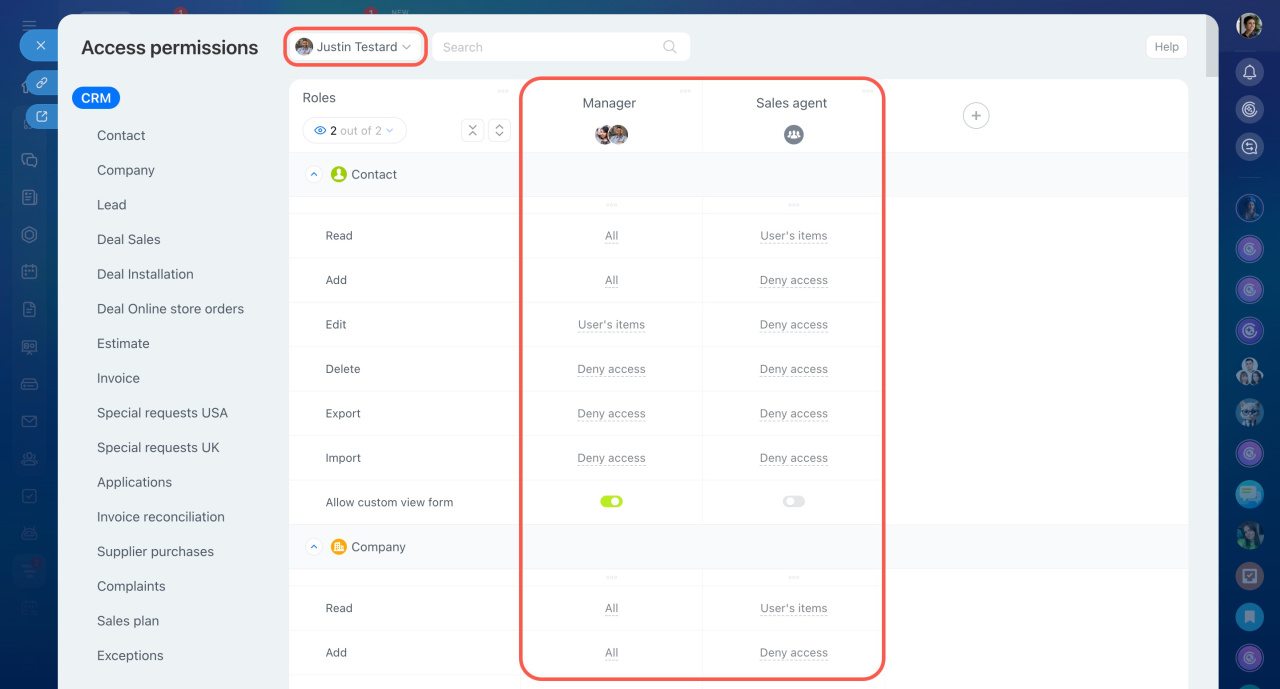 In this example, an employee has two types of roles with different access levels.
Avoid permission conflicts
Follow these best practices:
Set personal permissions
Use personal permissions for small CRM teams instead of group roles.
Assign permissions from top to bottom
Start with main departments, then configure subdepartments.
Create separate roles for each department
Avoid using the All department and subdepartment employees option. Create separate roles for each subdepartment instead.
Avoid the Employee and supervisors role
If you select a user in the Departments tab, they appear with the Employee and supervisors role. Avoid using this role. It can cause conflicts for supervisors.
Use inherited stage permissions
If item and stage permissions match, select Inherit instead of setting each stage manually. A large number of roles and permissions can slow down the CRM.
Resave CRM items after structure changes
If you move an employee to another department, resave their CRM items. This ensures permissions update correctly.
Access problems after editing the company structure



