The Expense Report workflow allows you to make a request to provide funds to an employee.
Bitrix24 pricing page
Initial setup
Before anyone can use this workflow, a Bitrix24 administrator must set it up.
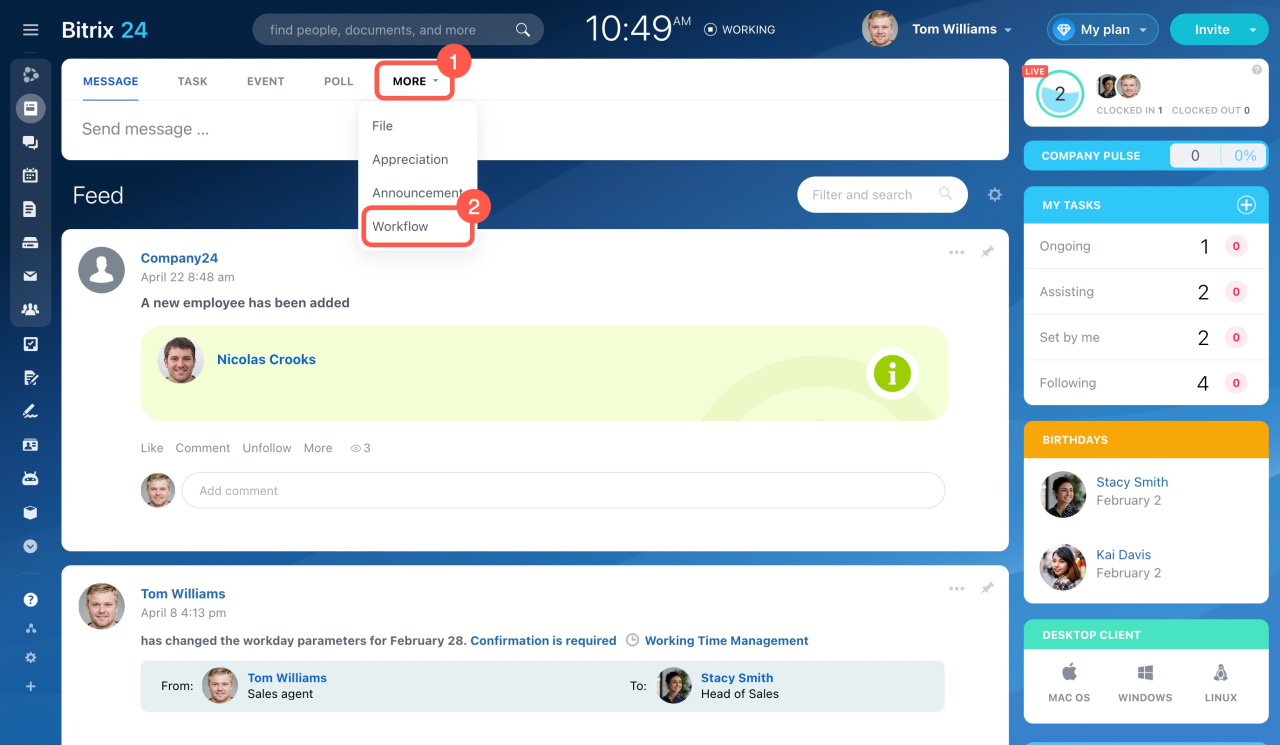
To configure the workflow, open Feed > More > Workflows.
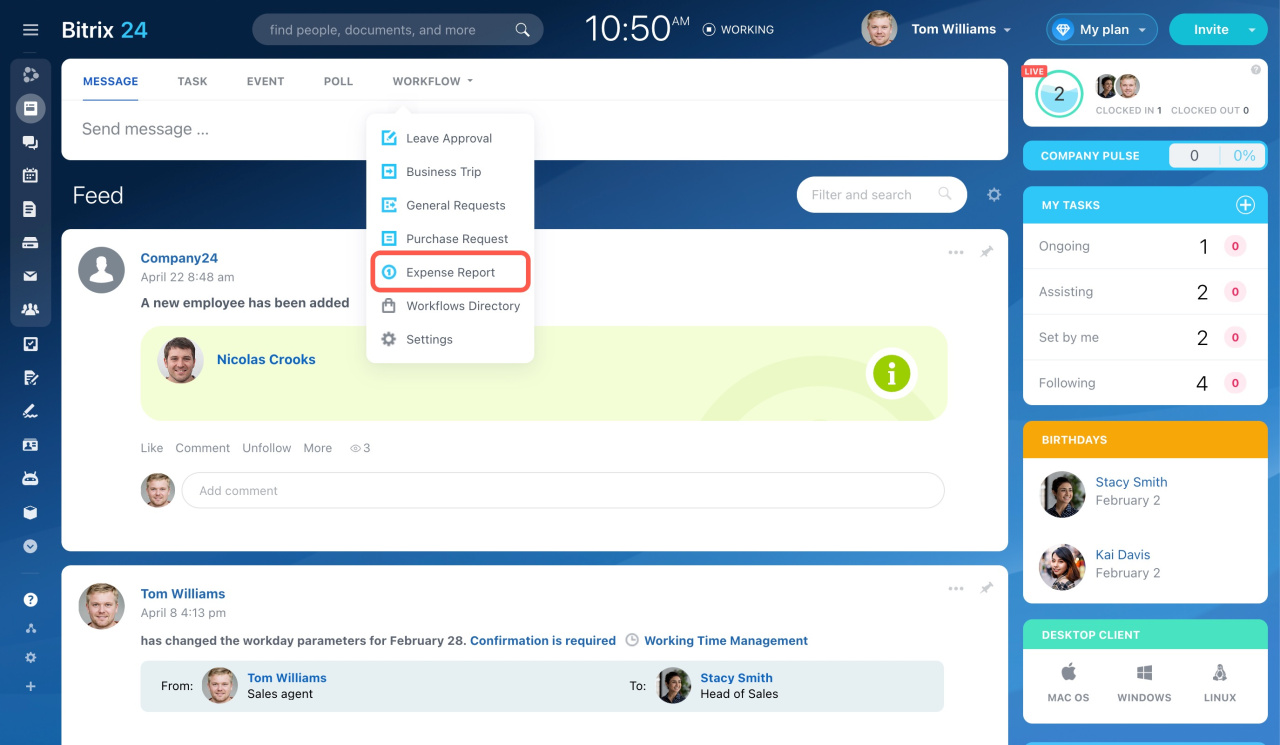
Then choose the Expense Report workflow.
First launch and configuration
The first time you use this workflow, the system will ask the admin to configure it.
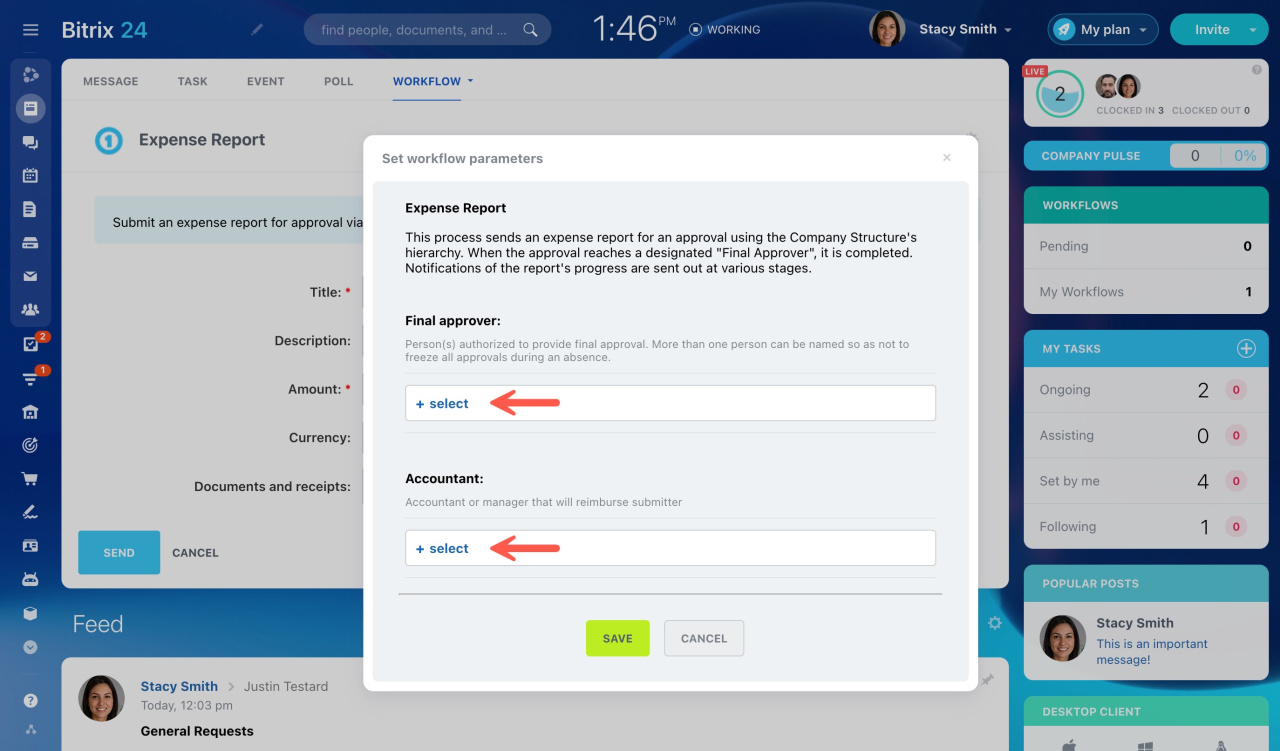
This process sends an expense report for approval using the company structure hierarchy. When the approval reaches a designated Final Approver, it is completed.
Bitrix24 administrators can customize the report and decide who in Bitrix24 can see or use it by adjusting the workflow preferences.
Workflow preferences
Once it's all set up, Bitrix24 employees can start using it.
How to use the Expense Report workflow
Fill in the following required fields: Title and Amount. You can also add a description and attach a file.
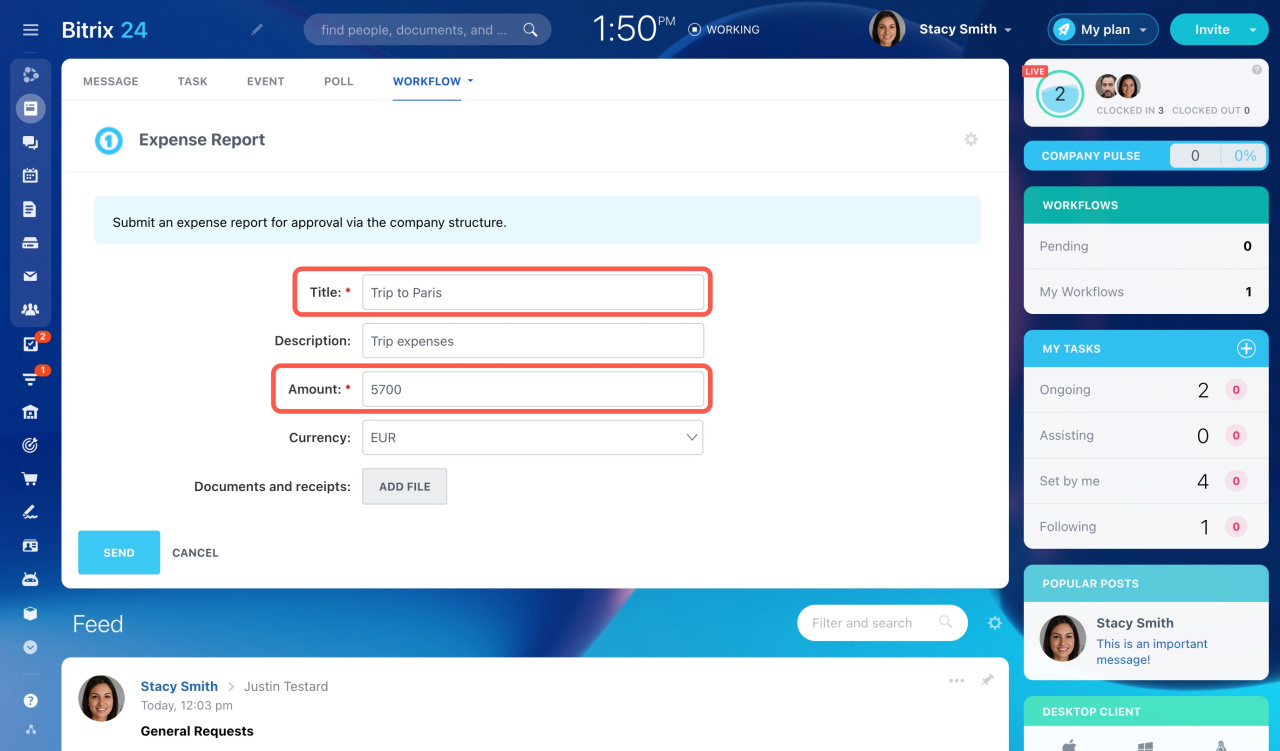
After you submit the request, it goes to your direct manager for approval. Then it moves up the management chain until it reaches the general director. Managers see a cash disbursement approval form.
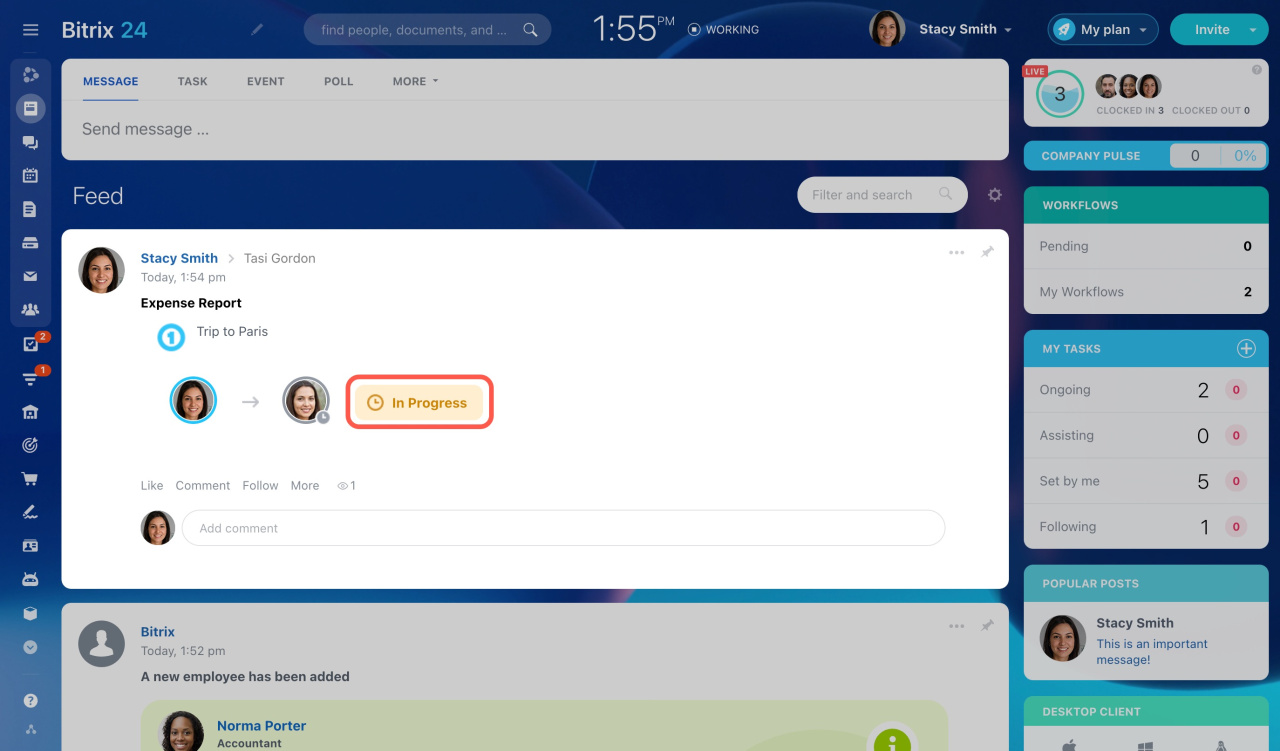
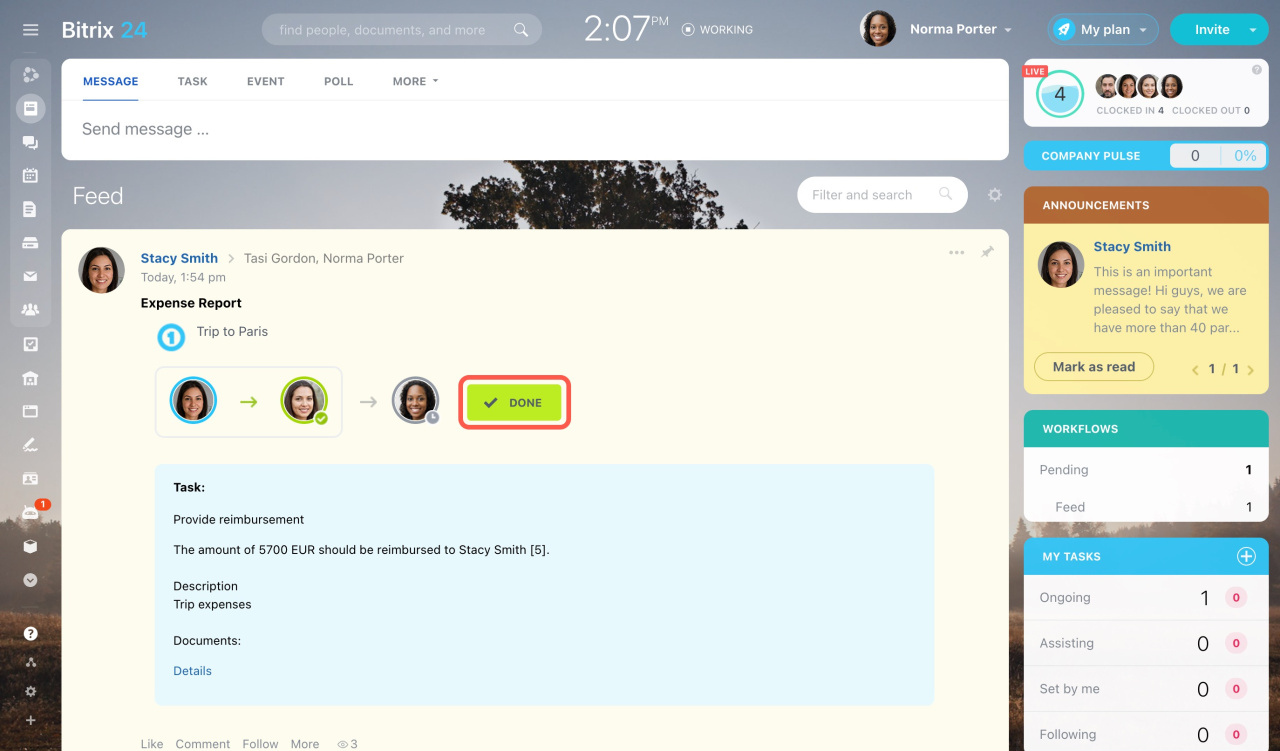
The employees involved in the approval process will receive your approval request instantly.
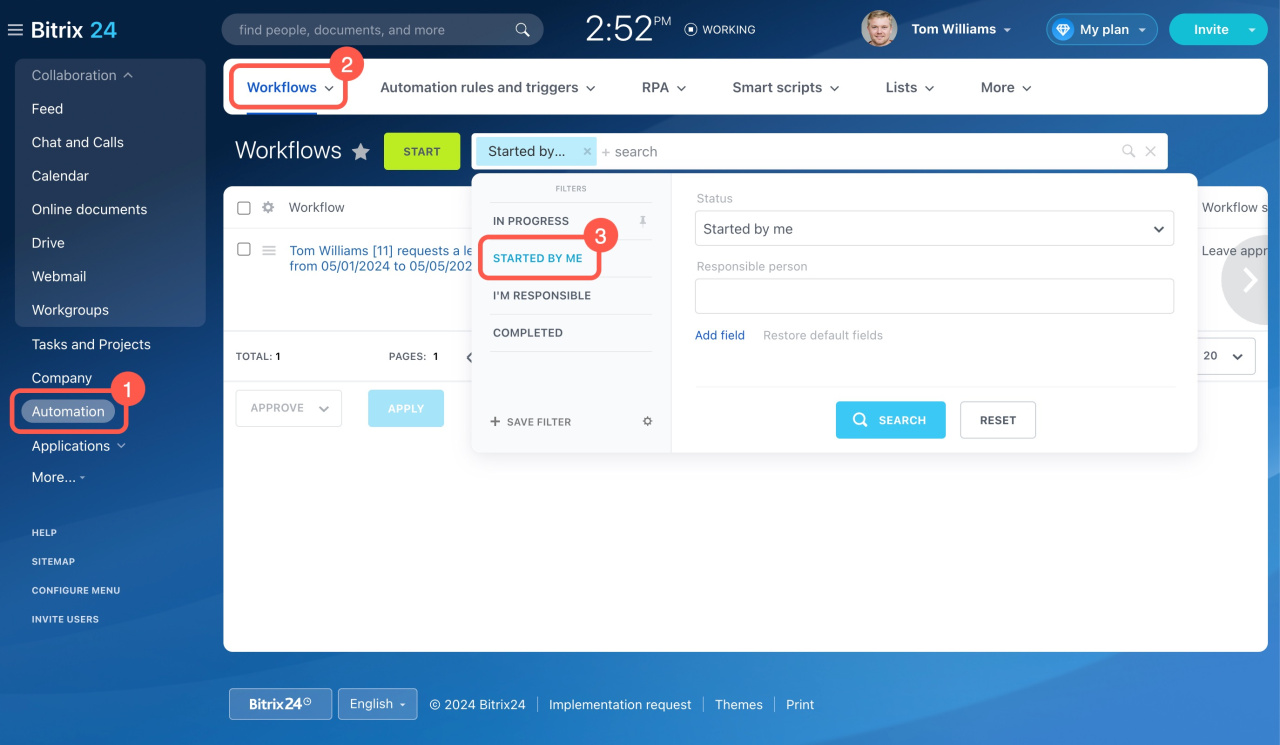
To find all the requests you initiated,
- Go to Automation in the left menu.
- Open the Workflows tab.
- Select Started by me in the filter.
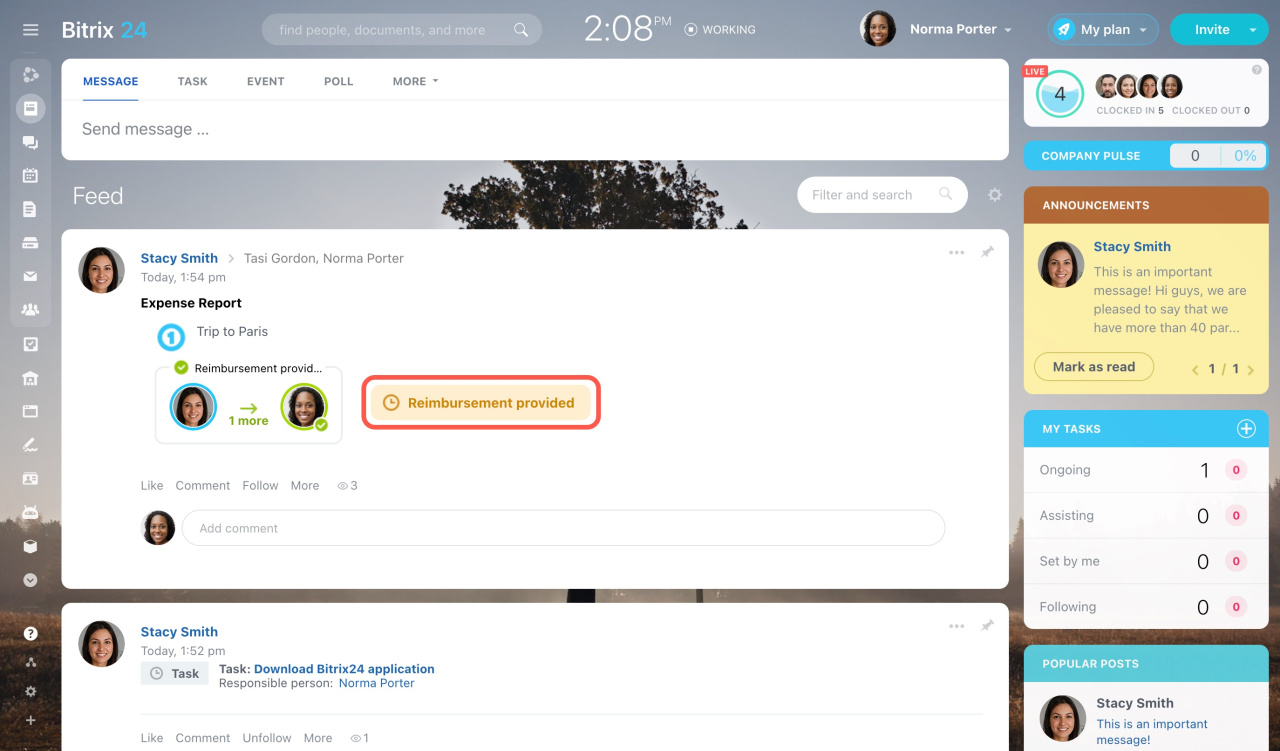
You will be updated on the report's progress. Finally, you will see that your expense report is approved and has the Reimbursement provided status.
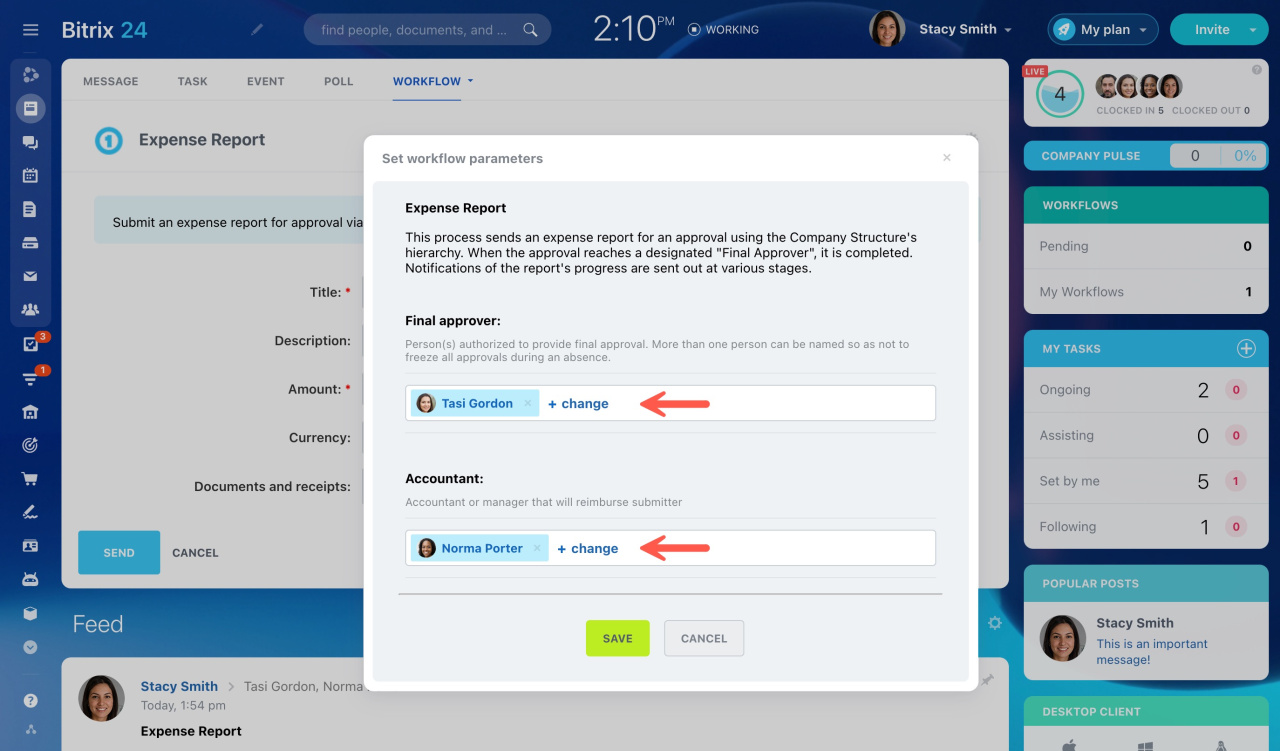
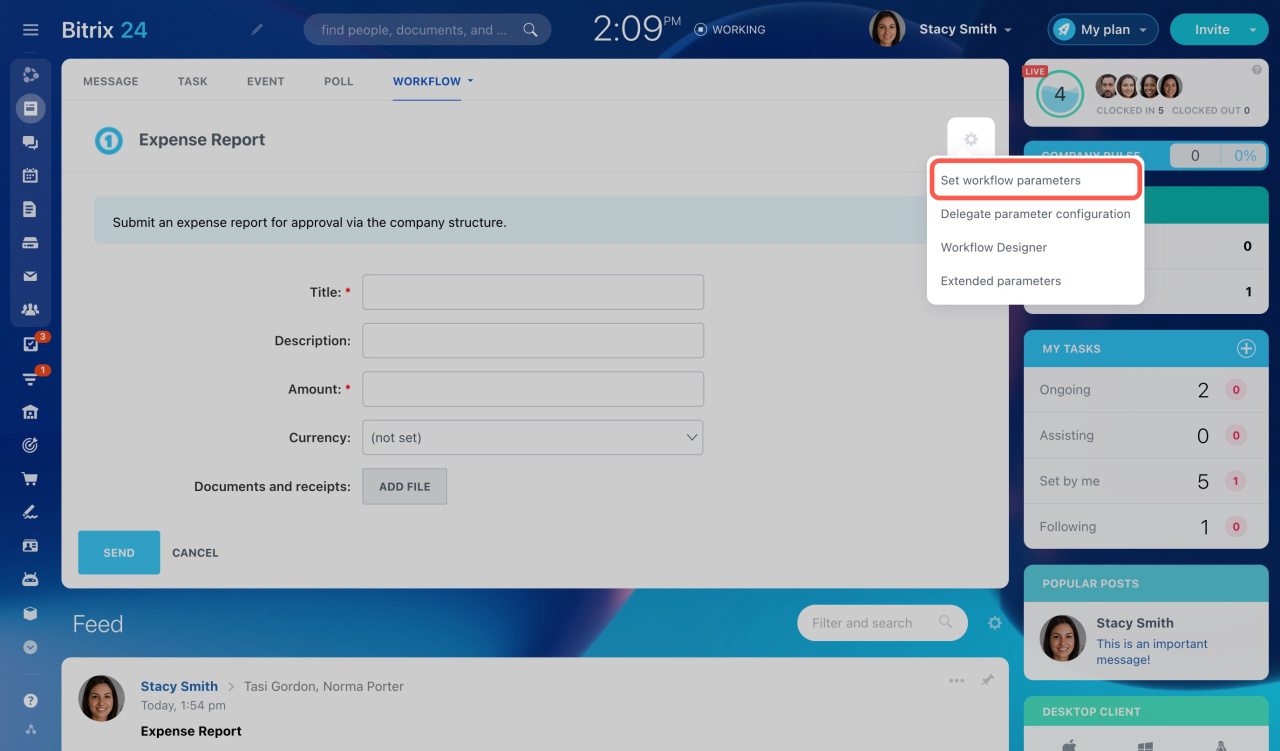
Bitrix24 administrators can edit the workflow parameters later by clicking the gear icon (⚙️) and choosing Set workflow parameters.
Click Change to select another employee as an approver or accountant.