


Bitrix24 e-Signature lets you sign electronic documents with counterparties. Set up access permissions to control who can view, create, edit, and delete documents.
By default, only the Bitrix24 administrator can manage access permissions for the e-Signature section. The administrator can grant this permission to other employees.
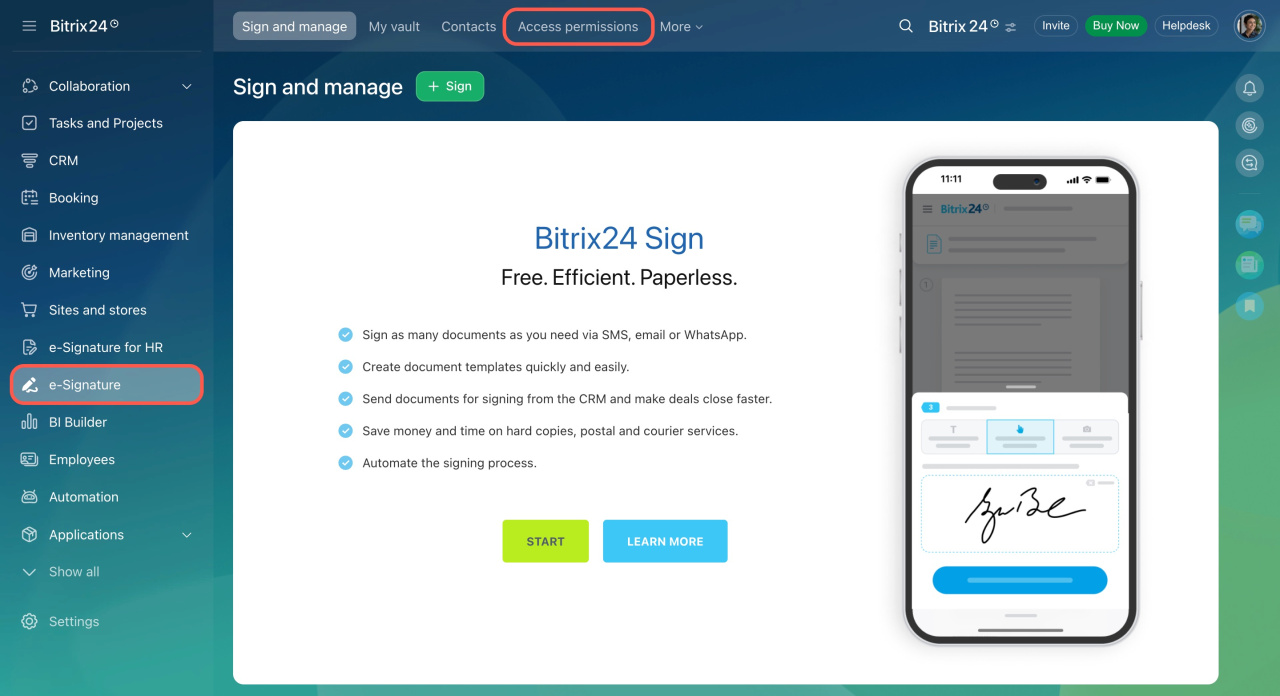
Go to the e-Signature section and open the Access permissions tab.
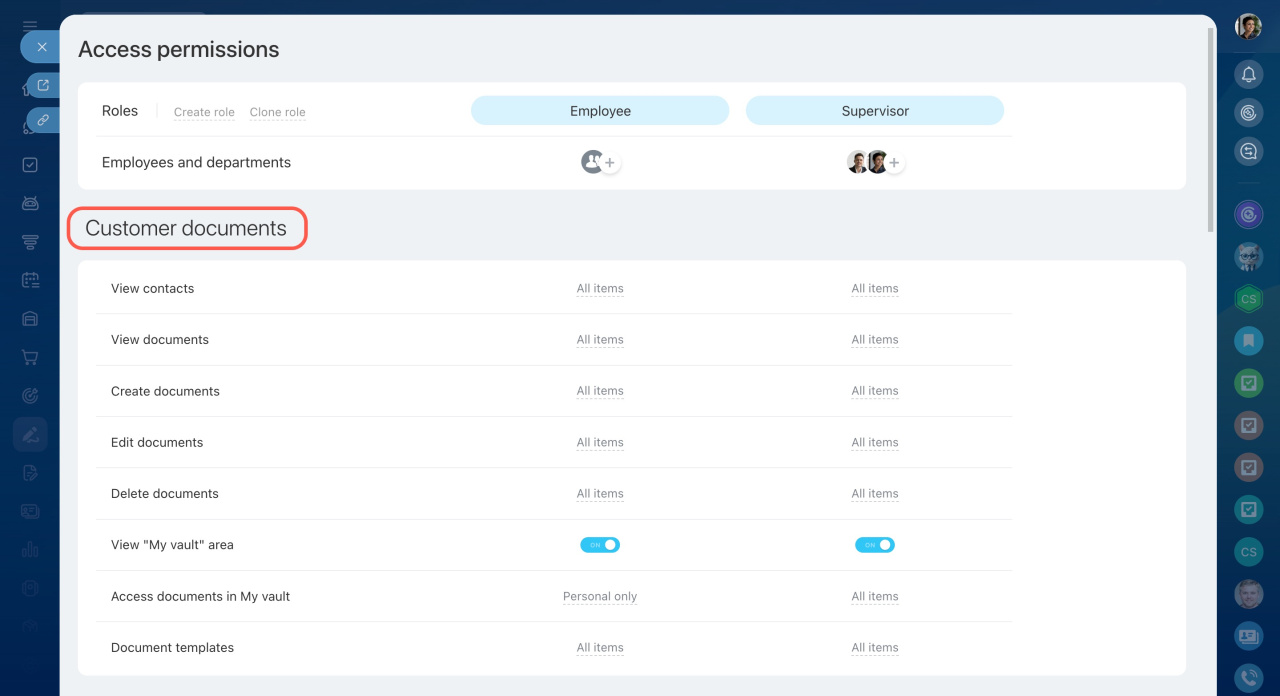
Access permissions are managed in the Customer documents section.
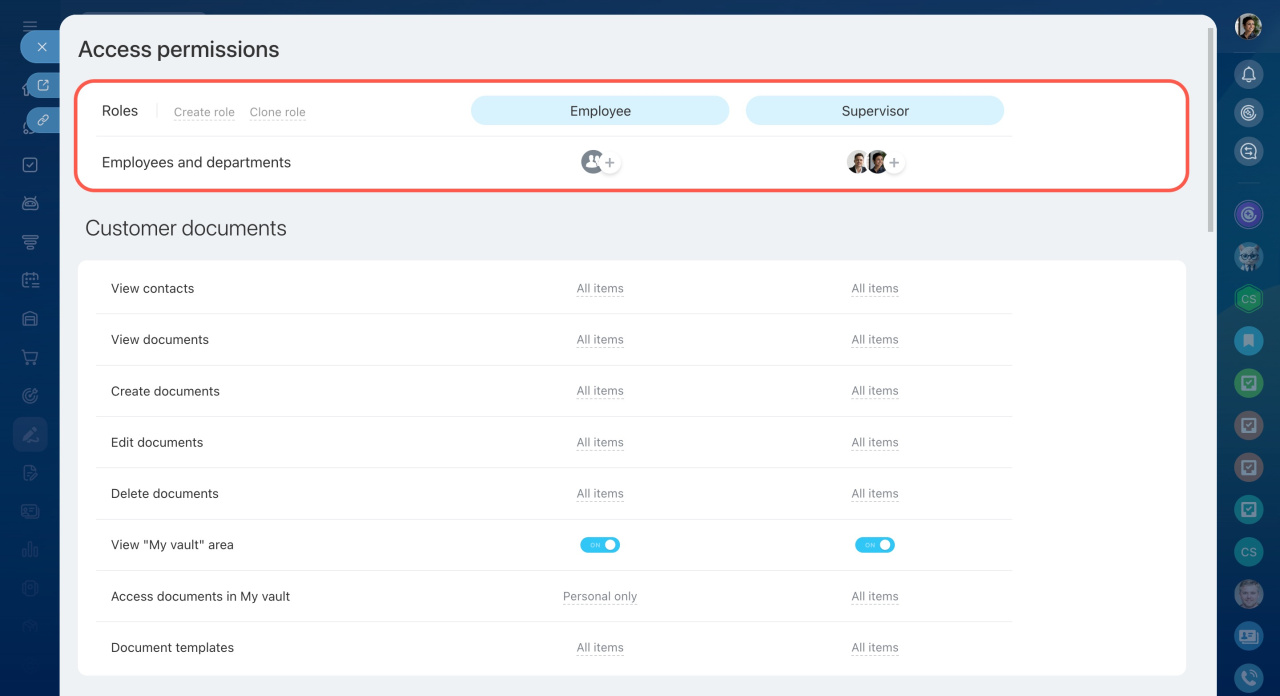
Set up roles
A role is a set of permissions assigned to a user. By default, there are two roles:
- Employee — can view, create, edit, and delete documents. This role also allows access to contacts, document templates, and the My vault area.
- Supervisor — has full access, including permission management.
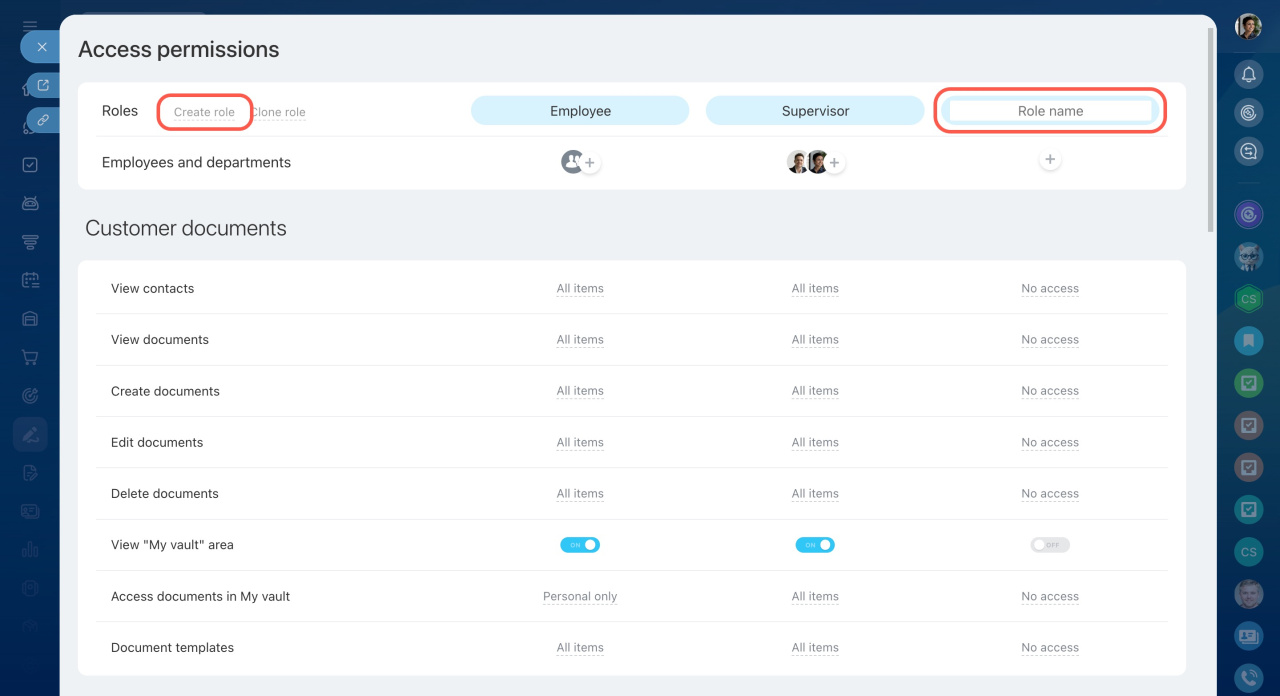
You can add new roles or modify existing ones:
- Click Create role.
- Enter a name for the role.
- Save your changes.
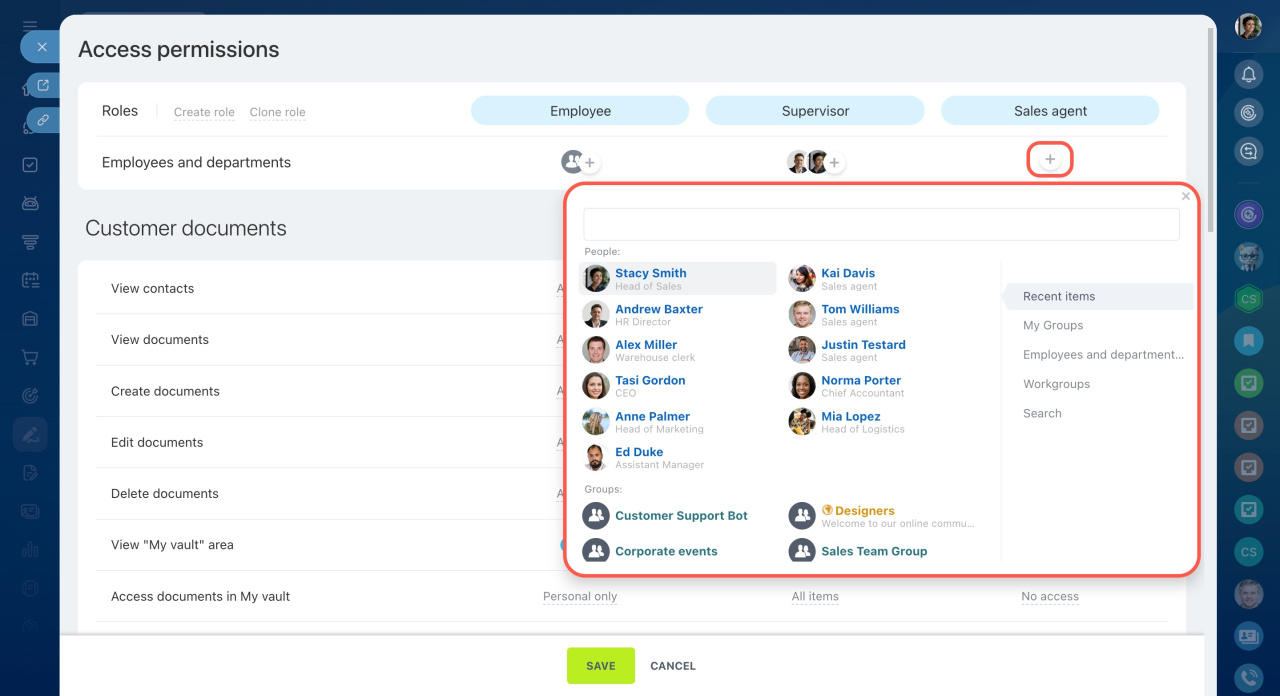
Assign roles to users
To assign a role:
- Click the Plus (+) icon under the role.
- Select an employee, department, or group.
If a user has multiple roles, Bitrix24 applies the highest level of access.
Configure permissions
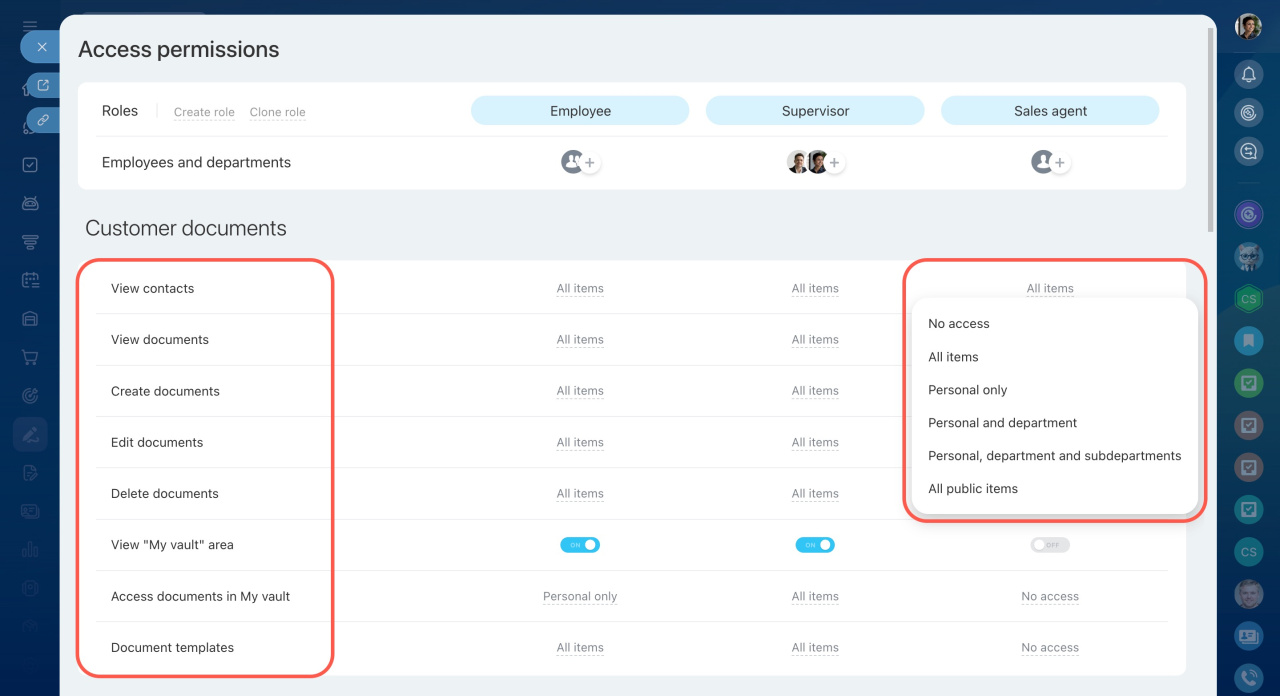
You can control access to:
- Contacts
- Documents (view, create, edit, delete)
- My vault area
- Document templates
Access to contacts includes a separate directory called Signing parties. Use it to store contacts for document signing. Employees without CRM access can still use this directory.
Signing parties in Bitrix24 e‑Signature
Signing parties in Bitrix24 e‑Signature
Document access levels
Choose one of the following levels:
- No access — no access to documents
- All items — access to all documents
- Personal only — access only to documents the user owns
- Personal and department — access to personal and department documents
- Personal, department and subdepartments — access to all related documents in the hierarchy
- All public items — access to personal, department, and shared documents (with Available to everyone enabled)
In brief
- Bitrix24 e-Signature lets you sign electronic documents with counterparties.
- Set access permissions to control which employees work with documents. Define who creates, edits, and deletes them.
- By default, only the Bitrix24 administrator manages access permissions for the e-Signature section. The administrator may grant this permission to other employees.
- You can create new roles or edit and copy existing ones.
- Assign roles to individual employees, departments, or groups.



