🚚 Miễn phí giao hàng toàn quốc

✅ Tặng Gói Hỗ trợ online trọn đời

✅ Giá cạnh tranh nhất thị trường

✅ Miễn phí tư vấn giải pháp

🚚 Miễn phí giao hàng toàn quốc

✅ Tặng Gói Hỗ trợ online trọn đời

✅ Giá cạnh tranh nhất thị trường

✅ Miễn phí tư vấn giải pháp

Hotline: 0943.199.449

Địa chỉ: Tầng 1, tòa nhà Deli, 75 Hoàng Văn Thụ, P. Cầu Kiệu

Bitrix24 Helpdesk

Webpage title

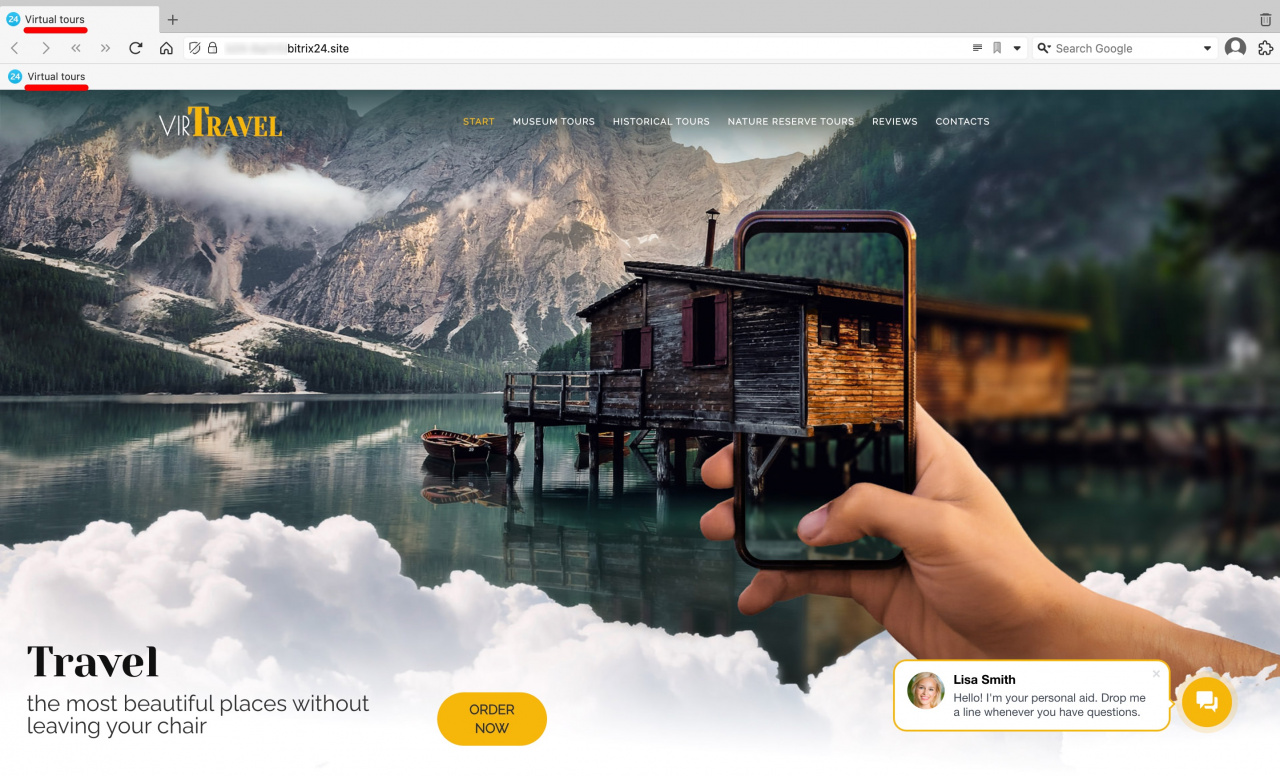
Page titles appear in the browser tab. Search engines like Google and Bing use page titles to index content and display search results. A clear title helps visitors understand what the page is about. It also helps users recognize pages they save to bookmarks or favorites.

Create a webpage title

Use a short, clear title that describes the page content.

Set a webpage title

To set a webpage title:

  1. Go to Sites and Stores > Sites.
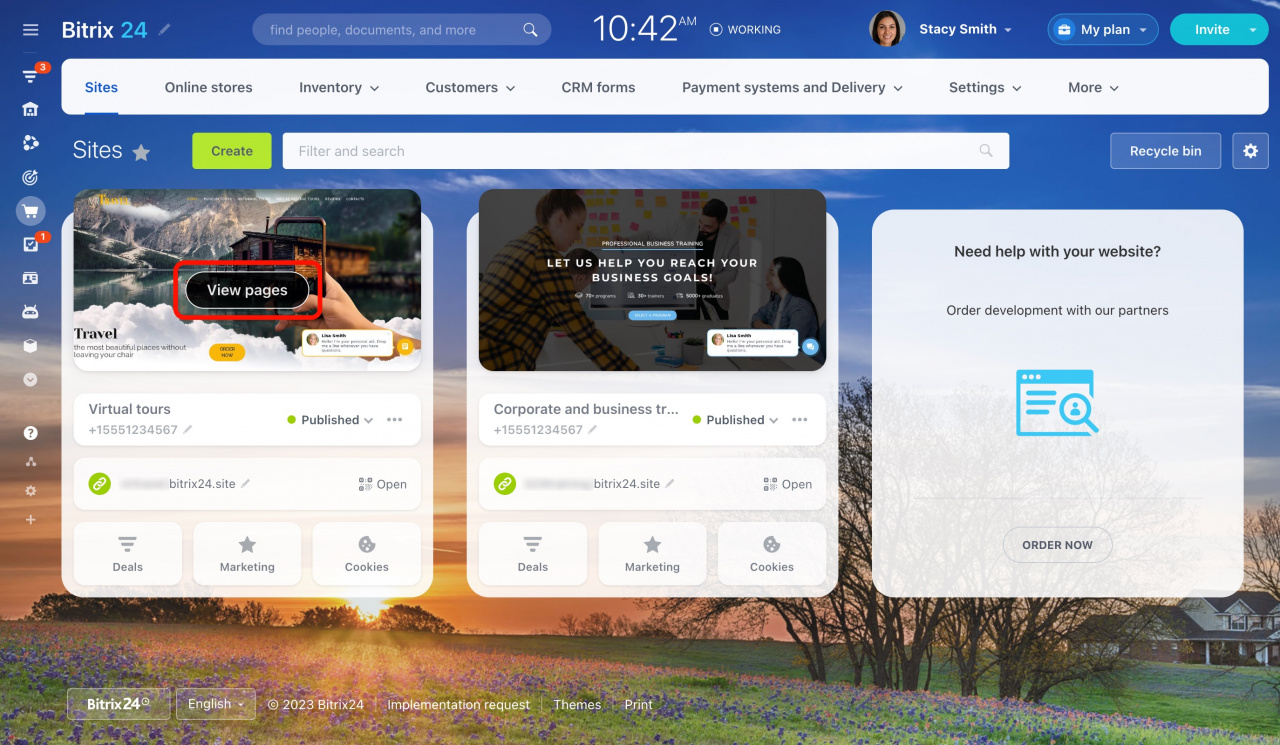
  2. Hover over the site preview image and click View pages.
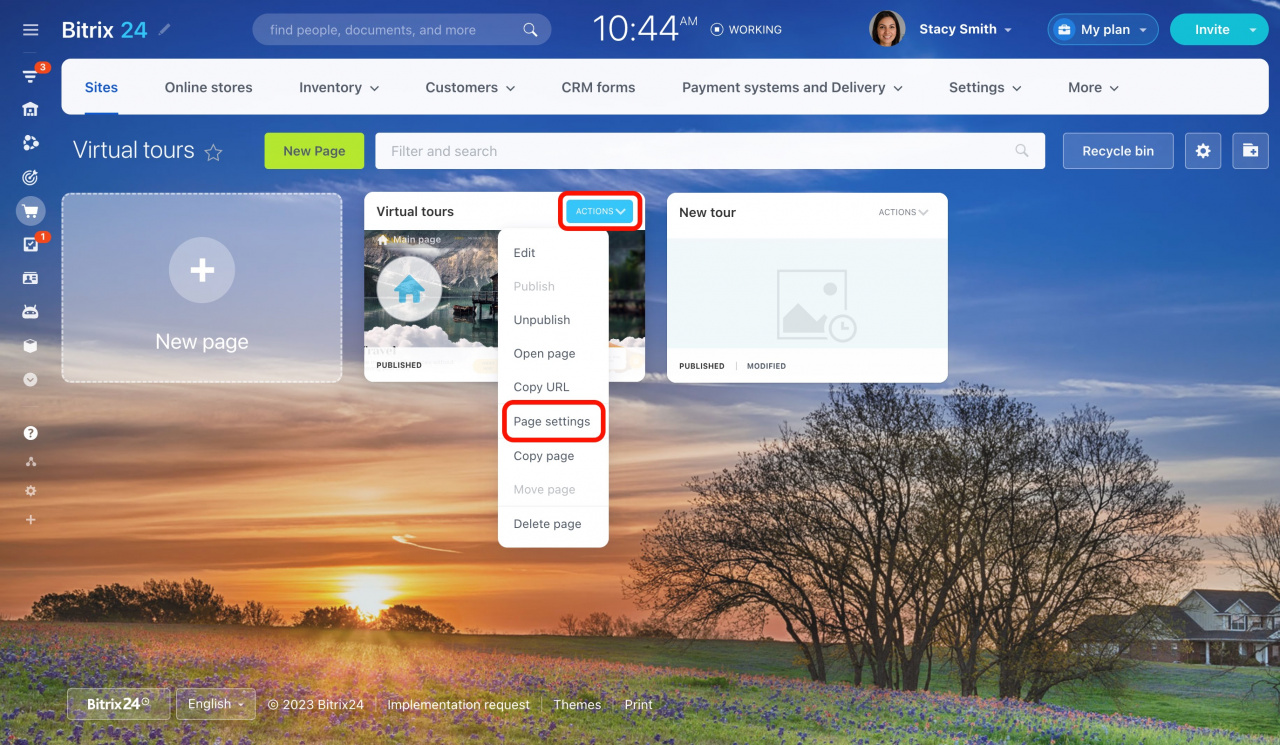
  3. Select a page and click Actions > Page settings.
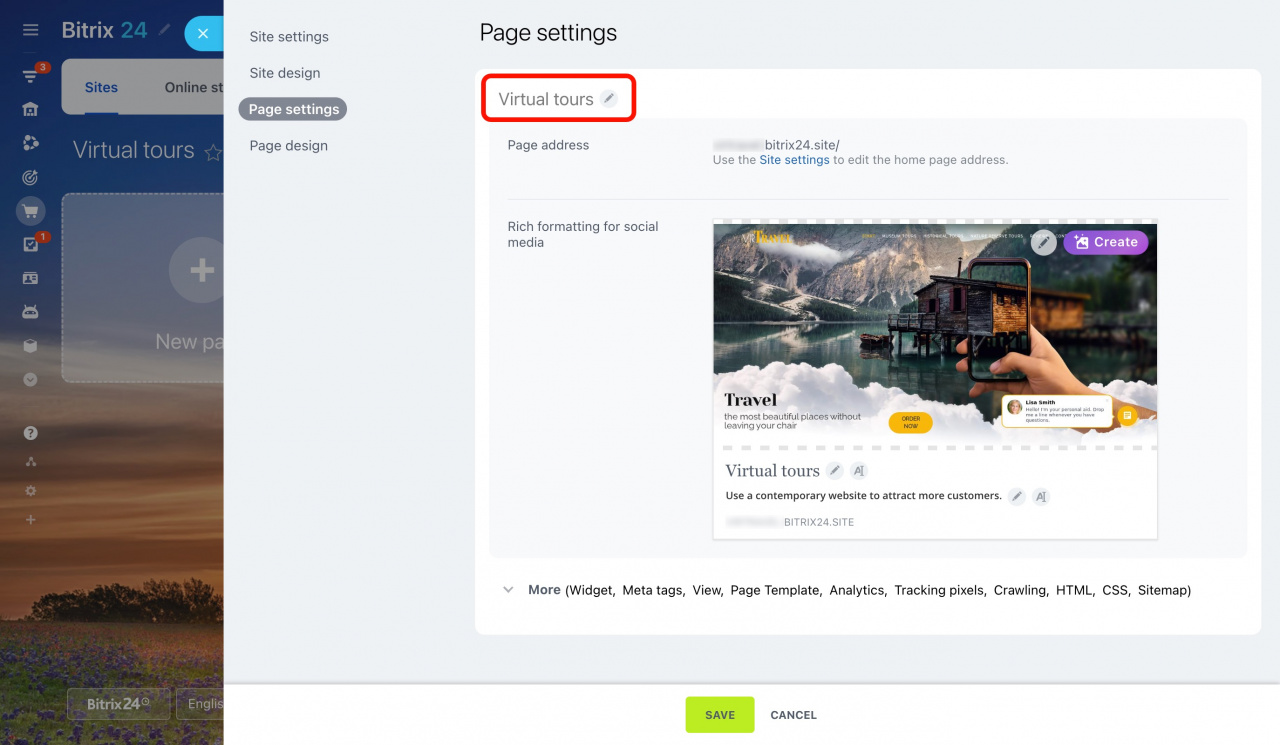
  4. Click the pencil icon.
  5. Enter a new title and save the changes.
Use a unique title for each page. If your online store has several pages with products from the same category, create titles based on product features or other differences between the pages.

Was this information helpful?
Thank you for your feedback.
Get Implementation Help from a Partner
That's not what I'm looking for
Complicated and incomprehensible text
The information is outdated
It's too short. I need more information
I don't like the way this tool works
Get your Bitrix24 set up by local professionals
FIND BITRIX24 PARTNER NEAR ME
implementation_helper_man
Go to Bitrix24
Don't have an account? Create for free
Related articles
Save blocks as templates and create folder structure Add a newsfeed block to your site Auto publish, site preview, and navigation Create a multi-page website Graphics editor in Bitrix24 Sites Header tags CoPilot in sites: how to create an image Create and configure a multilingual site Superblock on Bitrix24 Sites Optimize your site or store for mobile devices
Zalo
0943.199.449