


Important
The Deals + Orders mode is no longer available for new Bitrix24 accounts.
If your account already uses Deals + Orders, it will continue to work as usual.
If you switch to Deals, you cannot switch back to Deals + Orders.
The instructions below apply only to accounts that still use Deals + Orders mode.
For more details, see the article Work in Store without orders.
Work with orders in CRM
Orders are a key part of any online store. In Bitrix24 CRM, you can create, process, and complete orders in one place.
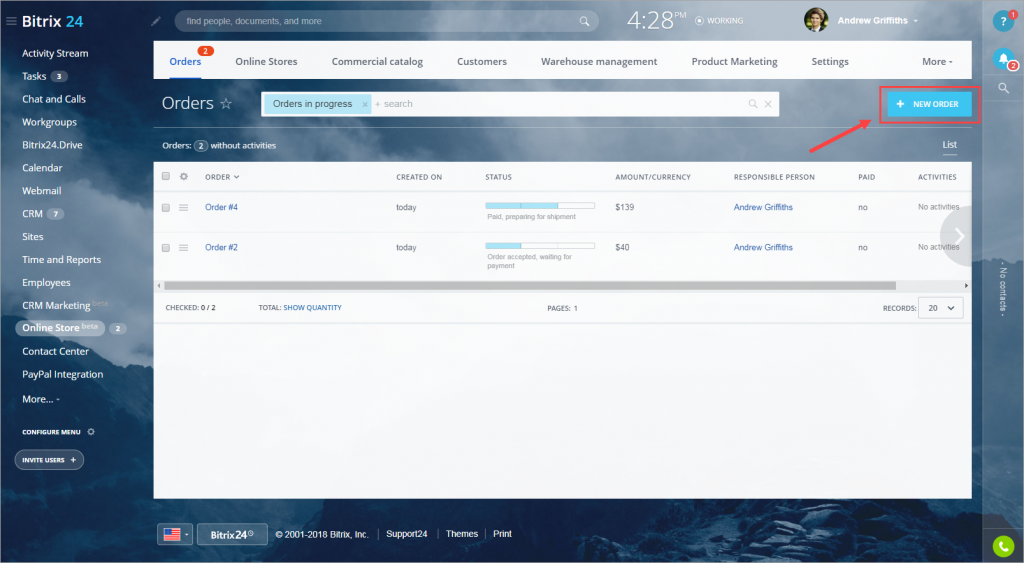
To view all orders, go to CRM > Orders. The list shows current orders and basic details for each one.
To create a new order, click New order.
Configure order details
First, select the order source and payer type.
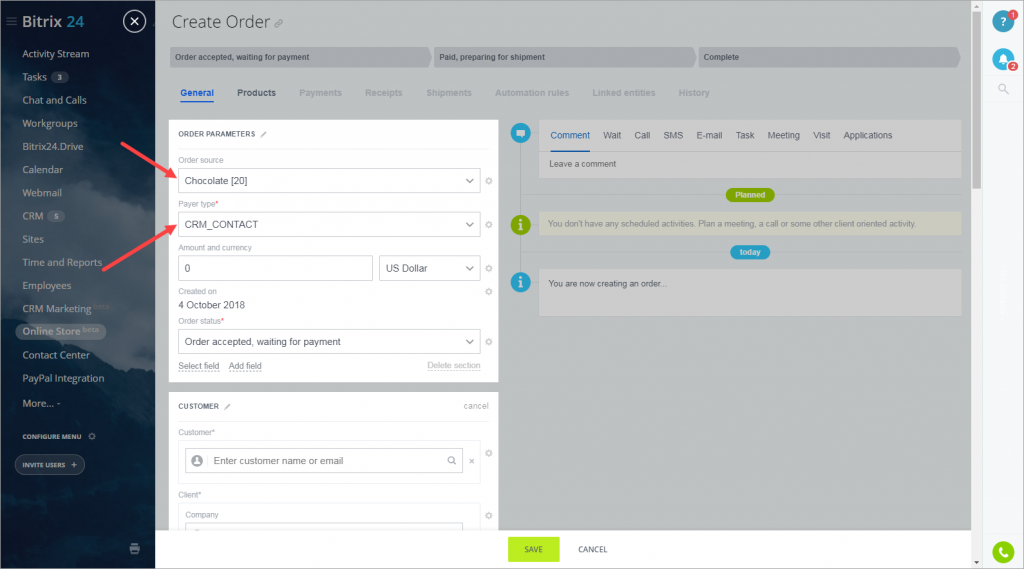
Based on your selection, Bitrix24 automatically creates a new contact or company if needed.
Add products
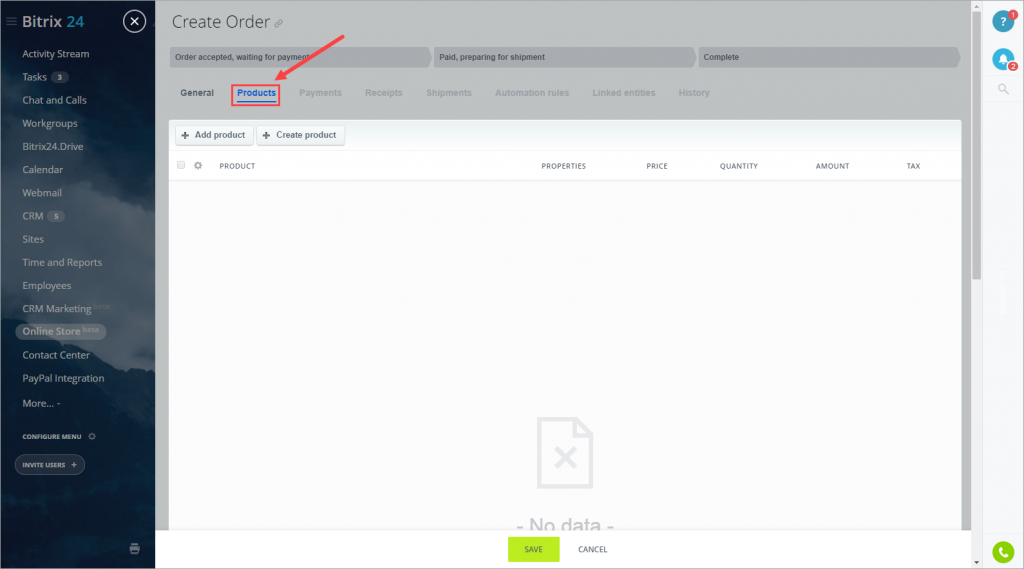
Open the Products tab to add items to the order.
You can:
- Create a new product
- Select an existing product from the catalog
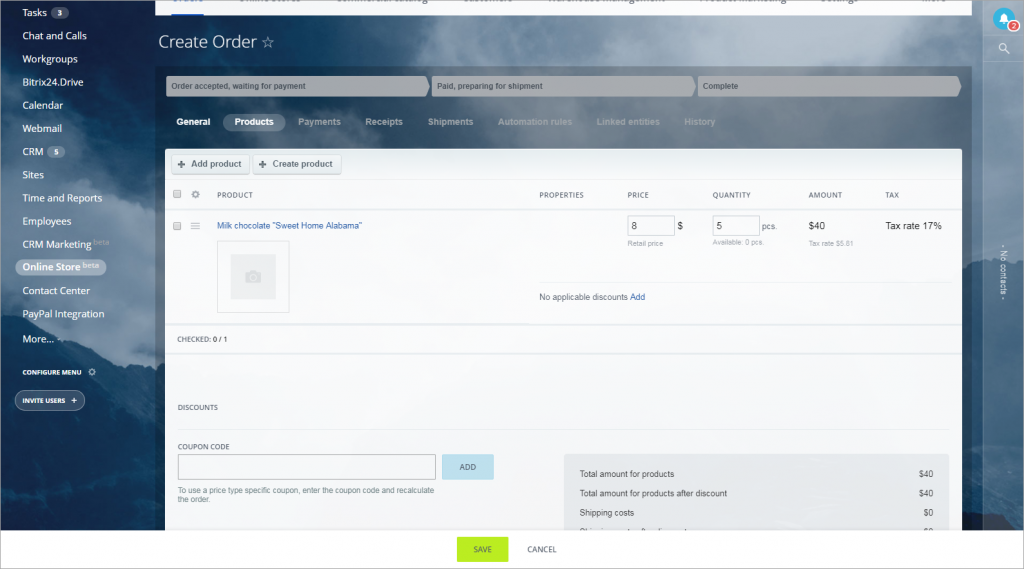
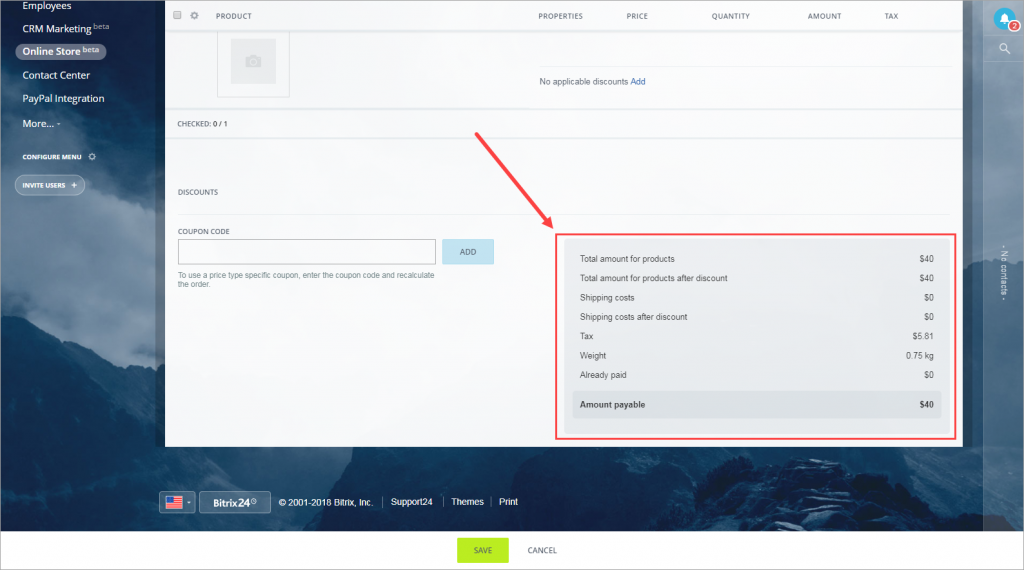
After adding products, Bitrix24 automatically calculates the order total, including:
- Product cost
- Taxes
- Shipping fees
- Weight
- Other charges
If you add or remove products, the total updates automatically.
Specify customer information
Open General > Order properties to add customer details.
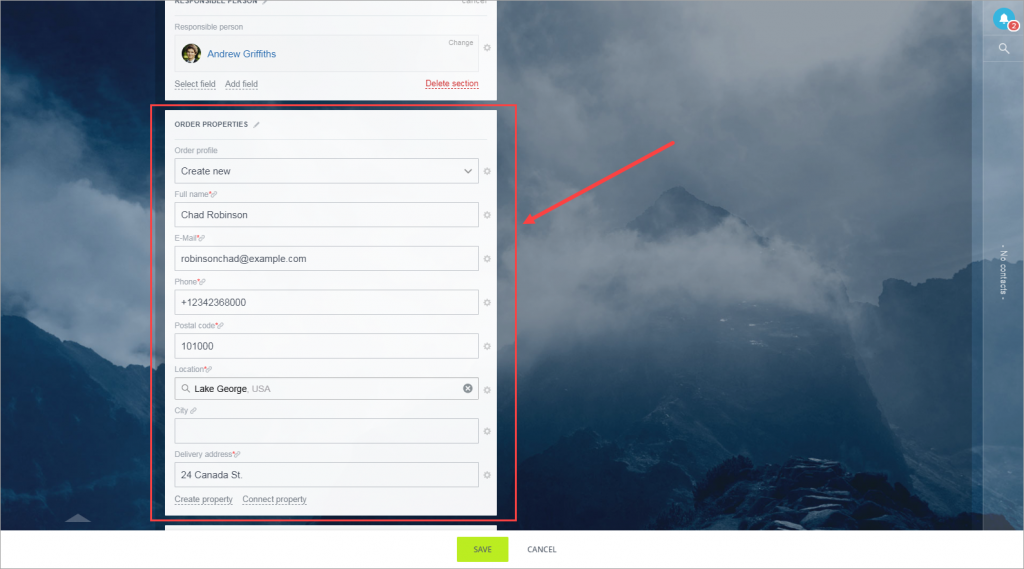
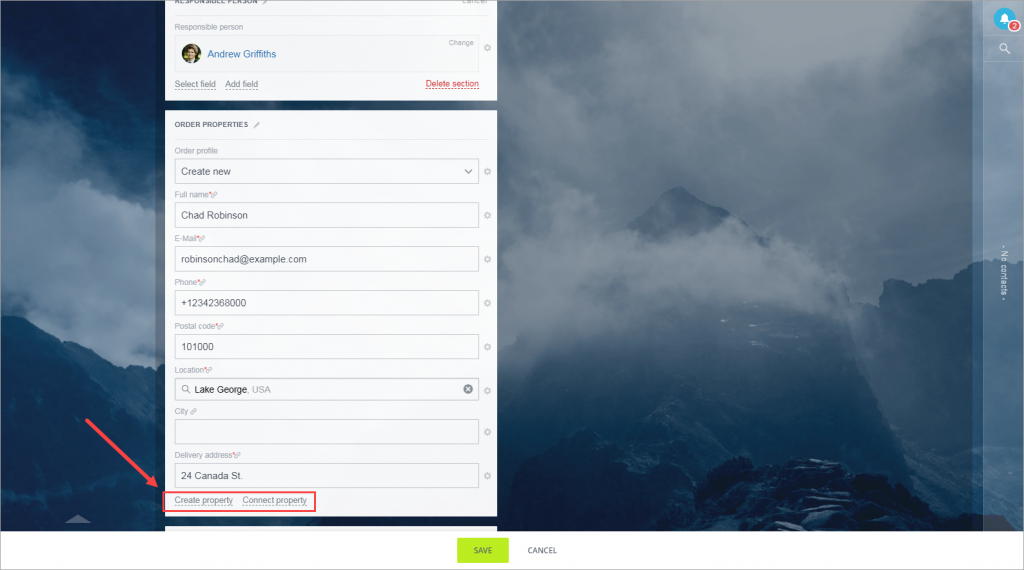
You can:
- Create new properties
- Link existing properties to the order
By default, Bitrix24 creates a new contact or company automatically when needed.
Set up payment
Choose a payment method for the order.
By default, the following options are available:
-
Internal account Cash
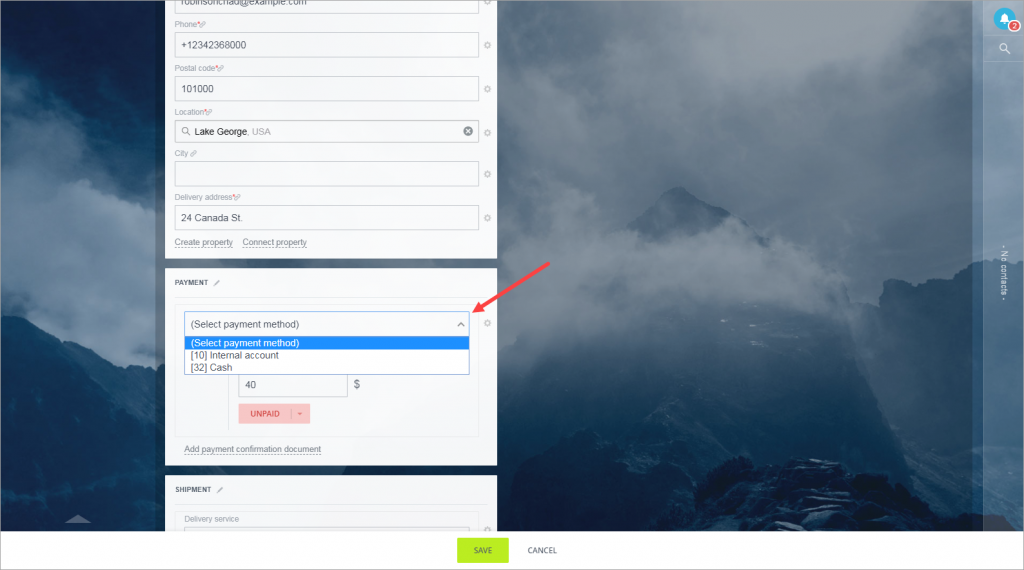
If the customer has already paid, change the payment status to Paid.
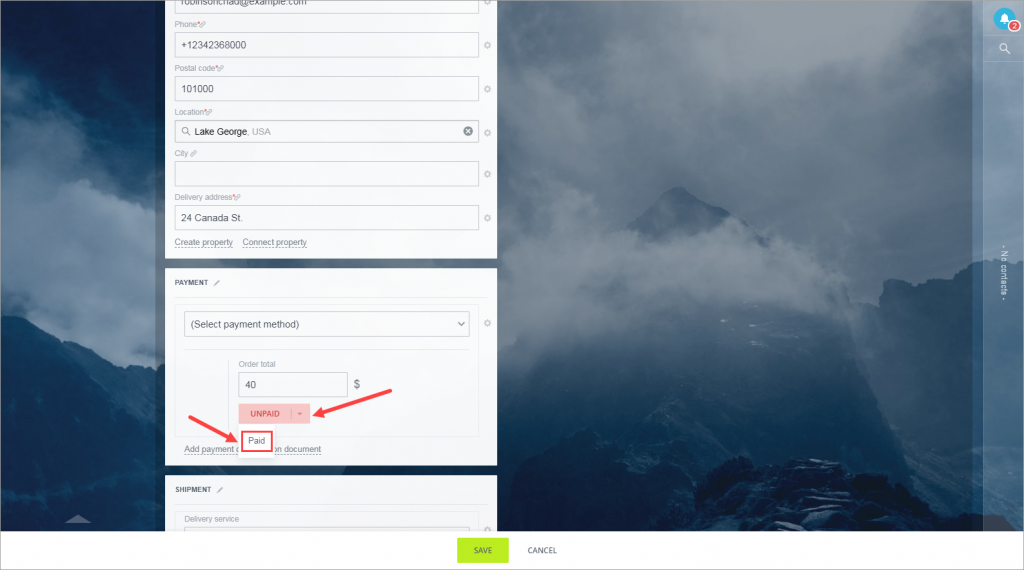
Configure shipment
Select a shipping method in the Shipment section.
By default, two options are available:
- Delivery service
- Local pickup
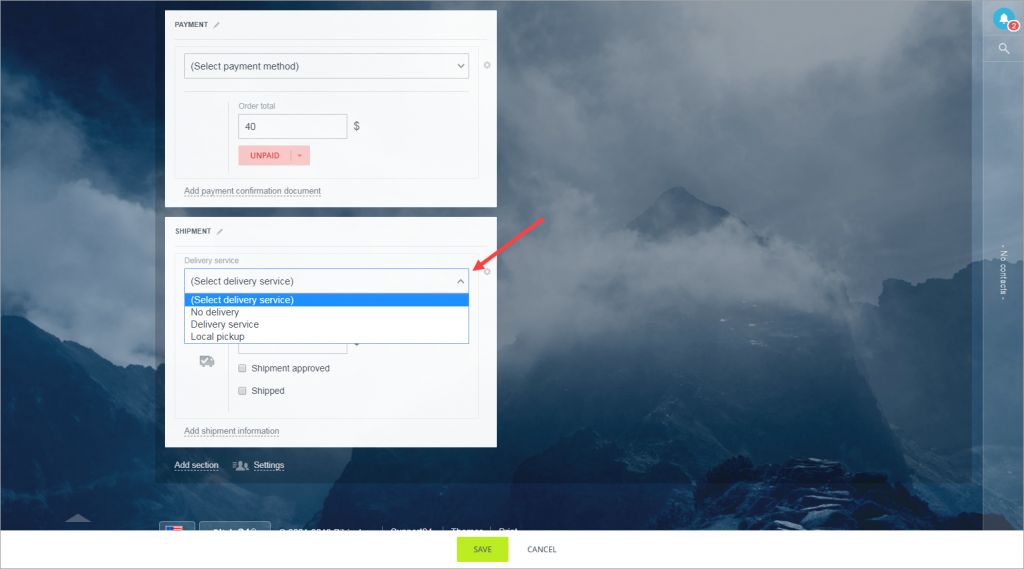
Shipping cost is calculated automatically based on the selected method.
Save the order
Click Save to finish. The order will appear in your online store order list.



