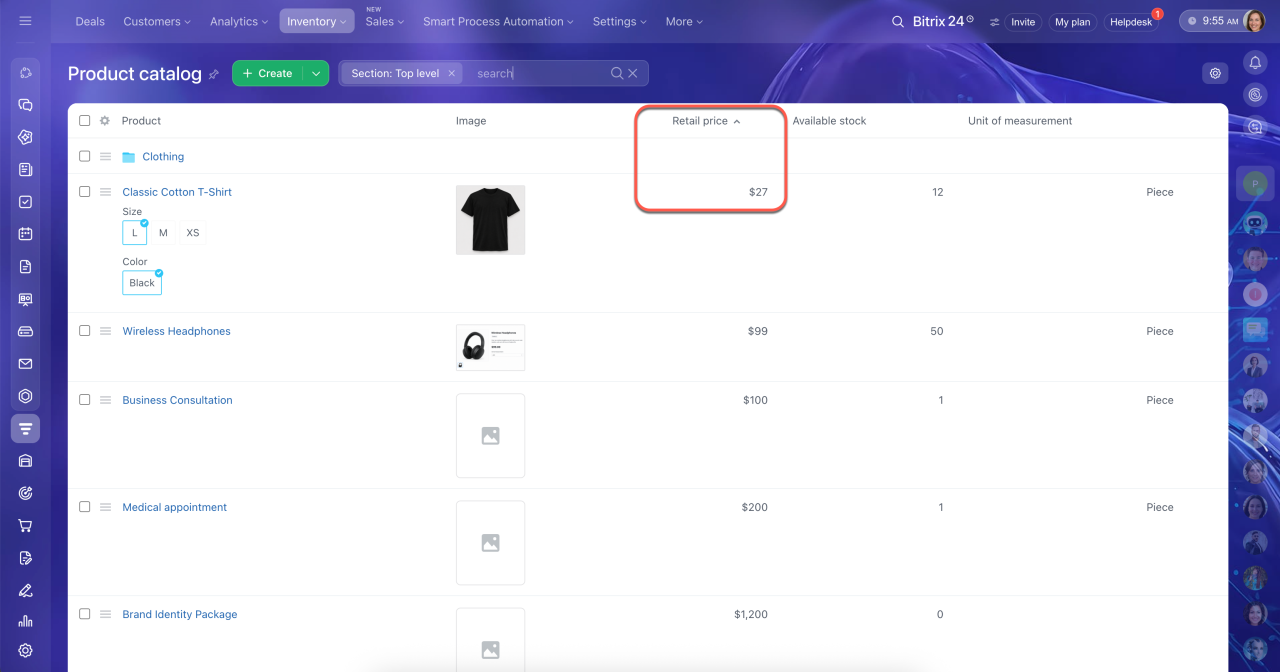


The product catalog in Bitrix24 stores details about the products you sell, including names, prices, stock levels, and characteristics. You can use the catalog to find products, add them to deals and invoices, track stock, and manage prices.
You can set up the catalog to match your business needs. How you set it up depends on the products you sell and whether you need to track inventory. In retail, speed and stock control may be the priority, while wholesale businesses may need to manage larger quantities and discounts.
To set up the catalog, complete three steps:
1. Add products. You can work with two types of products in the catalog:
- Regular product — a single item with no variants. For example, a book or a specific phone model.
- Product with variants — one product with different characteristics, such as color, size, or model. For example, a T-shirt sold in several colors and sizes.
Add regular products and products with variants to the catalog
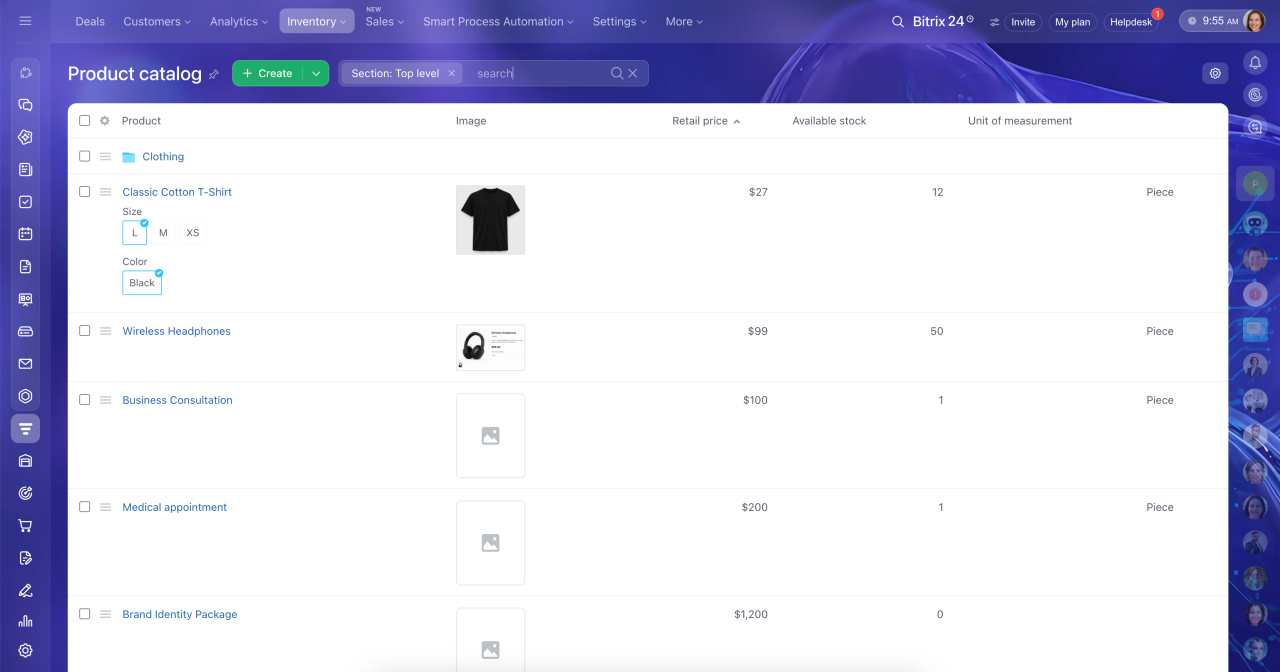
2. Set up stock control. Stock control helps you avoid accepting orders for products that are out of stock. Bitrix24 offers three stock control options:
- Quantity tracking — works well for a small online store where all products are stored in one location.
- Inventory management — suitable for retail chains with multiple warehouses and regular stock transfers.
- No stock tracking — suitable for companies that provide services or make products to order, such as custom furniture makers.
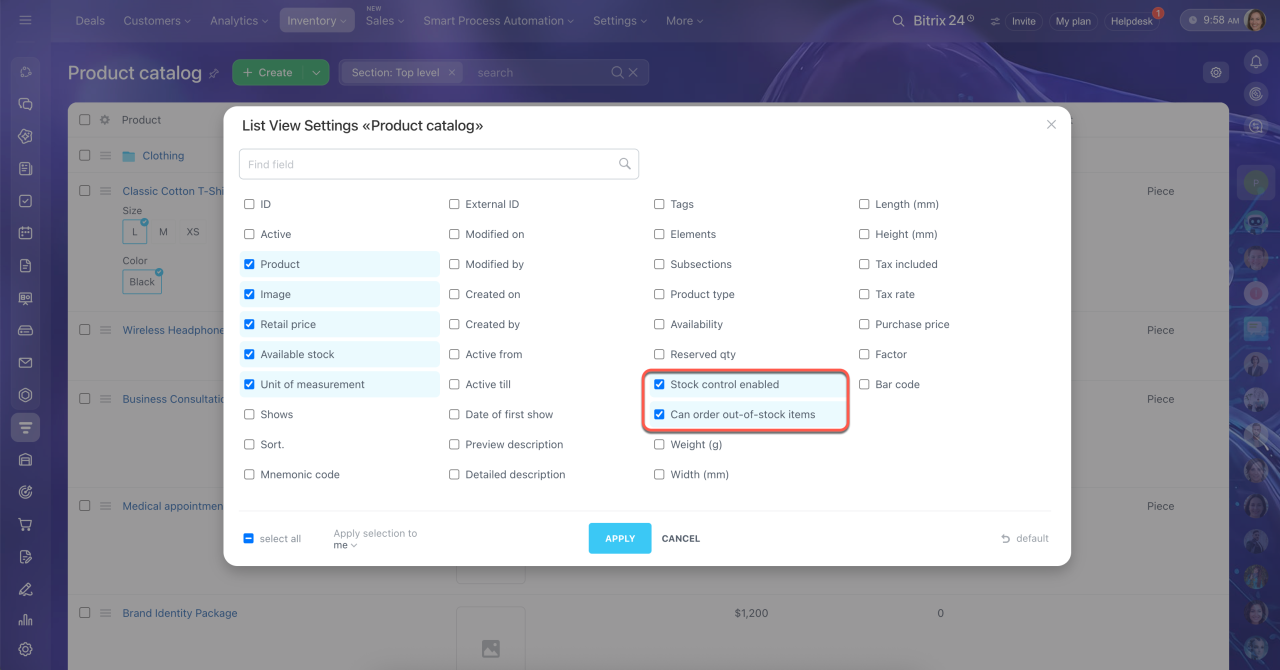
3. Set prices and manage discounts. Product prices directly affect your profit. If prices are too high, customers may choose competitors. If they're too low, you may not cover your costs. Set prices that cover your costs and leave room for discounts without losing money.
Set product prices and manage discounts