🚚 Miễn phí giao hàng toàn quốc

✅ Tặng Gói Hỗ trợ online trọn đời

✅ Giá cạnh tranh nhất thị trường

✅ Miễn phí tư vấn giải pháp

🚚 Miễn phí giao hàng toàn quốc

✅ Tặng Gói Hỗ trợ online trọn đời

✅ Giá cạnh tranh nhất thị trường

✅ Miễn phí tư vấn giải pháp

Hotline: 0943.199.449

Địa chỉ: Tầng 1, tòa nhà Deli, 75 Hoàng Văn Thụ, P. Cầu Kiệu

Bitrix24 Helpdesk

Delete automation rules in tasks and projects

If you no longer need an automation rule, you can delete it.


Delete automation rules in tasks

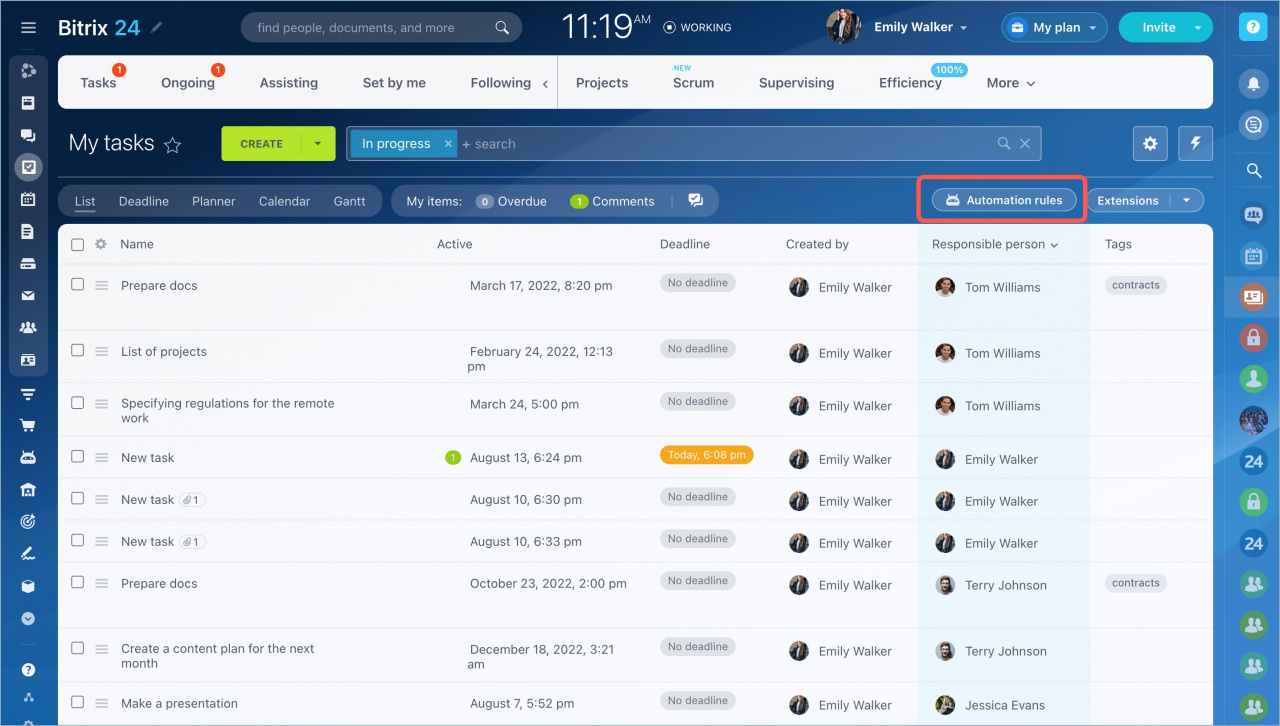
  1. Go to Tasks and Projects > Tasks.
  2. Click Automation rules.
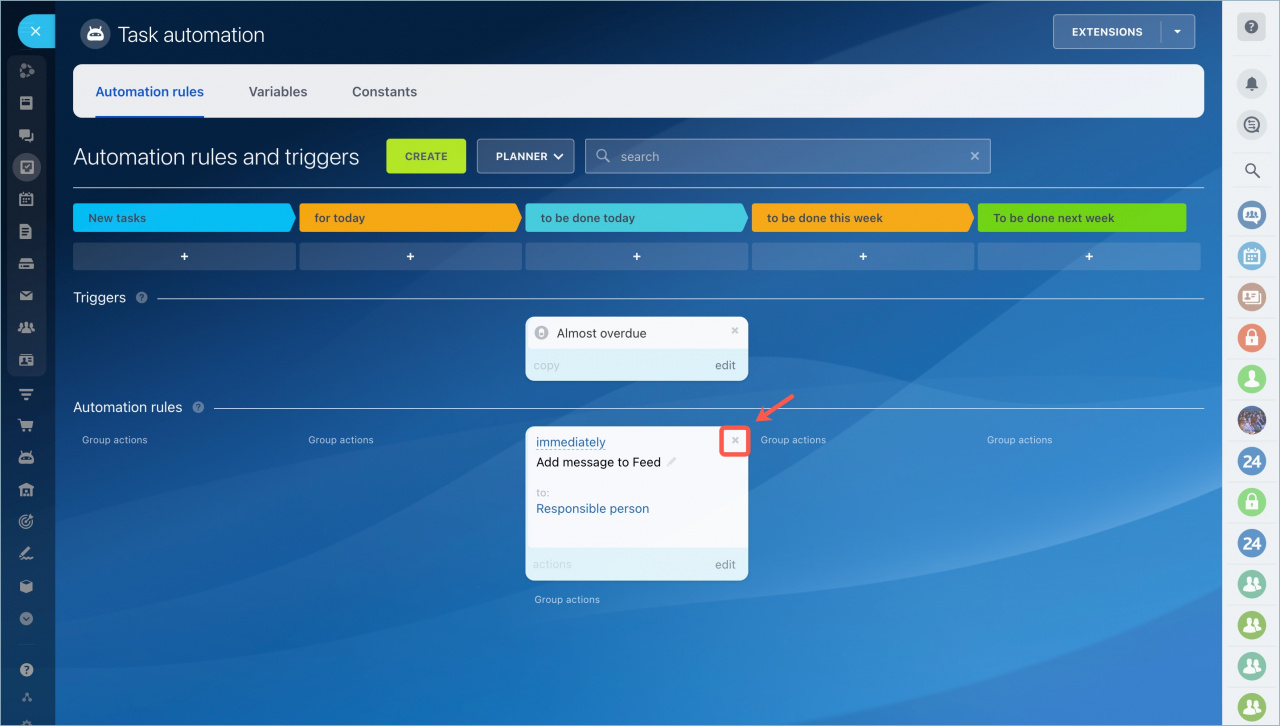
  3. Select the automation rule you want to delete.
  4. Click the X icon.
  5. Save your changes.

Automation rules are available for Projects, Planner mode, and Task Statuses.

Delete automation rules in projects

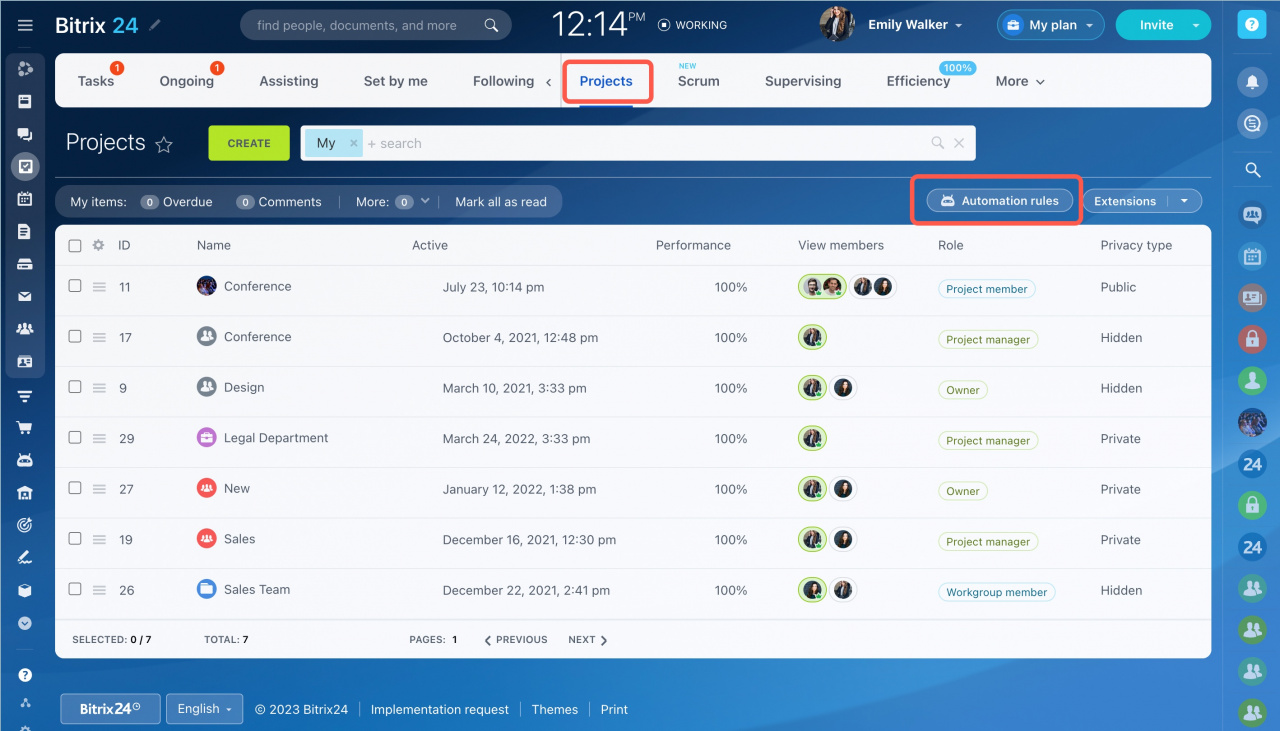
You can delete automation rules in projects the same way as in tasks.

  1. Go to the Projects tab.
  2. Open the required project.
  3. Click the X icon next to the automation rule.
  4. Save your changes.

Only the account administrator or the project owner can delete automation rules in a project.

Was this information helpful?
Thank you for your feedback.
Get Implementation Help from a Partner
That's not what I'm looking for
Complicated and incomprehensible text
The information is outdated
It's too short. I need more information
I don't like the way this tool works
Get your Bitrix24 set up by local professionals
FIND BITRIX24 PARTNER NEAR ME
implementation_helper_man
Go to Bitrix24
Don't have an account? Create for free
Related articles
AI Audio and Video Tasks Task templates
Zalo
0943.199.449