

Use locations to correctly calculate the tax rate and shipping on invoices and orders.
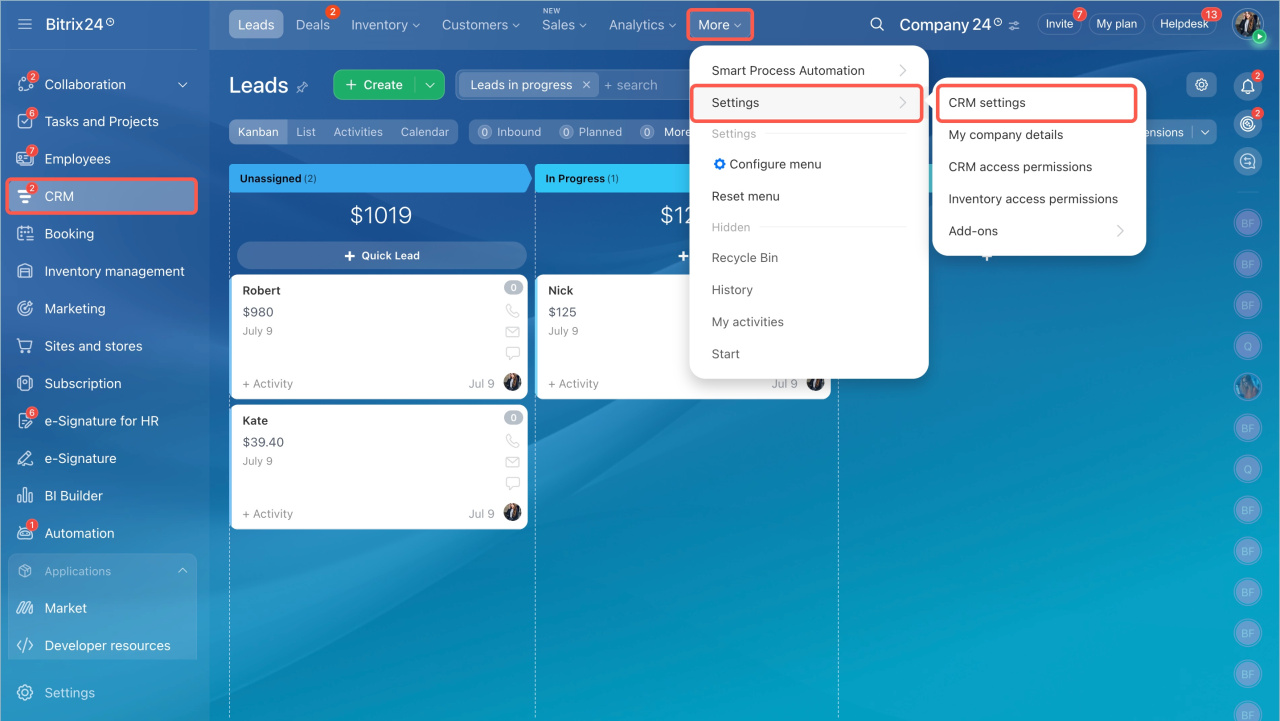
- You can find this option in the CRM section > Settings > CRM Settings.
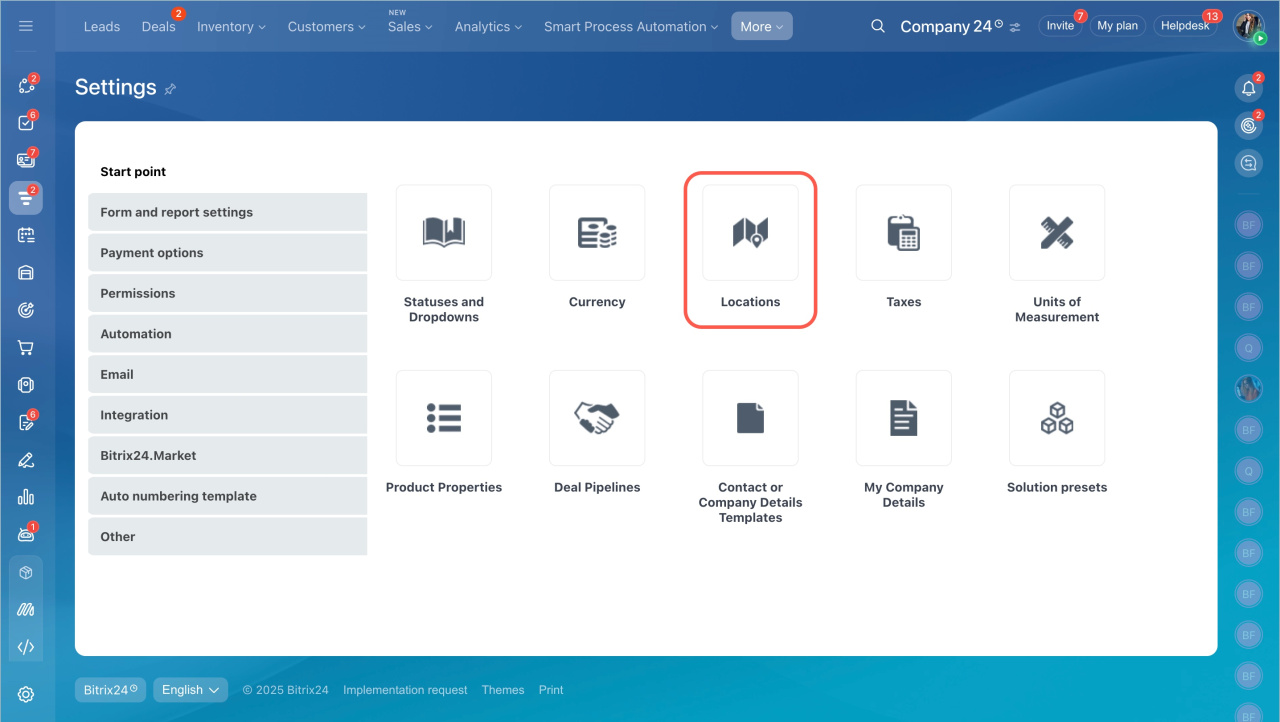
- Click on the Locations block on the Start point tab.
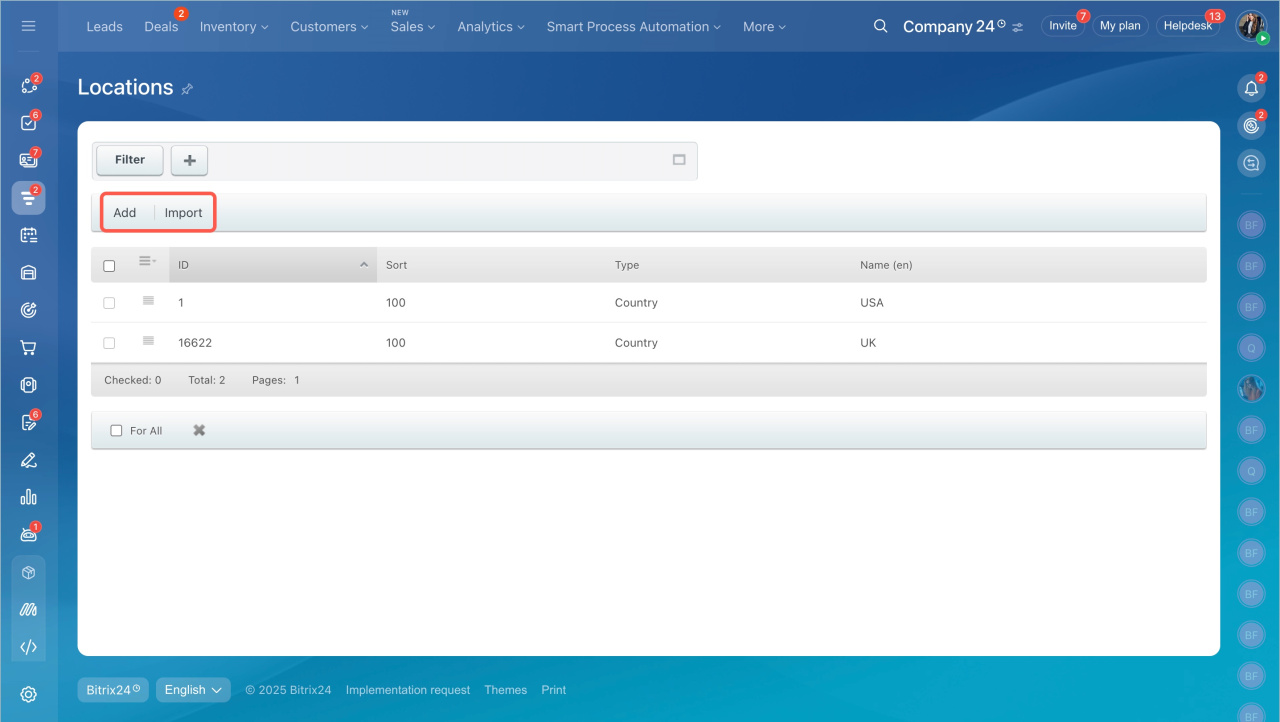
- Add locations manually or use Import.
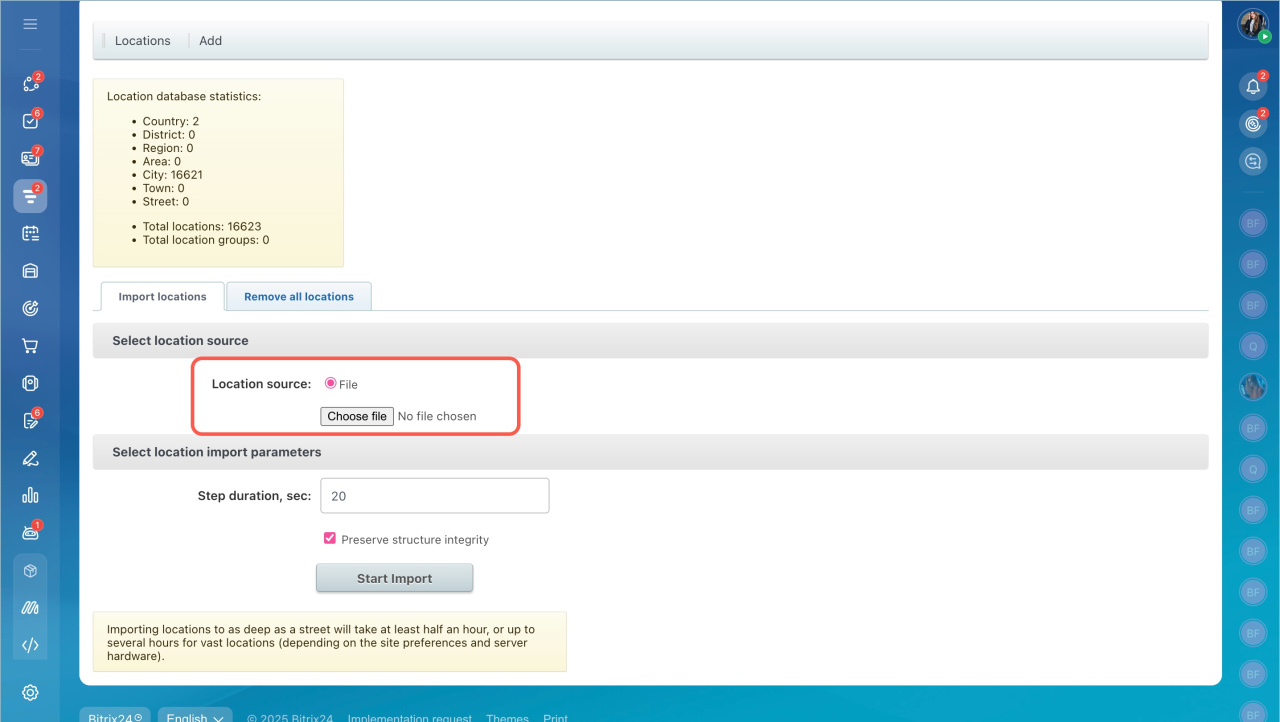
Import locations
Select a location source and start import.
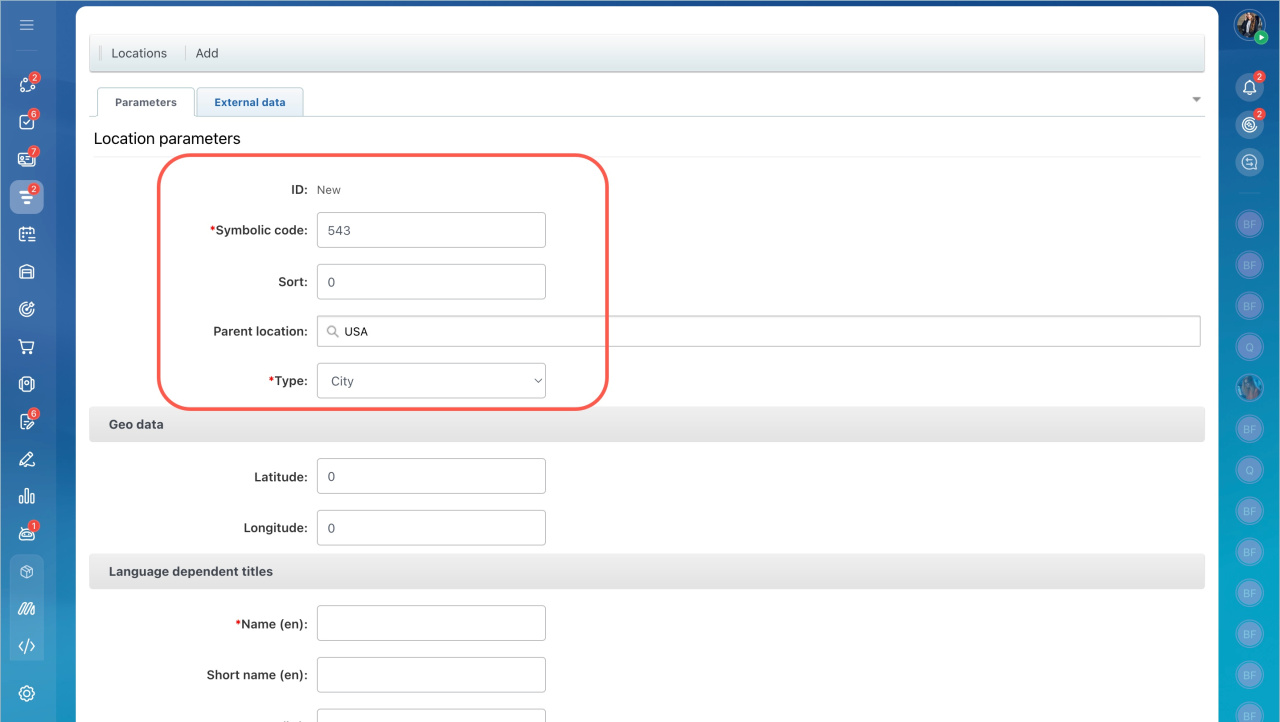
Add locations
- Click the Add button.
- Fill in the Symbolic Code field. It must be different from the symbolic code of other locations.
- If you are adding a new city, select the country you imported beforehand in the Parent location field.
- If you are adding a town, you can select a region.
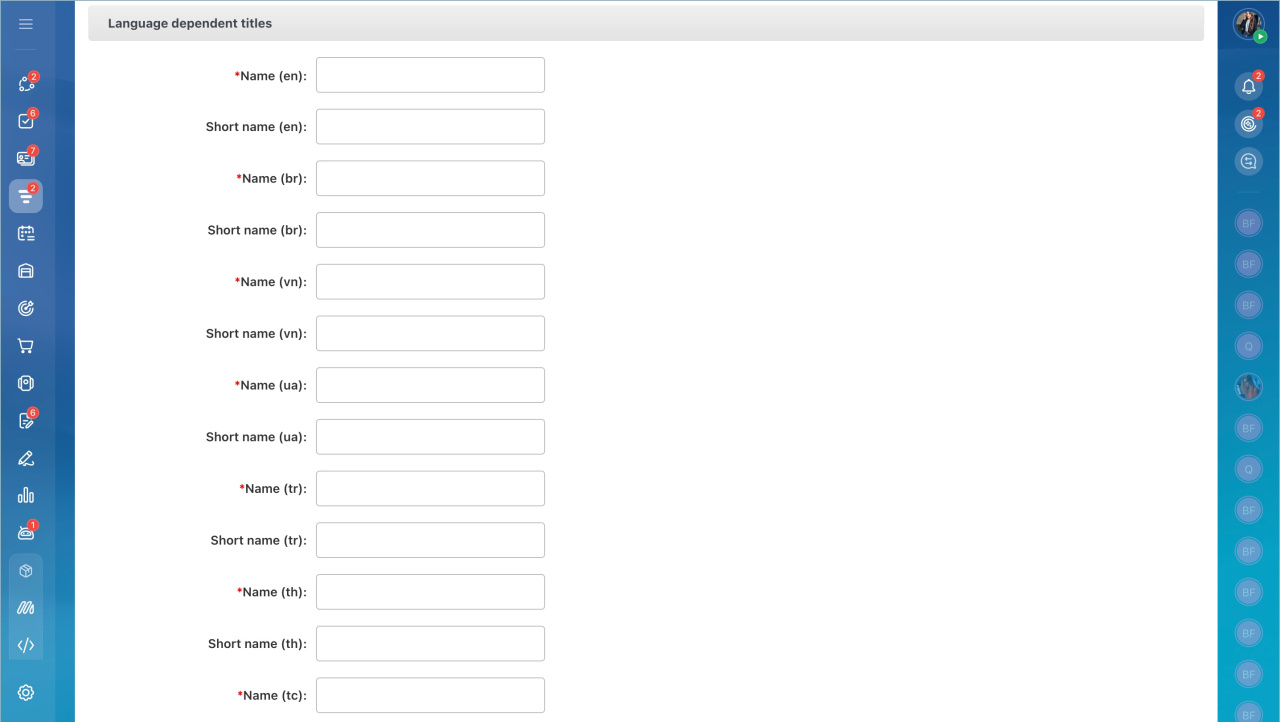
- Enter the name of the location in all languages.
- Save your location.
Now you can use this location to create a tax or to generate a delivery. For example, when you work with an invoice, select the location and the system will automatically calculate the tax.
In brief
- Go to the CRM section > Settings > CRM Settings.
- Click on the Locations block on the Start point tab.
- Add locations manually or use Import.