


In Bitrix24, you can use OpenStreetMap and Google Maps to manage deliveries and specify client addresses in CRM.
How it works
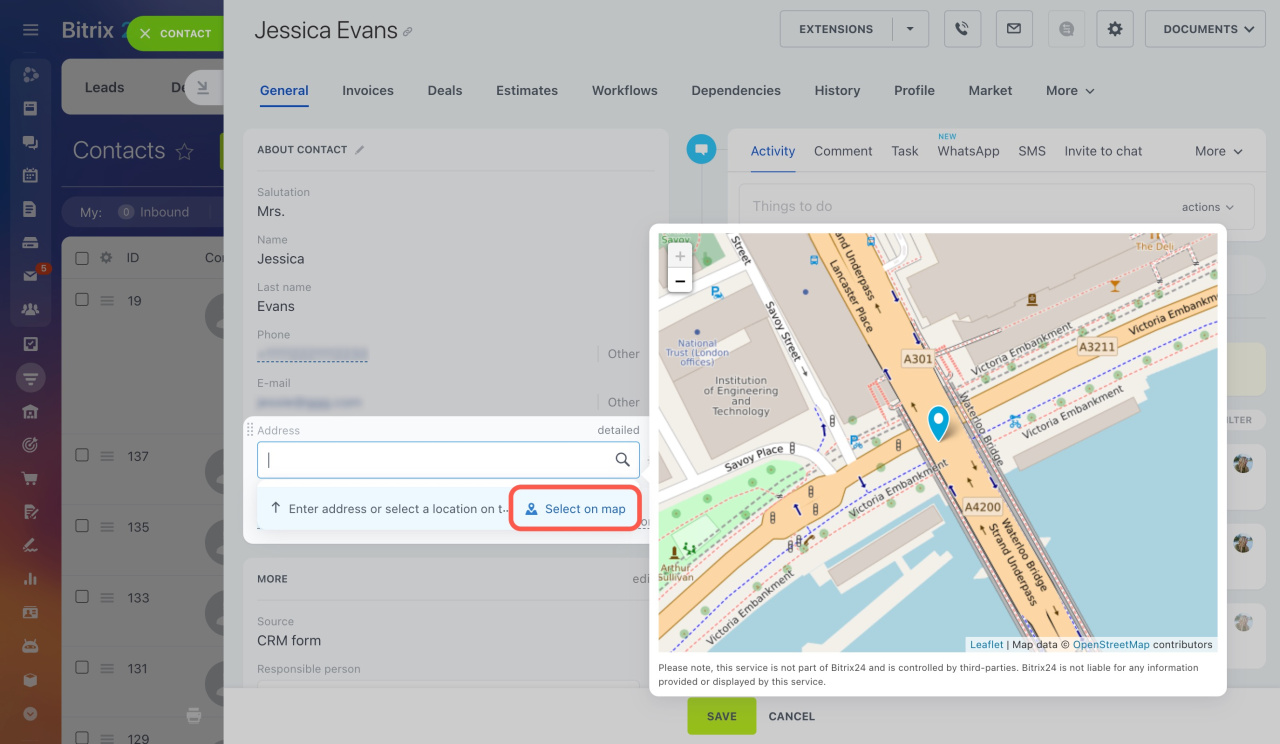
Open a CRM entity form and find the Address field. When you start typing an address, you'll see suggestions and a map showing the location.
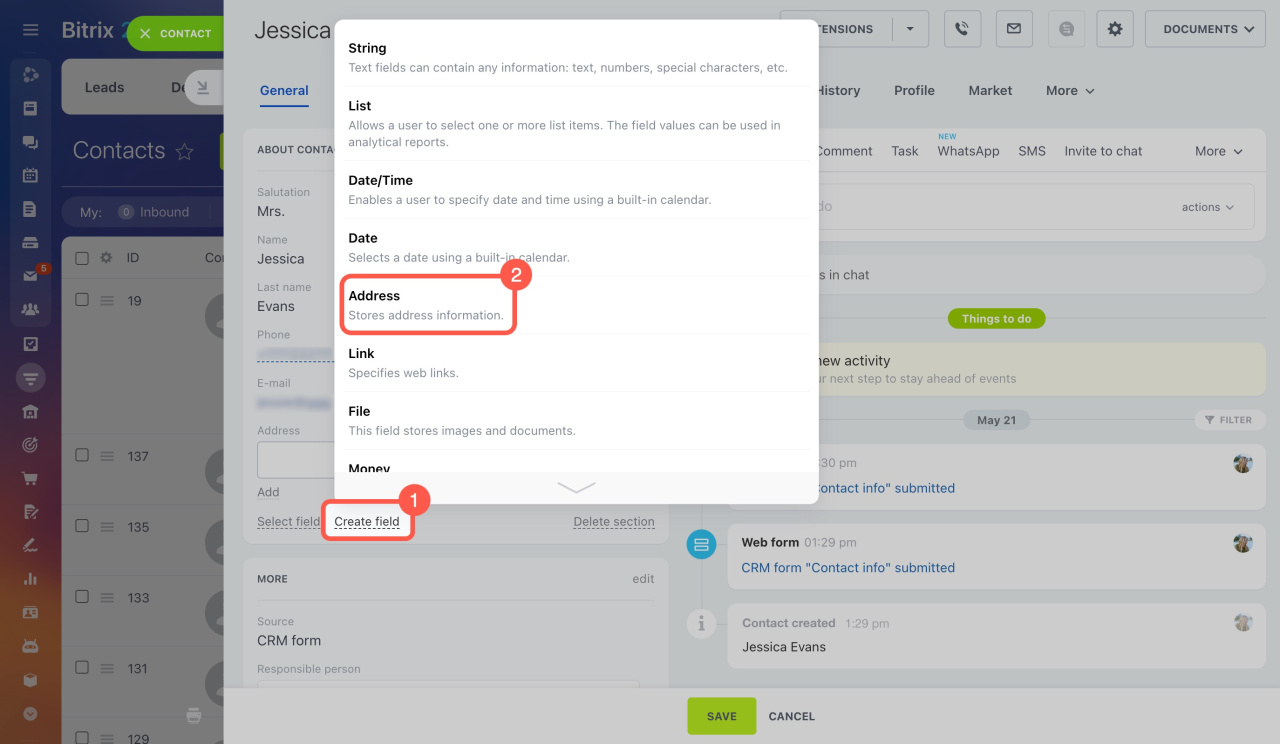
You can also create a custom Address field and use maps in it.
How to change the map provider
By default, Bitrix24 uses OpenStreetMap, but you can connect Google Maps instead.
To switch to Google Maps,
-
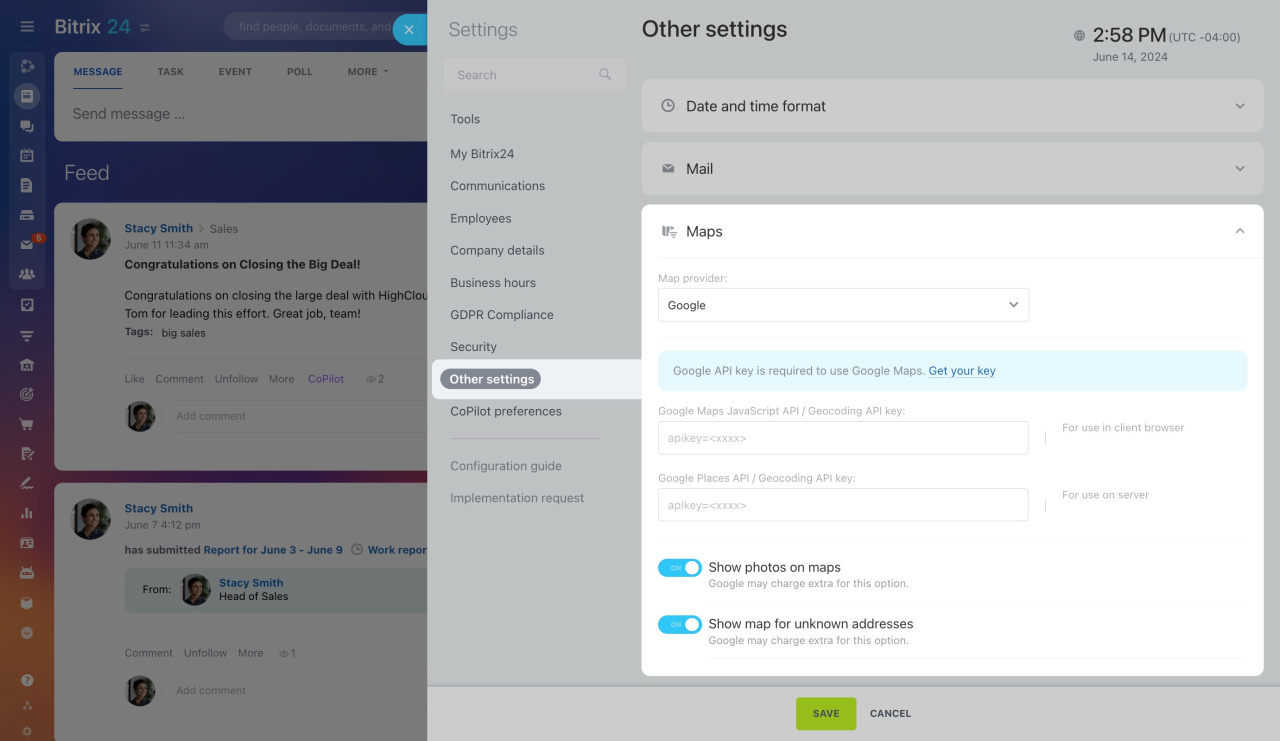
Go to Bitrix24 Settings and select Other settings.
-
Expand the Maps section and select Google as the provider.
-
Specify your Google API key. If you do not have one, get it from the Google service.
Get your key
After these steps, you can use Google Maps in CRM.


