


Categories in the Meeting room availability tool help you organize locations for calendar events. For example, if your company has offices in different cities, you can group meeting rooms by location and select the right category when creating an event.
Add a category
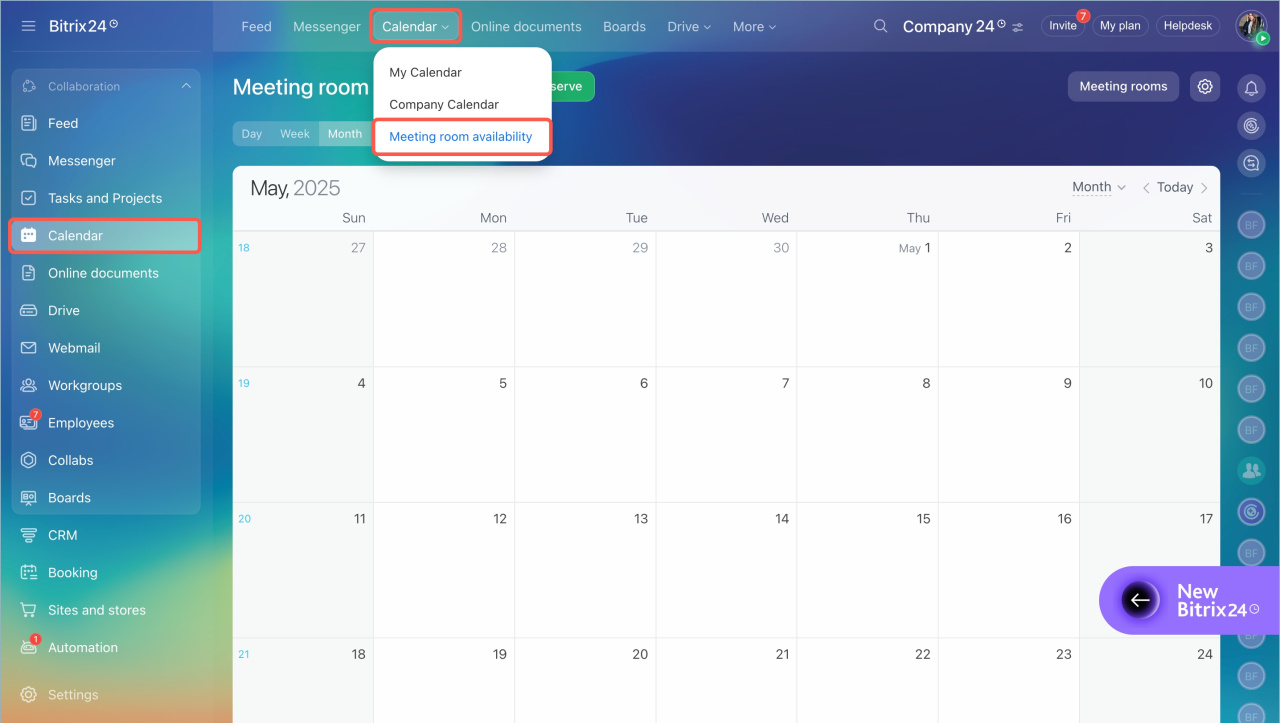
- Go to Calendar and expand the Calendar tab.
- Open the dropdown menu and select Meeting room availability.
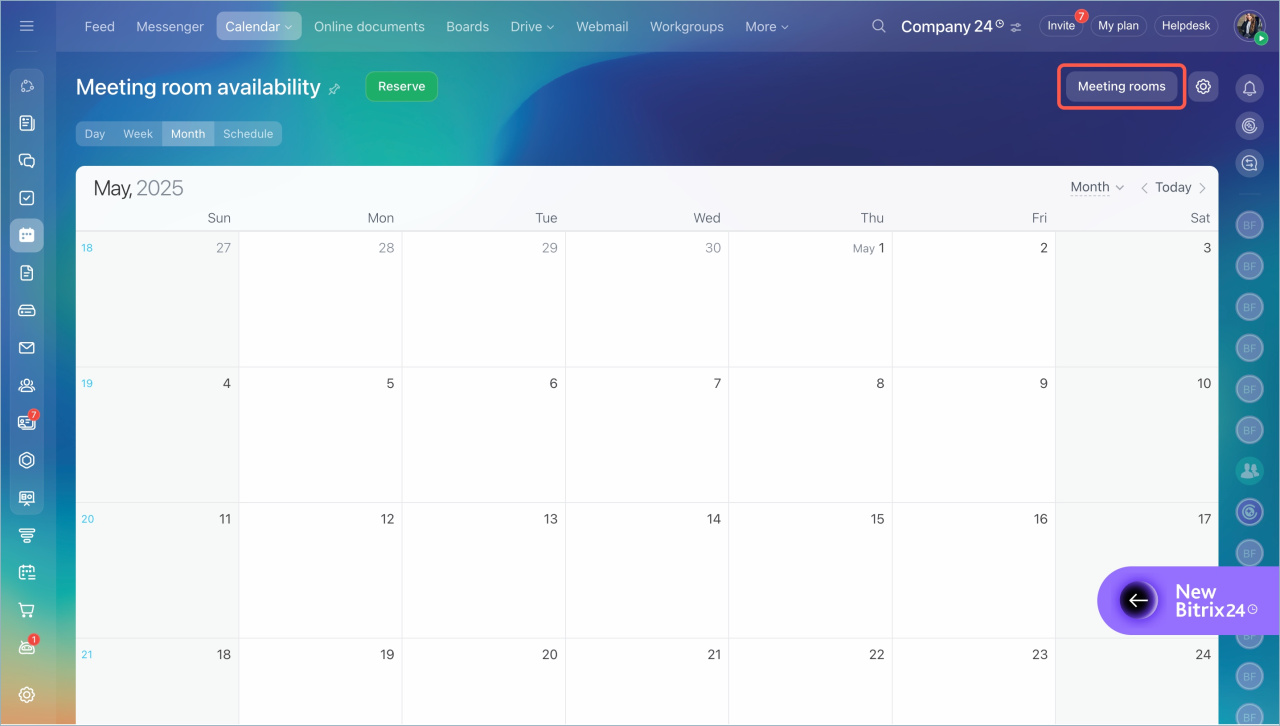
- Click Meeting rooms.
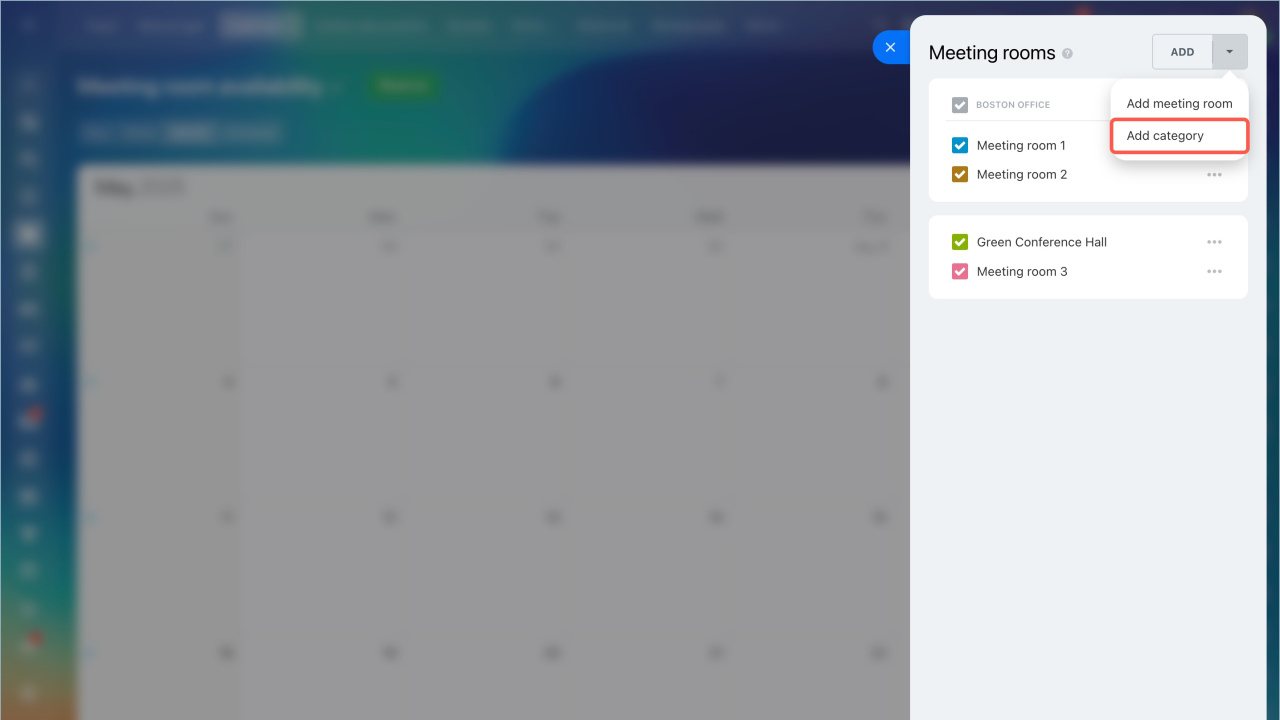
- Click Add and choose Add category.
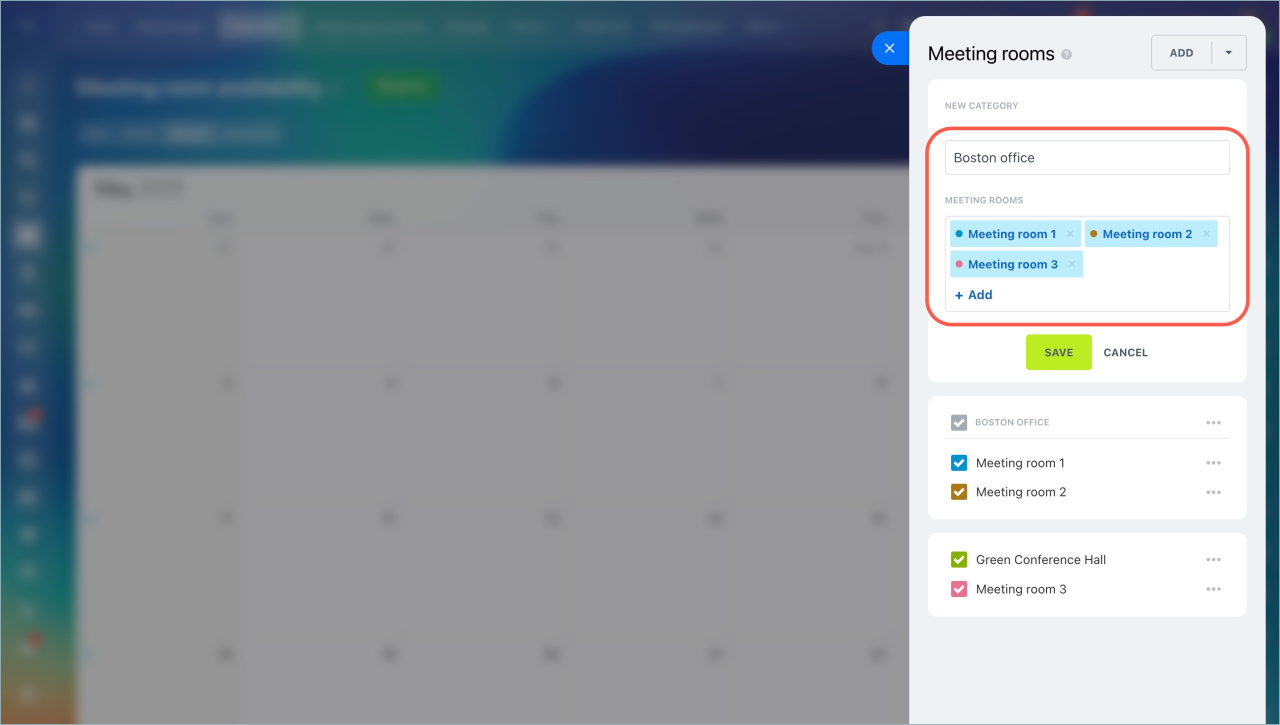
- Enter a category name.
- Select the meeting rooms you want to include.
- Save the changes.
Each meeting room can belong to only one category. If you add a room that already belongs to another category, it moves to the new one.
Edit or delete a category
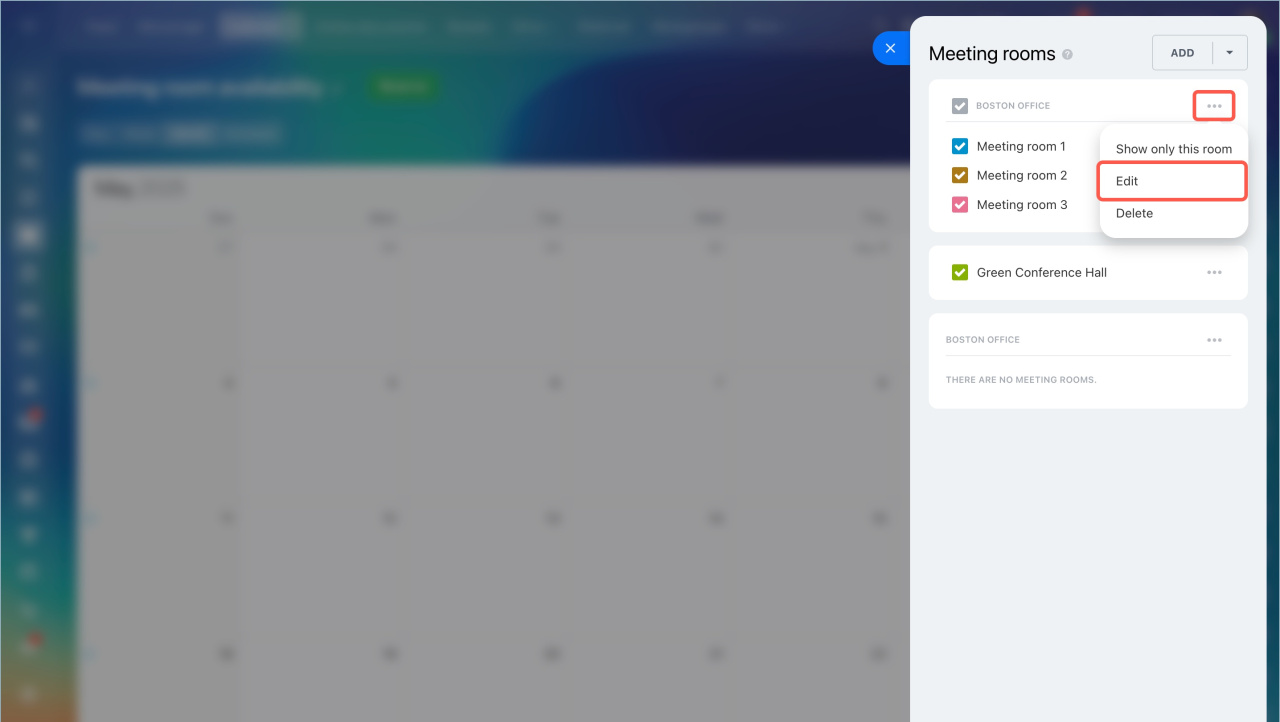
- To edit a category, click the ⋯ (More) menu and select Edit.
- To delete a category, remove it from the list. All meeting rooms in that category move to the general list.
In brief
- Use categories to group meeting rooms and make scheduling easier.
- Go to Calendar > Meeting room availability > Meeting rooms, then click Add and select Add category.



