


Bitrix24 Messenger brings together personal and group chats, customer chats, channels, CoPilot, and video calls. For example, you can highlight important information in bold or add links. You can format messages in four ways: using BBCode, Markdown, keyboard shortcuts, or the built-in formatting menu.
Keyboard shortcuts also help you perform actions in chats and during calls.
In this article:
Use BBCode in Bitrix24 on the web
BBCode is a markup language. It uses tags in square brackets to format text.
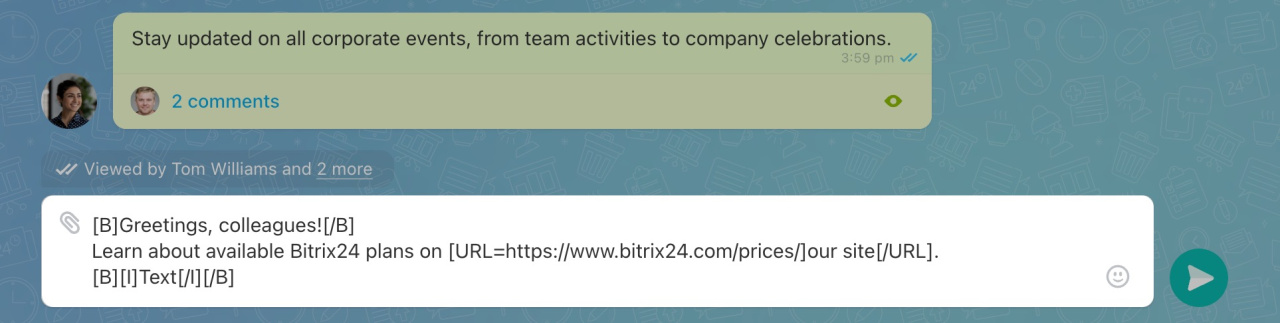
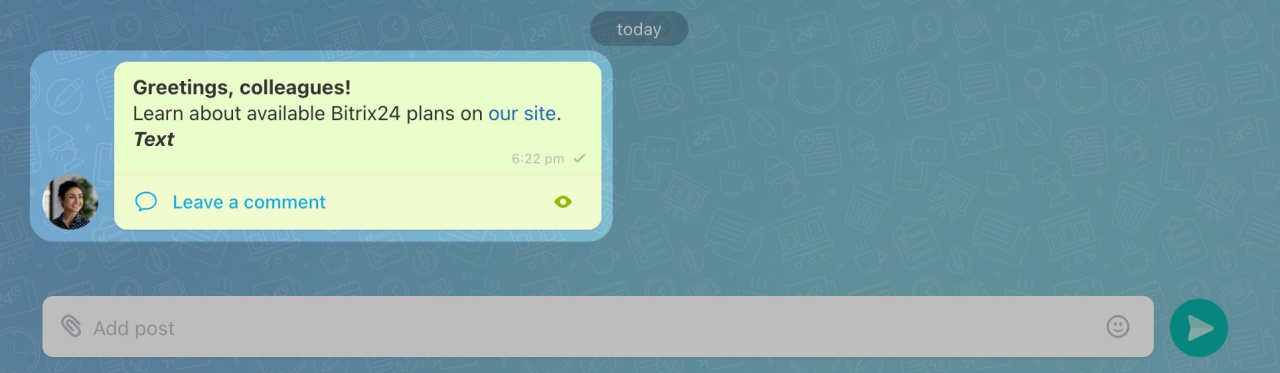
Make text bold. Use [B][/B]. Place your text between the tags.
Example: [B]Greetings, colleagues![/B] → Greetings, colleagues!
Add a link to text. Use [URL=][/URL]. Add the link after = and place the clickable text between the tags.
Example:
[URL=https://www.bitrix24.com/prices/]our site[/URL] → our site (with link)
Combine styles. You can combine tags.
Example: [B][I]Text[/I][/B] → Text
Supported BBCode tags
| Description | Tag | Result |
|---|---|---|
| Bold |
[B]Text[/B]
|
Text |
| Italic |
[I]Text[/I]
|
Text |
| Underline |
[U]Text[/U]
|
Text |
| Strikethrough |
[S]Text[/S]
|
|
| Link | [URL=https://www.bitrix24.com/]text[/URL] | text |
| Quote | >>Text | |Text |
| Combine BBCode tags Combine two or more available tags. | [B][I][U][S]Text[/S][/U][/I][/B] [B][I]Text[/I][/B] | Text |
| Emoji This is not a complete list. You can find more options online. | 😀 😉 |   |
| Mention an employee | [USER=111]John Smith[/USER] | John Smith |
| Icon (.svg, .png, .gif, .jpg) | [ICON=https://em-content.zobj.net/thumbs/120/apple/325/smiling-face-with-smiling-eyes_1f60a.png title=Smile] |  |
| Color | [COLOR=#ff0000]text[/COLOR] | text |
| Text size | [SIZE=16]text[/SIZE] | text |
You can try other BBCode variations found online. Some may work in Bitrix24 chats.
Use Markdown in Bitrix24 chats
Markdown lets you format text using simple symbols. You can use it to create headings, lists, tables, and code blocks. Many services, including AI assistants, use Markdown to format their responses.
You can use Markdown to:
- Share posts in company channels. Add headings, lists, and tables to announcements, news, and instructions.
- Share AI agent responses with coworkers. Copy formatted text from another service and paste it into a Bitrix24 chat without reformatting it.
- Send instructions with code. Display commands and code snippets in separate blocks.
Copy Markdown text from another service and paste it into the message field. You can also format the text manually. When you send the message, Bitrix24 displays the formatted text without Markdown symbols. This includes headings, lists, tables, quotes, links, and code blocks.
When you edit a message, the text appears with its Markdown symbols. You can change both the content and formatting. For example, you can turn a level-one heading into a level-two heading. Once you save your changes, Bitrix24 displays the formatted message again.


In the mobile app, Markdown messages also appear formatted. You can change the formatting when you edit a message.


Format messages
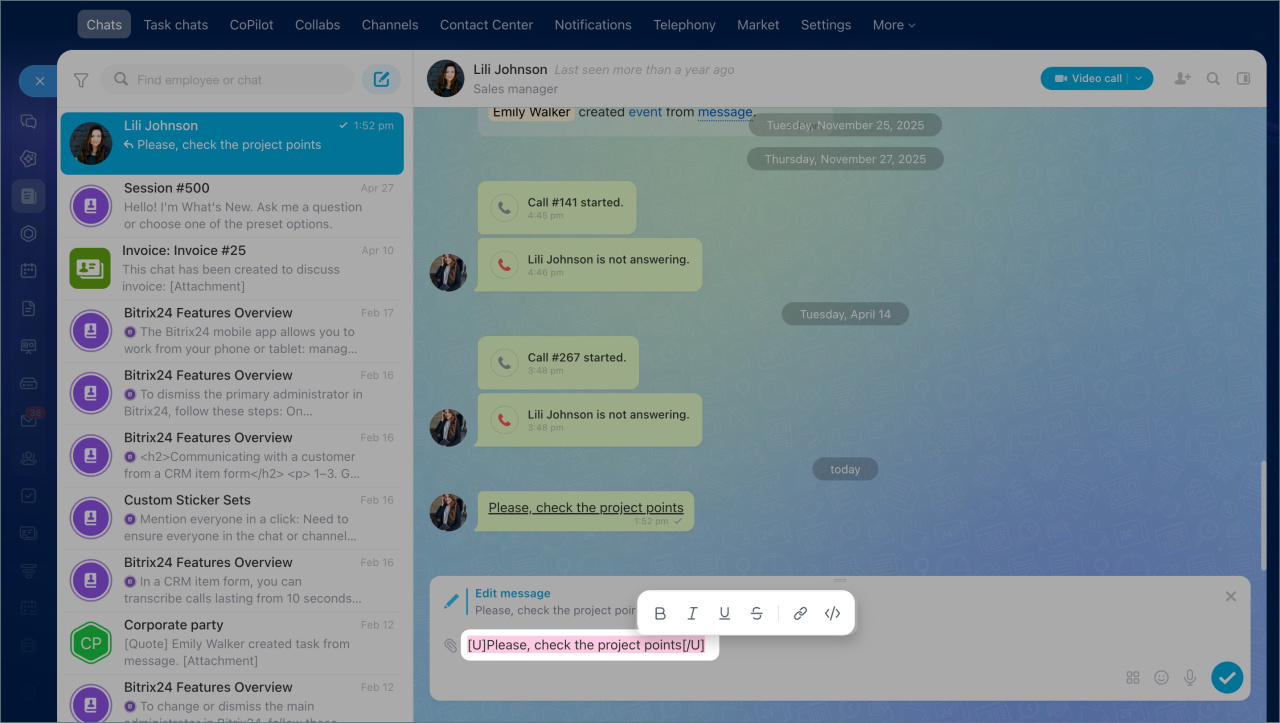
Use the built-in formatting menu in the message field to make text bold or italic, add links, and more.
- Enter your text in the message field. Select the text you want to format and click it.
- In the menu that appears, choose one of these options:
- Bold
- Italic
- Underline
- Strikethrough — adds a line through the text
- Link — turns the text into a clickable link
- Code — formats the text as a code snippet.
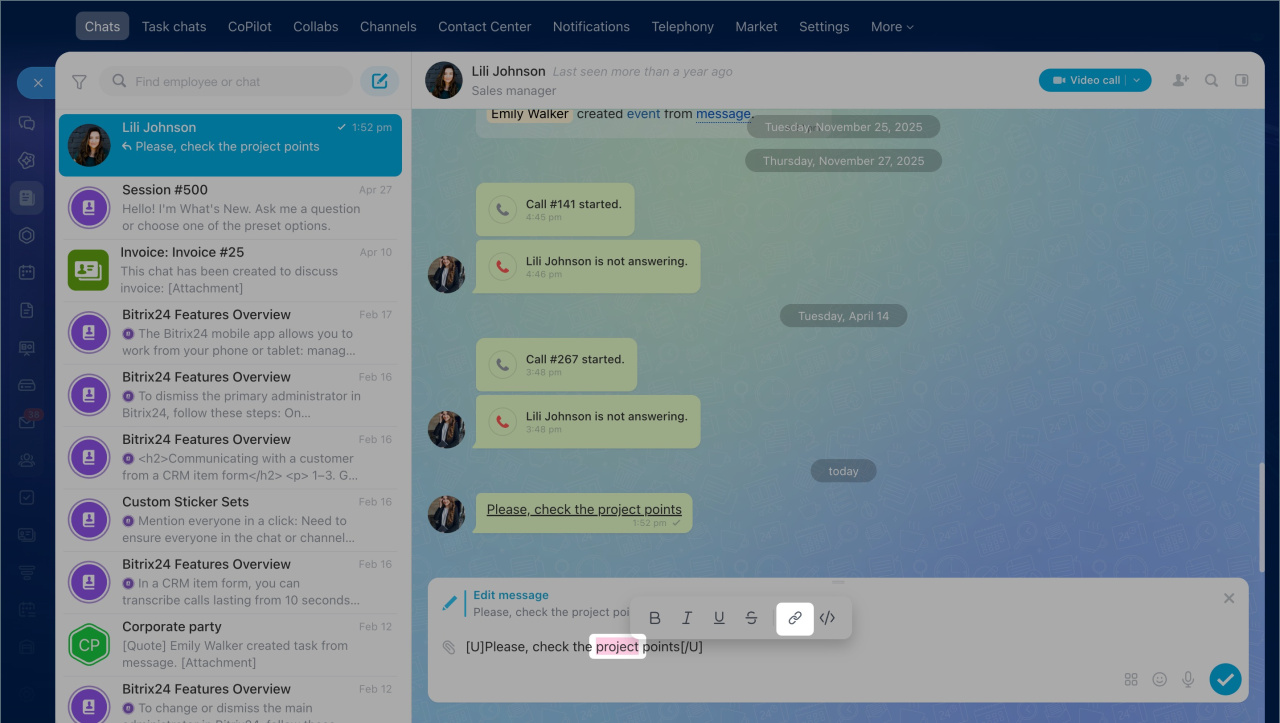
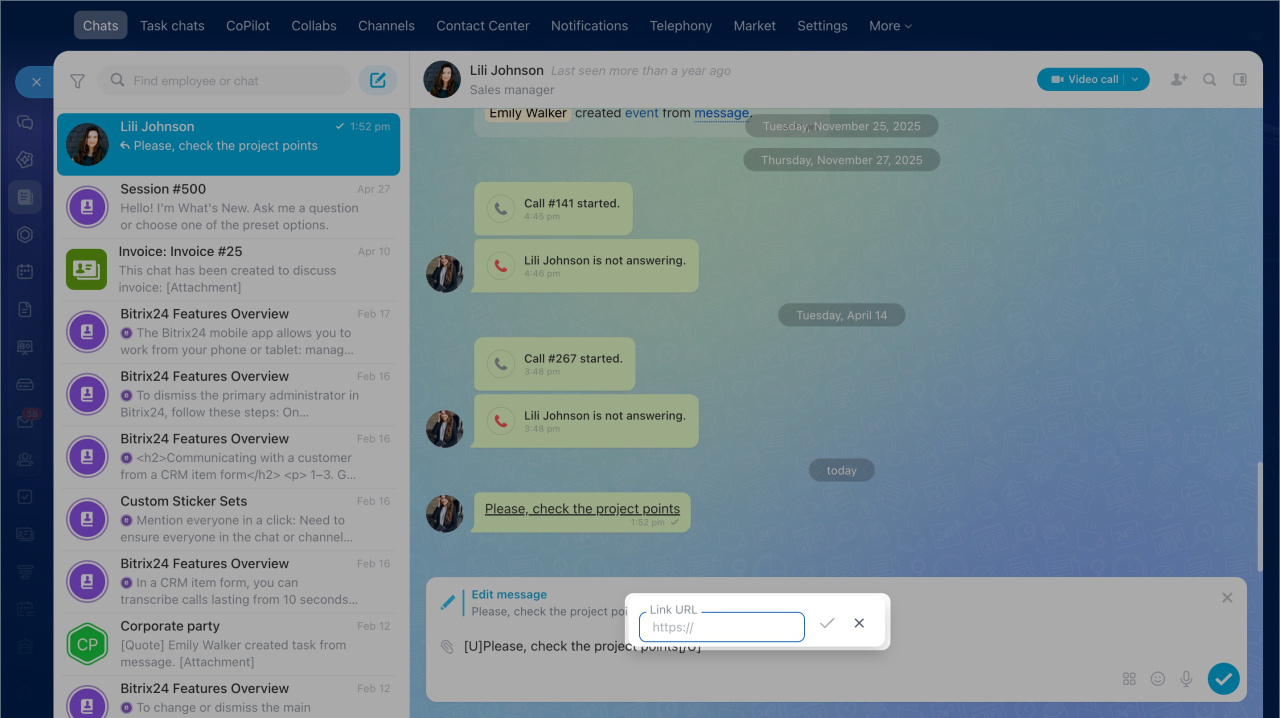
To add a link:
- Select the text you want to turn into a link and click it.
- Click the chain icon.
- Enter the link address and confirm the change.
Use the built-in menu in the Bitrix24 mobile app to format text, add links, and more.
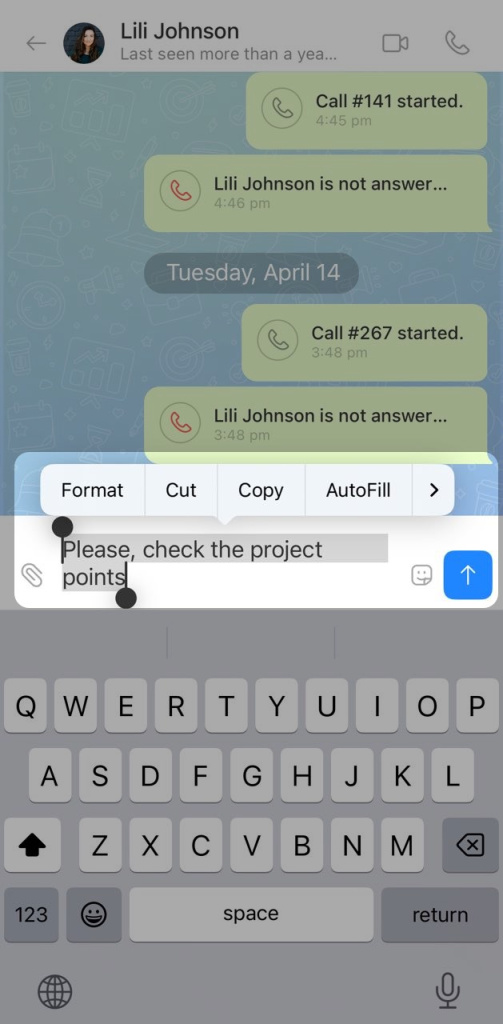
1. Enter your text in the message field. Select the text you want to format and tap it.
2. In the menu that appears, tap Format.
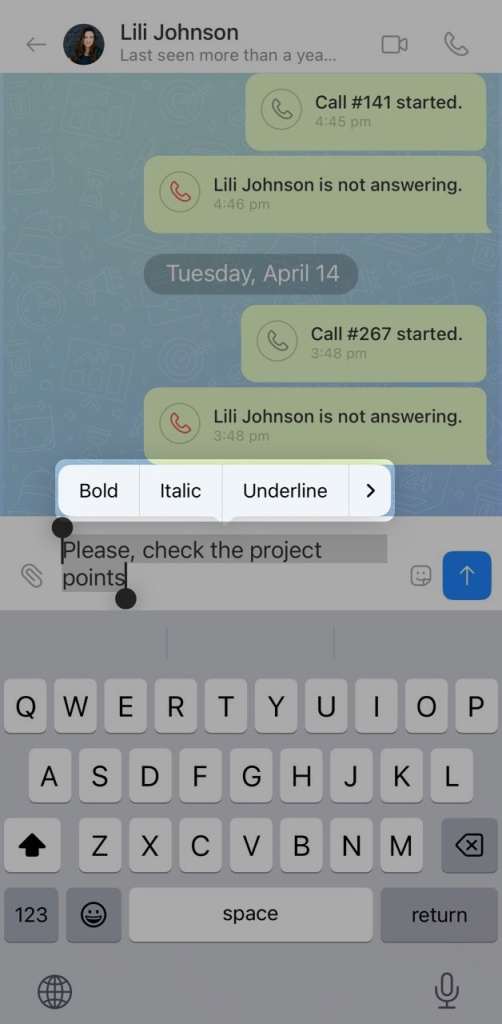
3. Choose one of these options:
- Bold
- Italic
- Underline
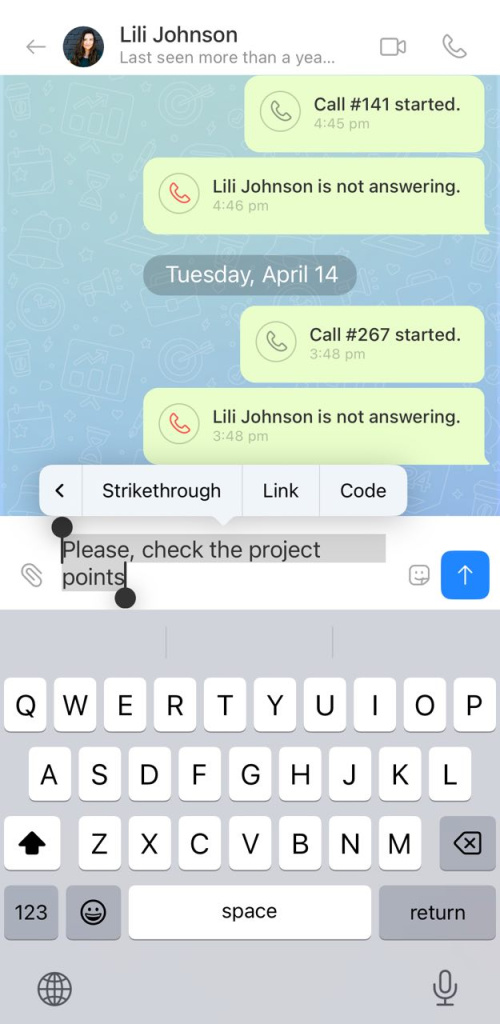
- Strikethrough — adds a line through the text
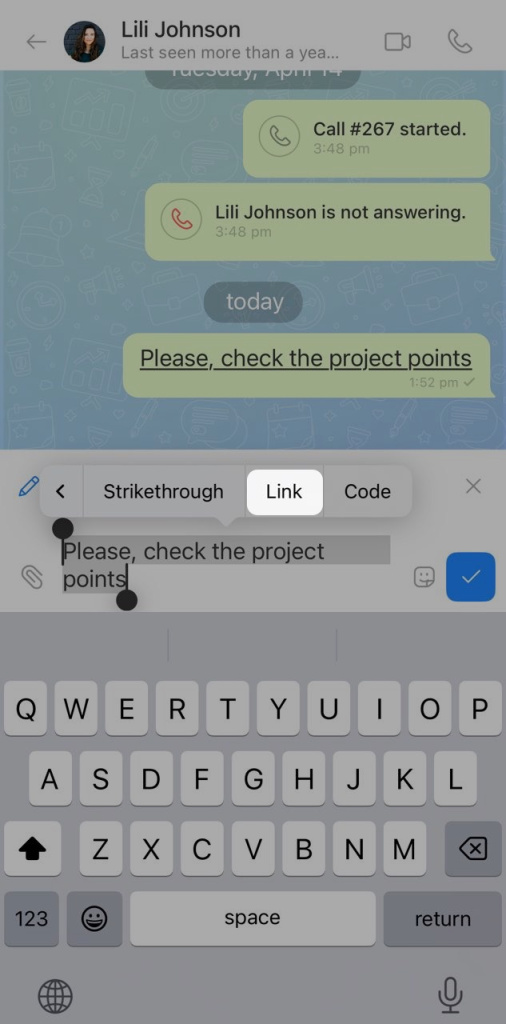
- Link — turns the text into a clickable link
- Code — formats the text as a code snippet
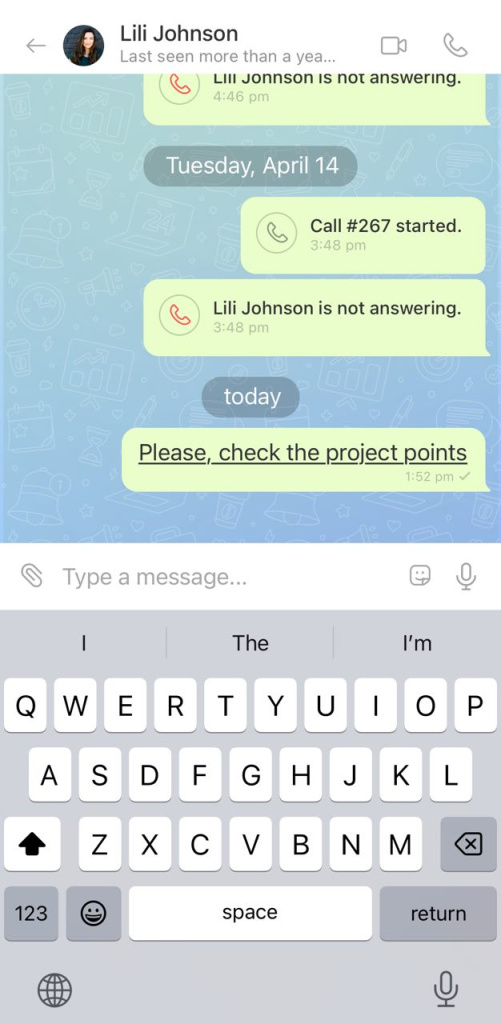
To add a link:
1. Select the text you want to turn into a link.
2. Tap Format > Link.
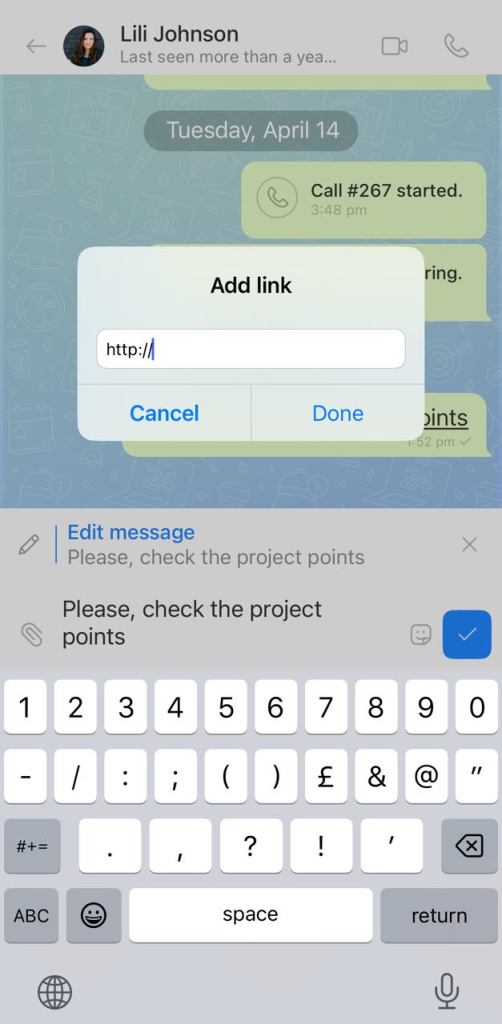
3. In the window that opens, enter the link address and tap Done.
Use hotkeys in Bitrix24 on the web
Hotkeys are keyboard shortcuts that help you perform actions without using a mouse.
In the Bitrix24 Messenger app, they work in chats, calls, and channels.
You cannot create custom hotkeys.
View available hotkeys
Go to Messenger > Three dots (...) > Messenger settings > Hotkeys.

Chat and text formatting shortcuts
| Action | Windows | macOS |
|---|---|---|
| Edit last message | ↑ | ↑ |
| Select all text | Ctrl + A | Cmd + A |
| Bold text | Ctrl + B | Cmd + B |
| Italic text | Ctrl + I | Cmd + I |
| Underline text | Ctrl + U | Cmd + U |
| Strikethrough | Ctrl + S | Cmd + S |
Video call shortcuts
| Action | Windows | macOS |
|---|---|---|
| Turn microphone on/off | Ctrl + Shift + A | Cmd + Shift + A |
| Push-to-talk | Hold Space | Hold Space |
| Start/stop screen sharing | Ctrl + Shift + S | Cmd + Shift + S |
| Turn camera on/off | Ctrl + Shift + V | Cmd + Shift + V |
| Start/stop recording | Ctrl + Shift + R | Cmd + Shift + R |
| Raise/lower hand | Ctrl + Shift + H | Cmd + Shift + H |
| Collapse/expand call | Ctrl + Shift + C | Cmd + Shift + C |
| Switch view mode | Ctrl + Shift + W | Cmd + Shift + W |
| Mute/unmute participants | Ctrl + Shift + M | Cmd + Shift + M |
| Open/close participants list | Ctrl + Shift + U | Cmd + Shift + U |
In brief
- You can format a message in four ways: BBCode, Markdown, keyboard shortcuts, or the built-in menu. Keyboard shortcuts also help you perform actions in chats and during calls.
- BBCode is a markup language for message formatting. It uses tags in square brackets. For example, to make text bold, use
[B][/B]and put the text between the tags. - Markdown is a markup language used to format text in many services, including AI assistants. When you copy Markdown text into a Bitrix24 chat and send it, headings, lists, and tables appear formatted. You can also change the formatting when you edit a message.
- In the mobile app, to make part of a message bold or italic, add a link, or apply other formatting, select the text and tap it.
- Hotkeys are keyboard shortcuts that let you perform actions without using a mouse. For example, you can edit the last message, format text, mute or unmute your microphone, and more.
- In the web version of Bitrix24, hotkeys work only in chats and channels. In the Bitrix24 Messenger app, they work in chats, calls, and channels. You cannot create custom hotkeys.