🚚 Miễn phí giao hàng toàn quốc

✅ Tặng Gói Hỗ trợ online trọn đời

✅ Giá cạnh tranh nhất thị trường

✅ Miễn phí tư vấn giải pháp

🚚 Miễn phí giao hàng toàn quốc

✅ Tặng Gói Hỗ trợ online trọn đời

✅ Giá cạnh tranh nhất thị trường

✅ Miễn phí tư vấn giải pháp

Hotline: 0943.199.449

Địa chỉ: Tầng 1, tòa nhà Deli, 75 Hoàng Văn Thụ, P. Cầu Kiệu

Bitrix24 Helpdesk

Synchronize Bitrix24 user details with Android device

Synchronize your company contacts with Android phones. You can sync contacts manually or enable automatic synchronization.

Enable synchronization

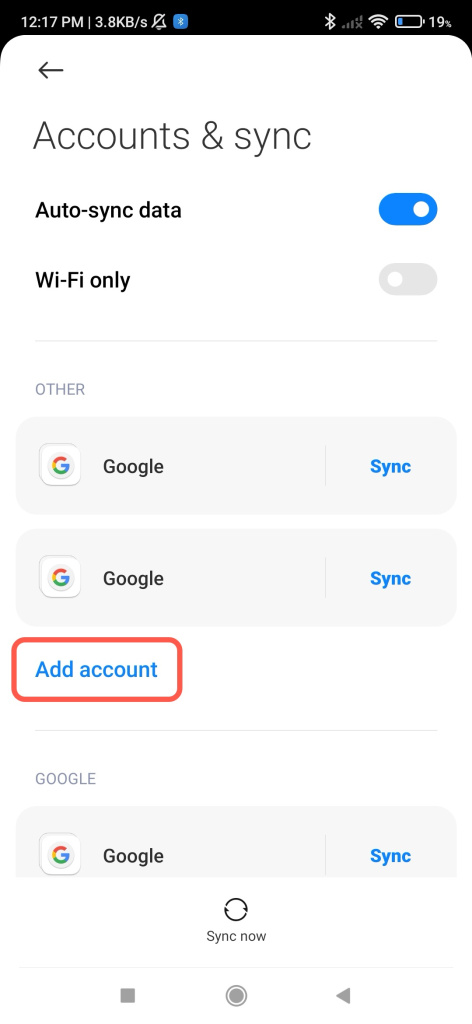
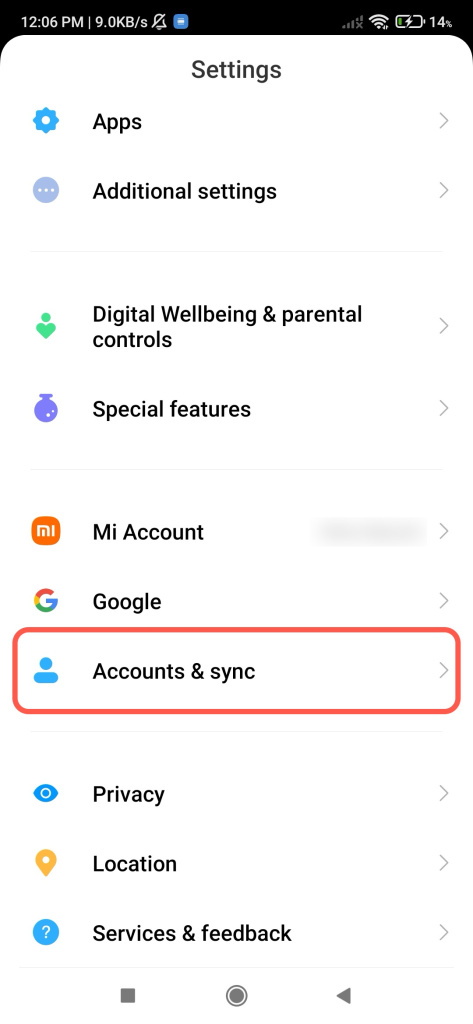
  1. Open your phone settings.
  2. Go to Accounts.
  3. Tap Add account.

Section names may vary depending on your phone model.
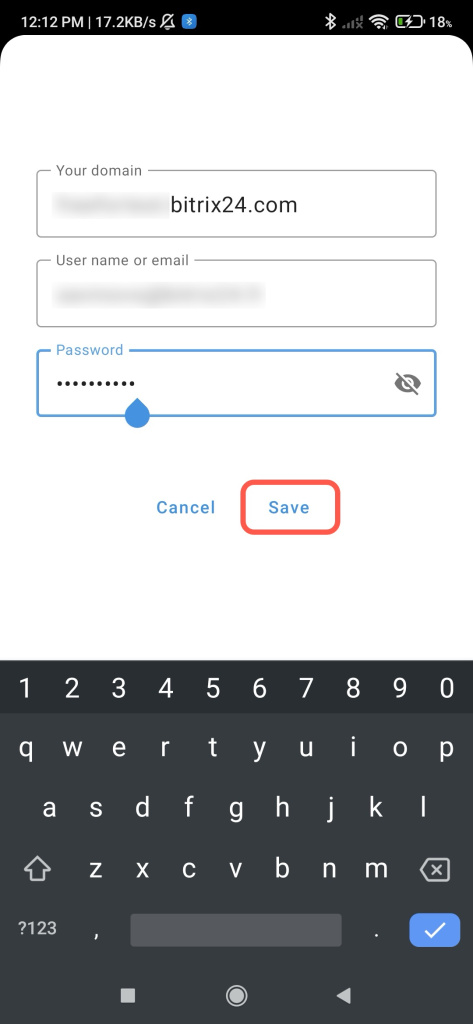
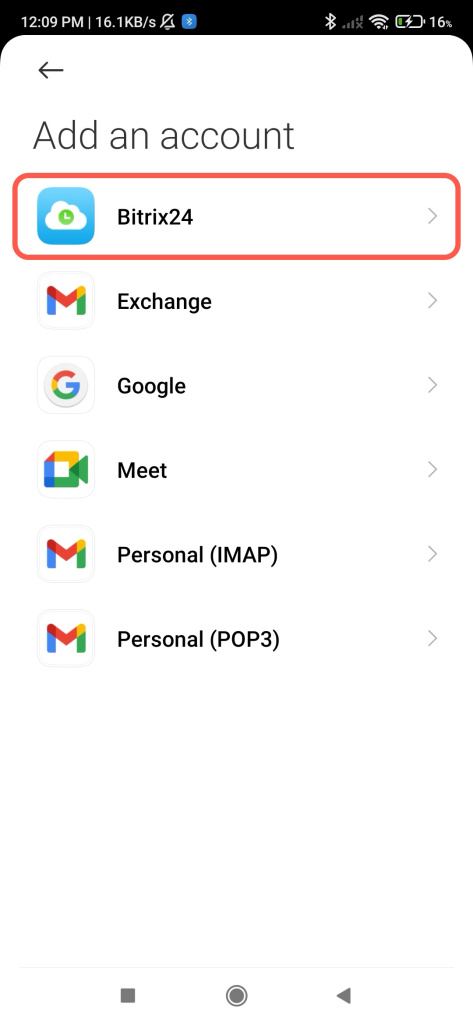
Select Bitrix24 from the list and enter your login details. Then tap Save.
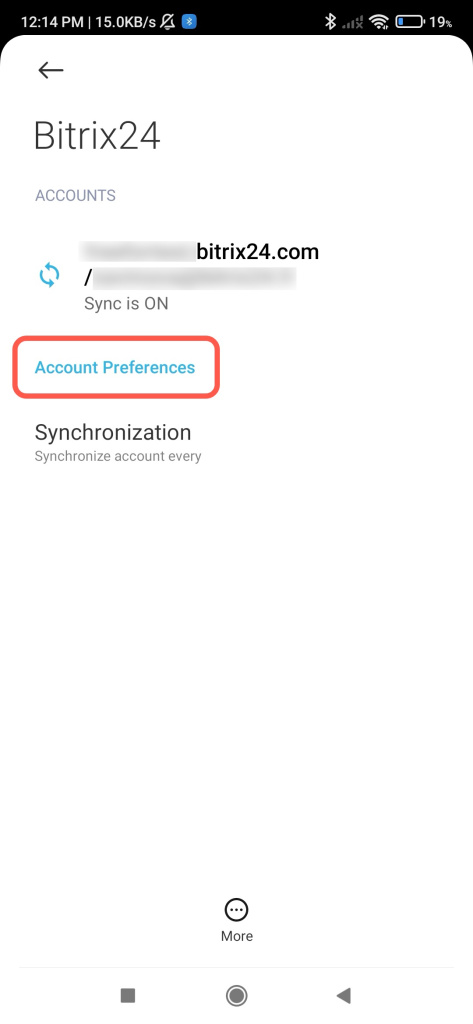
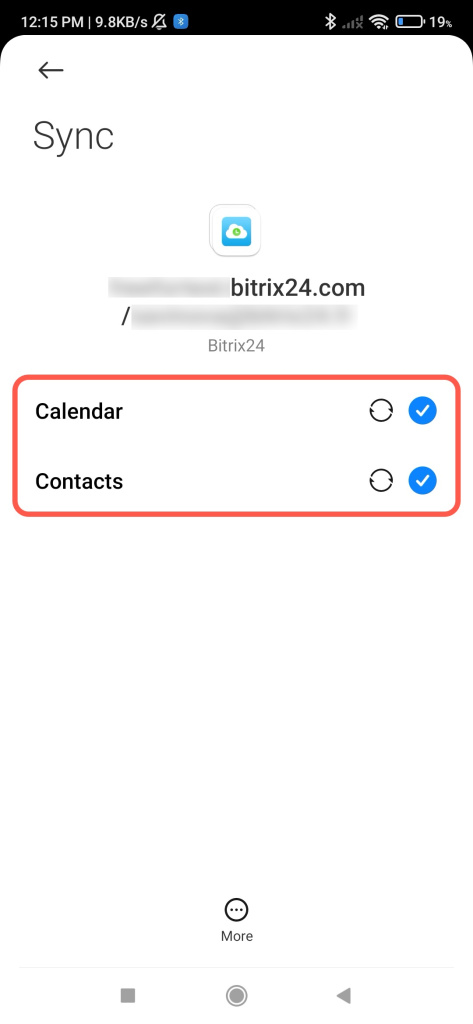
After you add the account, you can sync your Calendar and Contacts. Open the account settings and enable the options you need.
Set up automatic synchronization

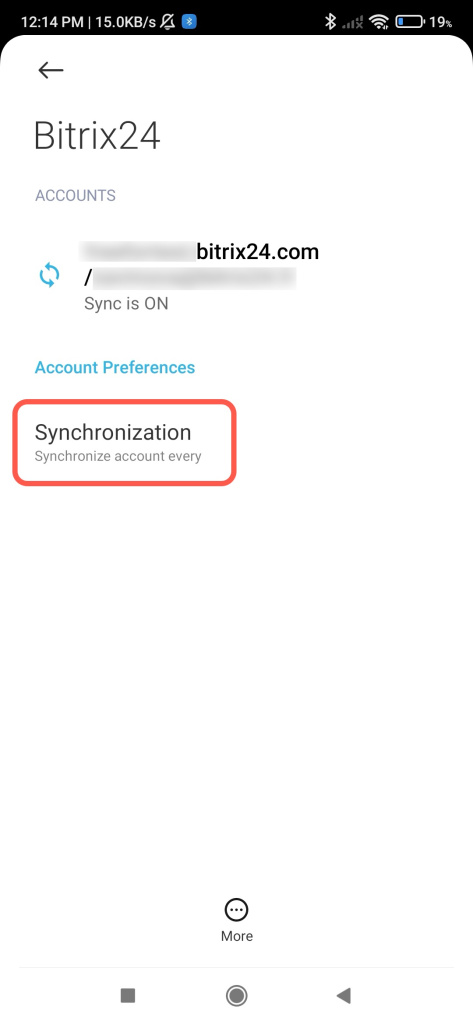
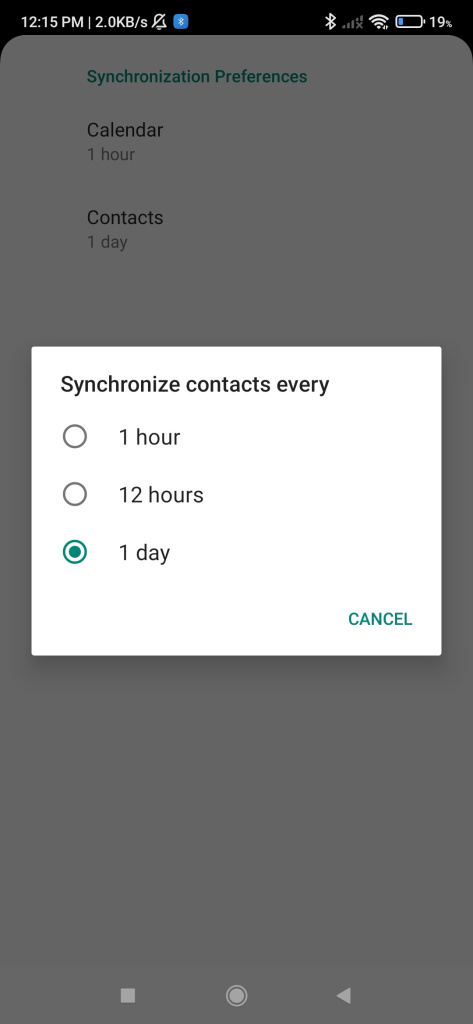
To enable automatic synchronization, choose how often your phone should sync data. Your contacts will update automatically in the background.
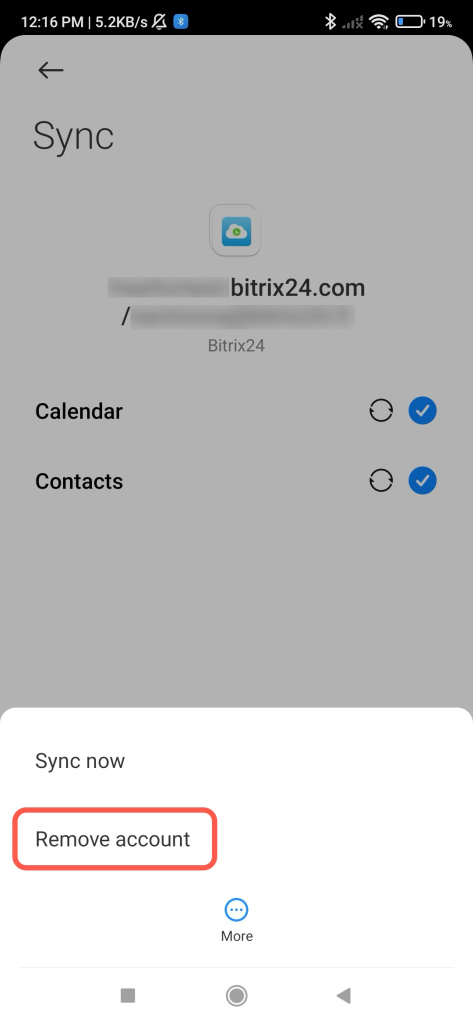
Disable synchronization

To stop synchronization, remove the connected account from your phone.

Was this information helpful?
Thank you for your feedback.
Get Implementation Help from a Partner
That's not what I'm looking for
Complicated and incomprehensible text
The information is outdated
It's too short. I need more information
I don't like the way this tool works
Get your Bitrix24 set up by local professionals
FIND BITRIX24 PARTNER NEAR ME
implementation_helper_man
Go to Bitrix24
Don't have an account? Create for free
Related articles
Synchronize users' contacts with iOS Contacts app Synchronize contacts with Microsoft Outlook Select сontacts in Bitrix24 for synchronization with your phone
Zalo
0943.199.449