


You can transfer your CRM, including all its settings, to another Bitrix24 account. This is especially useful if you manage multiple branches or a branch network and want them to work within a unified system with the same processes.
When you import CRM settings, the following will be replaced in the new Bitrix24 account:
- CRM item form settings
- Custom fields
- Stages and sales pipelines
- Automation rules, triggers, and workflows
- CRM forms
- SPAs
Role-based access permissions in CRM
If your current Bitrix24 account already has leads and deals, they will be deleted after the import. To keep them, make sure to export these items beforehand.
Export CRM data
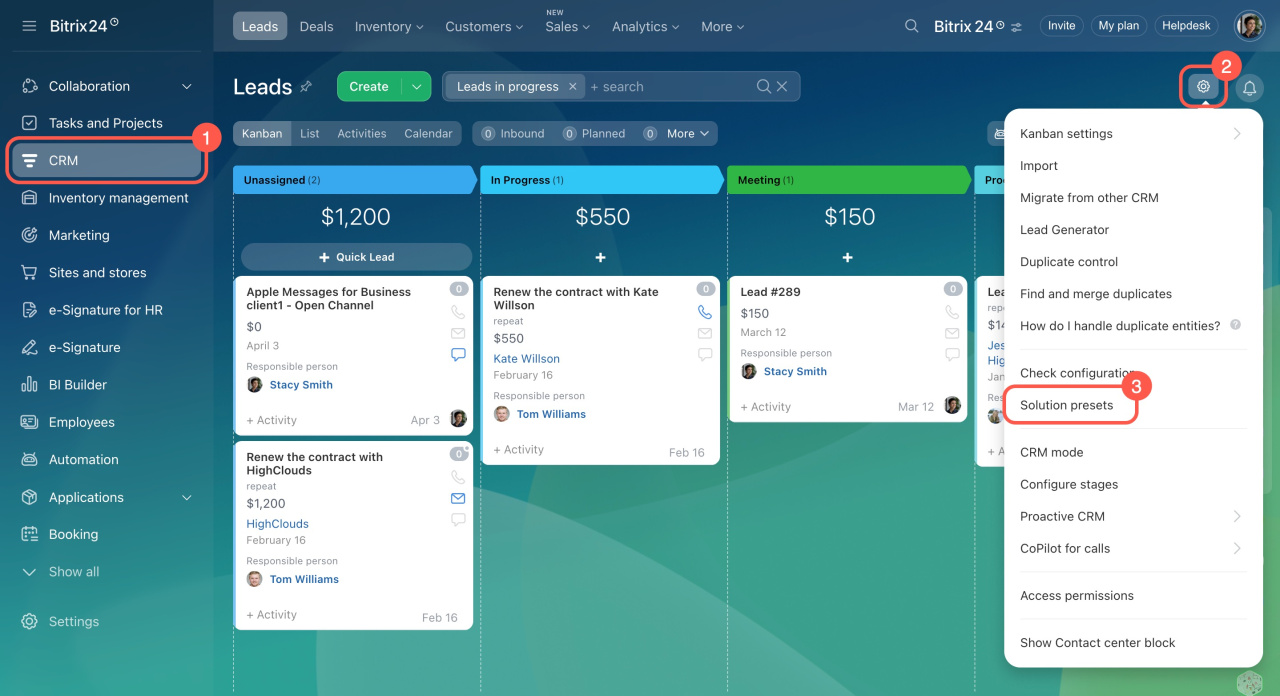
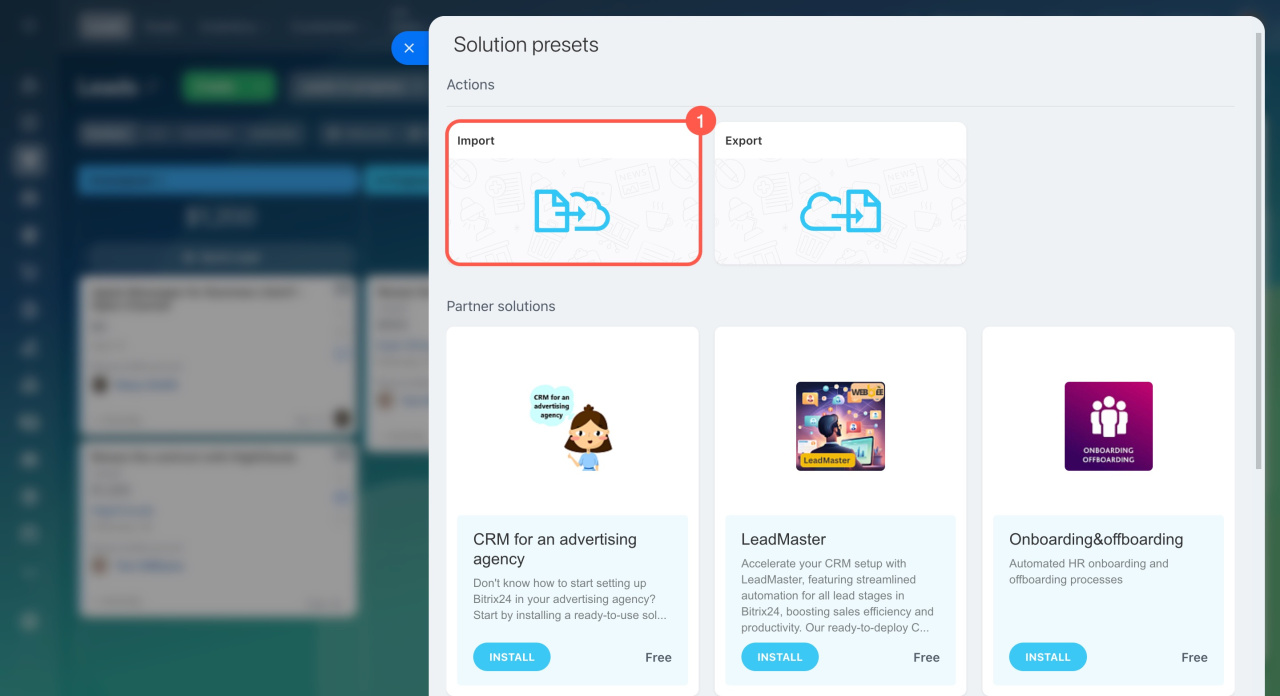
To get started, go to CRM > Settings (⚙️) > Solution presets.
Export CRM settings
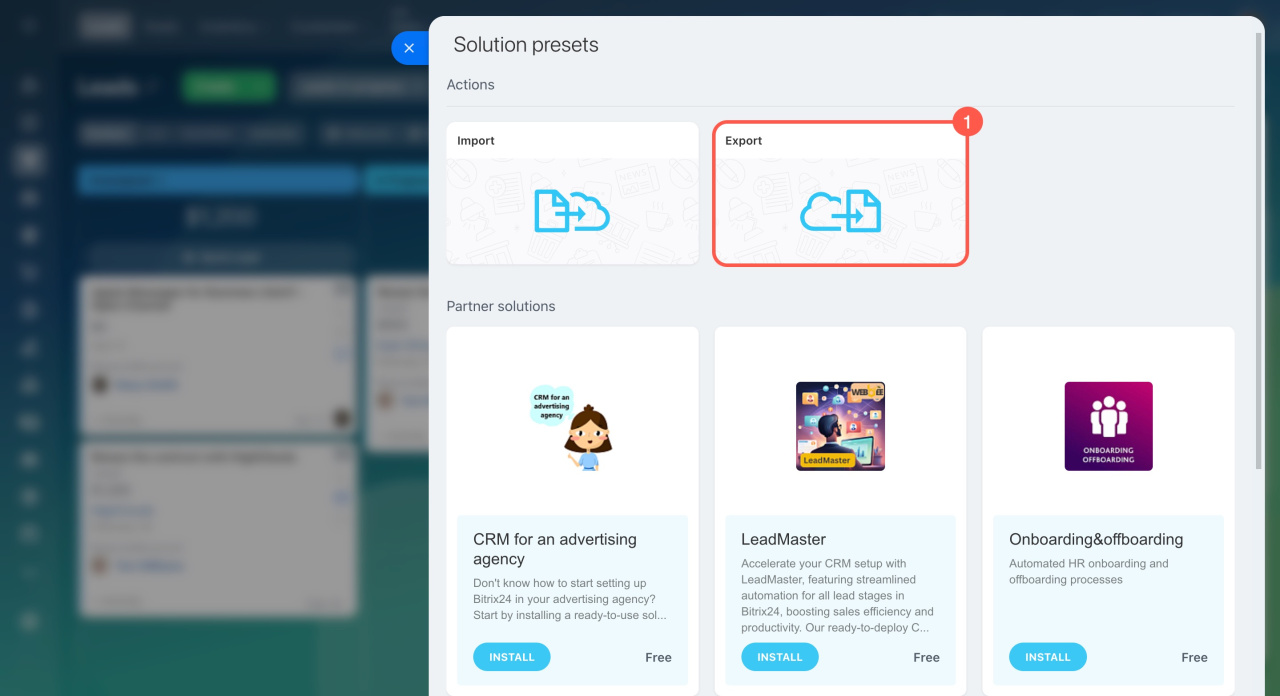
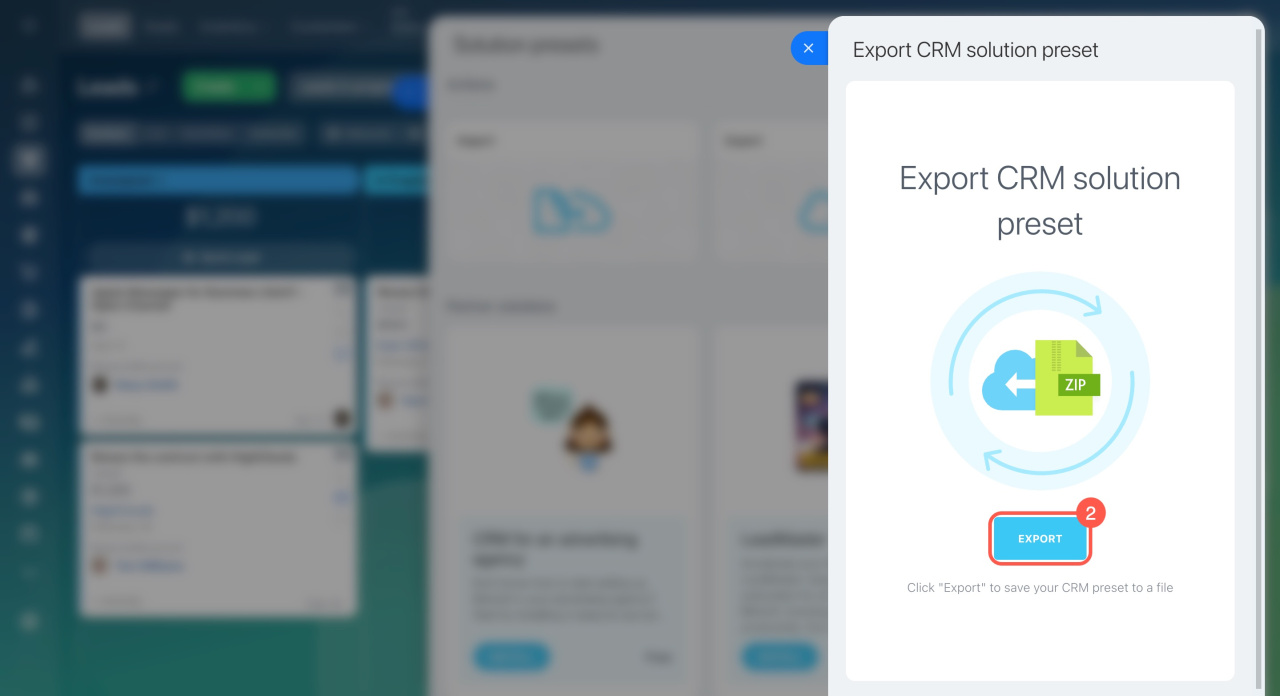
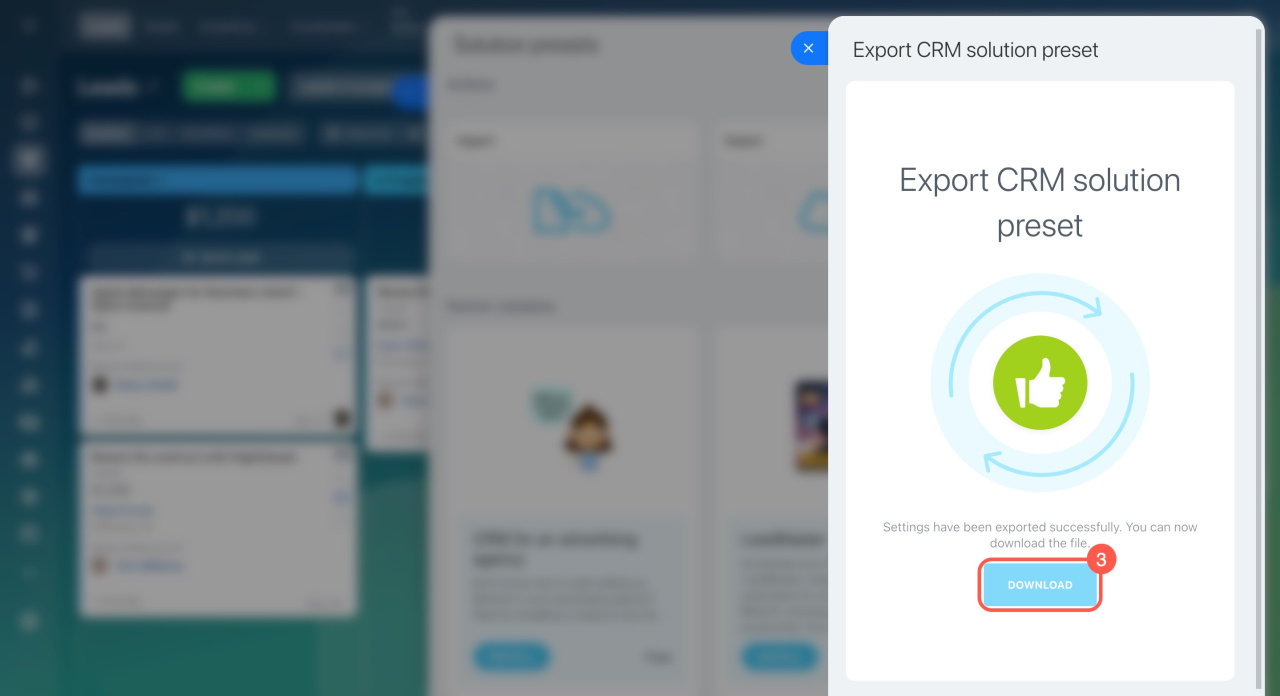
To export CRM with all its settings:
- Click Export.
- Click Export again.
- Download the file containing your CRM settings.
Import CRM settings
- Click Import.
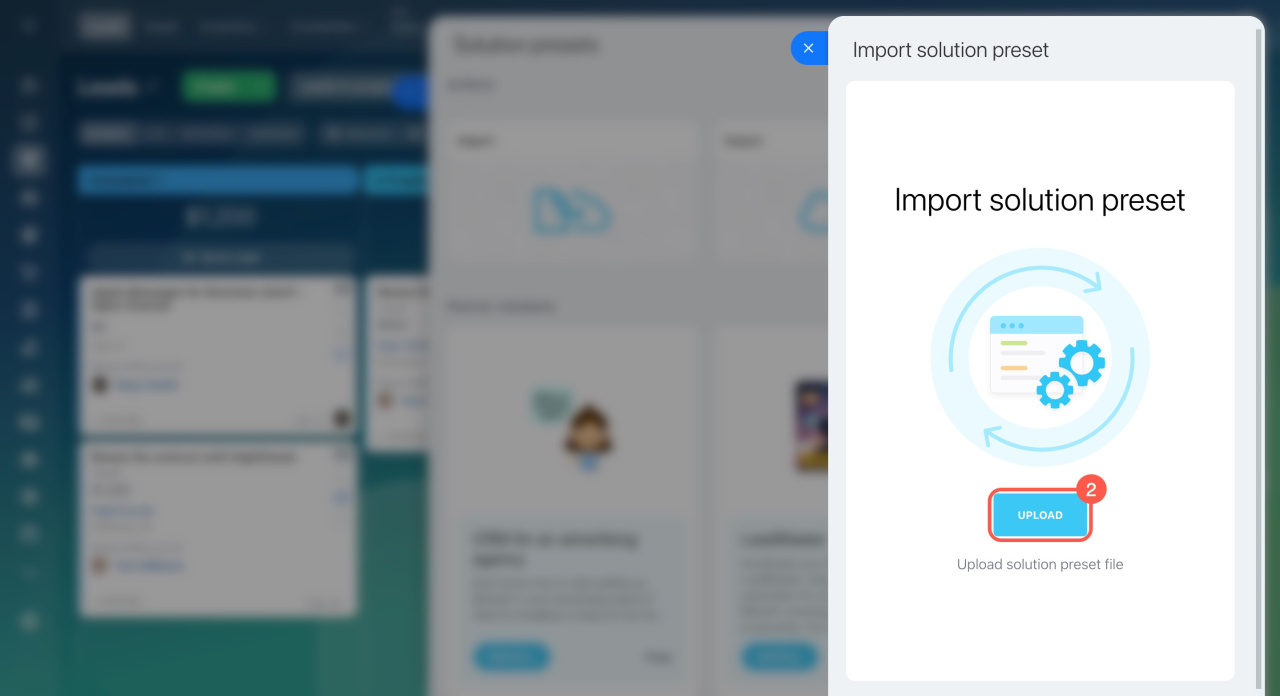
- Upload the ZIP file you downloaded from another Bitrix24 account.
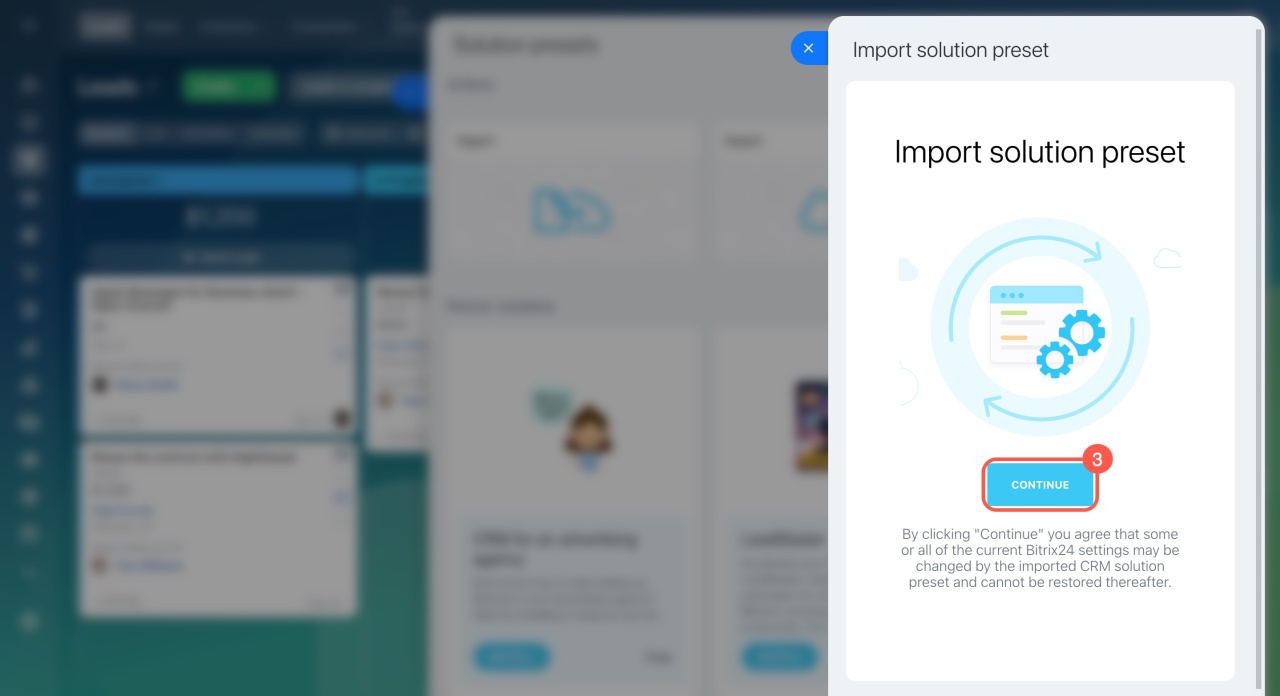
- Click Continue.
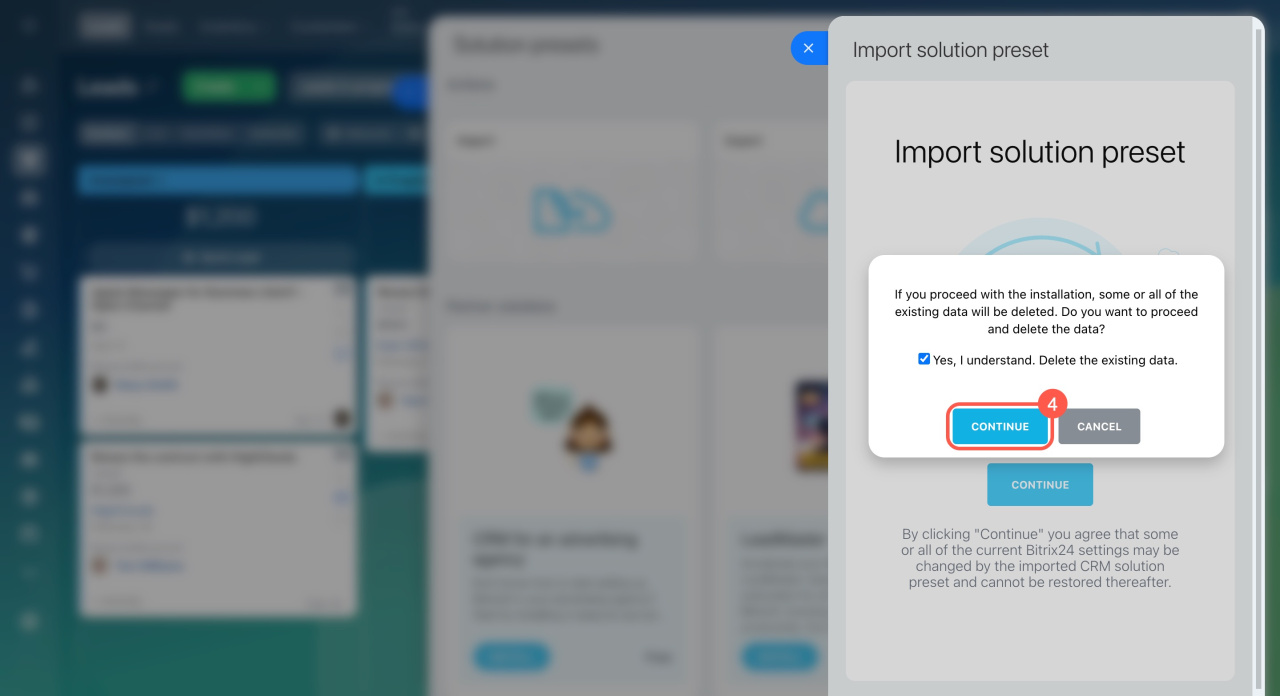
- Confirm your agreement to delete some data in your CRM and click Continue.
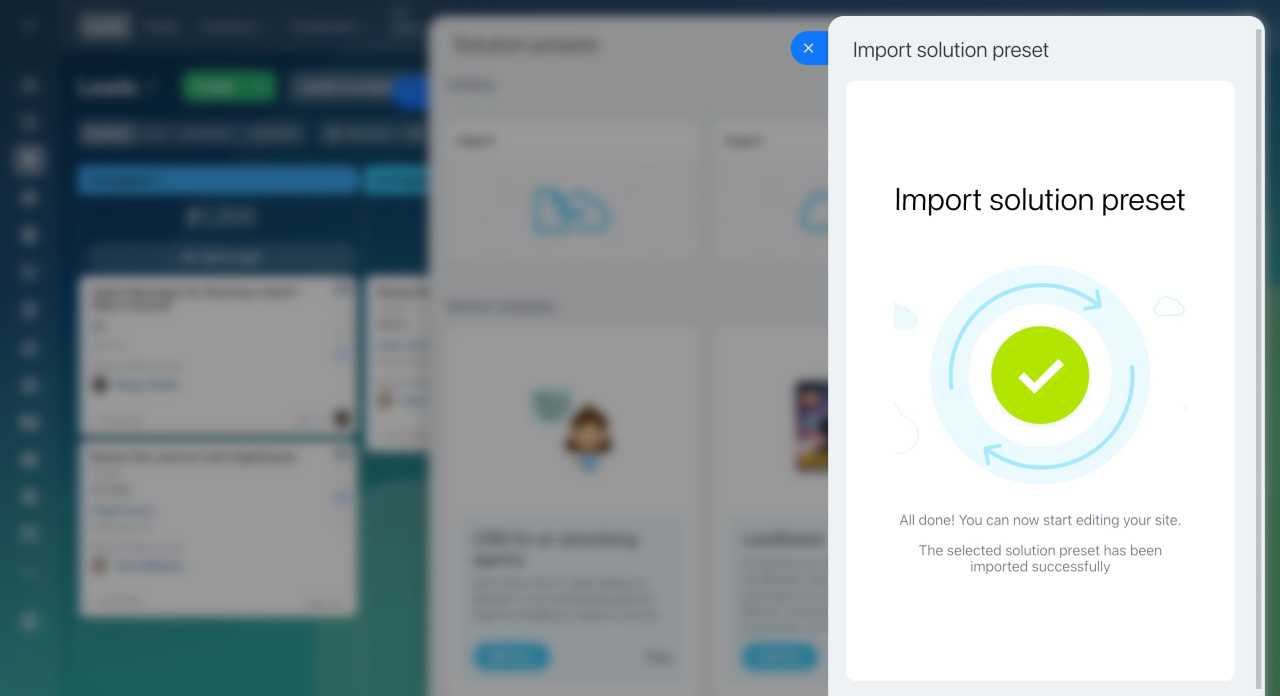
- Wait for the import process to complete.
In brief
-
You can transfer your CRM, including all its settings, to another Bitrix24 account. This is ideal for managing multiple branches or networks with unified processes.
-
Only Bitrix24 administrators can export and import CRM settings.
-
Importing CRM settings will replace CRM item form settings, custom fields, stages, pipelines, automation rules, triggers, workflows, CRM forms, and SPAs in the new account.
-
If your current Bitrix24 account already has leads and deals, they will be deleted after the import. To keep them, make sure to export these items beforehand.
-
To export and import CRM settings, go to CRM > Settings (⚙️) > Solution presets.


