


In the Bitrix24 mobile app, you can chat with CoPilot in a dedicated chat or use it in any other chat. It helps with a wide range of tasks, from writing emails to generating business ideas.
Open a chat with CoPilot
CoPilot has its own tab in the chat panel. Bitrix24 saves all conversations, and CoPilot keeps the context for each chat. You can return to any conversation and continue where you left off.
To start a chat:
1. Go to Messenger > CoPilot.
2. Tap Plus (+).
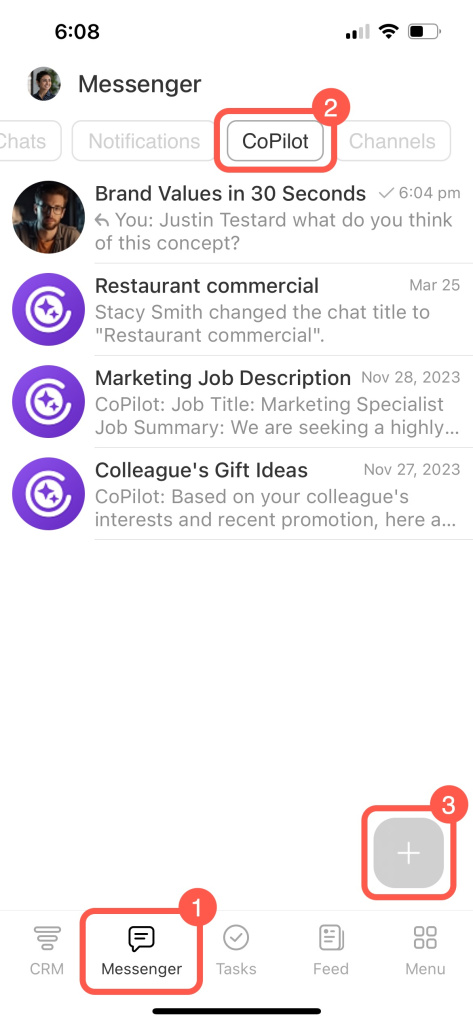
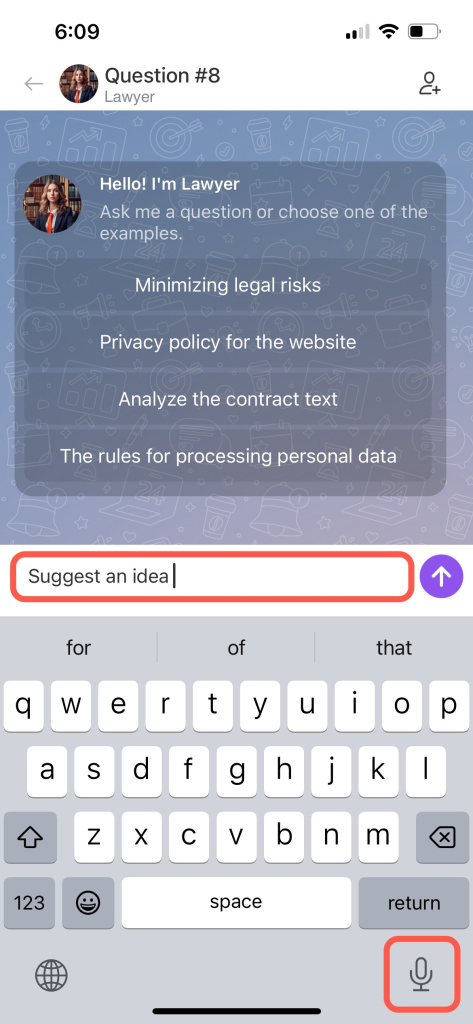
3. Enter your question or use the mic icon to ask by voice.
CoPilot roles
CoPilot can act as an expert in a specific field. There are more than 30 roles, including sales manager, lawyer, HR manager, poet, and others.
To choose a role during a conversation:
1. Tap the chat name in the header.
2. Select Role.


Roles are grouped by category. Use preset prompts to quickly see how CoPilot responds in a specific role.


You can also create your own prompts. Specify the response format, add limits, or provide examples to get more accurate results.
Add colleagues to a CoPilot chat
Invite colleagues to a CoPilot chat to ask questions and discuss ideas together. All participants can see CoPilot's responses.
You can add participants when starting a chat or later.
To add participants:
1. Tap the icon in the top-right corner.
2. Choose the colleagues you want to invite.
3. Tap Select.

To send a message to a colleague in a CoPilot chat, mention them. Tap + or @ and enter their name. CoPilot responds to messages without user mention.

Mention CoPilot in a chat
Reach out to CoPilot in any chat, project, or in channel post comments. Ask questions, discuss ideas, or request a summary of the conversation. CoPilot helps you quickly understand the context, generate ideas, and continue the discussion.
You can mention CoPilot in a new message or from the context menu of an existing message.
In a new message. Use this option to summarize or analyze the entire conversation.
1. In the message field, type @ and select CoPilot.

2. Enter your request, such as “Summarize the meeting” or “Suggest slogan ideas.”

3. CoPilot replies directly in the chat.

From the message context menu. Use this option when CoPilot should focus on a specific message.
1. Tap and hold the message.
2. Select Ask CoPilot.

3. The message appears in the input field with a CoPilot mention. Enter your request, and CoPilot replies in the chat.